
 This is an archive version of the document. To get the most up-to-date information, see the current version.
Accessing Veeam Backup for Microsoft Azure
You can log in to the Veeam Backup for Microsoft Azure portal using accounts with enabled or disabled multi-factor authentication (MFA). For more information, see Backup Administrator Accounts.
Logging In with Enabled Multi-Factor Authentication
To open the Veeam Backup for Microsoft Azure portal and log in using an account with enabled milti-factor authentication, do the following:
- In a web browser, navigate to the Veeam Backup for Microsoft Azure.
The URL consists of a public IPv4 address or DNS hostname of the Microsoft Azure VM where Veeam Backup for Microsoft Azure is installed. Note that the website is available over HTTPS only.
For example:
- IPv4 address — https://135.169.170.192
- Public DNS hostname — https://abc.ukwest.cloudapp.azure.com/
- In the Username field, enter an enabled MFA user account.
- In the Password field, enter the password for the specified account.
- Click Login.
To keep the user logged in, select the Keep me logged on check box.
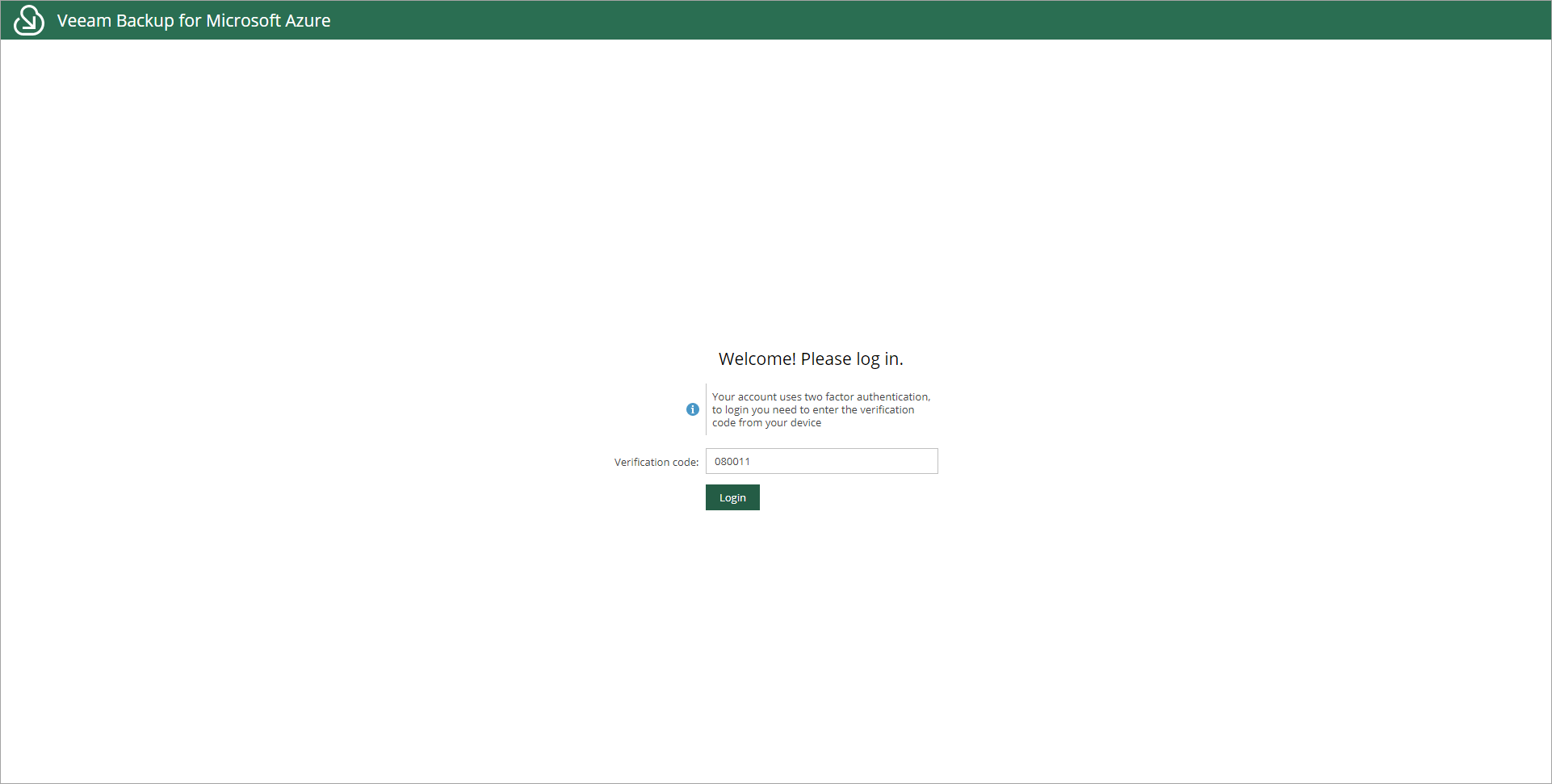
- In the Verification code field that appears, enter the code that you receive in the application that you use for two-factor authentication.
- Click Login.
To reset the password, click the Forgot password link and follow the steps in the Password Reset window.
Logging In with Disabled Multi-Factor Authentication
To open the Veeam Backup for Microsoft Azure portal and log in using an account with non-enabled milti-factor authentication, do the following:
- In a web browser, navigate to the Veeam Backup for Microsoft Azure.
The URL consists of a public IPv4 address or DNS hostname of the Microsoft Azure VM where Veeam Backup for Microsoft Azure is installed. Note that the website is available over HTTPS only.
For example:
- IPv4 address — https://135.169.170.192
- Public DNS hostname — https://abc.ukwest.cloudapp.azure.com/
- In the Username field, enter a non-enabled MFA user account.
- In the Password field, enter the password for the specified account.
- Click Login.
To keep the user logged in, select the Keep me logged on check box.
To reset the password, click the Forgot password link and follow the steps in the Password Reset window.

In This Section