This platform is being deprecated. Veeam Data Cloud for Microsoft Azure has been relaunched on the unified experience platform with new capabilities. To continue receiving support, all customers must migrate to the new platform. Contact your Veeam sales representative or Veeam Support to plan your migration.
Step 1. Launch SQL Database Restore Wizard
To launch the SQL Database Restore wizard, do the following:
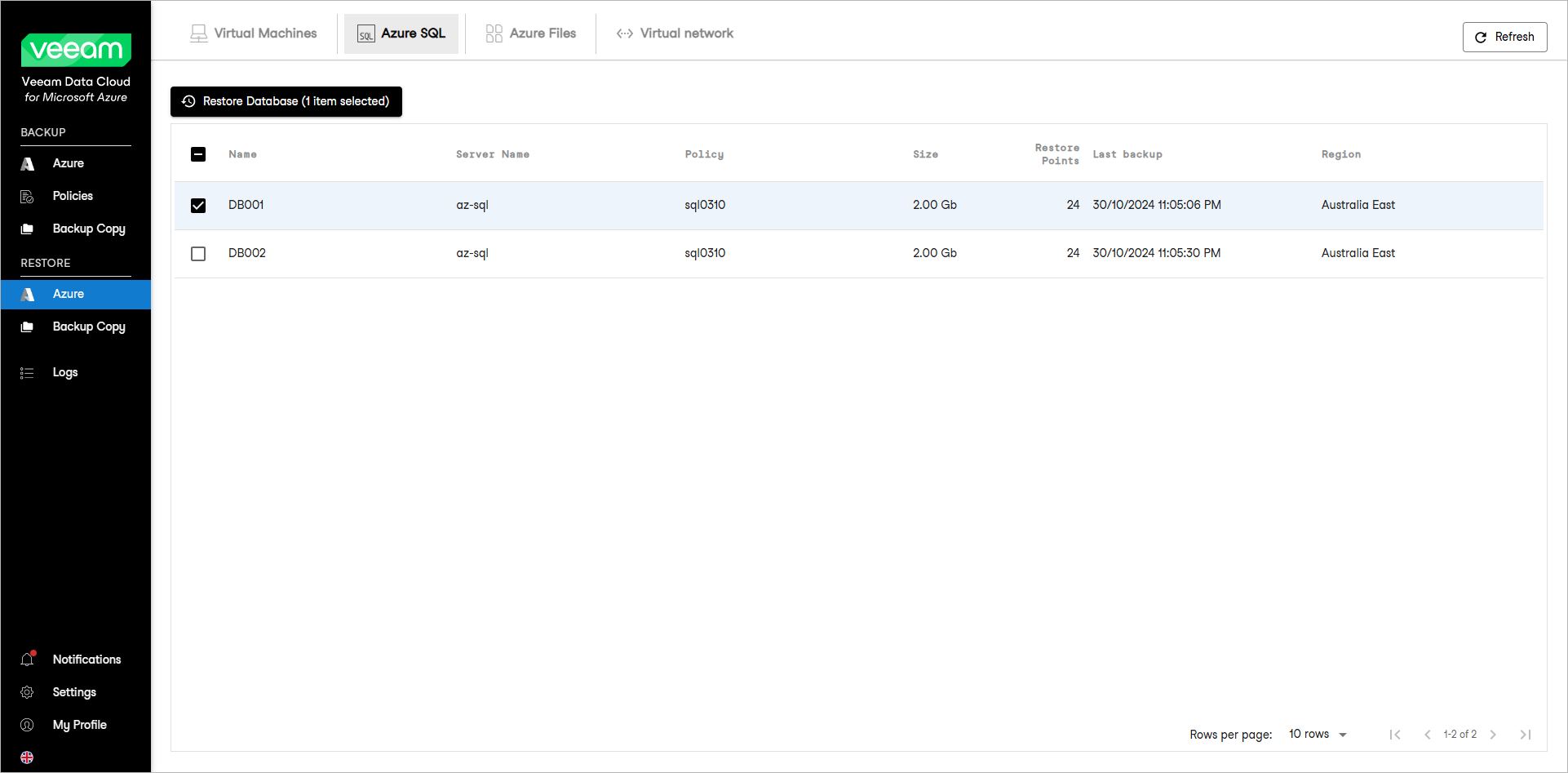
- In the Restore section of the main menu, open the Azure page and select the Azure SQL tab.
- Select the Azure SQL database that you want to restore.
|
Note |
|
You can select one or multiple Azure SQL databases to restore. To select all the protected Azure SQL databases for restore, select the check box next to the Name column header. |
- Click Restore Database. Alternately, right-click the selected database and, in the context menu, choose Restore Database.