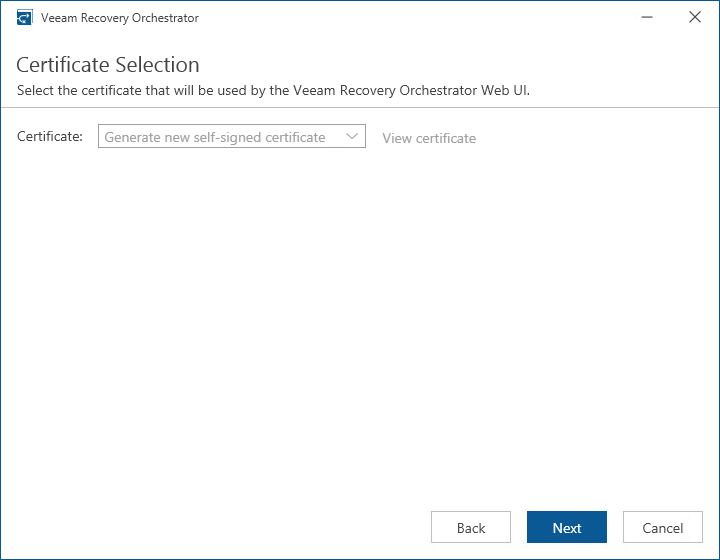
Step 13. Select Certificate for Orchestrator UI
[This step applies only if you have clicked the Customize Settings at the Ready to Install step of the setup wizard]
At the Certificate Selection step of the wizard, you can specify a TLS certificate that will be used to secure traffic between the Orchestrator UI and a web browser. Veeam Recovery Orchestrator offers the following options:
- Use an existing TLS certificate located in the certificate store. This is the recommended option.
- Keep the default self-signed TLS certificate that will be generated during installation.
Using Existing Certificate
A TLS certificate for Orchestrator Web UI must be signed by a CA and meet the following requirements:
- The minimum key size is 2048 bits. 4096 bits is recommended.
- The hashing algorithm is SHA-2.
- The following key usage extensions are enabled in the certificate: Key Encipherment, Data Encipherment.
If you have a suitable TLS certificate, add it to the following certificate stores first:
- Trusted Root Certificate Authorities
- Local Computer > Personal
After you add the certificate, you will be able to select it from the drop-down list at the Certificate Selection step of the wizard.
Generating Self-Signed Certificate
To generate a self-signed TLS certificate, select the Generate new self-signed certificate option. In this case, you must configure a trusted connection between the Orchestrator UI and a web browser later. For more information, see Configuring Trusted Connection.
Note |
|
If there are no suitable TLS certificates in the certificate stores, generating a new self-signed certificate will be the only available option. |