Submitting Monthly Usage Report
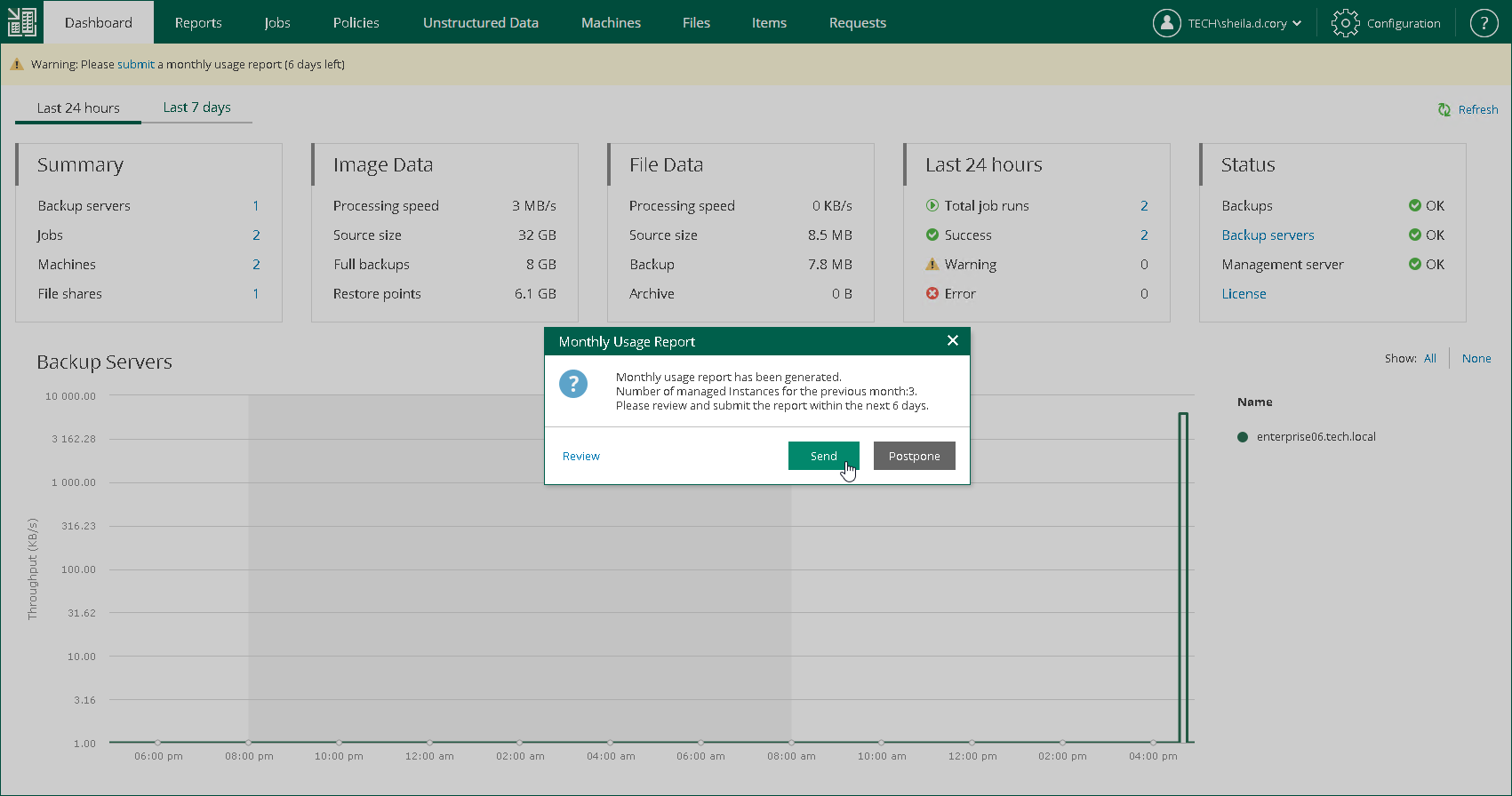
On the first day of the month, Veeam Backup Enterprise Manager shows a warning on the Dashboard tab. The warning prompts you to submit a monthly usage report and informs you on the number of days within which the report must be submitted.
Depending on whether automatic license updating is enabled or disabled, you can submit a monthly usage report from Veeam Backup Enterprise Manager or the VCSP Pulse Portal.
For more information about how license usage reporting works, see the License Usage Reporting section of the Veeam Cloud Connect Guide.
Submitting Report from Veeam Backup Enterprise Manager
If automatic license update is enabled, you can send the monthly usage report directly from Veeam Backup Enterprise Manager. If you do not submit the report within 3 days, Veeam Backup Enterprise Manager sends the report automatically.
To submit a monthly usage report before the automatic submission, perform the following steps:
- In the monthly usage report notification, click the submit link.
- In the Monthly Usage Report window, to check or change the number of used instances, click Review.
For more information, see Reviewing Monthly Usage Report and Adjusting Monthly Usage Report.
- To submit the report, click Send.
You can also postpone the report submission. To do this, click Postpone. In this case, Veeam Backup Enterprise Manager closes the Monthly Usage Report window. Until the report is sent to Veeam, on the Dashboard tab, Enterprise Manager keeps displaying a warning prompting to submit the report.
Submitting Report from VCSP Pulse Portal
If automatic license update is disabled, you must manually fill out and send the report in the VCSP Pulse Portal before the day defined by the agreement with Veeam or your Veeam Aggregator (if any is involved). The default day is the sixth day of the month.
To submit a monthly usage report from the VCSP Pulse Portal, perform the following steps:
- In the monthly usage report notification, click the submit link.
- In the Monthly Usage Report window, to check or change the number of used instances, click Review. For more information, see Reviewing Monthly Usage Report and Adjusting Monthly Usage Report.
- To download the report, click Download.
You can also postpone the report submission. To do this, click Postpone. In this case, Veeam Backup Enterprise Manager closes the Monthly Usage Report window. Until the report is sent to Veeam, on the Dashboard tab, Enterprise Manager keeps displaying a warning prompting to submit the report.
- Fill out the report in the VCSP Pulse Portal with the used workloads and licenses and submit it, as described in the Using VCSP Pulse section of the Veeam Rental Licensing and Usage Reporting Reference Guide.