Step 7. Review Recovery Settings
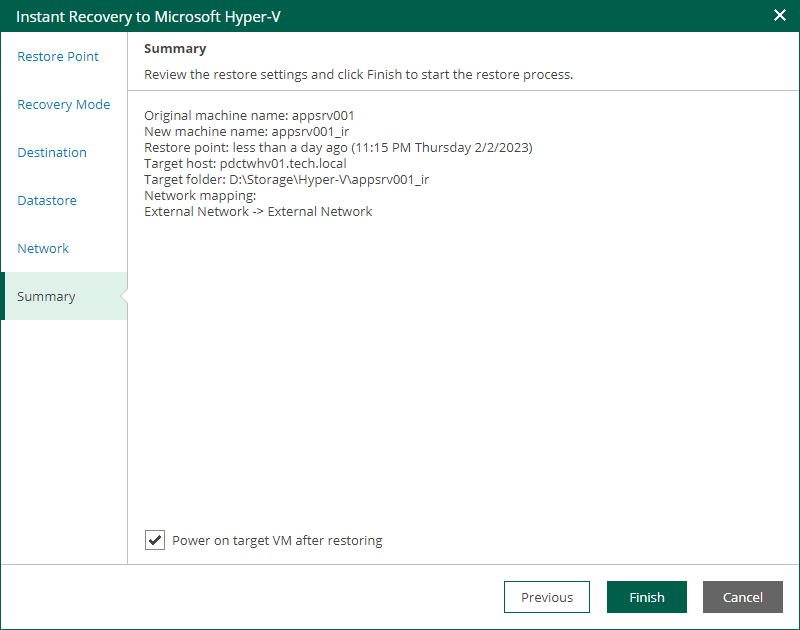
At the Summary step of the wizard, do the following:
- To start the VM right after recovery, select the Power on target VM after restoring check box. If you recover the workloads to the production network, make sure that the original VM is powered off.
- Review settings that you have specified for instant recovery and click Finish.
Veeam Backup Enterprise Manager starts the restore operation and displays its progress and result in the Machine and Disk Restore History view. Note that the Machine and Disk Restore History view displays the restore operations initiated from both Enterprise Manager and Veeam Backup & Replication.
To view the Instant Recovery progress, on the Machines tab, click History.
What You Do Next
After you have performed instant recovery, you have to finalize it. For more information, see Finalizing Instant Recovery to Microsoft Hyper-V.