Step 3. Import Veeam Management Packs
Before you install the VE Service and web UI, you must import Veeam Management Packs (Veeam MPs) — a set of discovery, monitoring and reporting management packs, natively integrated with OpsMgr.
Veeam MPs include the following management packs:
- Veeam.Report.Library.mp, Veeam.Virt.Extensions.VMware.BaseDiscovery.mpb, Veeam.Virt.Extensions.Reports.DataSet.mpb, Veeam.Visualisation.Library.mpb — common management packs on which other packs are dependent..
- Hyper-V MP — a management pack that integrates Microsoft Hyper-V virtual infrastructure and services into Microsoft System Center Operations Manager.
- VMware MP — a management pack that integrates VMware virtual infrastructure performance, event and configuration data into tnto Microsoft System Center Operations Manager. For details on VMware MP, see MP for VMware User Guides.
- Backup MP — a management pack that integrates Veeam Backup & Replication infrastructure, services and jobs into Microsoft System Center Operations Manager. For details on Backup MP, see MP for Veeam Backup& Replication User Guide.
Note |
|
For detailed instructions on how to import a management pack, see this Microsoft article. |
To import the Veeam management packs:
- Open the OpsMgr console using an account with the local Administrator rights.
- Go to the Administration pane.
- In the Administration section, right-click the Management Packs node and select Import Management Packs.
- In the Import Management Packs window, do the following:
- Click Add > Add from disk. OpsMgr will offer you to search the online catalog for dependencies. As Veeam MP already includes all necessary dependencies, click No.
- Browse to the SCOM MPs folder on the mounted installation image.
- Select the following management packs: Veeam.Report.Library.mp, Veeam.Virt.Extensions.VMware.BaseDiscovery.mpb, Veeam.Virt.Extensions.Reports.DataSet.mpb, Veeam.Visualisation.Library.mpb.
- Repeat steps 1-2, navigate to the Hyper-V MP folder and select all the management packs from this folder.
Note |
|
Version 13.1 includes a list of management packs for monitoring Veeam Backup & Replication infrastructure, services and jobs data in System Center Operations Manager. It is highly recommended that you deploy both MP for Veeam Backup & Replication and Veeam MP for Hyper-V together. However, when both MPs are present, there are interactions that require tuning. For more information, see the MP for Veeam Backup & Replication User Guide. |
OpsMgr will show the following security warning regarding the Veeam Virtualization Extensions VMware Integration management pack:
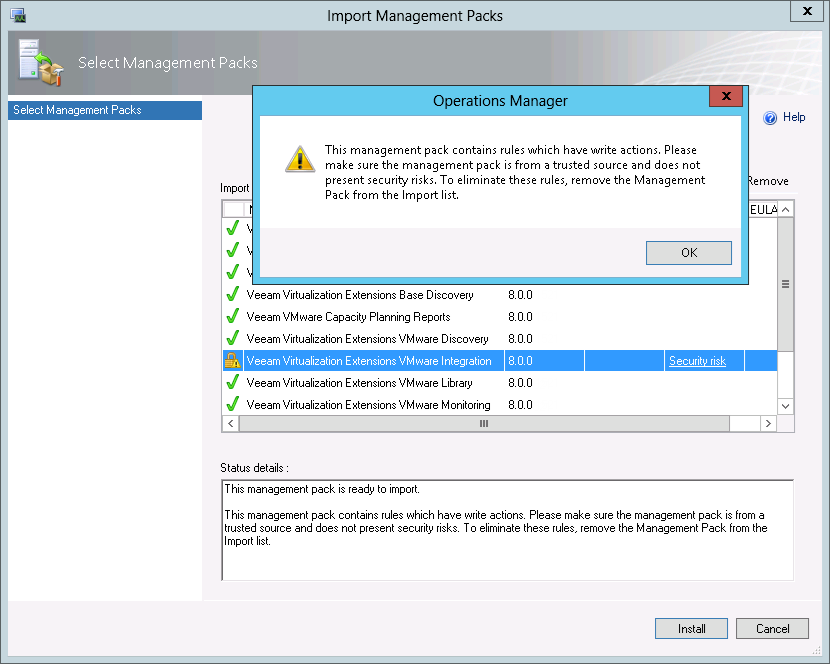
The Veeam Virtualization Extensions VMware Integration management pack contains rules with write actions that run on the OpsMgr Management Server. The actions include PowerShell scripts used for creating associations between objects and maintenance mode synchronization. Click OK to acknowledge the warning.
- Click Import. Operations Manager imports the management packs in the correct order. Check the Import Management Packs dialog for errors.
Note |
|
Keep in mind that the Veeam MP for Hyper-V deployment process continues even after all management packs are imported. Depending on the OpsMgr infrastructure performance, it may take several hours for reports and SQL Server stored procedures to be deployed to the OpsMgr reporting server. This is why some widgets may not function and reports may not be visible in the OpsMgr console during this period. |
After you import Veeam Management Packs, Veeam MP for Hyper-V will check registry values for the OpsMgr Health Service. If the values do not match the recommended configuration, the Veeam Collector: Health Service recommended configuration monitor will fire an alert that triggers the Configure Health Service task. The task automatically adjusts registry configuration settings for the Health Service on Collectors to maximize efficiency when processing large data volumes.
Note |
|
The Configure Health Service task will not run automatically for Health Service on the Management Server. To update the Health Service registry values on the Management Server, you will need to run the task manually. For details, see Running Configure Health Service Task on Management Server. |
When imported, Veeam Management Packs appear in the list of Management Packs in the right pane.