Step 5. Specify Recovery Options
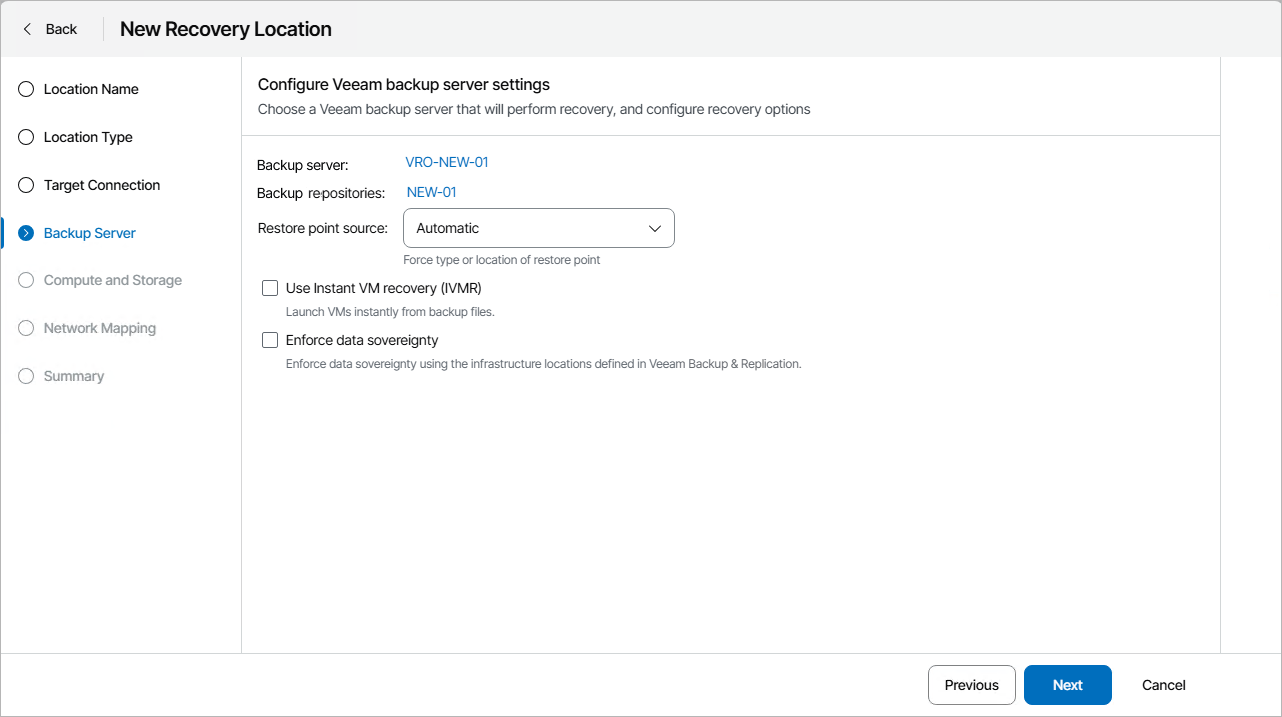
At the Backup Server step of the wizard, choose a backup server that will manage the process of recovering machines to Microsoft Hyper-V and a backup repository where the restore points of these machines are stored. By default, both the backup server and the backup repository are selected automatically depending on the restore points of the VMs processed during restore operations. However, you can also instruct Orchestrator to look through specific restore points only.
To specify a backup server and a backup repository, do the following:
- Click the link in the Backup server field, set the Automatic selection toggle to Disabled, select the necessary backup server and click Apply. Note that one recovery location can be associated with one Veeam Backup & Replication server only.
For a Veeam Backup & Replication server to be displayed in the list of available servers, it must be added to Orchestrator as described in section Connecting Veeam Backup & Replication Servers.
- Click the link in the Repositories field, set the Automatic selection toggle to Disable, select the necessary repository and click Apply. Note that one recovery location can be associated with multiple backup repositories.
You can use directly attached storage (Windows, Linux), object storage (Veeam Data Cloud Vault, Microsoft Azure, Wasabi) and scale-out backup repositories. Tape and deduplicating storage appliances are not supported.
For a backup repository to be displayed in the list of the available repositories, it must be added to the backup infrastructure as described in section Adding Backup Repositories.
Additionally, you can configure the following settings:
- Choose whether you want Orchestrator to use backup files created by backup jobs, their copies created by backup copy jobs or files that are stored in scale-out backup repositories. Alternatively, you can choose to let the product select the files automatically, based on the most recent restore points.
For more information on the way Orchestrator selects backup files and restore points to recover machines when performing restore operations, see How Orchestrator Selects Backup Files.
- Choose whether you want to enable Instant VM Recovery for the location.
With Instant VM Recovery, all processed machines will be immediately restored in the location by running directly from the backup files. Instant VM Recovery helps improve recovery time objectives (RTO), minimize disruption and downtime of the machines. For more information on the Instant VM Recovery feature, see the Veeam Backup & Replication User Guide, section Instant VM Recovery.
- Choose whether you want Orchestrator to be able to recover VMs to a different location in Veeam Backup & Replication.
To control data migration in the virtual infrastructure, Veeam Backup & Replication introduces infrastructure locations. A location defines a geographic region where an infrastructure object resides. To learn how to create and assign locations to infrastructure objects in Veeam Backup & Replication, see the Veeam Backup & Replication User Guide, section Locations.
To learn how to track geographical locations of production data, their copies and replicas, see the Veeam ONE Reporter User Guide, sections Data Sovereignty Overview and Data Sovereignty Violations.
Note |
|
Orchestrator currently supports recovering machines protected by Veeam Agent for Microsoft Windows and Veeam Agent for Linux only. |