Upgrading to Version 7 from Version 5
When you perform upgrade to version 7 from Veeam Backup for Google Cloud version 5.0, the backup appliance operating system is upgraded from Ubuntu 20.04 LTS to Ubuntu 22.04 LTS, and the configuration database is upgraded to PostgreSQL 16. Consider that during upgrade, the original root disk of the backup appliance will be replaced with a new one.
Before you Begin
Before you upgrade Veeam Backup for Google Cloud, check the following prerequisites:
- Infrastructure Manager must be enabled for the Google Cloud project to which the backup appliance belongs. Otherwise, upgrade operation may fail or cause unexpected errors.
- OS Login must be disabled for the Google Cloud project to which the backup appliance belongs. Otherwise, Veeam Backup & Replication will not be able to connect to the appliance and the upgrade operation will fail.
- Veeam Backup for Google Cloud version must be compatible with the current version of Veeam Plug-in for Google Cloud. For more information, see System Requirements.
- Inbound internet access must be allowed from the Google IAP to the backup appliance through port 22 through the SSH protocol (IP range 35.235.240.0/20).
- Inbound internet access must be allowed for Veeam Backup & Replication server to the backup appliance through port 443.
- The service account whose access keys you plan to use when deploying a backup appliance or connecting to the appliance must be assigned permissions required to perform upgrade. For the list of required permissions, see Plug-in Permissions.
If the original appliance was connected to a Shared VPC network, both the service account whose access keys you plan to use and the Google APIs service account must have one of the following role combinations assigned to them:
- compute.networkUser role for the whole Shared VPC host project
- compute.networkViewer role for the whole host project and compute.networkUser for specific subnets in the host project.
- Outbound internet access must be allowed from the backup appliance to the PostgreSQL Apt Repository (apt.postgresql.org, apt-archive.postgresql.org) through port 80 over the HTTP protocol.
- Outbound internet access must be allowed from the backup appliance to the PostgreSQL through port 443 over the HTTPS protocol to download the repository key https://www.postgresql.org/media/keys/ACCC4CF8.asc.
- Outbound internet access must be allowed from the backup appliance to the Veeam Update Repository through port 443 over the HTTPS protocol.
- Outbound internet access must be allowed from the backup appliance to the Ubuntu Security Repository (security.ubuntu.com) through port 80/443 over the HTTP/HTTPS protocol.
- During upgrade, Veeam Backup & Replication will create a temporary VM instance that will be connected to the same network and will have the same IP configuration as the original appliance. If the original appliance had a public IP address, no additional configuration is required. If the original appliance had a private IP address, the temporary VM will not be able to access Google Cloud Storage services directly — and you will have to work around the issue, for example, by enabling Private Google Access.
- During upgrade, the data disk of the backup appliance will temporarily contain files of 2 databases. That is why the size of the data disk must be twice the total amount of storage space used by the configuration database.
- During upgrade, Veeam Backup & Replication will create a new root disk with default settings. That is why if you have previously modified the root disk settings, for example, if you have increased the volume size or enabled volume encryption, these settings will not be transferred, and custom 3rd-party software installed on the backup appliance will not be migrated.
- During upgrade, Veeam Backup & Replication will overwrite custom settings of the /etc/fstab configuration file on the backup appliance with the default settings. That is why if you have previously attached an additional disk to the backup appliance, you must re-mount the disk by adding its label or UUID to the /etc/fstab file.
How to Perform Upgrade
To upgrade Veeam Backup for Google Cloud, do the following:
- In the Veeam Backup & Replication console, open the Backup Infrastructure view.
- Navigate to Managed Servers.
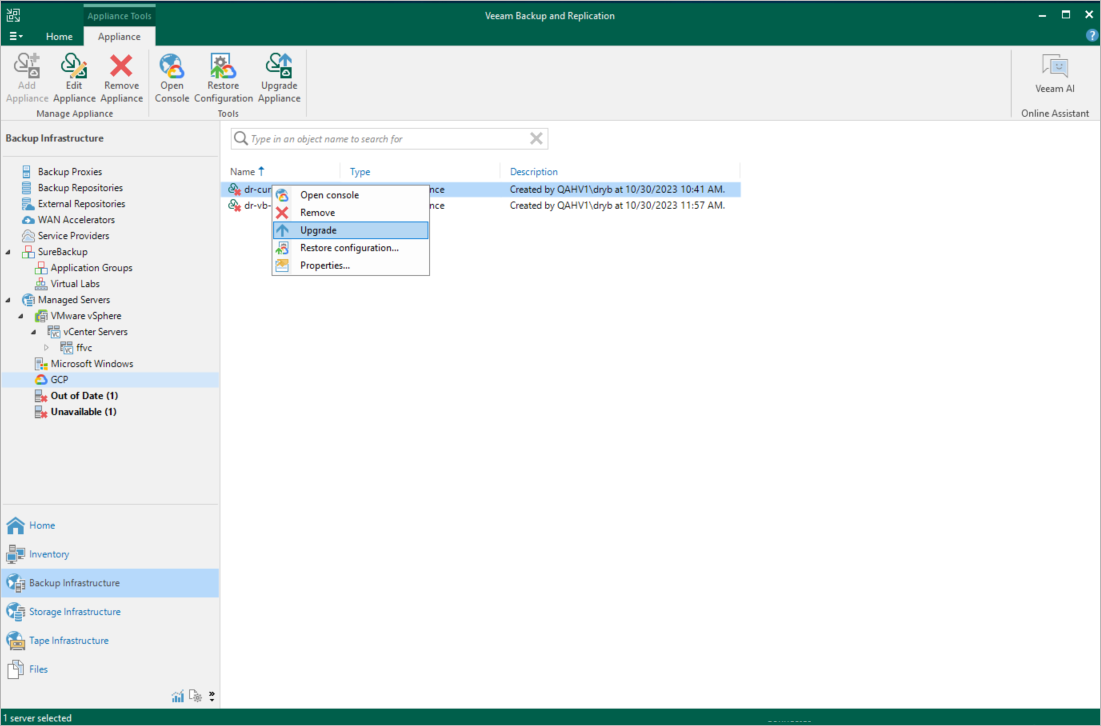
- Select the necessary backup appliance and click Upgrade appliance on the ribbon.
Alternatively, right-click the appliance and select Upgrade.
Related Topics