Restoring from Shared Folder
To perform bare metal recovery from a backup stored in a network shared folder, do the following:
- Power on your computer. Make sure that the USB drive is set as the primary boot source.
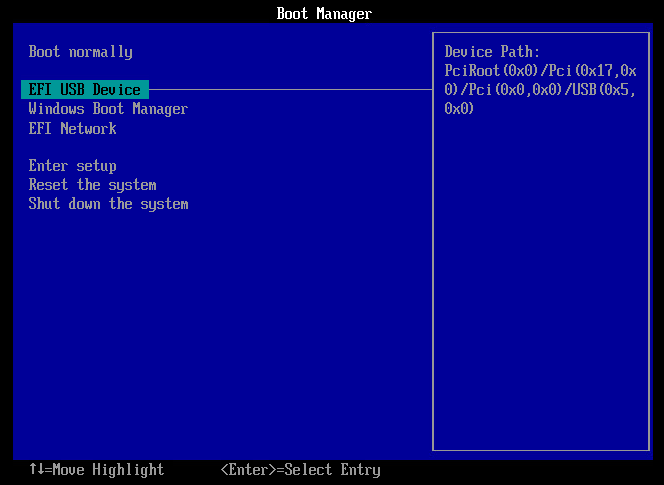
- Insert the bootable USB drive with the Veeam Recovery Media into a USB slot on the computer.
- Restart the computer. Veeam Agent for Microsoft Windows will load the Microsoft Windows RE from the Veeam Recovery Media.
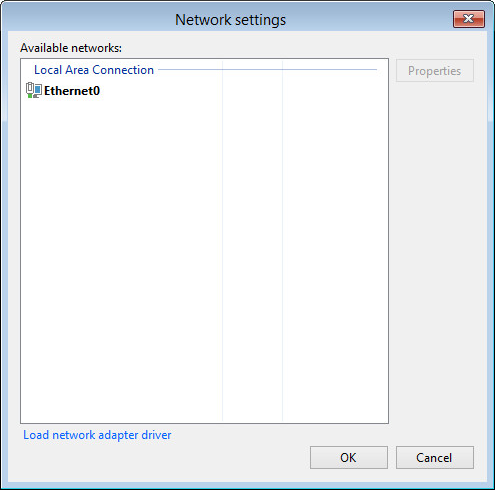
- In the Veeam Recovery Media view, click the Network Settings button and select a network over which you want to connect to the shared folder with the backup file. Click OK.
- In the Veeam Recovery Media view, click Bare Metal Recovery.

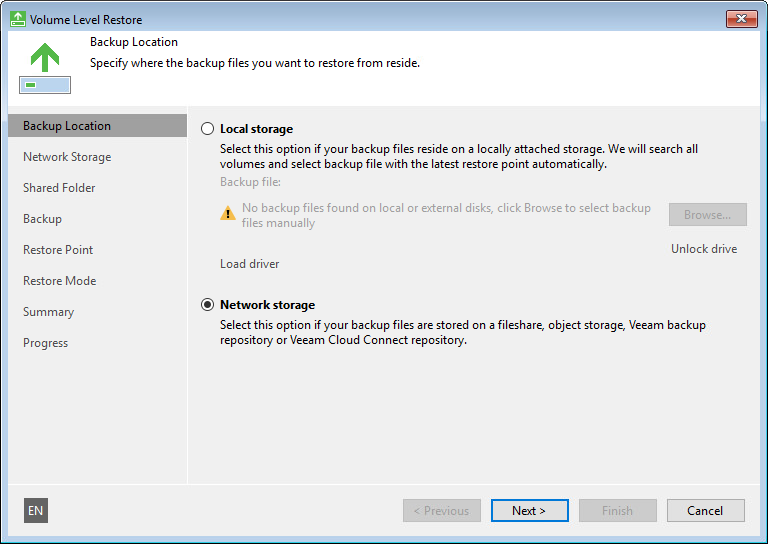
- At the Backup Location step of the wizard, select Network storage. Click Next.
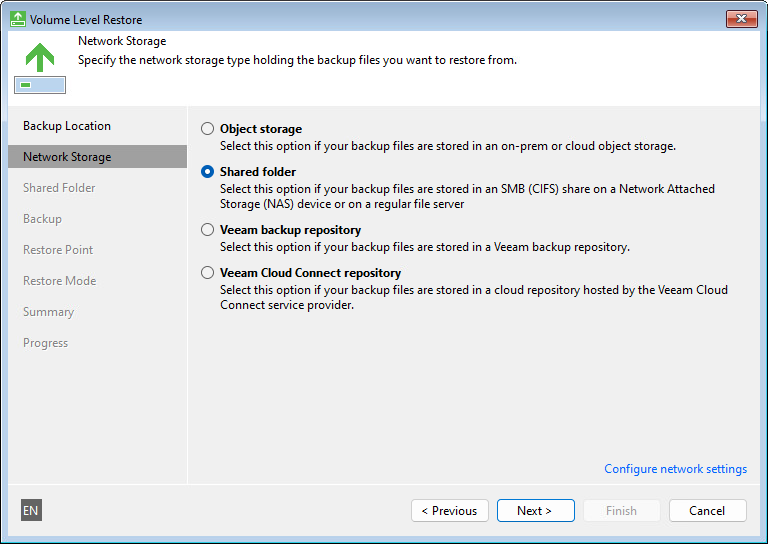
- At the Network Storage step of the wizard, select Shared folder. Click Next.
- At the Shared Folder step of the wizard, specify settings of the shared folder where the backup is located. Click Next.
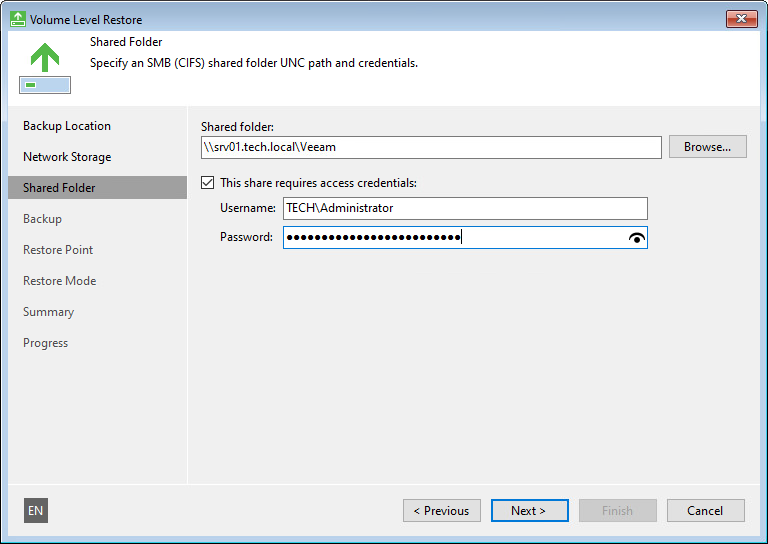
- At the Backup step of the wizard, select the necessary backup in the shared folder. Click Next.
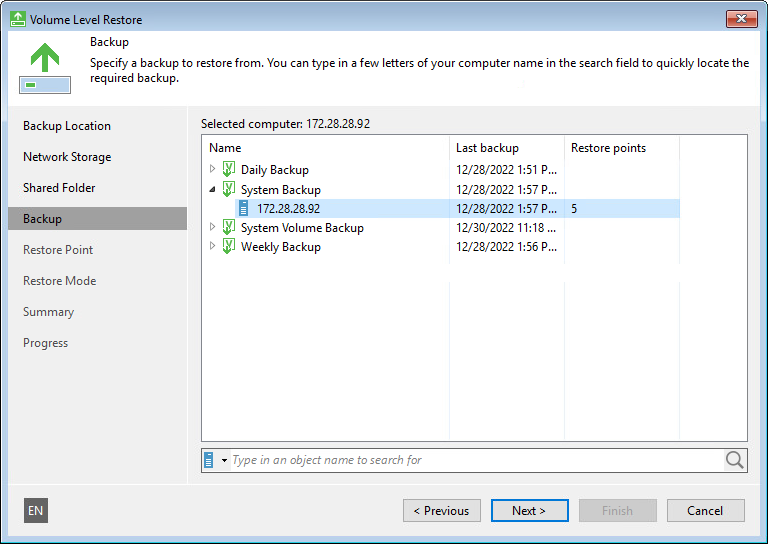
- At the Restore Point step of the wizard, select a restore point from which you want to restore data. Click Next.
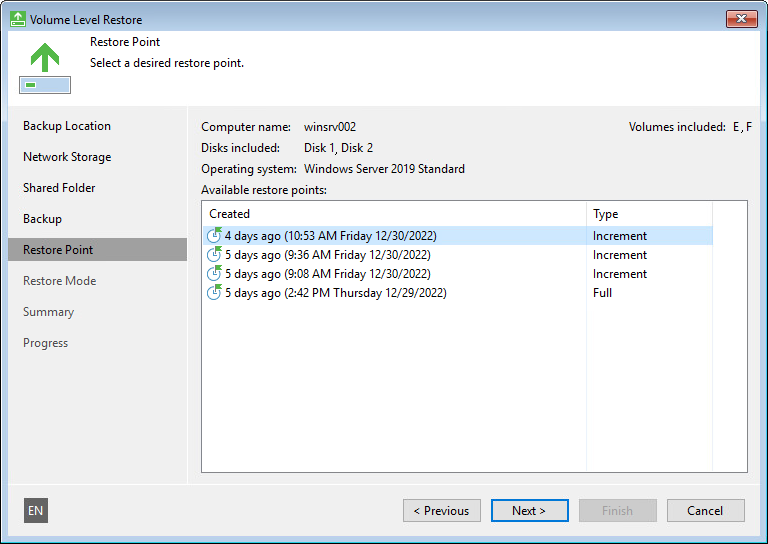
- At the Restore Mode step of the wizard, select Entire computer.
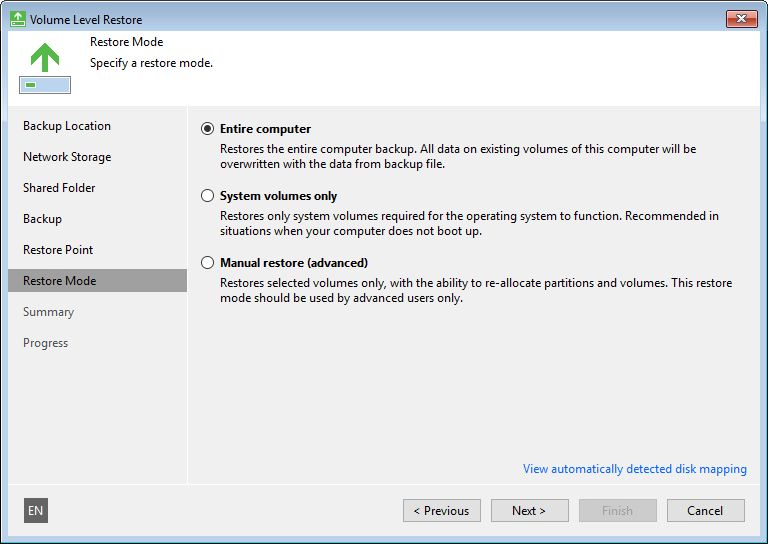
- Click Next, then click Restore to start the data recovery process.
- Once restore is completed, click Finish to close the wizard.
- Reboot the computer.