Restoring from Veeam Backup Repository
To perform bare metal recovery from a backup stored in a backup repository managed by a Veeam backup server, do the following:
- Power on your computer. Make sure that the USB drive is set as the primary boot source.
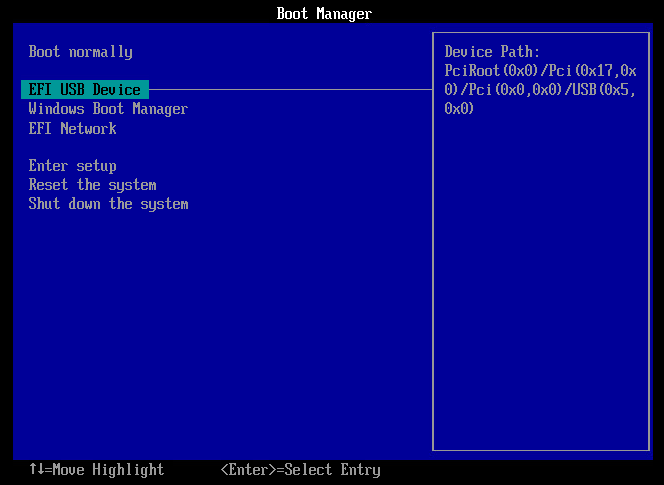
- Insert the bootable USB drive with the Veeam Recovery Media into a USB slot on the computer.
- Restart the computer. Veeam Agent for Microsoft Windows will load the Microsoft Windows RE from the Veeam Recovery Media.
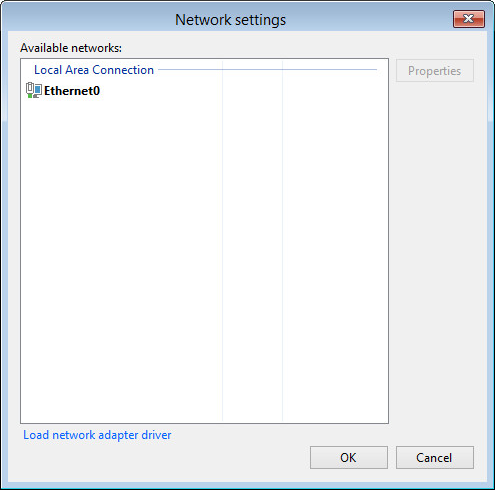
- In the Veeam Recovery Media view, click the Network Settings button and select a network over which you want to connect to the Veeam backup server. Click OK.
- In the Veeam Recovery Media view, click Bare Metal Recovery.

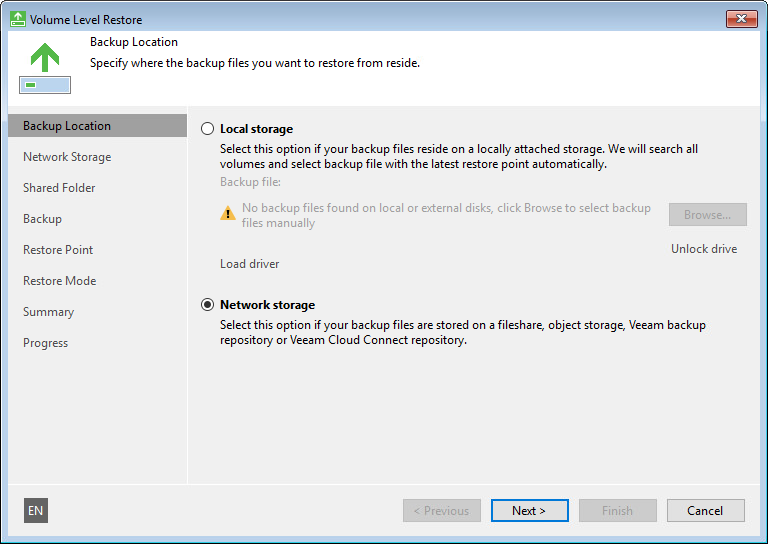
- At the Backup Location step of the wizard, select Network storage. Click Next.
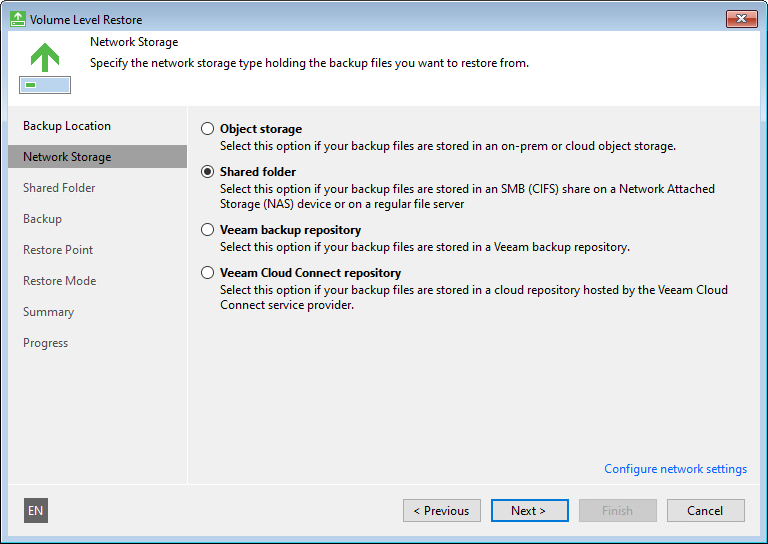
- At the Network Storage step of the wizard, select Veeam backup repository. Click Next.
- At the Backup Server step of the wizard, in the Veeam backup server name or IP address and Port fields, specify a DNS name or IP address of the Veeam backup server that manages the backup repository, and a port number. By default, Veeam Agent for Microsoft Windows uses port 10005.
Select an authentication method and do one of the following:
- If you selected Credentials, in the Username and Password fields, enter a user name and password of the account that has access to the backup repository.
- If you selected Recovery token, in the Token field, enter the recovery token created on the Veeam Backup & Replication side.
To learn more about the authentication methods, see Backup Server Settings.
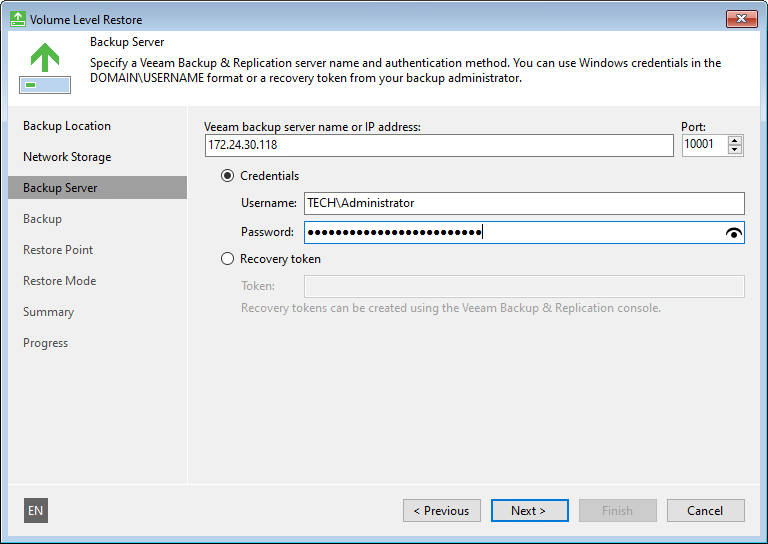
- Click Next, then click Continue to accept the Veeam backup server certificate and connect to the backup server.
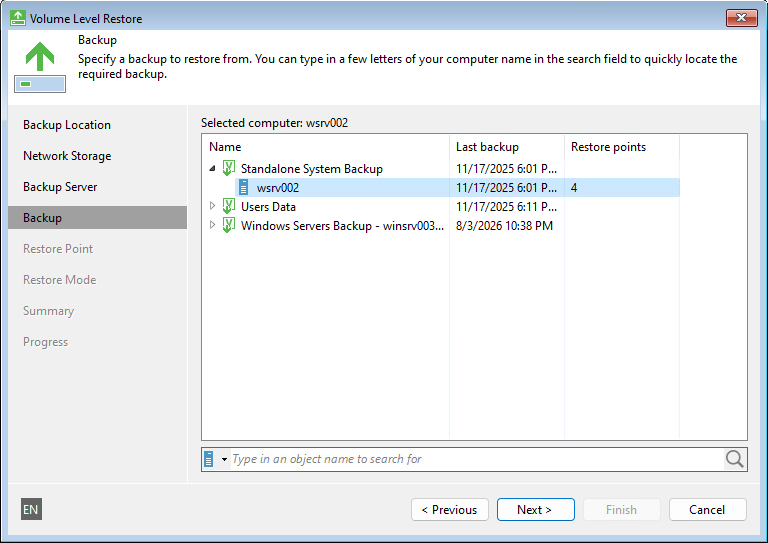
- At the Backup step of the wizard, select the necessary backup in the backup repository. Click Next.
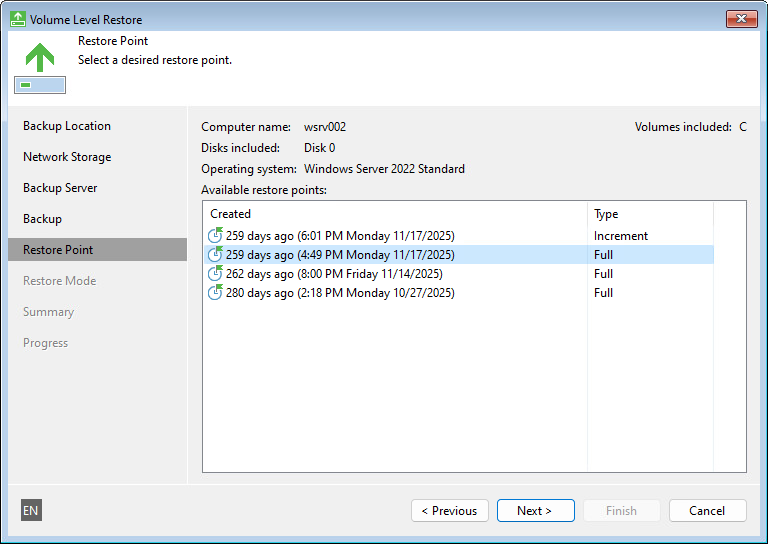
- At the Restore Point step of the wizard, select a restore point from which you want to restore data. Click Next.
- At the Restore Mode step of the wizard, select Entire computer.
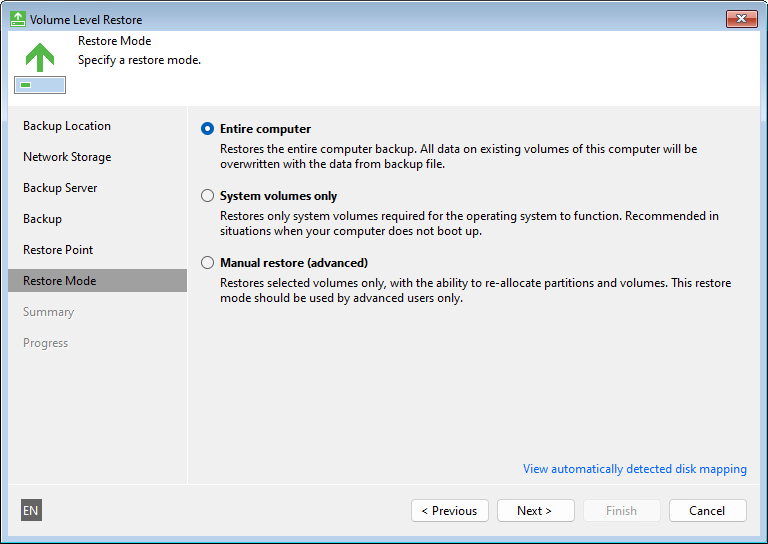
- Click Next, then click Restore to start the data recovery process.
- Once restore is completed, click Finish to close the wizard.
- Reboot the computer.