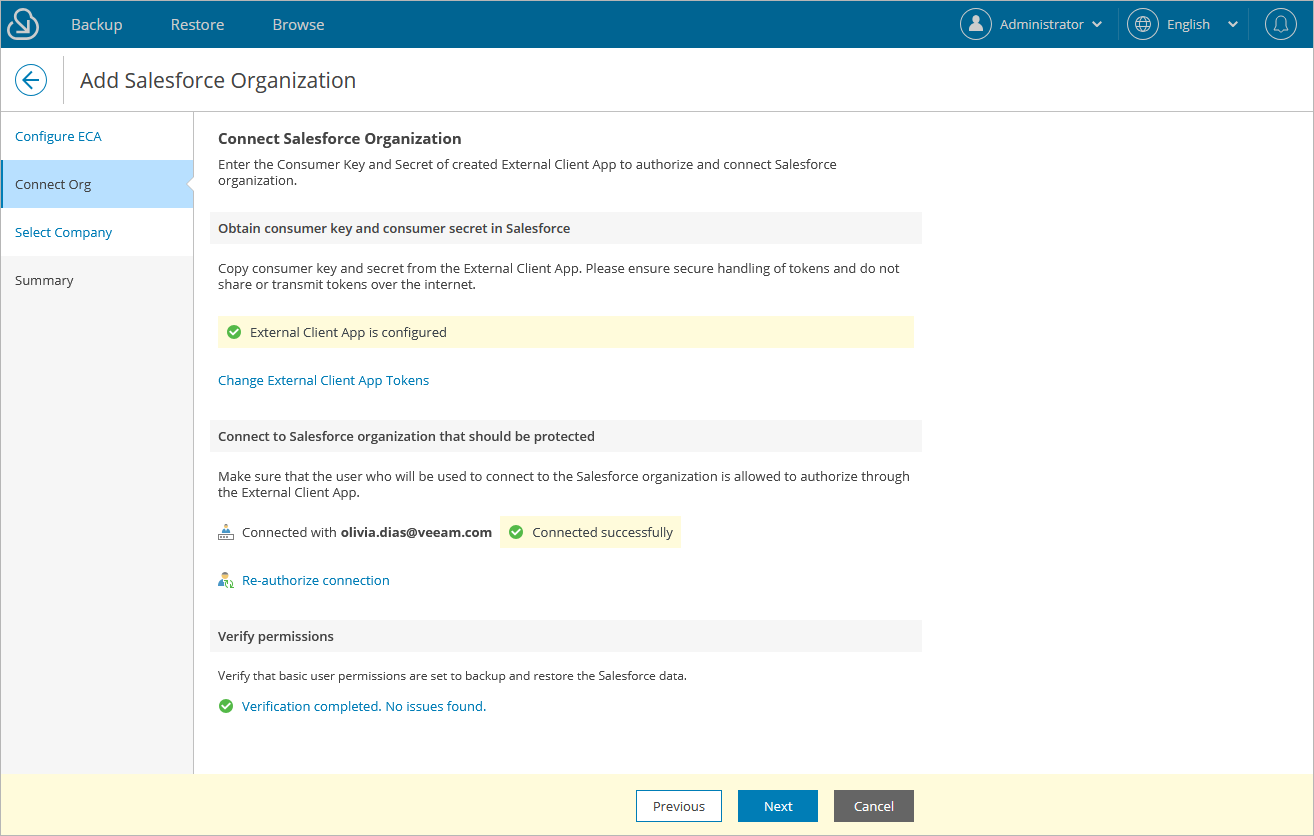
Step 3. Connect Salesforce Organization
At the Connect Org step of the wizard, do the following:
- Choose whether you want to connect to a Salesforce organization that is hosted on a production instance, on a sandbox instance or in a custom domain. If you select the Custom option, you must also specify the organization domain name.
- Provide the consumer key and secret of the external client app configured at step 2. You can find the consumer key and secret in the app OAuth settings in the Salesforce console. For more information, see this Veeam KB article.
- Click Connect. You will be redirected to the Salesforce authentication page. Sign in using credentials of a Salesforce user that will be used to authorize the connection to the Salesforce organization.
- Back to the Veeam Backup for Salesforce wizard, click the link in the Verify permissions section to make sure that the Salesforce user has all the necessary permissions required to perform backup and restore operations. For more information on the required permissions, see Planning and Preparation.
Important |
|
For Veeam Backup for Salesforceto be able to connect to your Salesforce organization, the Lock sessions to the IP address from which they originated option must be disabled in the organization settings as described in Salesforce Documentation. |