Configuring Event Rules
Event rules determine which events Veeam Data Cloud forwards to an integration destination and how each forwarded event is formatted. You define event rules when you add or edit an integration, and each integration can have one or more event rules. If you do not define any event rules, Veeam Data Cloud forwards raw events.
For the list of supported events, see the Veeam Data Cloud Event Reference.
How Event Rules Work
Each event rule combines a filter and an optional message body template:
- The filter selects the events that the rule applies to. An event that does not match the filter of any rule is not forwarded.
- The message body template defines how Veeam Data Cloud formats a matching event before it is sent to the destination. If you omit the template, Veeam Data Cloud forwards raw events.
Veeam Data Cloud evaluates event rules as follows:
- All rules are independent. Each rule is evaluated against every incoming event.
- If an event matches a rule filter, Veeam Data Cloud forwards the event using the message body template of that rule.
- If an event matches several rules, Veeam Data Cloud forwards the event only once using the first matching rule. To avoid unexpected behavior, ensure that your rules do not overlap.
Each event rule has the following parameters.
|
Parameter |
Description |
|---|---|
|
Name |
Name that you specified when adding the rule. |
|
Source System |
Source system that produced the event, for example, workloads (Microsoft 365, Azure, Entra ID or Salesforce) or the One UI control plane. |
|
Event Type |
Type of the event, for example, Backup Execution Status or Tenant Accessed. |
|
Property Filter |
Conditions that an event must meet for the rule to apply. If you omit the filter, the rule matches all events. For details, see Building Filters. |
|
Message Body Template |
Template that defines how matching events are formatted. If you omit the template, Veeam Data Cloud forwards raw events. For details, see Message Body Templates. |
Adding Event Rules
You can define event rules when you add or edit an integration. For details on adding integrations, see Adding Integrations.
Veeam Data Cloud evaluates rules during configuration and displays what will be forwarded. It warns you if the settings prevent event forwarding.
To add an event rule, do the following:
- In the Event Rules section, click Add Rules. The Add Rule window opens.
- In the Rule Name field, enter a name for the rule.
- From the Source System drop-down list, select the source system whose events the rule applies to. To match events from all source systems, keep All source system.
- From the Event Type drop-down list, select the event type the rule applies to. To match all event types, keep All event type.
- [Optional] In the Property Conditions section, specify conditions that an event must match:
- In the Field list, select an event field.
- In the Operator list, select a comparison operator.
- In the Value field, enter the value to compare the field against.
- To add another condition, click the add icon.
For the available fields and operators, see Building Filters.
- If you added more than one property filter, in the Condition Logic section, click And to require an event to match all of the property filters, or Or to require an event to match at least one. To match events that do not meet the property filters, select the Negate (Not) check box.
- [Optional] In the Message Body Template field, enter a template that defines how matching events are formatted. If you leave this field empty, Veeam Data Cloud forwards raw events. For details, see Message Body Templates.
- Click Add Rule. The rule appears in the Event Rules list.
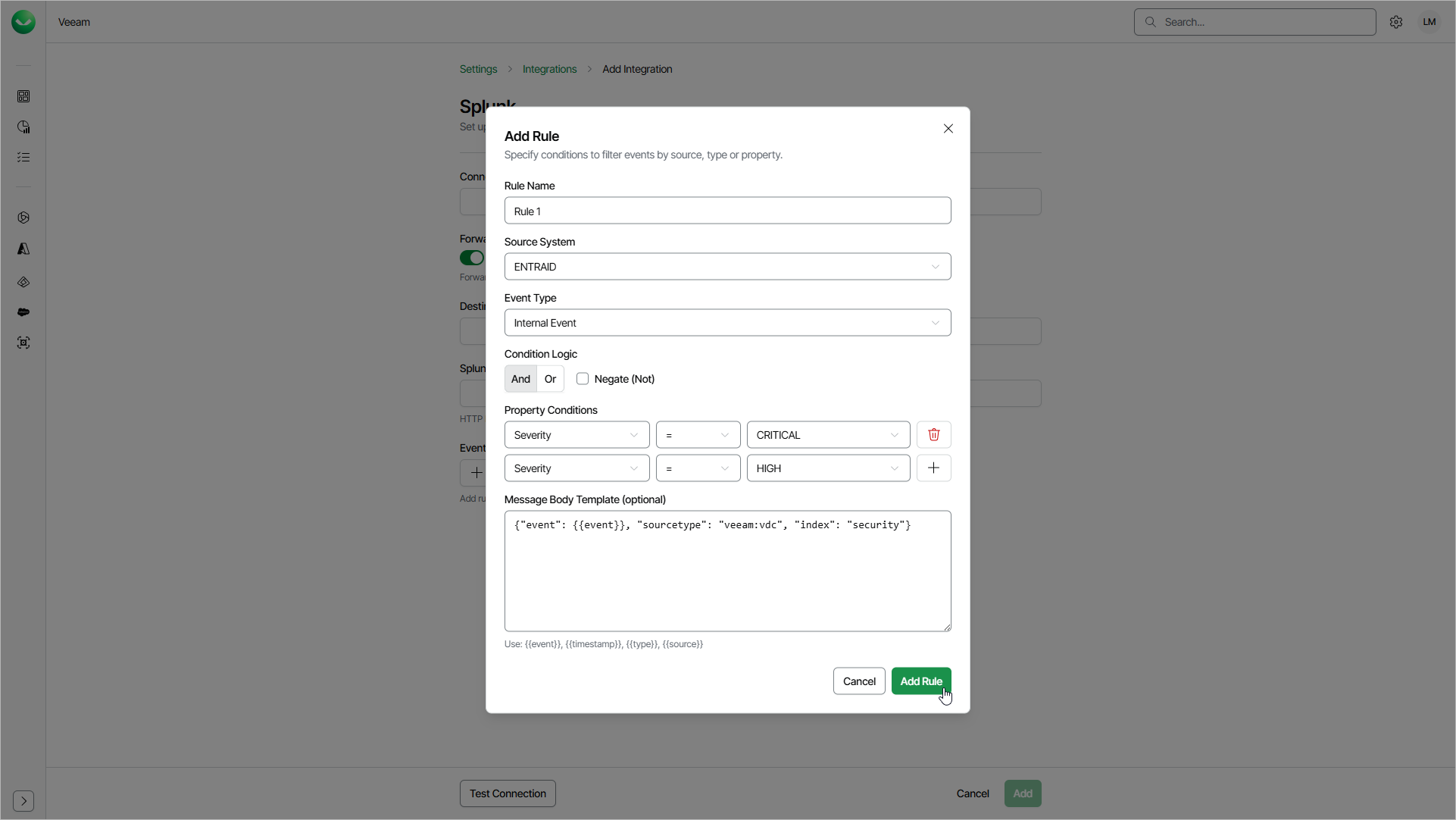
A rule filter is a list of conditions combined with And or Or logic. A condition compares an event field with a value by using a comparison operator.
You can combine conditions to build complex filters. You can also negate a filter to forward the events that do not meet the specified conditions.
Filter Condition Parameters
Each condition compares an event field against a value. A condition has the following parameters.
Parameter |
Description |
|---|---|
Field |
Event field to evaluate, specified as a JSON path. Use dot notation for nested fields, for example data.execution.status. For the available fields, see Filterable Fields. |
Operator |
Comparison to perform between the field and the value. The operators you can use depend on the field type. For the full list, see Supported Operators. |
Value |
Value to compare the field against. The required value type depends on the operator — a single value for most operators, an array of values for the In operator, and no value for the Exists operator. |
You can use the following operators in filter conditions.
Operator |
Description |
Applies to field types |
Example |
|---|---|---|---|
Eq |
Equal to the specified value. |
String, Number, Boolean, Enum, DateTime |
Event Type Eq "vdc.org_v0.login_v0" |
Ne |
Not equal to the specified value. |
String, Number, Boolean, Enum, DateTime |
Status Change Ne "ENABLED" |
Gt |
Greater than the specified value. |
Number, Integer, DateTime |
Event Timestamp Gt "2026-01-01T00:00:00Z" |
Gte |
Greater than or equal to the specified value. |
Number, Integer, DateTime |
Event Timestamp Gte "2026-01-01T00:00:00Z" |
Lt |
Less than the specified value. |
Number, Integer, DateTime |
Event Timestamp Lt "2026-12-31T23:59:59Z" |
Lte |
Less than or equal to the specified value. |
Number, Integer, DateTime |
Event Timestamp Lte "2026-12-31T23:59:59Z" |
StartsWith |
String value starts with the specified value. |
String |
Event Type StartsWith "vdc.org" |
EndsWith |
String value ends with the specified value. |
String |
Actor Identifier EndsWith "@example.com" |
Contains |
String value contains the specified value. |
String |
Event Type Contains "backup" |
In |
Field value is one of the values in the specified array. |
String, Number, Integer, Enum |
Status In ["Failed", "Warning"] |
Exists |
Field is present and not null. No value is required. |
Any field type |
Status Exists |
Regex |
String value matches the specified regular expression. |
String |
Actor Identifier Regex "^admin@.*" |
You can filter on two kinds of event fields:
- Common fields — envelope fields that are available on every event, regardless of its type.
- Data fields — type-specific fields from the event payload. The available data fields depend on the event type.
The following common fields are available on all events.
|
Field |
Type |
Description |
|---|---|---|
|
Event Type |
Enum |
Type of event, for example, vdc.org_v0.login_v0. |
|
Source System |
Enum |
Source system that produced the event, for example, for example, workloads such as Entra ID or Salesforce, or One UI control plane. |
|
Event Timestamp |
DateTime |
Date and time when the event occurred. |
|
Organization ID |
String |
Identifier of the organization the event belongs to. |
|
Actor Kind |
Enum |
Type of actor that triggered the event: user or system. |
|
Actor Identifier |
String |
Email address or other identifier of the actor. |
|
Severity |
Enum |
Severity level assigned to the event. |
|
Visibility |
Enum |
Visibility scope of the event. |
|
Category |
Enum |
Category of the event type, for example, Backup, Organization, Restore or User. |
|
Triage Code |
— |
Triage code assigned to the event. |
|
Triage Message |
— |
Triage message associated with the event. |
Operators by Field Type
The operators you can use in a condition depend on the type of the selected field, as shown in the following table.
|
Field type |
Supported operators |
|---|---|
|
String |
Eq, Ne, StartsWith, EndsWith, Contains, In, Exists, Regex |
|
Integer |
Eq, Ne, Gt, Gte, Lt, Lte, In, Exists |
|
Number |
Eq, Ne, Gt, Gte, Lt, Lte, In, Exists |
|
Boolean |
Eq, Ne, Exists |
|
DateTime |
Eq, Ne, Gt, Gte, Lt, Lte, Exists |
|
Enum |
Eq, Ne, In, Exists |
|
Array |
Contains, Exists |
|
Object |
Exists |
A message body template defines how Veeam Data Cloud formats a matching event before it is sent to the destination. In a template, you can use the following placeholders. Each placeholder is replaced with its value from the event.
|
Placeholder |
Description |
|---|---|
|
{{event}} |
Full event as a JSON object. Inserted as raw JSON, not as a quoted string. |
|
{{timestamp}} |
Event timestamp. |
|
{{type}} |
Event type identifier. |
|
{{source}} |
Source system that produced the event. |
If you do not specify a message body template, Veeam Data Cloud forwards raw events.
Message Body Template Examples
The following examples show message body templates. You configure the filter for each rule separately; the template controls only how a matching event is formatted before it is sent to the destination.
Splunk: Send Each Event to Specific Index and Source Type
|
{"event": {{event}}, "sourcetype": "veeam:vdc", "index": "security"} |
Generic webhook: Wrap Event and Add Static Priority Field and Event Timestamp
|
{"alert": {{event}}, "priority": "critical", "timestamp": "{{timestamp}}"} |
Generic webhook: Include Event Type and Source Alongside vent payload
|
{"event": {{event}}, "type": "{{type}}", "source": "{{source}}"} |
Template with Nested Event Fields
You can reference nested event fields in a message body template. Use dot notation to specify the path to a nested field. For example, the following template creates a custom JSON payload and includes the full event object in the rawEvent field.
|
{ "summary": "Backup policy '{{data.config.name}}' was {{data.config.action}} by {{actor.identifier}}", "workload": "{{data.workload.type}}", "tenantId": "{{data.tenant.id}}", "policyId": "{{data.policy.id}}", "policyType": "{{data.policy.type}}", "status": "{{data.config.status}}", "schedule": "{{data.config.schedule}}", "retention": "{{data.config.retention}}", "occurredAt": "{{timestamp}}", "rawEvent": {{event}} } |
The event will be sent as follows:
|
{ "summary": "Backup policy '{{data.config.name}}' was {{data.config.action}} by {{actor.identifier}}", "workload": "{{data.workload.type}}", "tenantId": "{{data.tenant.id}}", "policyId": "{{data.policy.id}}", "policyType": "{{data.policy.type}}", "status": "{{data.config.status}}", "schedule": "{{data.config.schedule}}", "retention": "{{data.config.retention}}", "occurredAt": "{{timestamp}}", "rawEvent": {{The full raw event}} } |