Viewing Licensed Users
You can check which accounts are currently using the Veeam Data Cloud for Microsoft 365 license. To do this, follow these steps:
- On the Microsoft 365 page, click the name of the tenant you want to manage.
- Select Settings.
- Go to the Licensed Users tab.
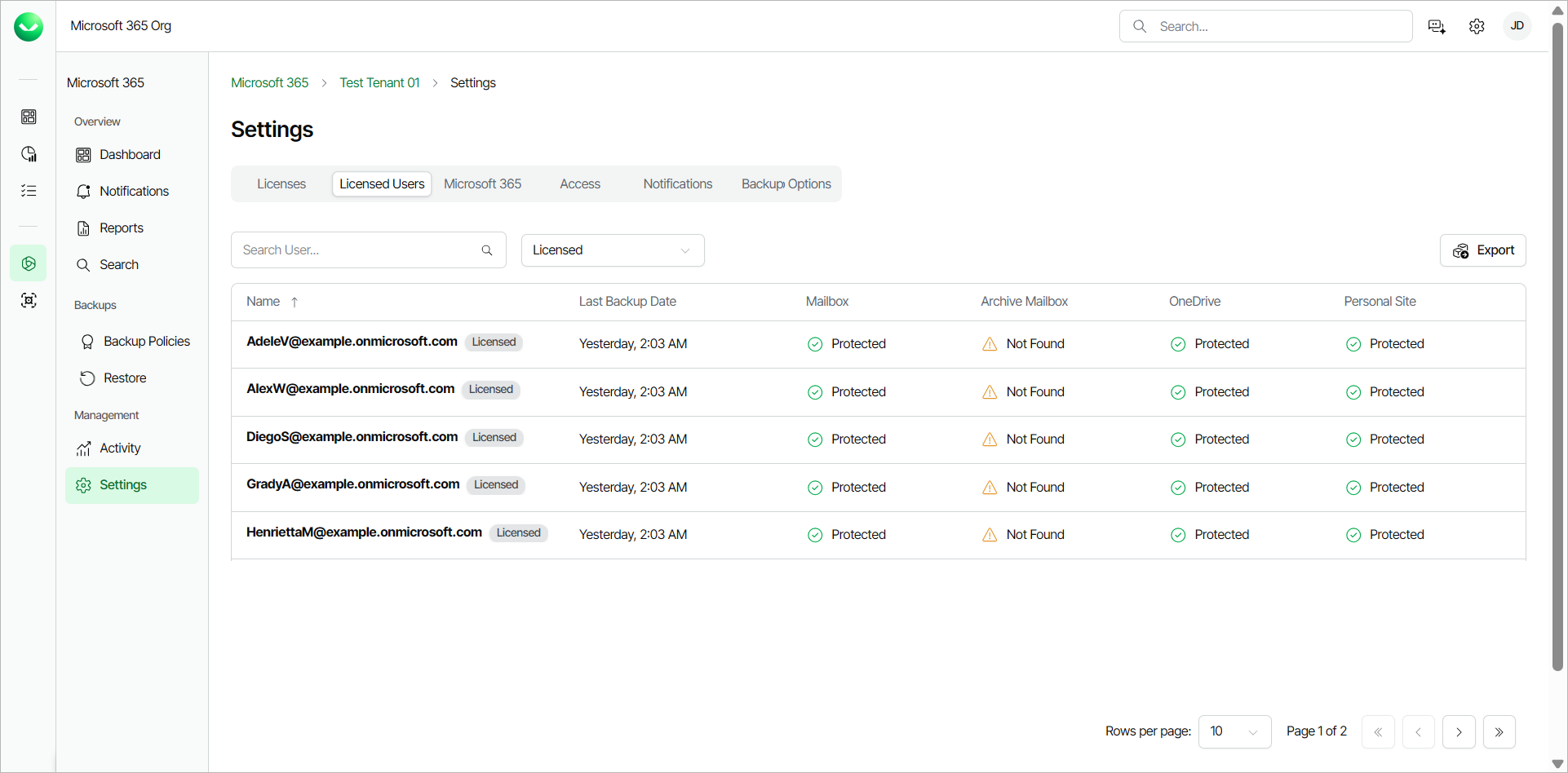
In the table with your current Veeam Data Cloud for Microsoft 365 licensed users, the following information is displayed:
- Name — the email account that is licensed.
- Last Backup Date — the last date that anything associated with the account was backed up.
- Is Backed Up — shows whether the current data for the account is being backed up.
- Mailbox — shows the protection status of the mailbox of the user.
- Archive Mailbox — shows the protection status for the archive mailbox of the user.
- OneDrive — shows the protection status for the OneDrive of the user.
- Personal Site — shows the protection status for the personal SharePoint site of the user.
The available protection statuses for the mailbox, archive mailbox, OneDrive and personal site objects are the following:
- Protected. A restore point was created for the object within the Recovery Point Objective (RPO) defined by the backup policy schedule assigned to this object.
- Not Protected. There is no restore point within the Recovery Point Objective (RPO) defined by the backup policy schedule assigned to this object.
- Not Found. The object does not exist for this user.
|
TIP |
|
You can click Export to download the licensed users table in the .CSV format. |