Viewing Dashboard
The Veeam Data Cloud for Microsoft 365 dashboard contains information on the state of backups, users and licenses, as well as information about user activity.
Accessing Dashboard
To view the Veeam Data Cloud for Microsoft 365 dashboard, do the following:
- On the Microsoft 365 page, click the name of the tenant you want to manage.
- The dashboard is the landing page when you open a tenant. To return to the dashboard from a different page, click Dashboard.
Required Permissions
The content on the Dashboard page is only visible to users with the OrganizationAdmin or M365:Administrator roles.
Users with a custom role require the following permissions to view dashboard sections:
- Dashboard View. View the Dashboard page.
- View Protections Status. View the Protection Status (Flex) section and the Microsoft 365 tiles for each service.
- View Licensing Dashboard. View the License Activity (Flex) section.
- View Activity Logs. View the Recent User Activities section.
- View Restore Activity. View restore sessions data in the Recent User Activities section.
- View Backup Activity. View protection status in the Protection Status (Flex) section and view backup sessions data in the Recent User Activities section.
- View Protection Management Activity. View protection management audit logs in the Recent User Activities section.
- View Data Access Activity. View data access audit logs in the Recent User Activities section.
- Manage Tenants. View the Storage Consumption section.
- Browse Restore Points. Explore the restore data of the Microsoft 365 tiles for each service.
For more information about roles, see Roles.
Dashboard Sections
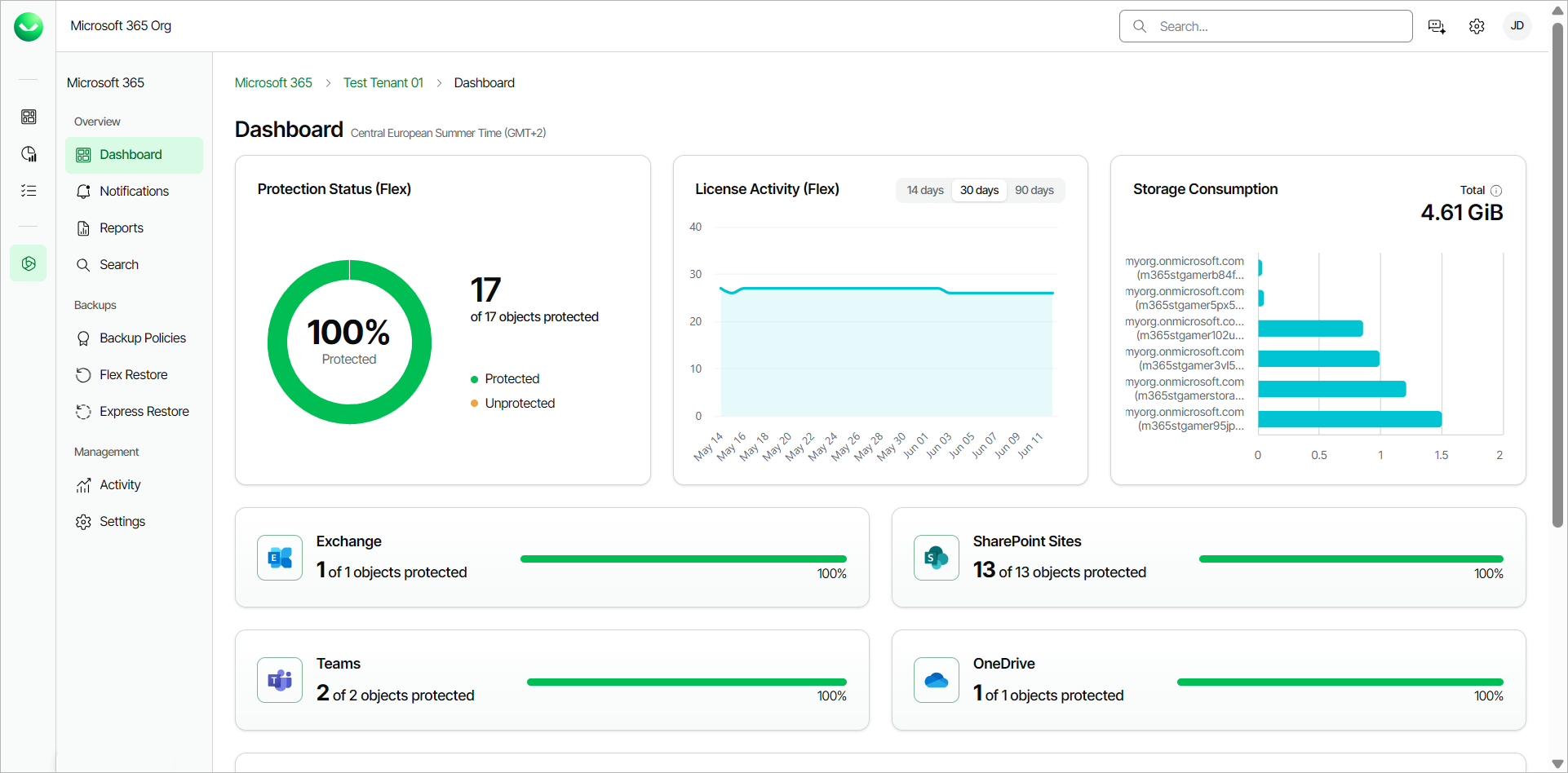
The Dashboard page displays the following sections:
- The Protection Status (Flex) section displays the protection status of your workload tenant objects. The protection status is represented as the ratio of protected objects to the total number of objects included in Veeam Data Cloud Flex backup policies. Veeam Data Cloud calculates the total number of objects from the section with the Microsoft services tiles.
- The Exchange, SharePoint Sites, Teams and Onedrive tiles section displays the number of Microsoft Exchange Online, Microsoft SharePoint Online, Microsoft Teams and Microsoft OneDrive objects that are protected within scheduled Flex-based backup policies (not manually triggered backup policies) for each service. An object is the smallest unit available for backup. For example, a mailbox, site or OneDrive. An object is considered protected if a restore point was created within the Recovery Point Objective (RPO) defined by the Flex backup policy schedule assigned to this object.
Consider the following:
- Only the services you chose to protect when you added the Microsoft 365 tenant to Veeam Data Cloud will be visible in the section.
- If the tenant has no completed backup policies, each service tile will display the No backup policy assigned message. Click Assign Policy to go to the Backup Policies page where you can create new backup policies. For more information, see Creating Flex Backup Policies.
- If a backup policy is running, the number of protected objects for each service within that backup policy will be 0.
- When a backup policy completes successfully, Veeam Data Cloud updates each tile in the section to display the number of protected objects and the progress percentage in each service.
- If one object is protected in multiple backup policies, Veeam Data Cloud will count it multiple times in the services tiles.
- The License Activity section displays daily usage data for Veeam Data Cloud license consumption for the tenant, in the last 14, 30 (default) or 90 days. The graph displays separate lines for each of the subscriptions in the tenant.
- The Storage Consumption section displays the overall Veeam Data Cloud for Microsoft 365 storage consumption across each backup repository within the tenant.
- The Recent User Activities section displays information about the latest actions the Veeam Data Cloud for Microsoft 365 users took and the date and time of those actions. Click View All Activities for a full overview of Veeam Data Cloud for Microsoft 365 user activity. For more information, see Activity.
Dashboard Notifications
Veeam Data Cloud displays notifications that require your attention in the dashboard page. Veeam Data Cloud notifies you about upcoming maintenance or about changes that you need to make.
For example, the following notification requires you to update permissions for the users you want to have access to the Dashboard and Activity pages:
New permissions are required to view all information on the Dashboard and Activity pages. If you use custom roles, update them in Settings → Roles to include the new Dashboard and Activity permissions.
If you dismiss a notification, it will not appear again.