Previewing Outlook Emails
Veeam Data Cloud for Microsoft 365 allows self-service users to preview their backed-up Outlook emails before performing restore.
To preview your Outlook emails:
- Log in to Veeam Data Cloud for Microsoft 365.
- In Veeam Data Cloud for Microsoft 365, in the Outlook tab, you can view your Outlook data from the latest backup.
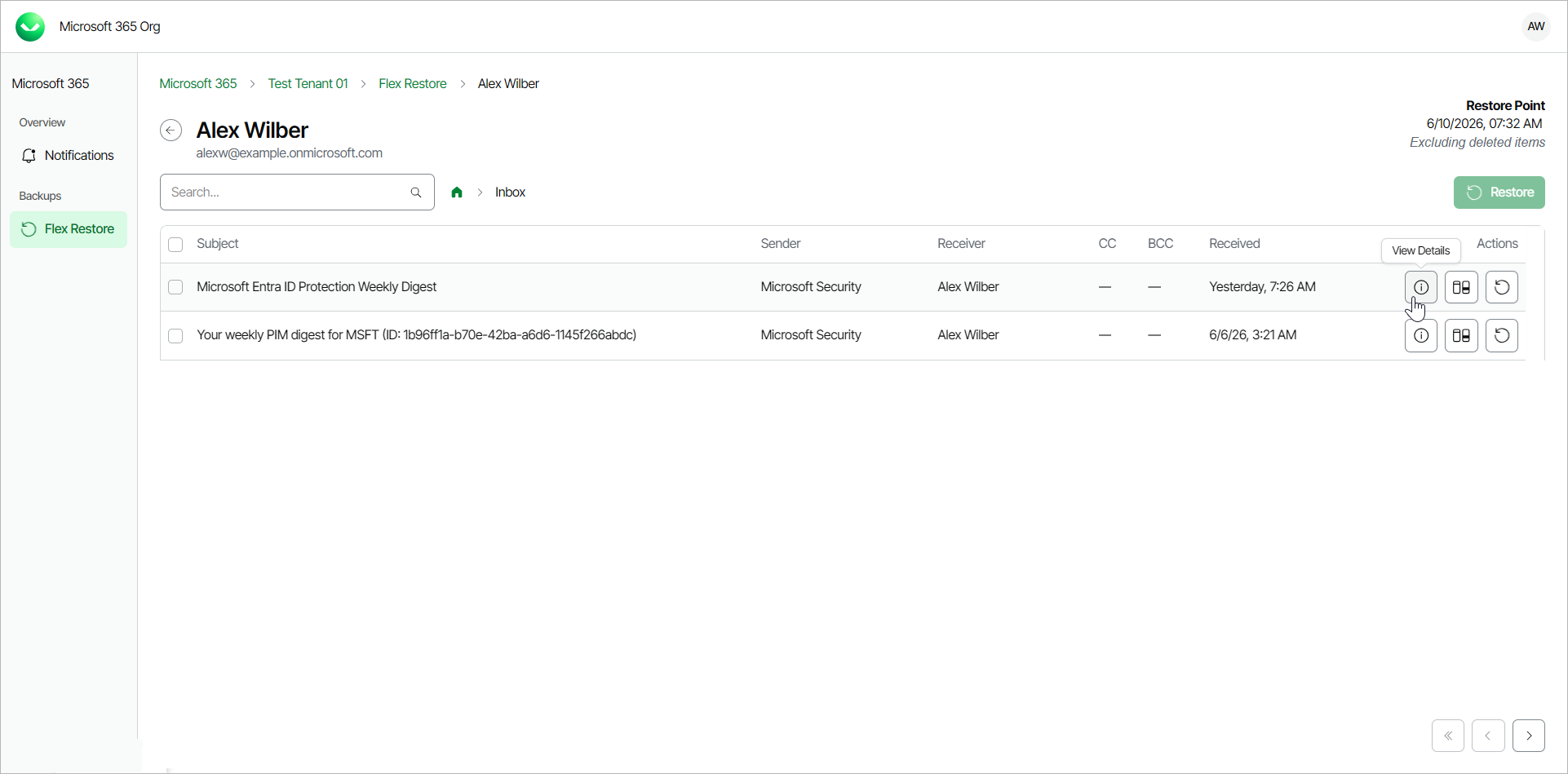
- Click on the folder that contains the email you want to view.
- Locate the email you are looking for and, in the Actions column, click View Details.
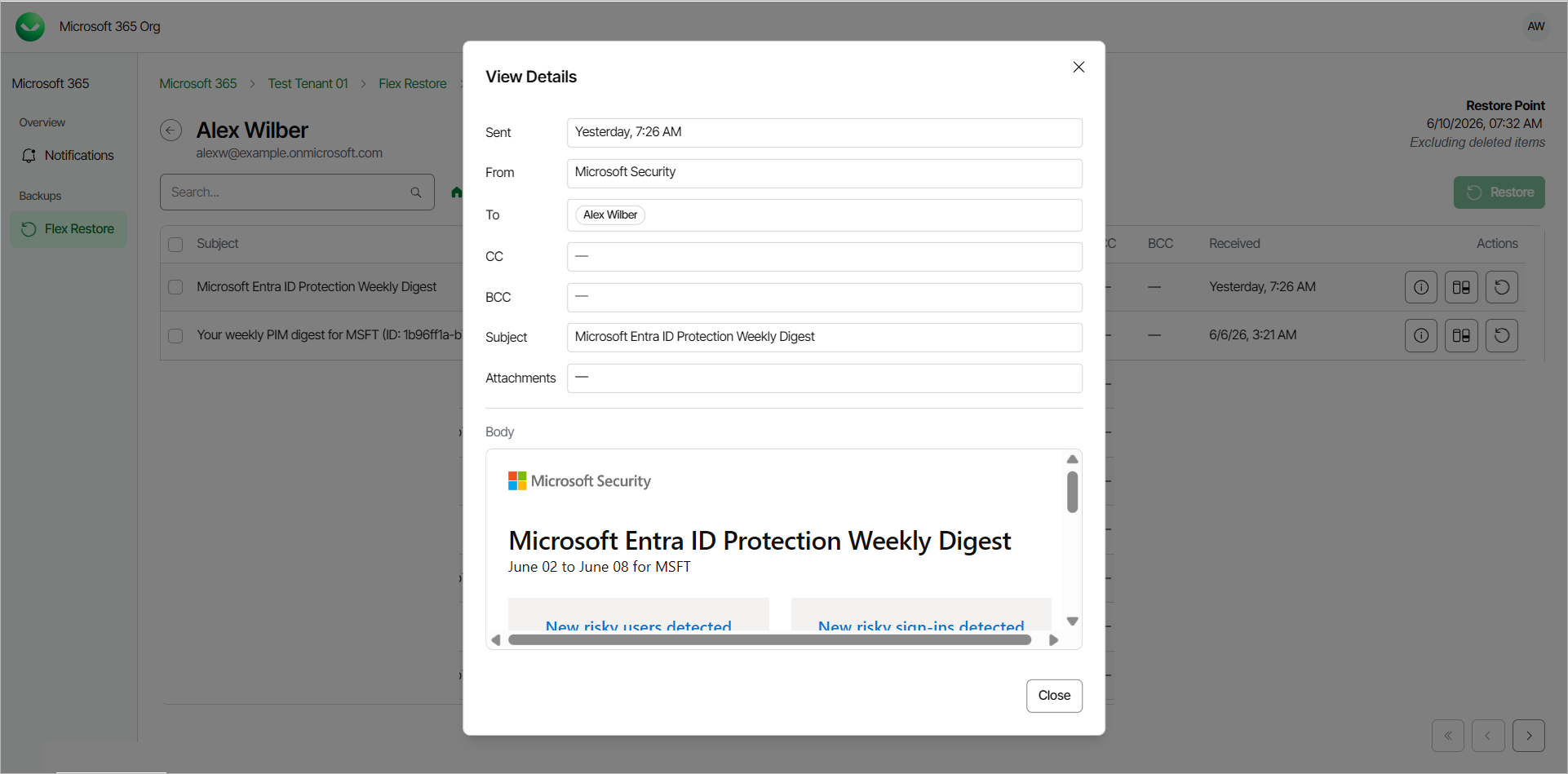
- The email contents will open in the View Details window. Veeam Data Cloud displays the following information:
- Sent — date and time when the email was sent.
- Sender — sender of the email.
- Receiver — receiver of the email.
- CC — contacts to whom a copy of the email was sent.
- BCC — contacts to whom a copy of the email was sent.
- Subject — subject of the email.
- Attachments — files attached to the email.
- Body — the body of the email.
|
TIP |
|
The administrator of the organization can specify whether the self-service users can preview their backed-up Outlook emails. For more information, see Enabling Self-Service Restore. |