Step 3. Choose Data to Copy
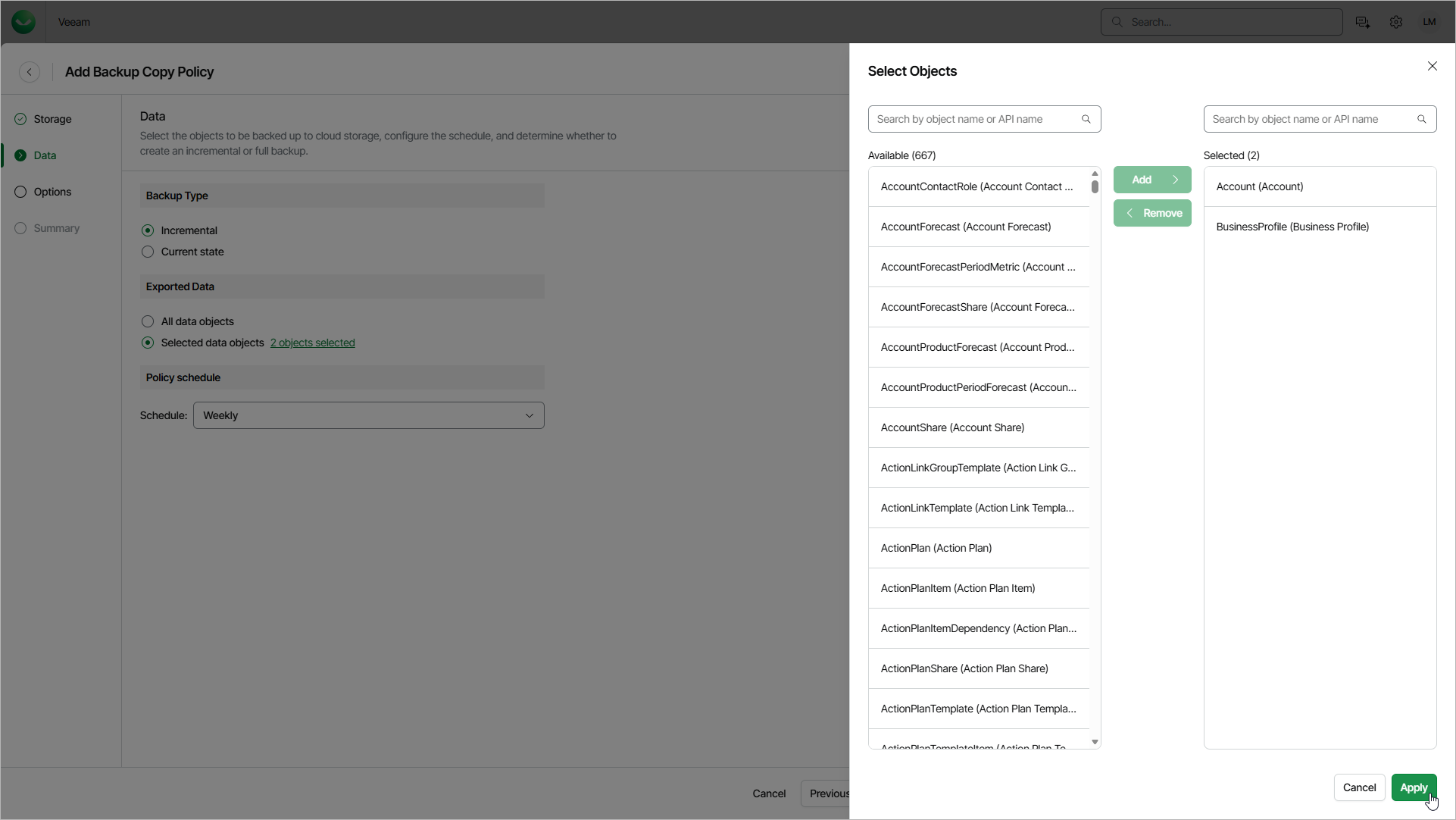
At the Data step of the wizard, do the following:
- In the Backup Type section, choose whether you want to copy only changed records or all records:
- Select Incremental if you want Veeam Data Cloud to copy only records that were created, modified, archived or deleted during the period defined by the policy schedule.
For the first run of the policy, Veeam Data Cloud copies the latest version for all records of all selected objects.
- Select Current state if you want Veeam Data Cloud to copy all backed-up records in the state of the organization for the moment of policy run. The copied data includes the latest version of all records in the selected objects, including deleted and archived records.
If you select this option, the policy can run no more than once per week.
- In the Exported Data section, choose whether you want to copy records of all objects or of specific objects only:
- Select All data objects if you want Veeam Data Cloud to copy records of all backed-up objects.
- Select Selected data objects if you want Veeam Data Cloud to copy records of specific objects only. Then, click the link next to the option. In the Select Objects window, select the necessary objects in the Available list, click Add and then click Apply. To find an object, use the search field above the list — you can search for objects by name or API name.
|
Note |
|
If you add an object to already existing policy with the incremental backup type, Veeam Data Cloud will copy only records of the object that were modified since the last run. To copy all other records, create a separate backup copy policy that includes this object and select the Current state option. Then, run the policy once before the scheduled run of the increment. |
- In the Policy schedule section, from the Schedule drop-down list, select how often you want Veeam Data Cloud to run the policy.