Syncing Microsoft 365 Data
Veeam Data Cloud keeps a synchronized copy of your Microsoft 365 tenant data and uses it to determine what your backup policies protect. It automatically checks for changed objects every hour, with a full refresh every 24 hours.
If you created new objects in your Microsoft 365 tenant and need to include them in backup policies before the next scheduled sync, you can manually synchronize the data.
To synchronize Microsoft 365 data, do the following:
- On the Microsoft 365 page, click the name of the tenant you want to manage.
- Select Settings.
- Go to the Microsoft 365 tab.
- In the Microsoft 365 Data Sync section, in the Last sync field, Veeam Data Cloud displays the date and time of the last sync of the data.
- To manually sync the data, click Sync Now.
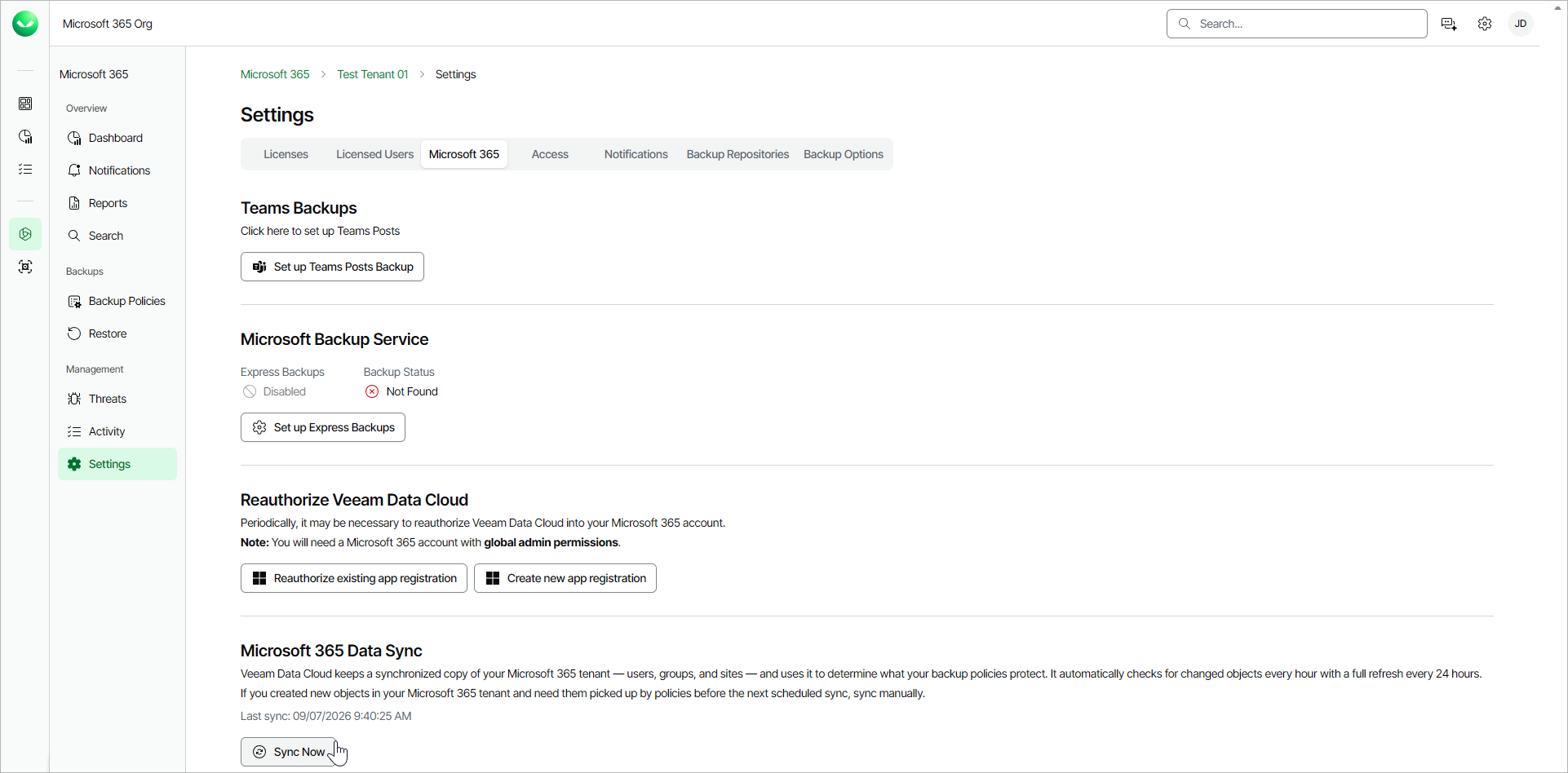
While the synchronization is in progress, Veeam Data Cloud displays the Syncing loading spinner.
Once the sync is complete, the new data is synchronized. In the Last sync field, Veeam Data Cloud displays the new date and time of the last sync.