Enabling EWS Access
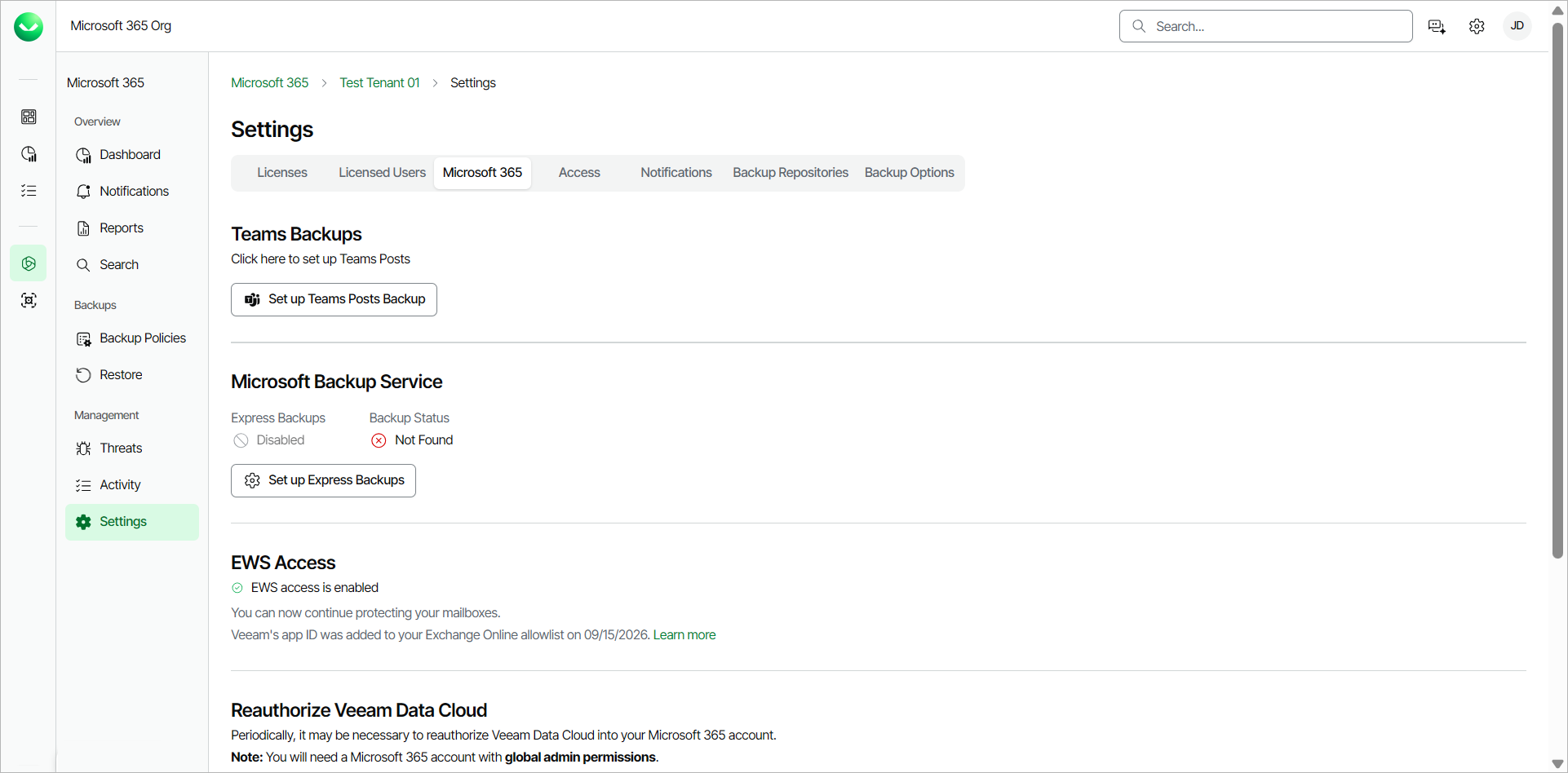
Microsoft is retiring Exchange Web Services (EWS) on October 1, 2026. To keep your Veeam Data Cloud Exchange Online backups running, you must enable EWS access for your tenant.
Veeam Data Cloud will notify you in the dashboard with the following notification:
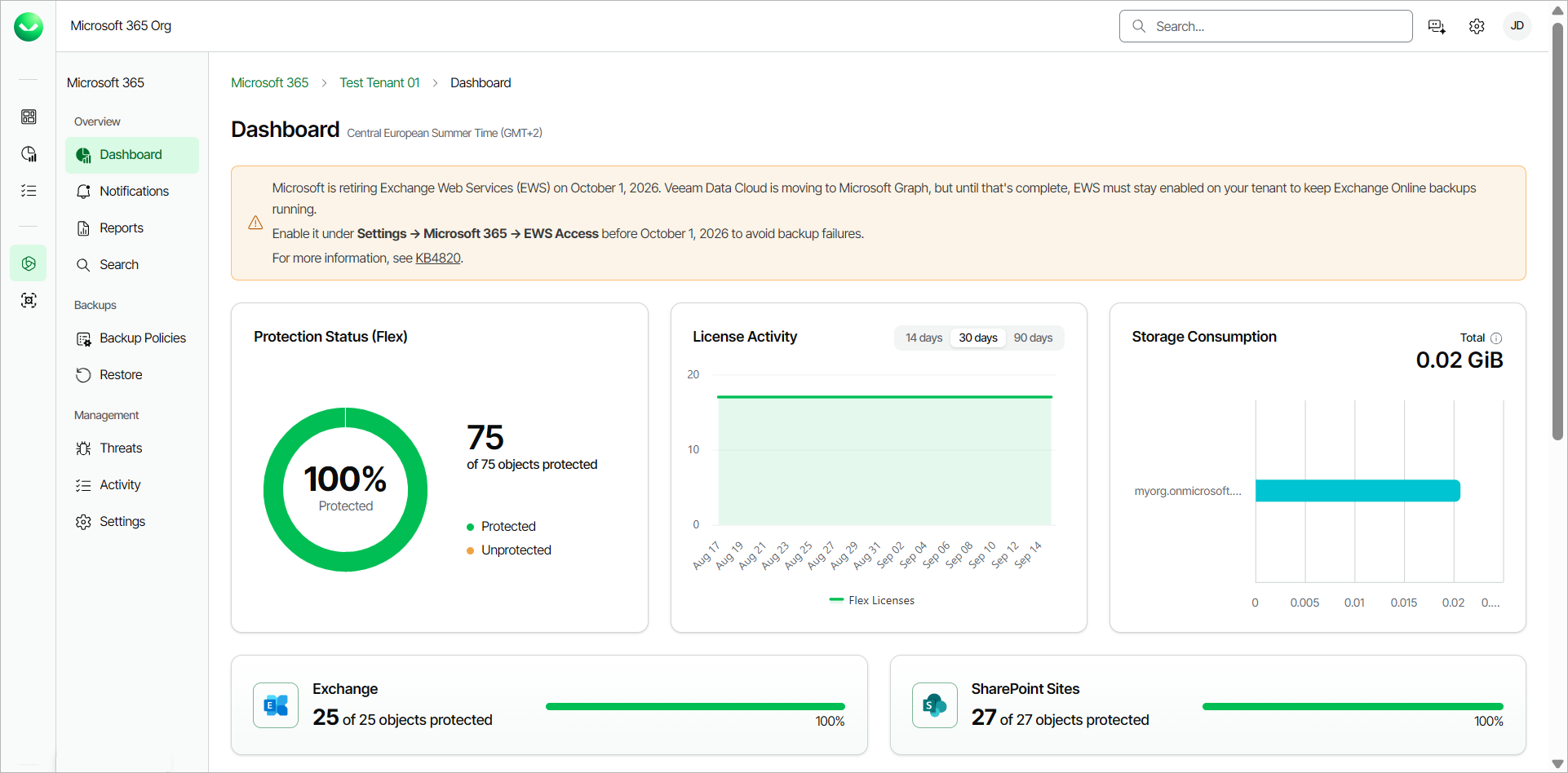
Microsoft is retiring Exchange Web Services (EWS) on October 1, 2026. Veeam Data Cloud is moving to Microsoft Graph, but until that's complete, EWS must stay enabled on your tenant to keep Exchange Online backups running.
Enable it under Settings → Microsoft 365 → EWS Access before October 1, 2026 to avoid backup failures.
For more information, see KB4820.
To enable EWS access, do the following:
- On the Microsoft 365 page, click the name of the tenant you want to manage.
- Select Settings.
- Go to the Microsoft 365 tab.
- In the EWS Access section, click Enable EWS access.
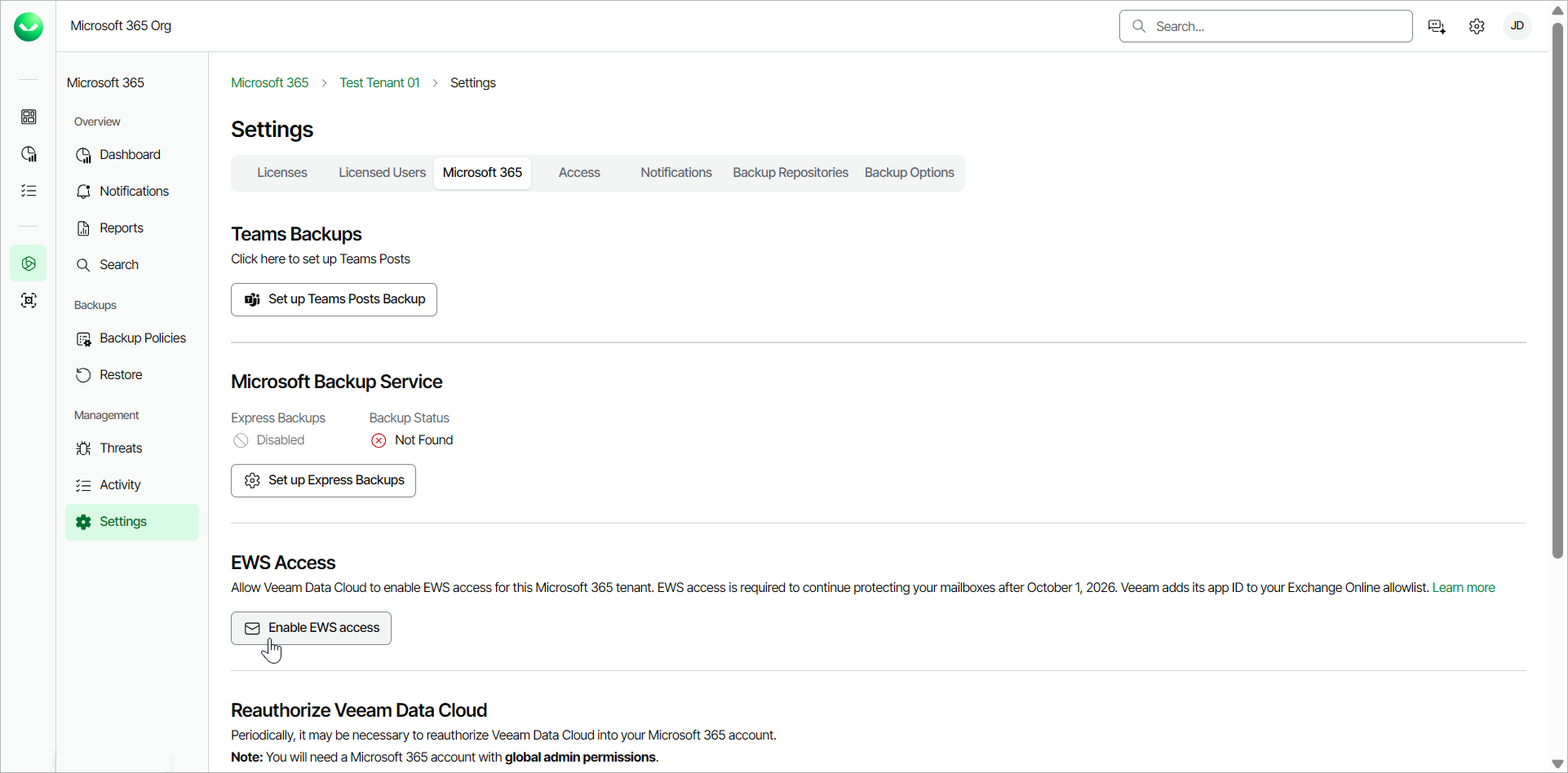
- Select the Microsoft account under which you want to authenticate against Microsoft 365. The account must have the Microsoft 365 Global Admin permissions.
- Accept the required permissions.
- Return to Veeam Data Cloud. EWS access is enabled for your tenant.