Running Disaster Recovery
To run the Disaster Recovery plan, do the following:
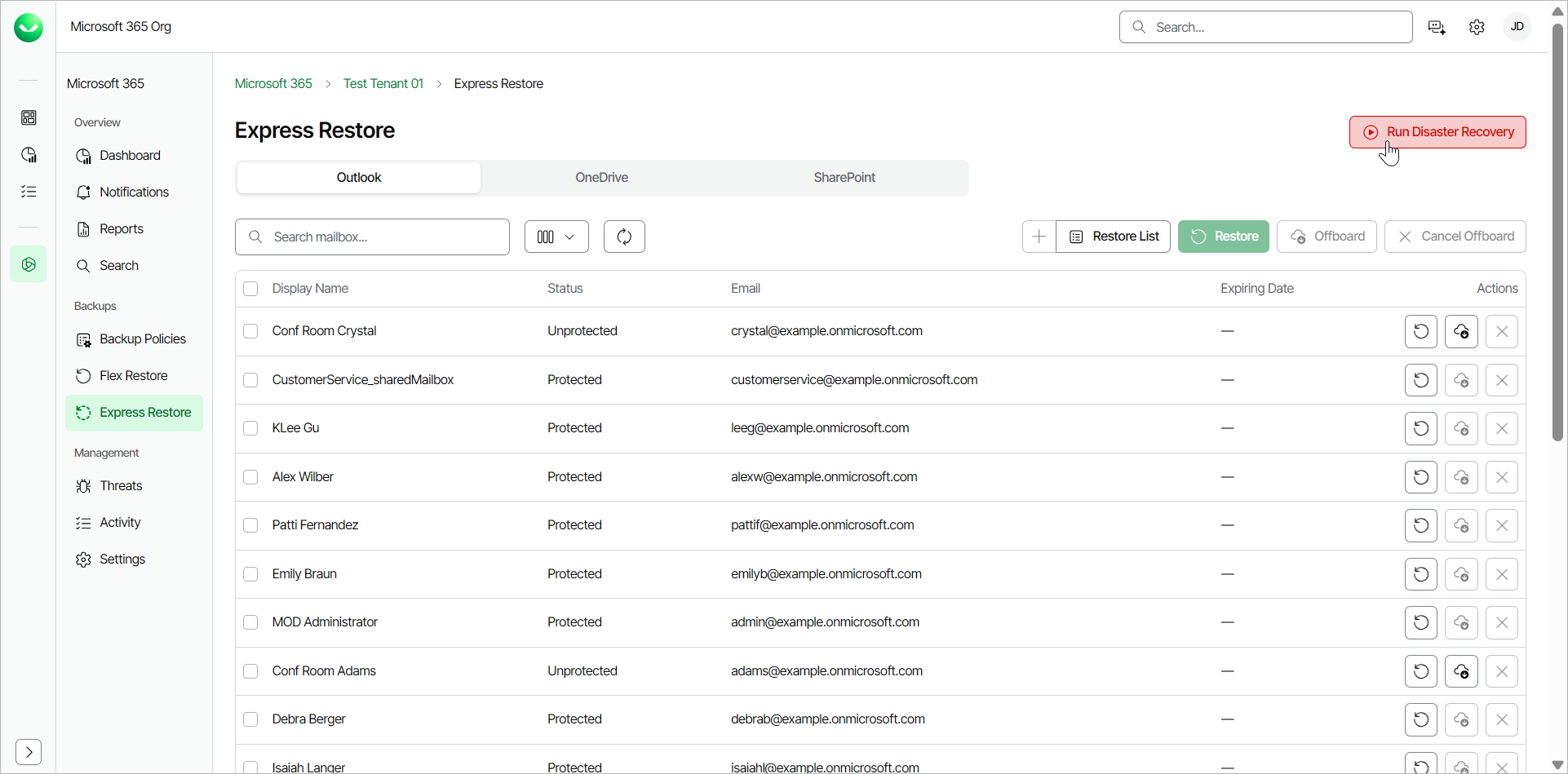
- On the Microsoft 365 page, click the name of the tenant you want to manage.
- Select Express Restore.
- On the Express Restore page, click Run Disaster Recovery.
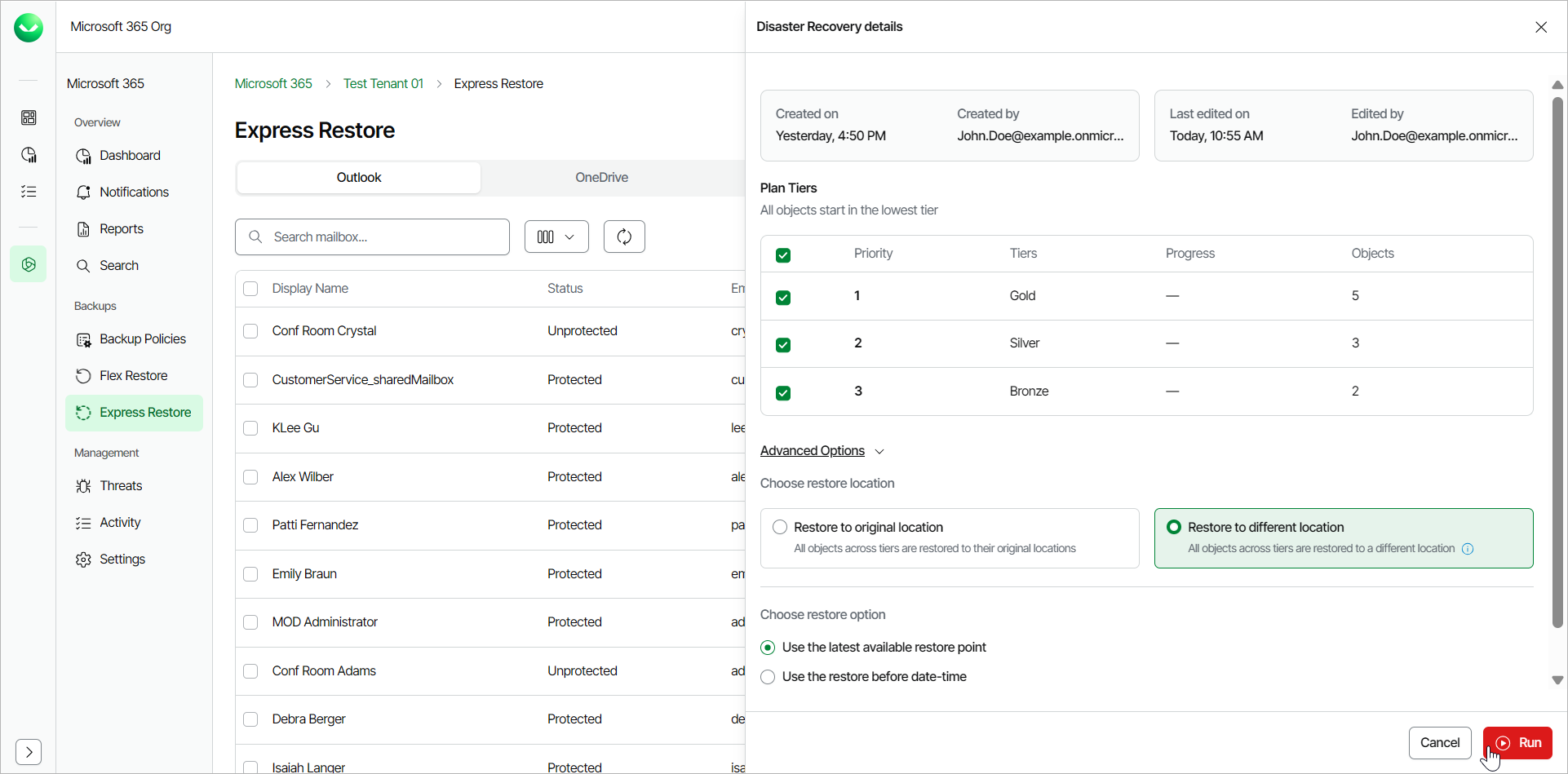
- In the Disaster Recovery details window, Veeam Data Cloud displays when and who created and edited the Disaster Recovery plan.
- In the Plan Tiers section, select the check box next to a priority tier that you want to include in the restore. By default, all 3 tiers are selected.
- In the Advanced Options section, in the Choose restore location section, if you want to change the restore location, select one of the following options:
- Restore to original location. Select this option if you want to restore the data to the original location.
- Restore to different location. Select this option if you want to restore the data to a new location.
For Outlook, Veeam Data Cloud restores the data to a newly created folder, called Recovered Items YYYY-MM-DD, HH:MM.
For OneDrive, Veeam Data Cloud restores the data to a newly created OneDrive with an R and a number added to the end of the URL. For example, https://contoso-my.sharepoint.com/personal/user1_contoso_comR0.
For SharePoint, Veeam Data Cloud restores the data to a newly created site with an R and a number added to the end of the URL. For example, https://contoso.sharepoint.com/sites/originalSiteR0.
- In the Advanced Options section, in the Choose restore option section, select the restore point from which you want the Disaster Recovery plan to restore the items. Select one of the following options:
- Use the latest available restore point. If you select this option, Veeam Data Cloud for Microsoft 365 will restore data from the latest restore point of the backup.
- Use the restore before date-time. If you select this option, you can select the date and time when the necessary restore point was created. Veeam Data Cloud for Microsoft 365 will restore data from the nearest available restore point before the selected date.
Select the Fast restore check box if you want to select from the fastest available restore points created by OneDrive and SharePoint Express backup policies. The fast restore feature does not apply to Exchange restores. For more information, see this Microsoft article.
- Click Run.
Veeam Data Cloud displays a notification that the Disaster Recovery run started.