Viewing Report History
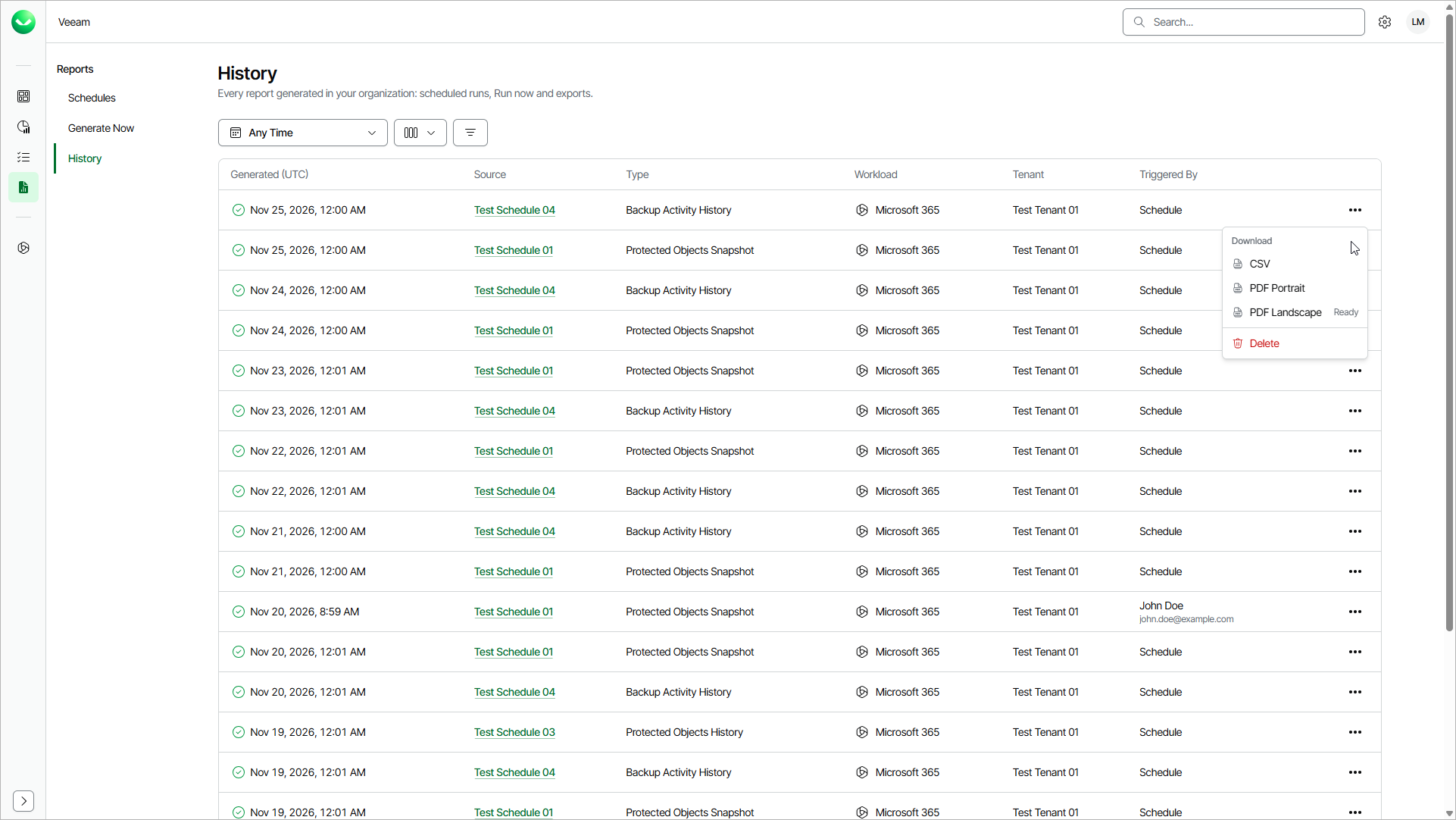
The History page is shared by all workloads. It lists all reports generated in your organization, including reports generated by a schedule, reports generated on demand and reports exported from a report preview. The page displays only reports for tenants on which you have permissions to view reports.
To view report history, in the Reports section of the navigation menu, click History.
To quickly find certain reports, you can apply a quick filter by time or combine filters by the trigger type (scheduled or manual), status, report type, schedule and user criteria.
- To filter reports by the generation date, click Any Time and select the period.
- To apply the advanced filters, do the following:
- Click Filters.
- In the Filters window, select one or more values for the criteria.
- Click Apply to view the list of reports that match the specified filters.
For each report, Veeam Data Cloud displays the following information:
|
Column |
Description |
|---|---|
|
Generated (UTC) |
Date and time when the report was generated, in UTC. |
|
Source |
Scheduled report that generated the report. For reports generated on demand, the column displays Just generated. If the scheduled report was deleted, the column displays Schedule deleted. |
|
Type |
Report type. |
|
Workload |
Workload that the report covers. |
|
Tenant |
Tenant that the report covers. If the tenant was deleted, the column displays Deleted tenant. |
|
Triggered By |
User who triggered the report generation. |
To download a report, in the row of the report, click the menu icon and select the format in which you want to download the report.
To delete a report from history, in the row of the report, click the menu icon and select Delete. Deleting a report from history does not affect the scheduled report that generated it. To delete reports, you must have permissions to manage reports on the tenant.