Specifying Network Settings for Storage Vaults
You can specify network settings for a storage vault — specify whether the storage vault can be accessed from all IP addresses, from specific IP addresses or through a private endpoint.
Before you specify network settings, review the guidelines and limitations that apply to limiting access to storage vaults. For more information, see Microsoft Docs.
In particular, consider the following:
- Settings that allow access only from specific IP addresses do not apply to connections that originate from Azure services in the same region as the storage vault region.
- IP address ranges that use /31 or /32 prefix sizes are not supported. To limit access to IP addresses in these ranges, specify individual IP addresses.
To specify network settings for a storage vault, do the following:
- On the Vault page, find the necessary tenant in the list of tenants and click the tenant name. Alternatively, click the menu icon at the end of the row and select Manage.
Alternatively, click the menu icon at the end of the row and select Manage.
- In the left menu, click Storage Vaults.
- On the Storage Vaults page, locate the storage vault whose settings you want to edit and Manage.
Alternatively, if you have switched to the list view, click the menu icon in the Actions column and select Manage.
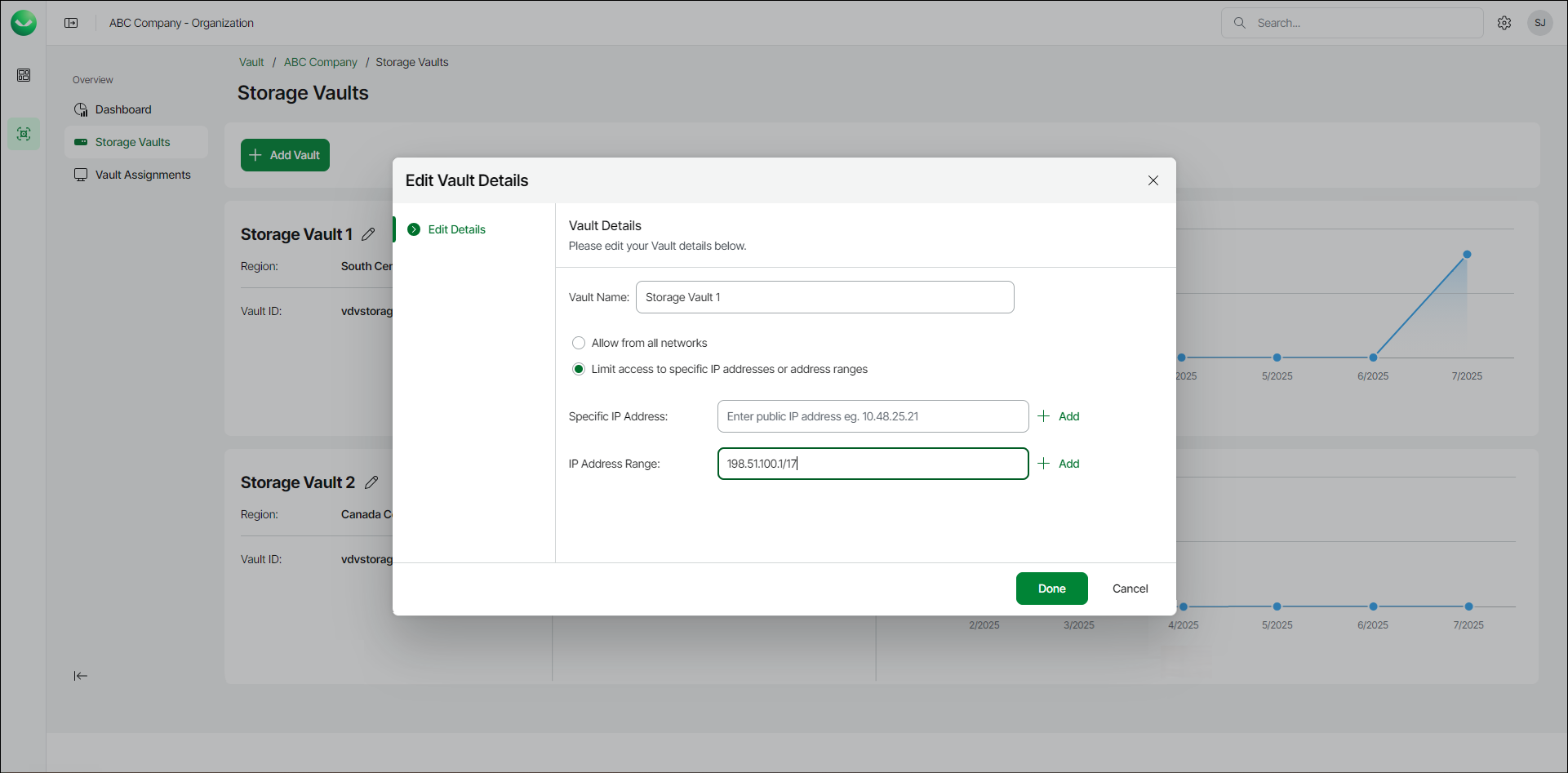
- In the Manage vault window, in the Networking section, select one of the following options:
- Allow from all networks. Select this option to allow access from all IP addresses.
- Limit access to specific IP addresses or address ranges. Select this option to allow access to the storage vault only from specific IP addresses.
If you select this option, do either of the following:
- In the Specific IP Address field, specify the necessary IP address.
To add another field for more IP addresses, click the plus icon next and enter the IP address in the displayed field. Create a new field for each additional IP address.
- In the IP Address Range field, specify the first and the last IP address of the range.
To specify more than one IP address range, click the plus icon next and enter the IP addresses in the displayed field. Create a new field for each additional IP address range.
To specify the IP address range in a valid format, use the slash / punctuation mark. For example: 198.51.100.1/17.
- [For Azure editions] Enable Private Endpoint. Select this option if you want to create private endpoints. For more infromation, see Creating Private Endpoints.
- Click Done.