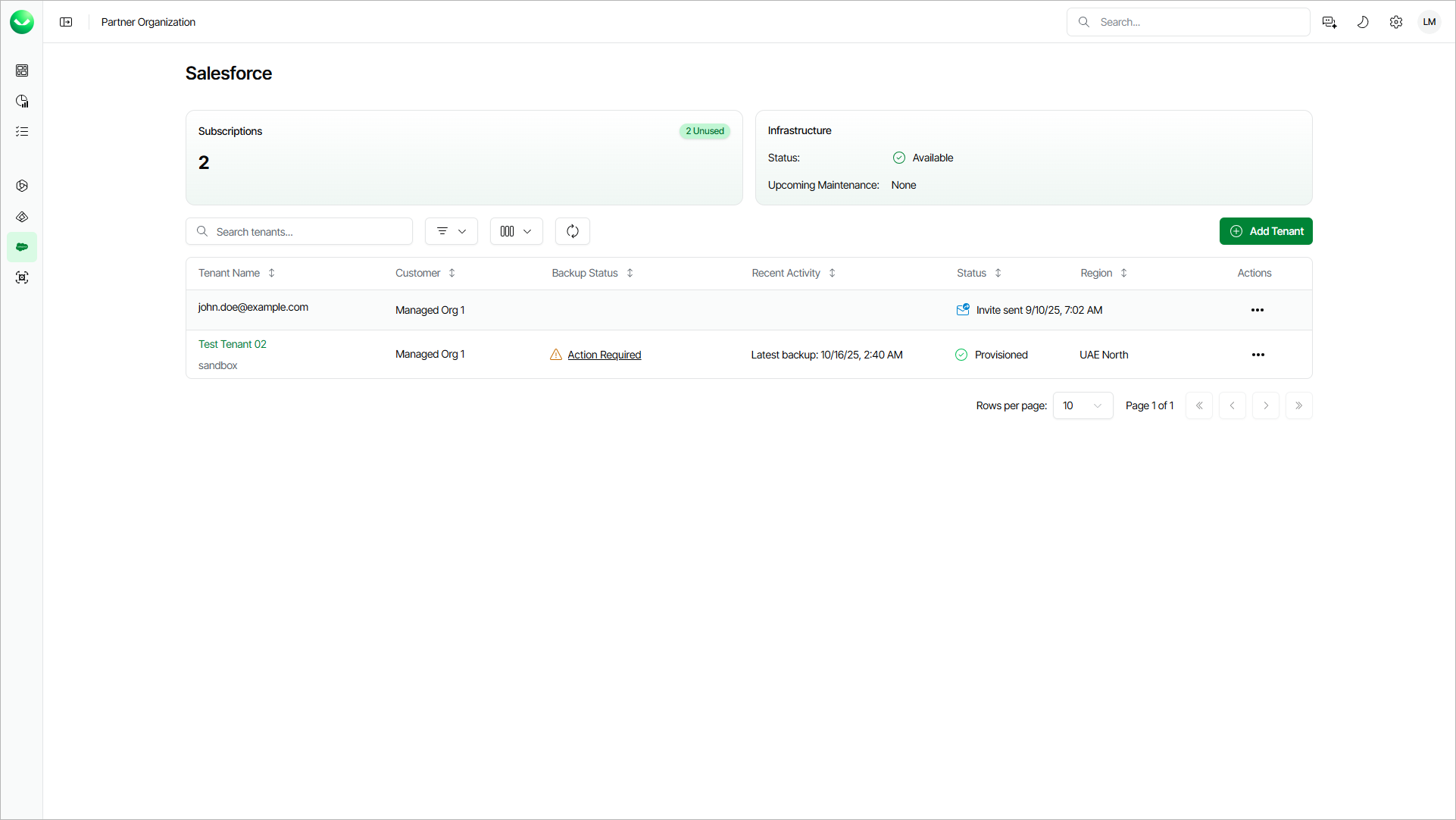
Viewing Salesforce Tenants
On the Salesforce page, you can view all added Salesforce tenants and information on the Veeam Data Cloud for Salesforce subscriptions and Veeam Data Cloud maintenance. You can also add a new Salesforce tenant. For details, see Adding Salesforce Tenants.
To view the Salesforce page, select Salesforce on the left.
In the upper section, Veeam Data Cloud displays the following information:
- The Active Subscriptions field shows the number of subscriptions your customers has assigned for this workload.
- The Needs Attention field is displayed only if one or more tenants have the Needs Attention status and require your action. For details, see Tenant Statuses.
- The Status field shows the current status of the Veeam Data Cloud infrastructure. To view the status of regions where your Salesforce tenants are deployed, click See more next to the Status field.
- The Upcoming Maintenance field provides information on the next planned maintenance date. To view all upcoming maintenance that can affect your Salesforce tenants, click See more next to the Upcoming Maintenance field. For details on Veeam Data Cloud planned maintenance, see Veeam Data Cloud Maintenance.
Tenant Properties
In the tenant list, Veeam Data Cloud displays the following properties for each tenant:
|
Property |
Description |
|---|---|
|
Tenant Name |
Name that you specified when adding the tenant and the type of the tenant (Production, Salesforce Trial, Sandbox, Developer). If the tenant status is Invite Sent, this property shows the email address to which you sent the invitation. |
|
Customer |
Customer organization where the tenant is created. |
|
Salesforce User |
Salesforce user that Veeam Data Cloud uses to connect to your Salesforce tenant. |
|
Salesforce ID |
ID of your Salesforce tenant. |
|
Salesforce URL |
Salesforce URL that you specified when adding the tenant. |
|
Recent Activity |
Date and time when Veeam Data Cloud started the last backup of the tenant. |
|
Status |
Current state of the Salesforce tenant. For details, see Tenant Statuses. |
|
Users |
Number of users with Salesforce license that are in your Salesforce tenant. |
|
Platform Users |
Number of users with Salesforce Platform license that are in your Salesforce tenant. |
|
Create Date |
Time and date when the tenant was added to Veeam Data Cloud. |
|
Created By |
Veeam Data Cloud user who added this tenant. |
|
Region |
Region where Veeam Data Cloud stores your backed-up data. For information on supported Microsoft Azure regions, see Backup Storage Regions. |
Each Salesforce tenant can have one of the following statuses:
|
Status |
Description |
|---|---|
|
Provisioning |
Veeam Data Cloud is provisioning a new tenant after you finished the Add Salesforce tenant wizard. After the infrastructure for your tenant is ready, Veeam Data Cloud creates the initial backup of your Salesforce tenant. |
|
In Progress |
The infrastructure for your tenant is ready, the initial backup of your Salesforce tenant is in progress and you can manage your tenant. You will receive an email notification once the initial backup is completed. |
|
Success |
The infrastructure for your tenant is ready, and you can manage your tenant. The backup policy is enabled and the status of the last backup session is Success or Warning. With this status, tenant management may be temporarily unavailable due to the following reasons:
|
|
Failed |
The backup policy is enabled. Status of the last backup session is Failed. To find the reason why the backup failed, check the backup session logs. For details, see Viewing Backup Sessions. If you cannot resolve the issue by adjusting the backup policy, submit a support case. |
|
Disabled |
The backup policy is disabled. You can manage your Salesforce tenant and run restore and archival jobs. You can re-enable the backup policy. For details, see Enabling and Disabling Backup Policies. |
|
Needs Attention |
Veeam Data Cloud cannot connect to your Salesforce tenant due to one of the following reasons:
To resolve the issue, click View and take the steps described in the Action Required window. |
|
Provisioning Failed |
The infrastructure deployment or initialization of the backup policy was not successful. To resolve the issue, submit a support case. |
|
Deprovisioning |
Your subscription has expired and Veeam Data Cloud is suspending the backup policy in your tenant. After the backup policy is suspended, the tenant status changes to In Retention. |
|
Deprovision Failed |
Veeam Data Cloud was unable to suspend your backup policy. To resolve the issue, submit a support case. |
|
In Retention |
Your subscription has expired and Veeam Data Cloud suspended your backup policy. If you do not renew the subscription, Veeam Data Cloud will handle your tenants and backed-up data according to the Veeam Data Cloud service agreement. For more information, see this Veeam article. |
|
Reactivating |
Veeam Data Cloud is activating the backup policy after you renewed your expired subscription within the retention period. After the backup policy is activated, the tenant status changes to Success. |
|
Reactivate Failed |
Reactivation of the backup policy in your tenant was not successful. To resolve the issue, submit a support case. |
|
Deleting |
The retention period has expired, and Veeam Data Cloud is removing your tenant and all related data. |
|
Delete Failed |
Deletion of your tenant was not successful. To resolve the issue, submit a support case. |
|
Invite Sent |
You sent an email with an invitation to add a tenant to your customer and the customer has not added the tenant yet. The status also indicates the date when the invitation was sent. You can resend, edit or cancel the invitation. For details, see Managing Invitations. |