Performing Search
|
Important |
|
This section provides information on the new Veeam Data Cloud search engine. The initial rollout covers Microsoft Exchange Online, OneDrive and SharePoint Online backups. If you cannot yet view the new search engine options in your tenant or if you want to search for items with restore points before March 31, 2025 or items of Microsoft Teams backups, you can use direct search or advanced search. For more information on the new Veeam Data Cloud search engine and the rollout details, see this Veeam KB article. |
To search for required items with the new Veeam Data Cloud search, do the following:
- On the Microsoft 365 page, click the name of the tenant whose backed-up items you want to search.
- Select Search.
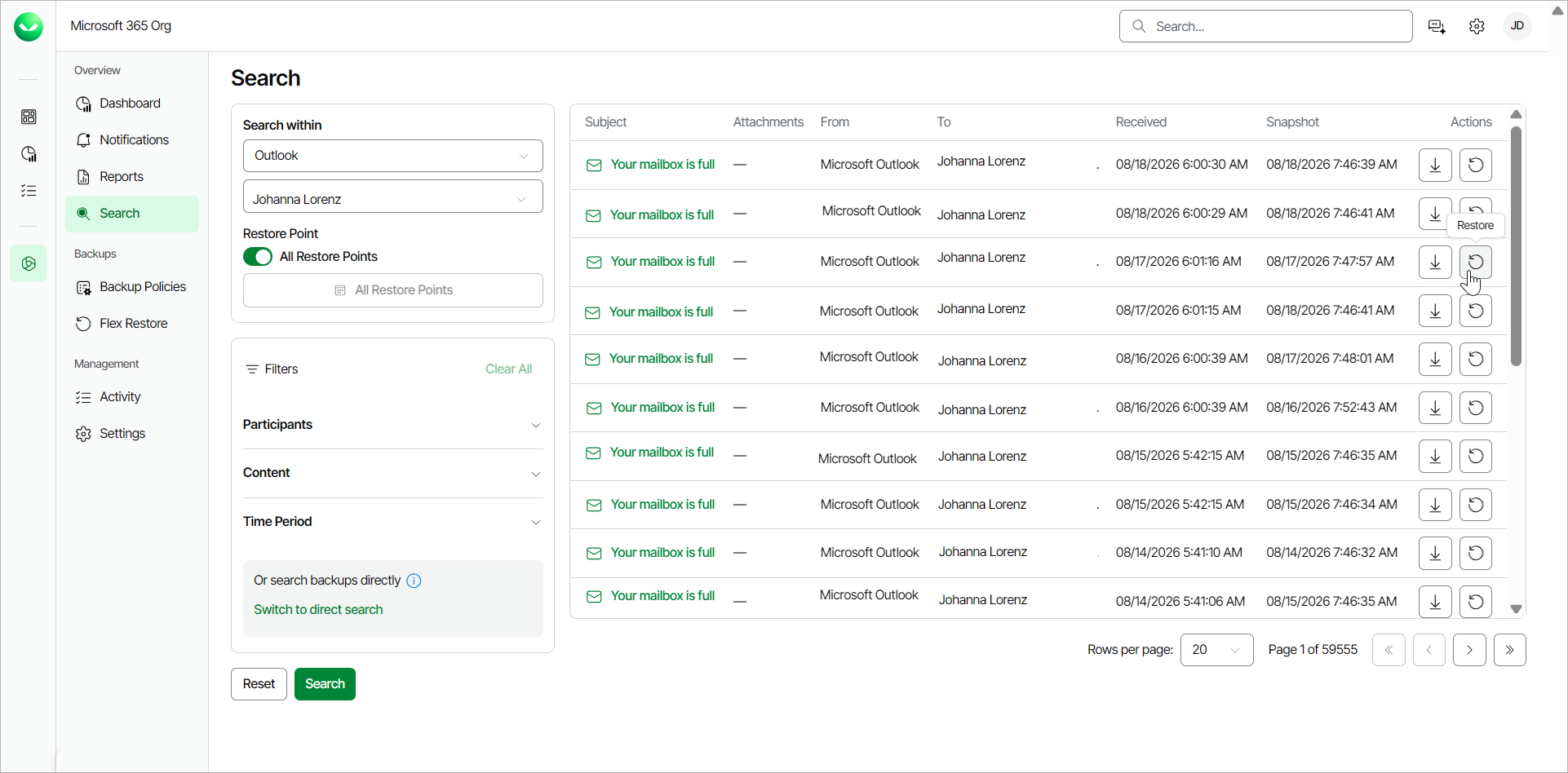
- In the Search page, in the Search within section, do the following:
- From the Search within drop-down list, select Outlook, OneDrive or SharePoint.
- Click the Select Mailbox, Select OneDrive or Select Site field and type the name of the Outlook mailbox, OneDrive or SharePoint site where you want to search for backed-up items.
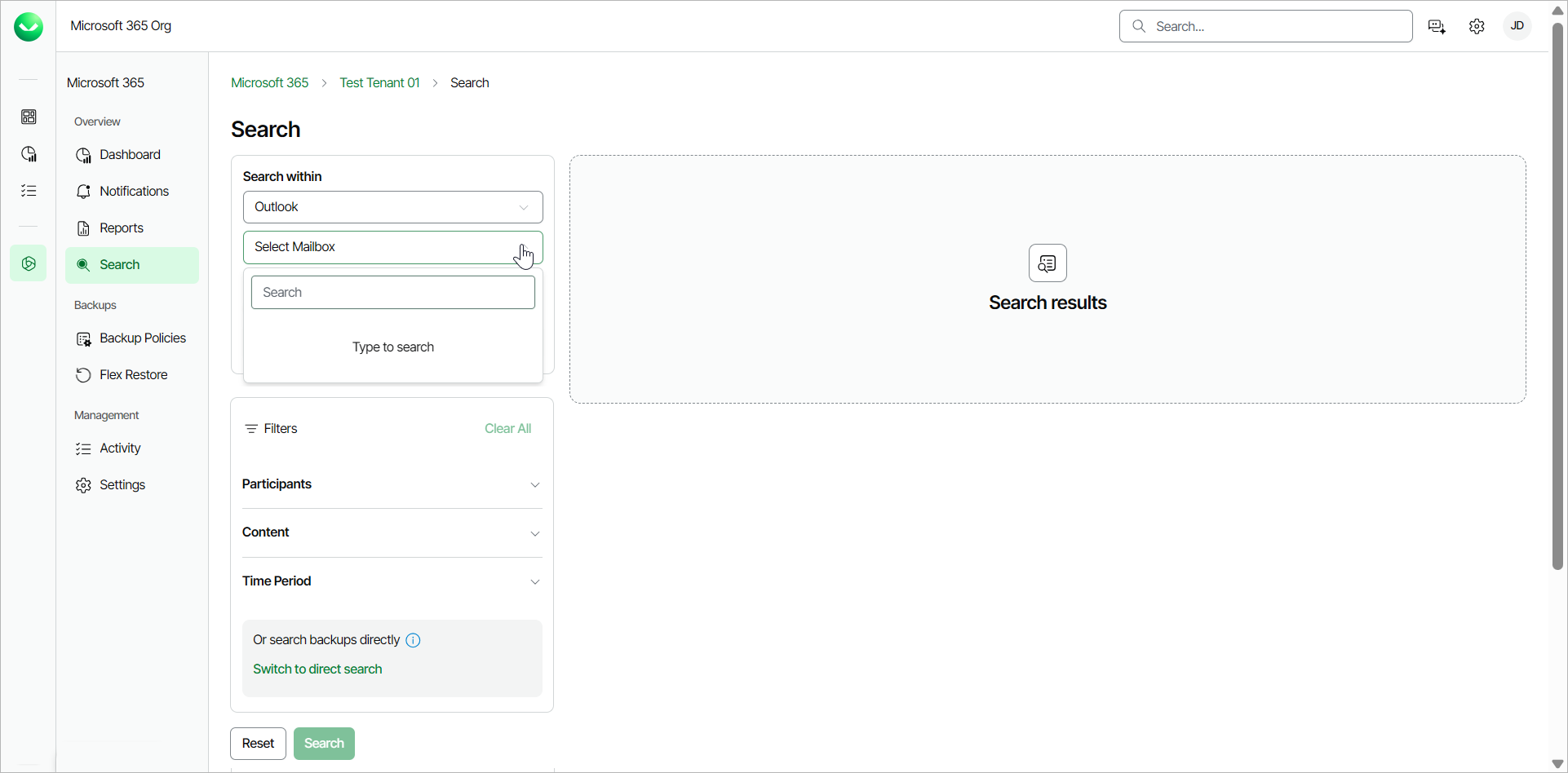
- In the Restore Point section, do one the following actions:
- Click the All Restore Points toggle switch. Veeam Data Cloud will search across all the restore points of backups created after March 31, 2025.
The search results will include the latest version of the item.
You can only restore one item at a time from the search results.
- To restore multiple items, select a restore point where you want to search for the backed-up items and click Apply. You can now restore multiple items from the search results.
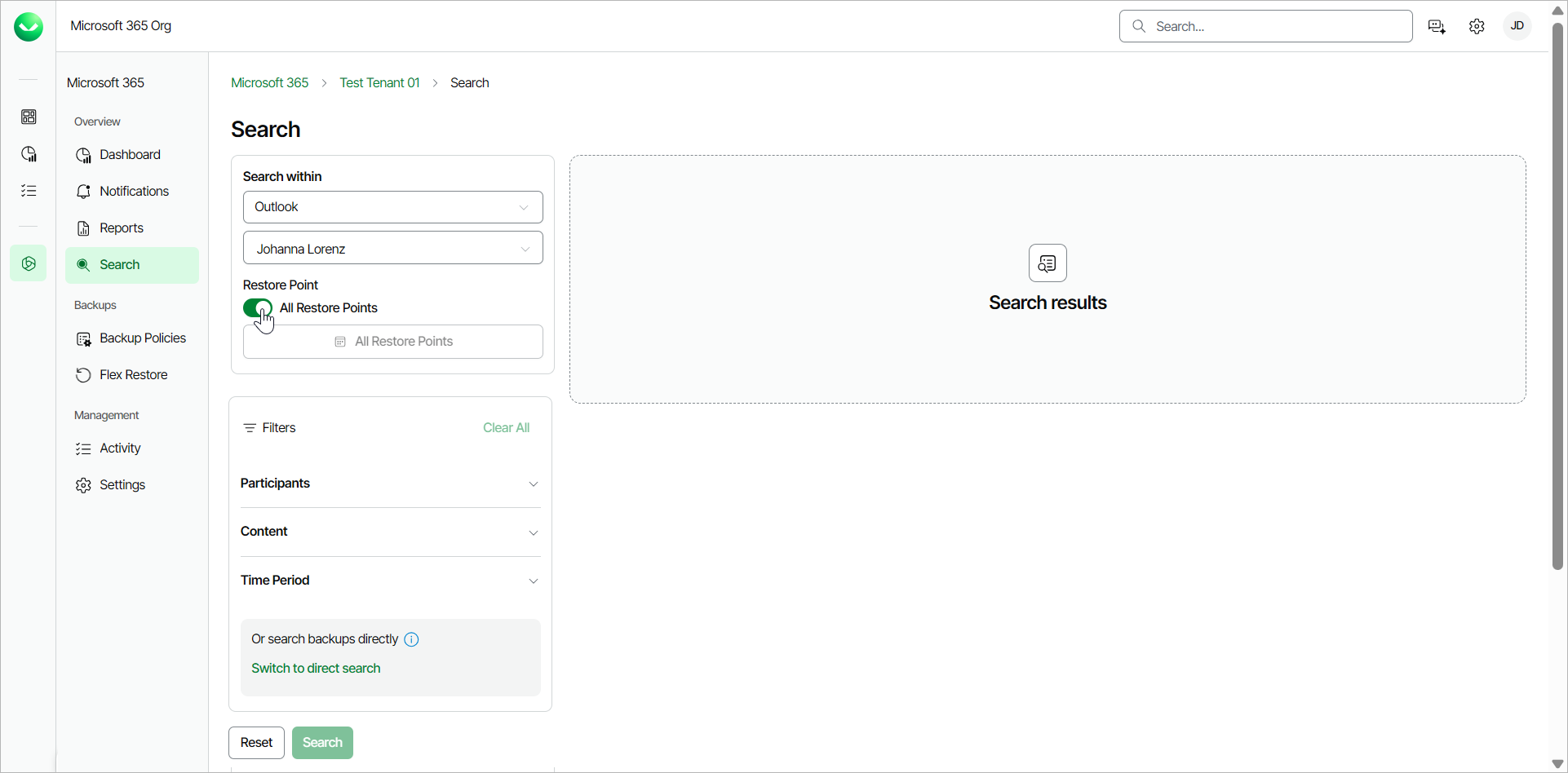
- In the Filters section, specify filters for the search. For information on the available filters, see Search Filters.
|
Tip |
|
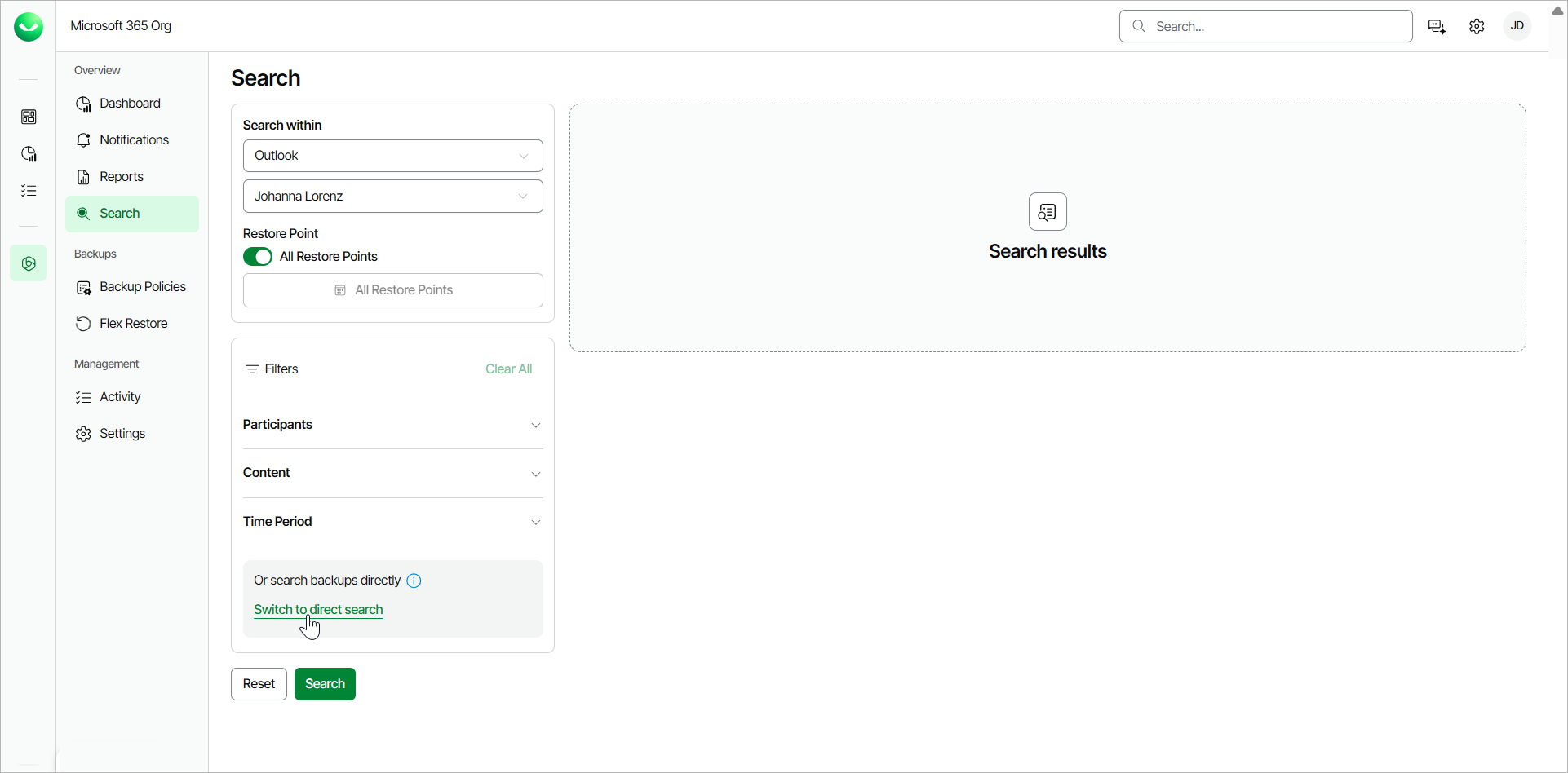
Click Switch to direct search if you want to search for items with restore points before March 31, 2025 or backed-up Teams items. For more information, see Performing Direct Search and Performing Advanced Search. |
- Click Search.
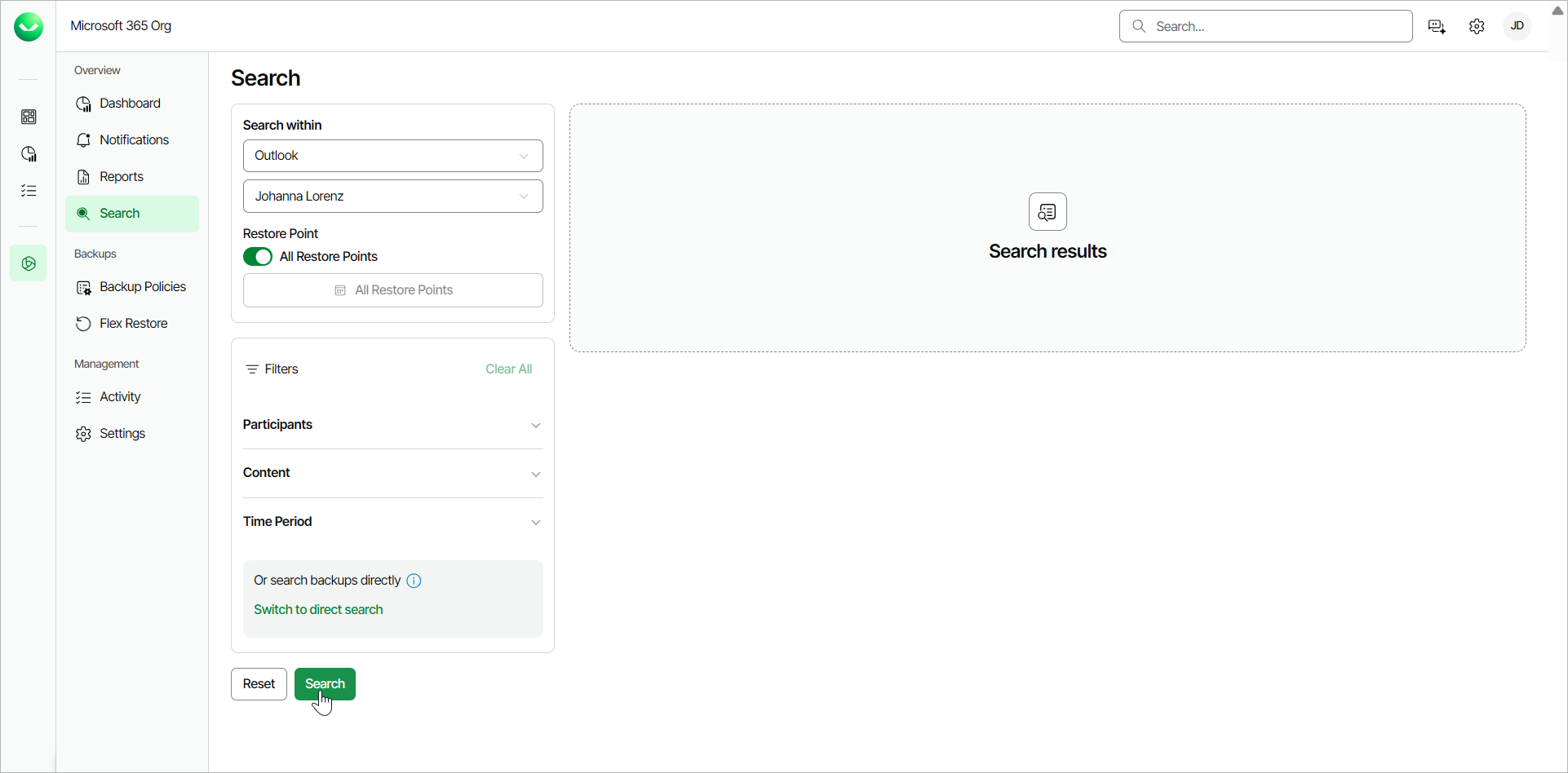
- Veeam Data Cloud will display found items in the Search results section.
- If you want to restore any of the found items, in the Actions column of the item you want to restore, do the following:
- Click Restore.
- Click Download.
|
Tip |
|
If you want to start a new search, click Reset. |
The following table displays the available search filters for each service.
|
Filter Category |
Service |
Filter |
Description |
|---|---|---|---|
|
Participants |
Outlook |
From |
Specify the email or username of the sender of the email. |
|
To |
Specify the email or username of the receiver of the email. |
||
|
Cc |
Specify the email or username to whom a copy of the email was sent. |
||
|
Bcc |
Specify the email or username to whom a blind copy of the email was sent. |
||
|
OneDrive, SharePoint |
Created by |
Specify the name of the user that created the file. |
|
|
Modified by |
Specify the name of the user that modified the file. |
||
|
Content |
Outlook |
Subject |
Specify the subject of the email. |
|
Type |
Select one of the available types from the drop-down list: Message, Contact, Meeting, Task, Note, Journal, Rss Feed. |
||
|
Has Attachment |
Select the check box to filter by emails that contain attachments. |
||
|
Attachment Name |
Specify the name of the email attachment. |
||
|
OneDrive |
Name |
Specify the name of the OneDrive file or folder. |
|
|
File type |
Select a file type from the drop-down list. |
||
|
Location |
Specify the path to the file. |
||
|
Size |
Specify the size of the file. From the drop-down list, select Greater than, Less than or Equals. Then, enter the number for the size of the file. From the last drop-down list, select KB, MB or GB. |
||
|
SharePoint |
Name |
Specify the name of the SharePoint site, list, folder, file or library. |
|
|
File type |
Select a file type from the drop-down list. |
||
|
Size |
Specify the size of the file. From the drop-down list, select Greater than, Less than or Equals. Then, enter the number for the size of the file. From the last drop-down list, select KB, MB or GB. |
||
|
Time Period |
Outlook, OneDrive, SharePoint |
Select dates |
Select dates to filter the search to a time period when the item was sent, received or last modified. |