Creating Flex Backup Policies
You can create new backup policies in Veeam Data Cloud for Microsoft 365.
Before you start creating backup policies, check Considerations and Limitations.
To create a new Flex backup policy, do the following:
- On the Microsoft 365 page click the name of the tenant you want to manage.
- Select Backup Policies.
- On the Backup Policies page, click Add New Backup Policy.
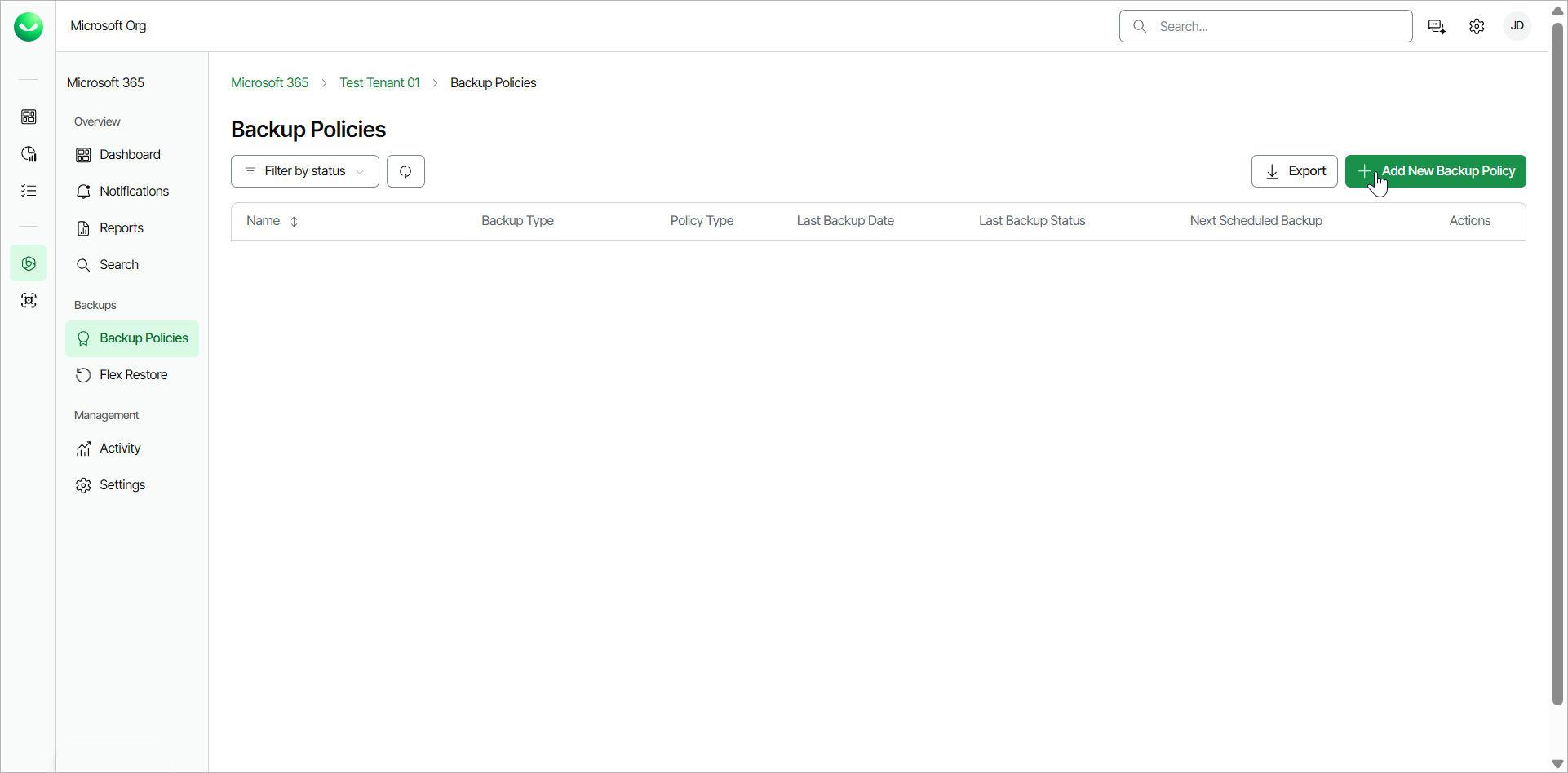
- Select the New Flex Policy option and click Continue.
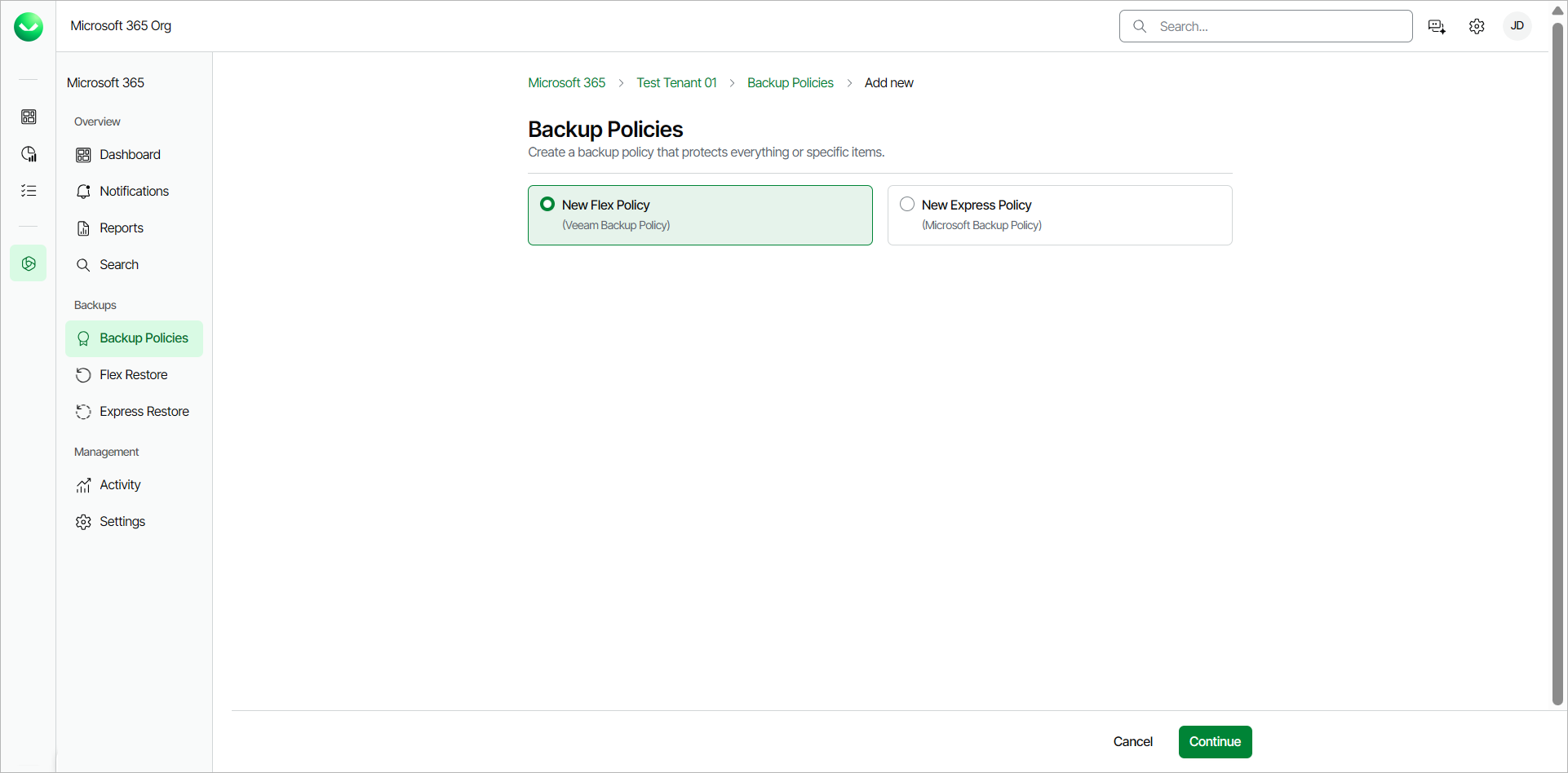
- On the Add New Backup Policy page, in the Policy name field, specify a name for the new backup policy.
- [Optional] In the Description field, provide a description for future reference.
- From the Storage region drop-down list, select the backup repository where you want to store the backup data.
If this is the first backup policy for the tenant, Veeam Data Cloud does not display the Storage region drop-down list. The backup repository is provisioned in the storage region you selected when you added the Microsoft 365 tenant to Veeam Data Cloud after you successfully create the backup policy.
- Select one of the following options:
- Select Back up entire organization to back up all objects within your Microsoft organization. When the backup policy session starts, Veeam Data Cloud will back up the entire content of the organization, and the list of items to back up will be automatically updated. For example, if some mailboxes were added or deleted from the organization between backup policy runs, the backup policy will reflect those changes.
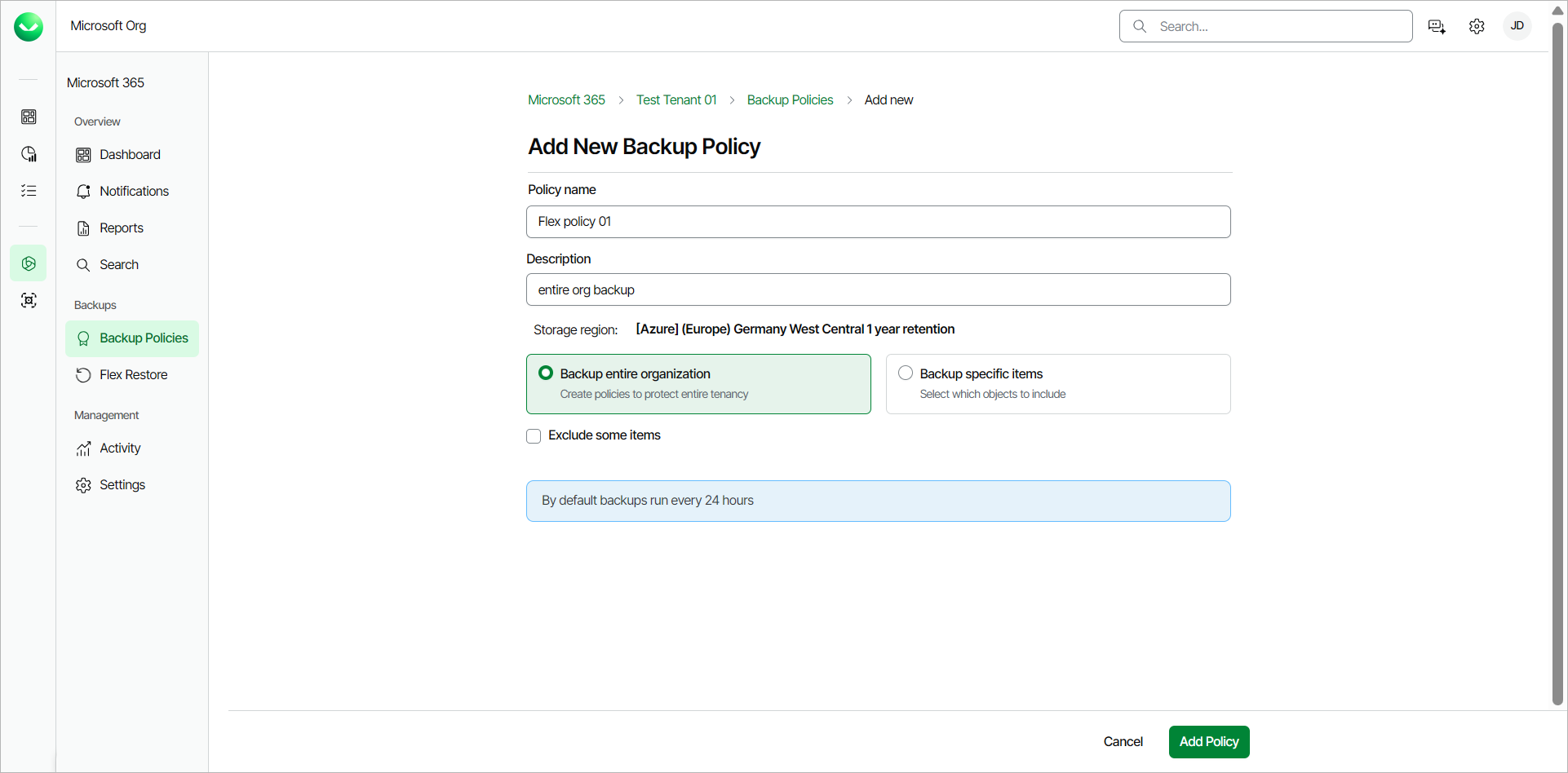
- Select Back up specific items to back up specific objects within your Microsoft organization. In the Select objects to include in the backup section, do the following:
- Click Select next to Users and click Select from a list to select users to back up. For each selected user, you can select check boxes to include their Mailbox, Archive Mailbox, OneDrive and Personal Site in the backup.
You can also click Upload a CSV file to upload a .CSV file with one email address per line.
- Click Select next to Groups and click Select from a list to select groups to back up. For each group member, you can select check boxes to include their Mailbox, Archive Mailbox, OneDrive and Personal Site in the backup. For each group mailbox, you can select check boxes to include the group Mailbox and Site in the backup.
You can also click Upload a CSV file to upload a .CSV file with one group email address per line.
Use dynamic Entra ID groups if you want the groups to be automatically updated between backup policy runs. Otherwise, you must manually add and delete users from the groups.
- Click Select next to SharePoint Sites and click Select from a list to select sites to back up. If you select the root SharePoint site, the list of sites to back up will be automatically updated when the backup policy session starts. For example, if some subsites were added or deleted between backup policy runs, the backup policy will reflect those changes.
You can also click Upload a CSV file to upload a .CSV file with one SharePoint site URL per line.
- Click Select next to Teams and click Select from a list to select teams to back up. You can select whether to back up team posts if you enabled team posts backup.
You can also click Upload a CSV file to upload a .CSV file with one team email address per line.
- Click Select next to All objects by service and select from the following processing options: Mailboxes, Archive Mailboxes, OneDrive, Sites, Teams, Teams Posts (if enabled). When the backup policy session starts, Veeam Data Cloud will check the entire content of the selected objects by service and the list of items to back up will be automatically updated. For example, if some mailboxes were added or deleted between backup policy runs, the backup policy will reflect those changes.
For multi-geo tenants, Veeam Data Cloud also shows the location of the data for the objects you select to back up. Only objects located in the mapped regions for the tenant are visible.
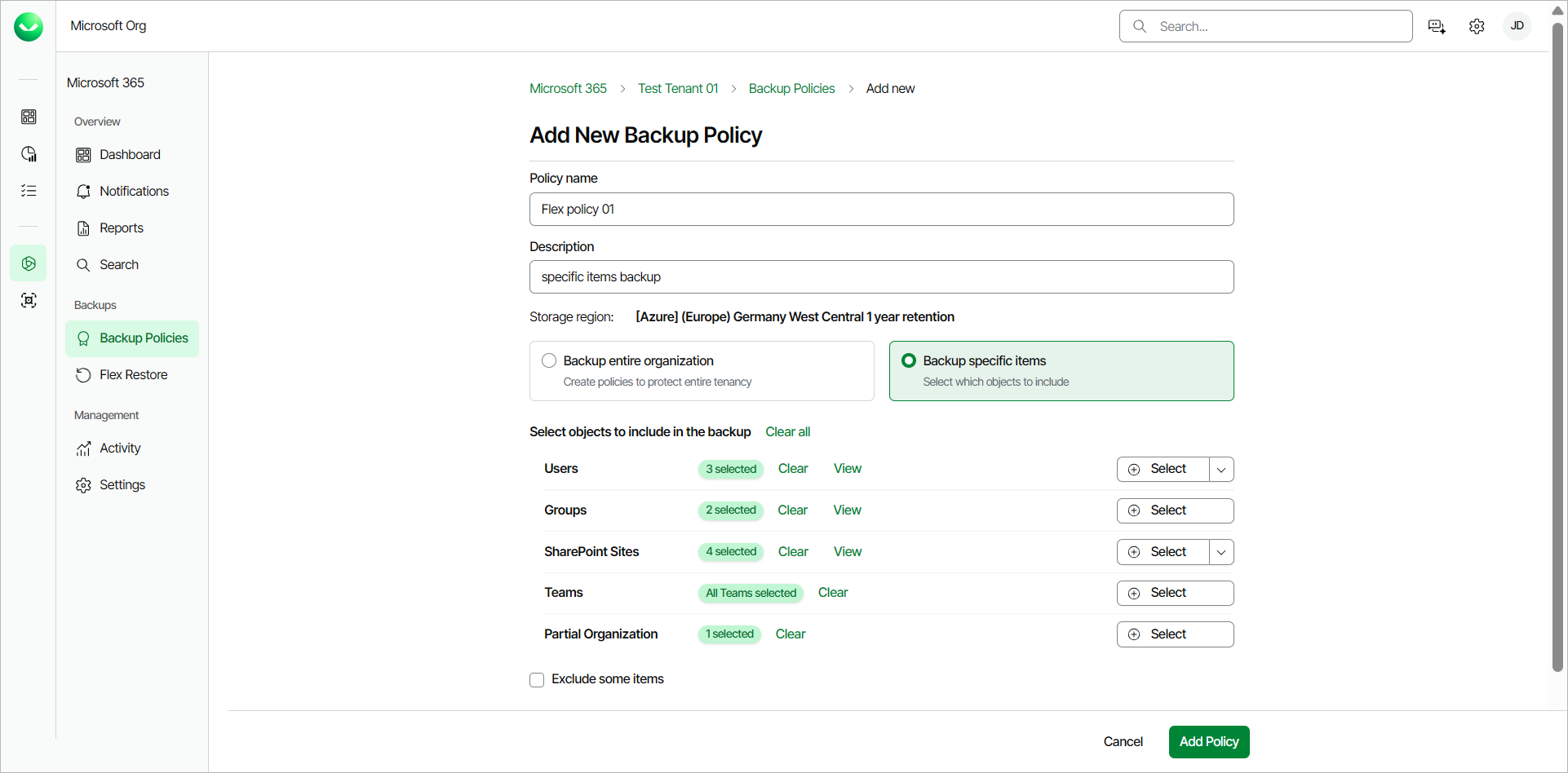
- If you want to exclude specific objects from the backup policy, select the Exclude some items check box. Then click Select next to Users, Groups, SharePoint Sites or Teams and select specific objects to exclude.
For Users, Groups and Teams, you can also click Upload a CSV file to upload a .CSV file with one user, group or team email address per line.
For SharePoint Sites, you can also click Upload a CSV file to upload a .CSV file with one SharePoint site URL per line.
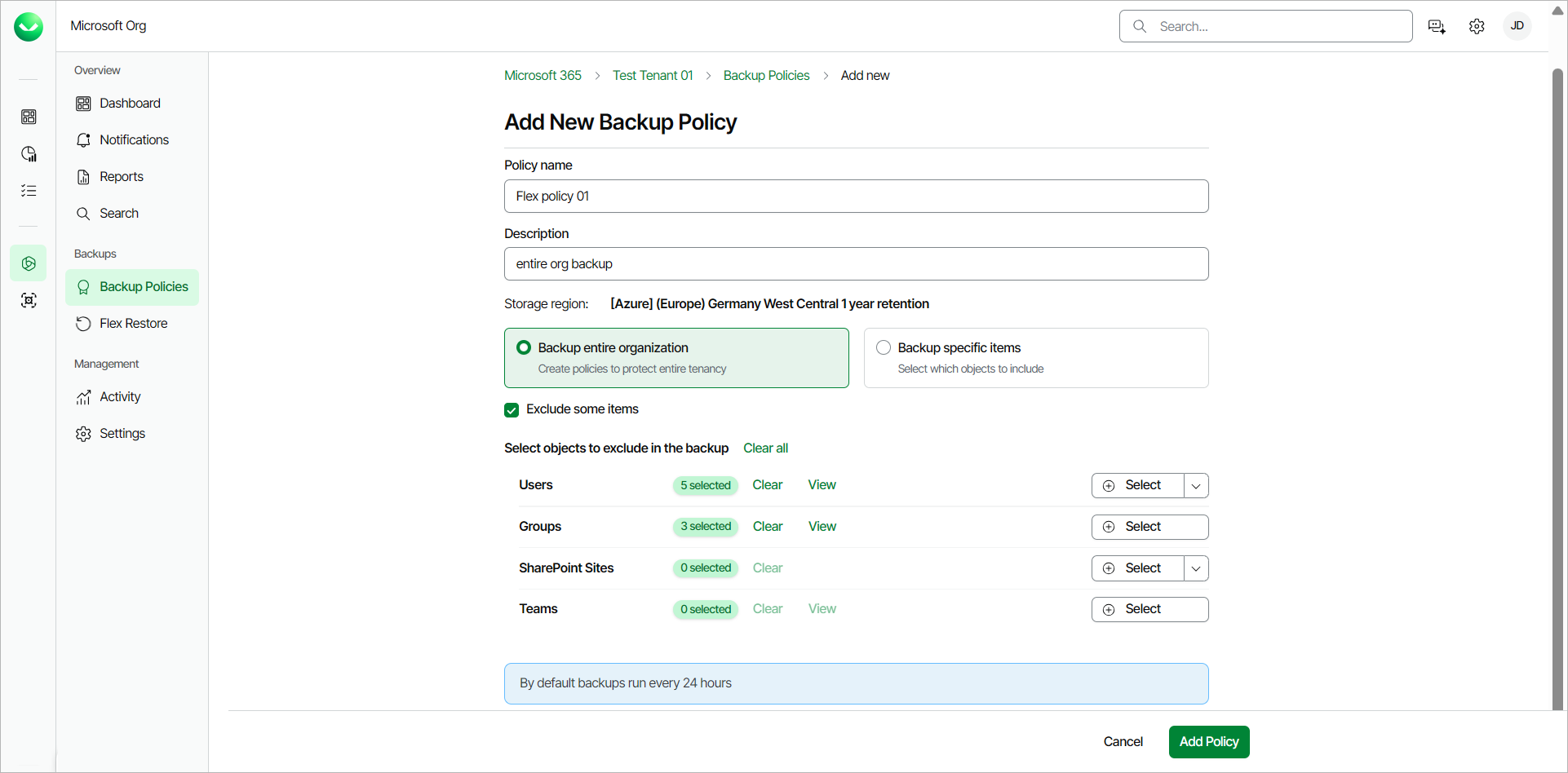
- Click Add Policy.
|
NOTE |
|
Consider the following:
|
|
Note |
|
When you upload a CSV file with user, group or team email addresses or site URLs, Veeam Data Cloud validates the entries. After the validation, you can do the following actions:
|
|
TIP |
|
During your initial full backup, Microsoft may be throttling your traffic due to the high load of Microsoft Exchange data. To mitigate this, you can temporarily disable Microsoft Exchange throttling in the Microsoft 365 admin center. For detailed instructions on how to disable Microsoft throttling, see this Veeam KB article. |