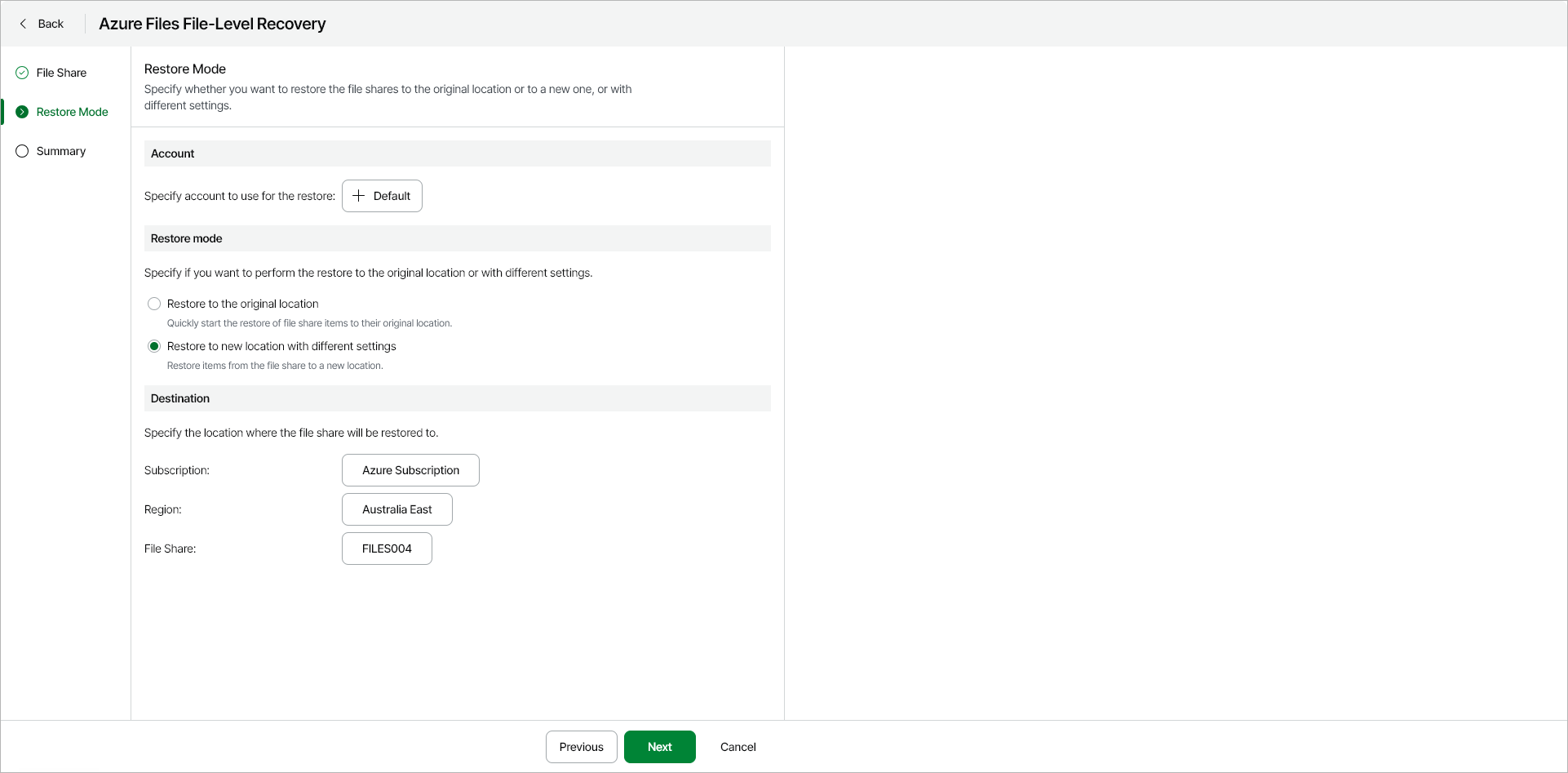
Step 3. Specify Account and Restore Mode
At the Restore Mode step of the wizard, specify the following restore settings:
Make sure the Default Azure account is selected. This is the Veeam service principal account that was created by Veeam Data Cloud for Microsoft Azure. This account has all the necessary roles and permissions for the restore operation.
Specifying Restore Mode and Destination
In the Restore mode section, choose whether you want to restore files from the selected file share to the original or to a custom location.
If you select the Restore to new location with different settings option, you must also select the Azure subscription, region and target file share to which the restored data will be saved.
|
Note |
|
Data transfer to a new location may result in additional costs and may take more time to complete. |