Managing Backup Policies
Veeam Data Cloud for Microsoft 365 allows you to manage backup policies.
To manage a backup policy, do the following:
- On the Microsoft 365 page, click the name of the tenant you want to manage.
- Select Backup Policies.
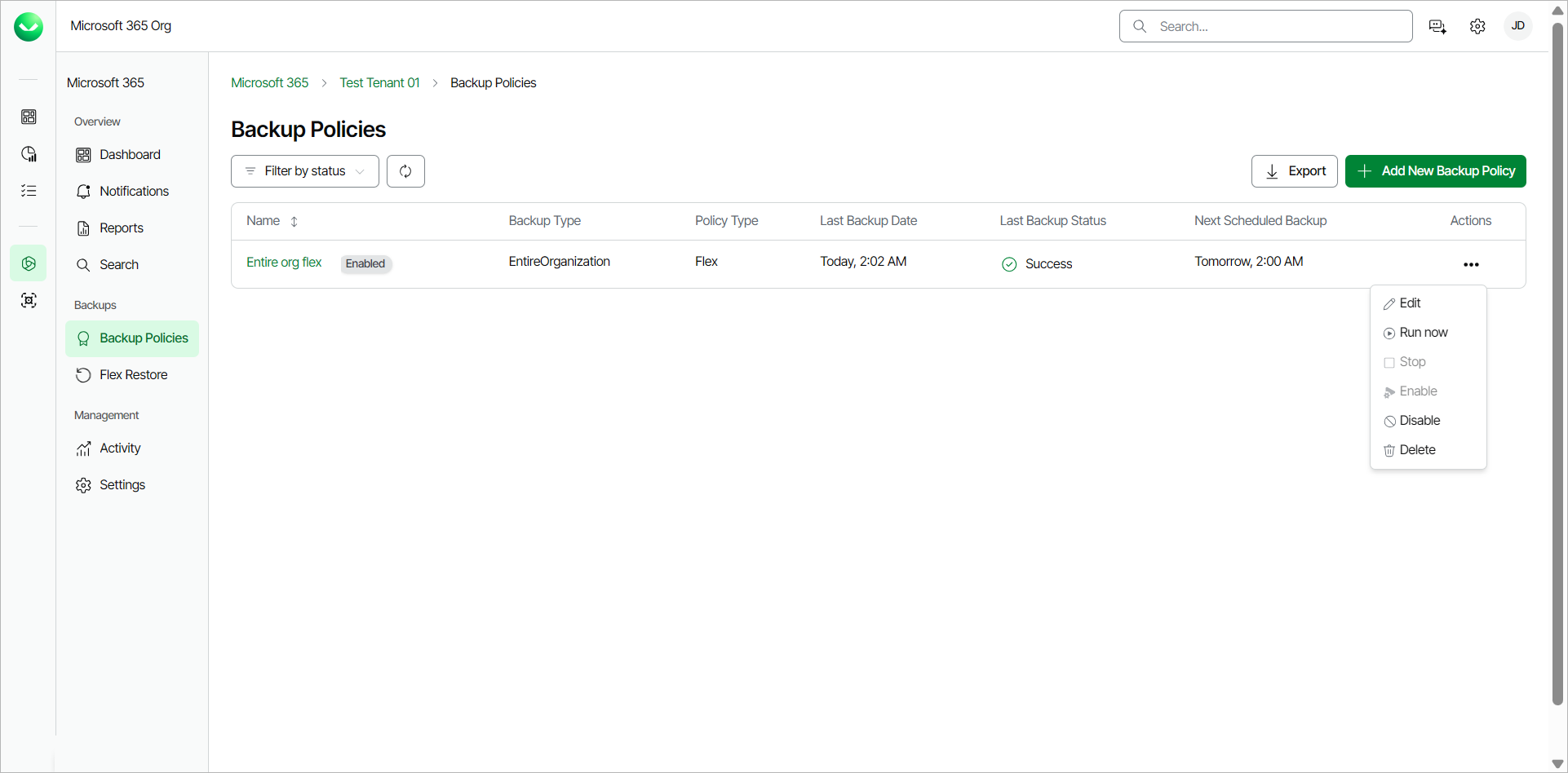
- In the list of backup policies, in the Actions column of the policy you want to manage, do one of the following:
- Click Edit to rename the backup policy and add or remove backed-up objects from the backup policy. For details, see Editing Flex Backup Policies and Editing Express Backup Policies.
- Click Run now to run a backup policy session.
- Click Stop to stop a backup policy session that is already running.
- Click Enable to allow the backup policy to run upon schedule again.
- Click Disable to prevent the backup policy from running upon schedule. In the displayed window, click Disable to disable the backup policy.
- Click Delete to delete the backup policy. In the displayed window, click Delete to confirm the deletion of the backup policy.
If you delete a backup policy, you will not delete the data associated with it. Backed-up data deletion only occurs when the restore point goes beyond the retention period you set for your Veeam Data Cloud for Microsoft 365 plan or after successfully offboarding a protection unit from an Express backup policy. For more information, see Backup Retention and Offboarding Protection Units.
|
TIP |
|
You can click the name of a backup policy to view and download backup session logs. For more information, see Viewing Backup Logs. |