Managing Scheduled Reports
In Reports, you can see a list of all the scheduled reports with information about the name, frequency, recipients, who created the report and the date it was created.
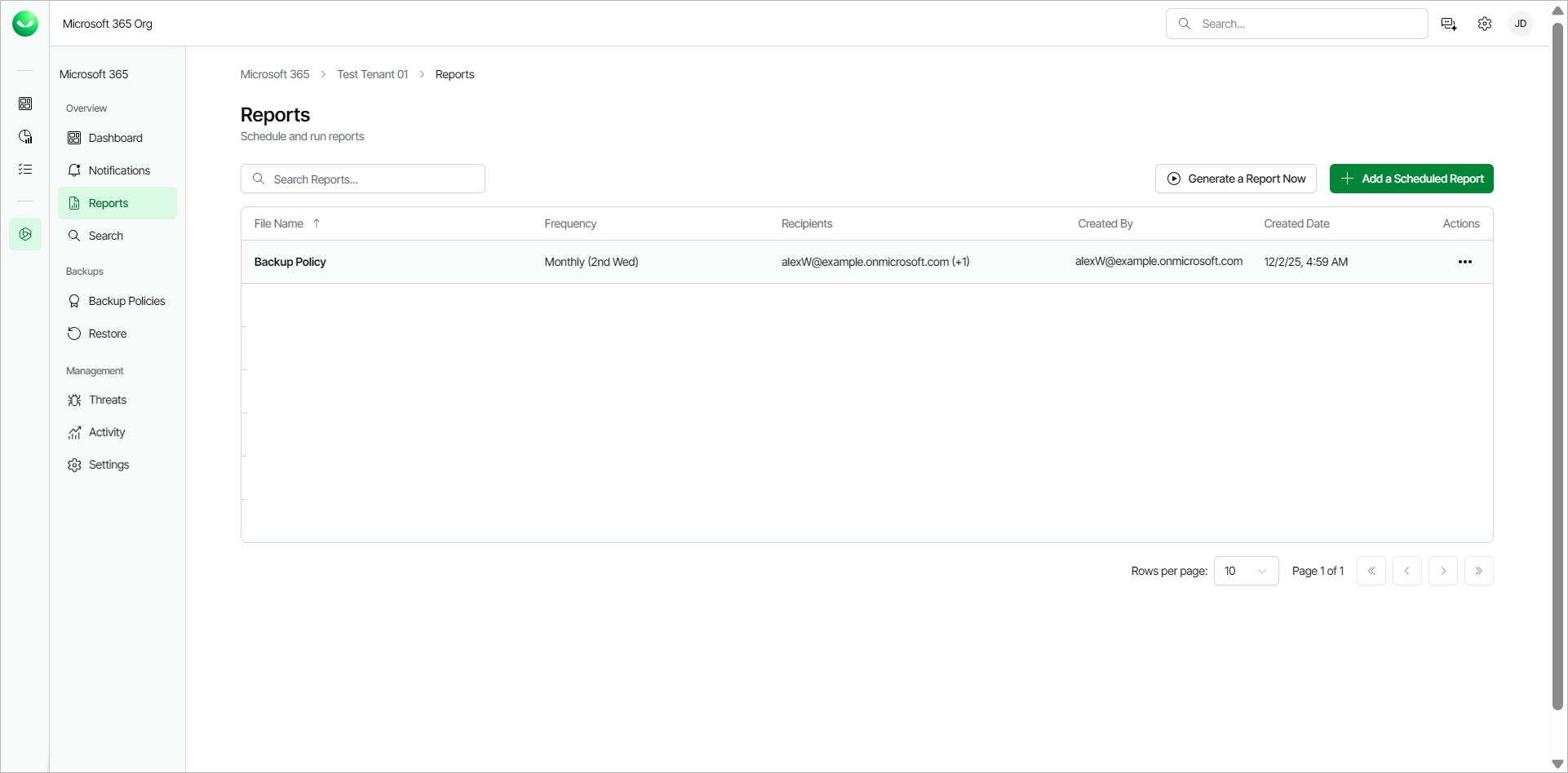
To manage a scheduled report, click the menu in the Actions column in the report you want to manage and do the following:
- Click Run now to run the scheduled report now.
- Click Edit to update the details, frequency and recipients of the scheduled report.
- Click Disable (or Enable if the report is disabled) to disable (or enable) the scheduled report.
- Click Delete to delete the scheduled report.
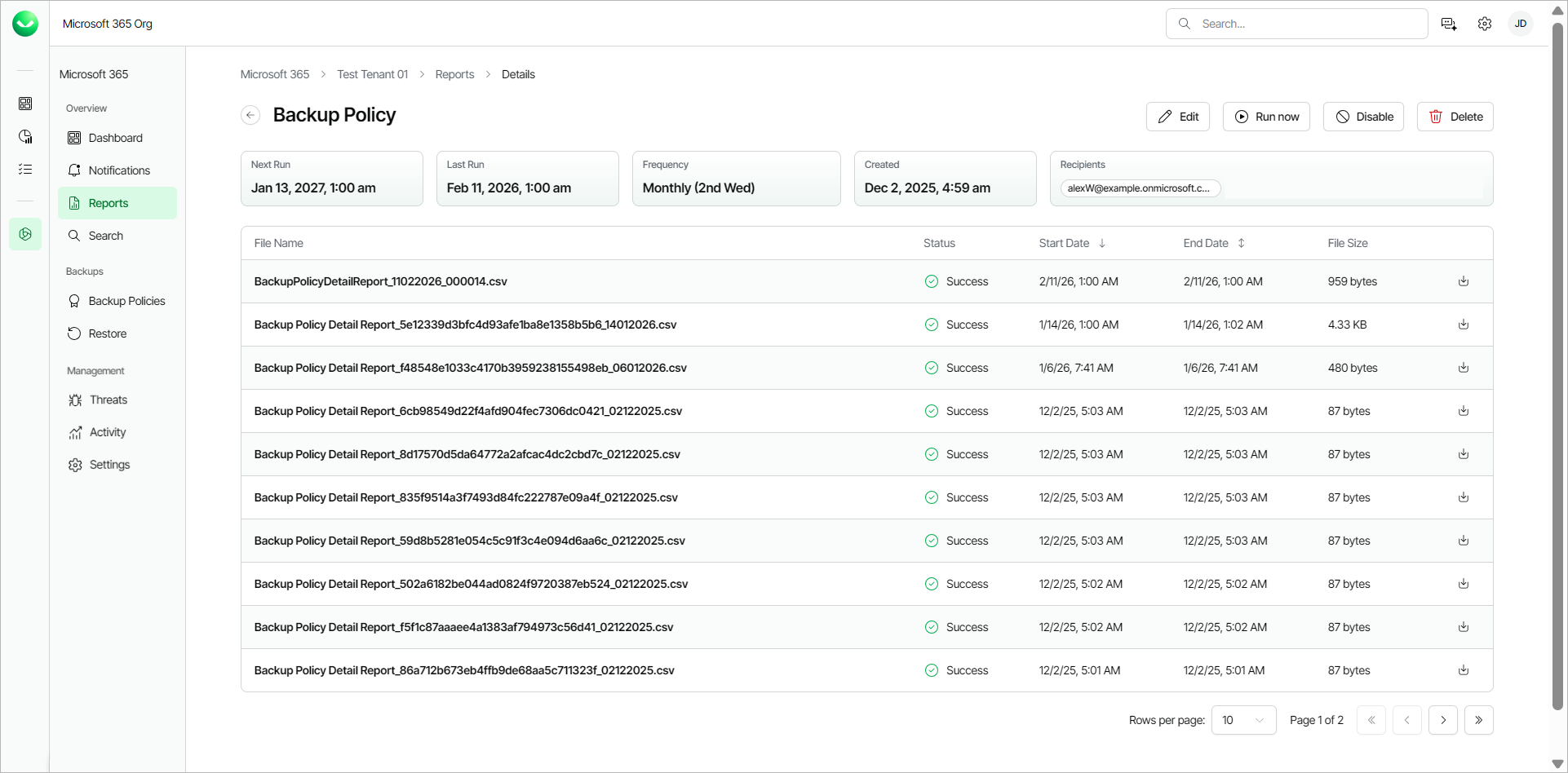
- Click Details to see an overview of the report execution. In the overview, you can do the following:
- Click Edit to update the details, frequency and recipients of the scheduled report.
- Click Run now to run the scheduled report.
- Click Disable (or Enable if the report is disabled) to disable (or enable) the scheduled report.
- Click Delete to delete the scheduled report.
- Click Download file next to an executed report on the list to download the report.
The report details overview also displays the following information:
- Next Run. The date and time of the next scheduled execution.
- Last Run. The date and time of the last run of the report.
- Frequency. The schedule frequency of the report.
- Created. The date and time the report was created.
- Recipients. The email recipients of the scheduled report.
- File Name. The name of the file of the executed report.
- Status. The status of the executed report.
- Start Date.The start date and time of the executed report.
- End Date. The end date and time of the executed report.
- File Size. The size of the file of the executed report.