Performing Direct Search
|
Note |
|
If your tenant is part of the initial rollout of the new Veeam Data Cloud search engine and you can view the new search engine options, see Performing Search. |
To search for required items with direct search, do the following:
- On the Microsoft 365 page, click the name of the tenant whose backed-up items you want to search.
- Select Search.
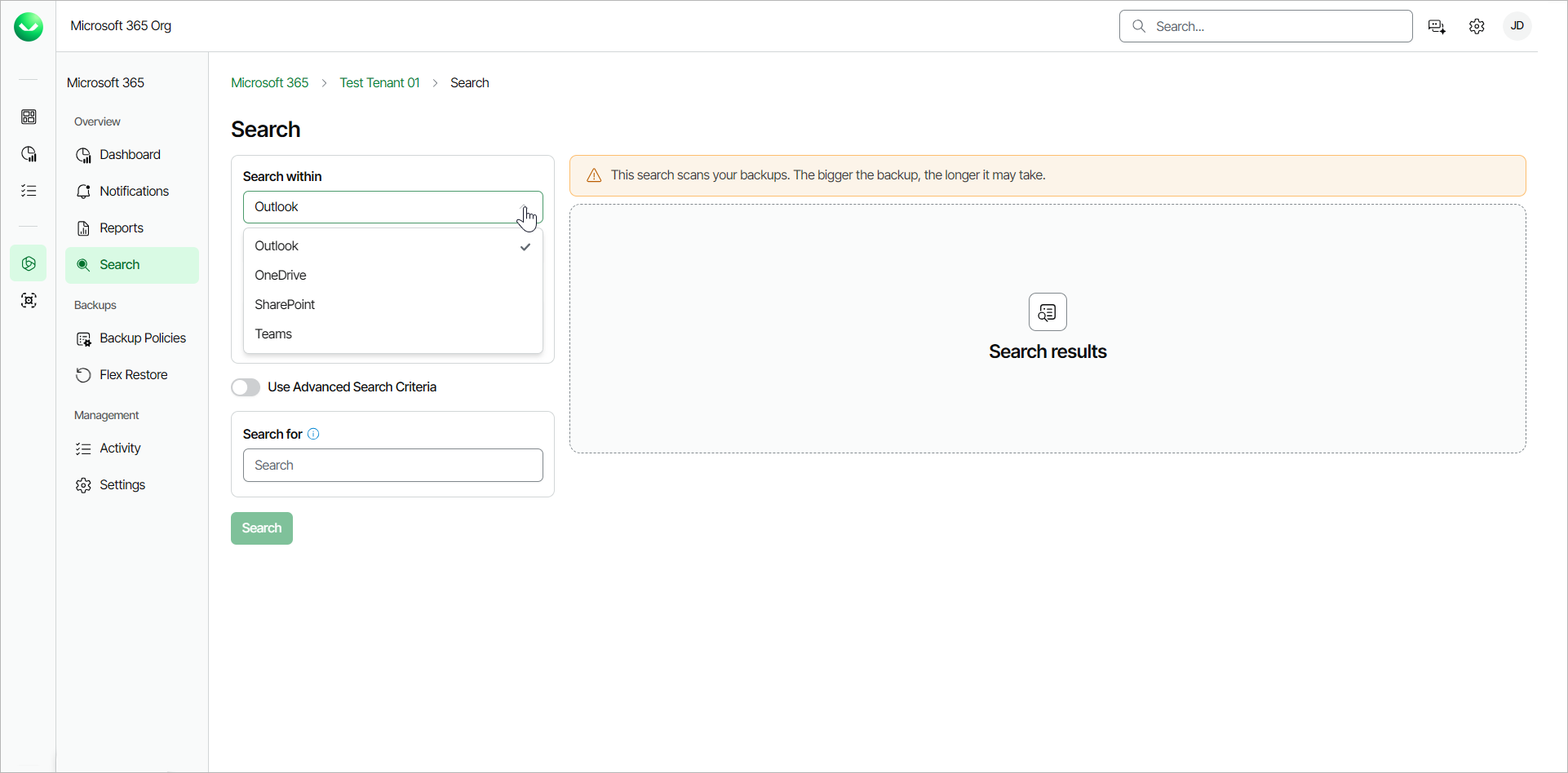
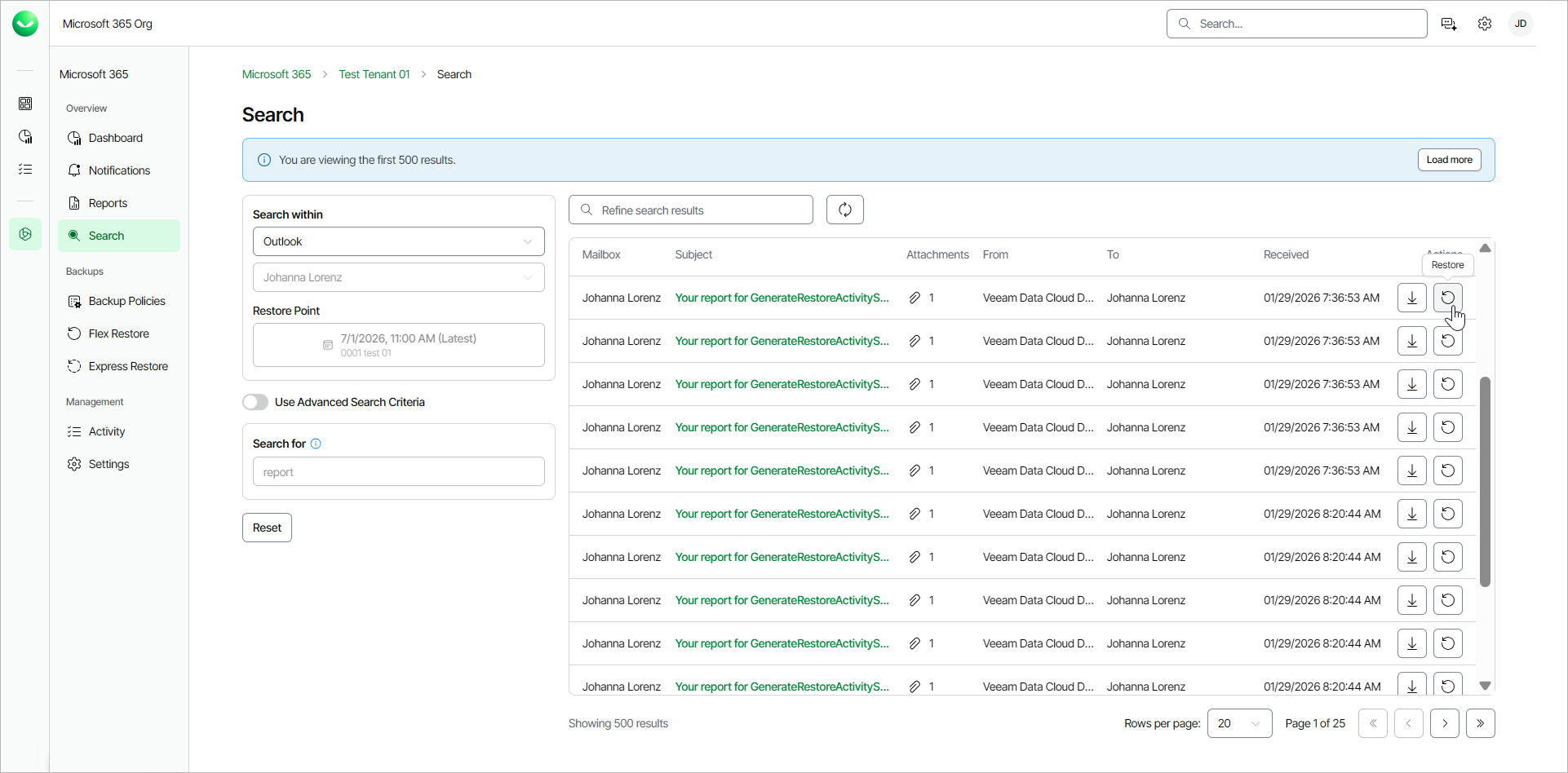
- In the Search page, from the Search within drop-down list, select Outlook, OneDrive, SharePoint or Teams.
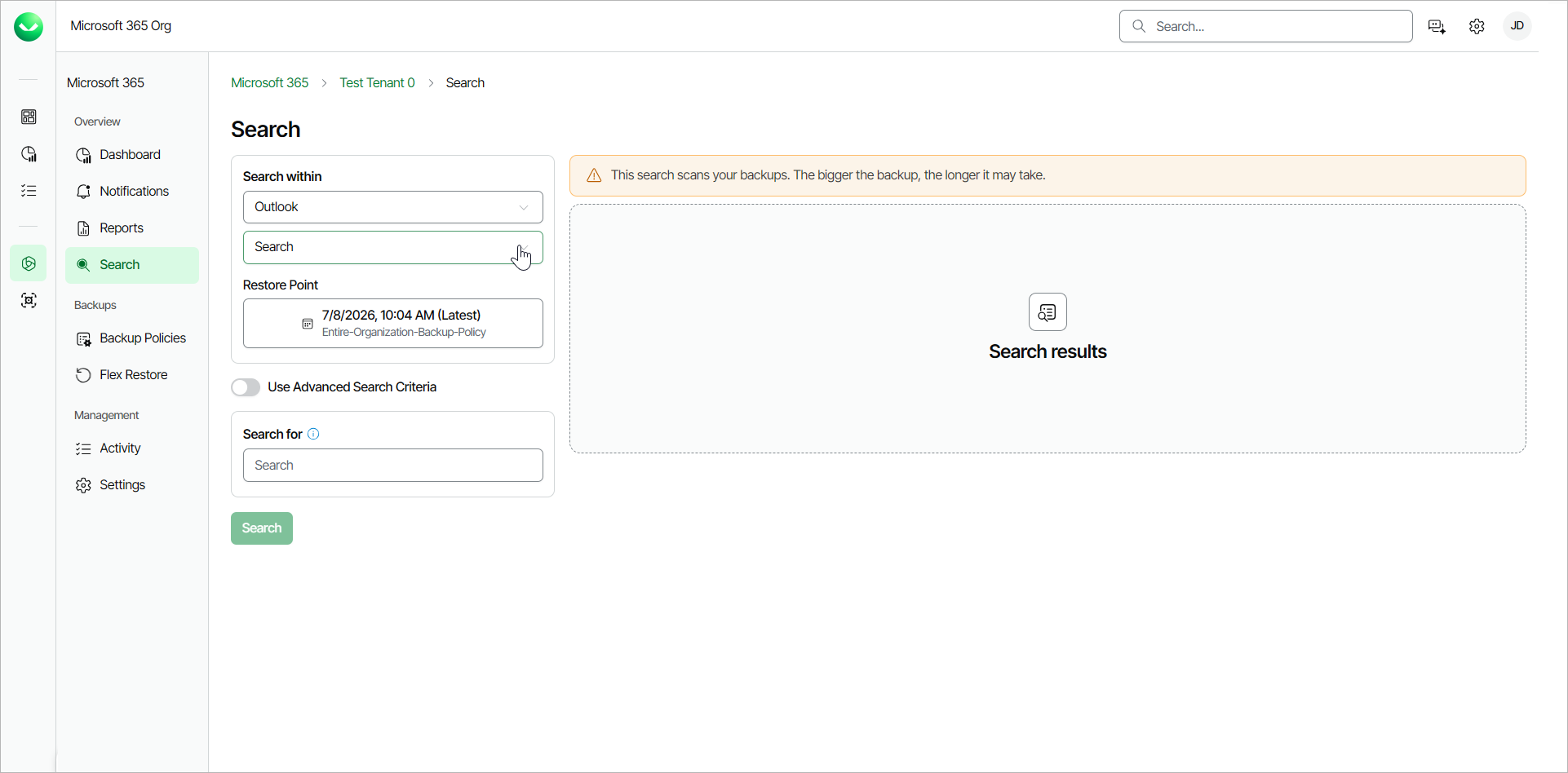
- From the Search drop-down list, select the Outlook mailbox, OneDrive, SharePoint site or Team where you want to search for backed-up items.
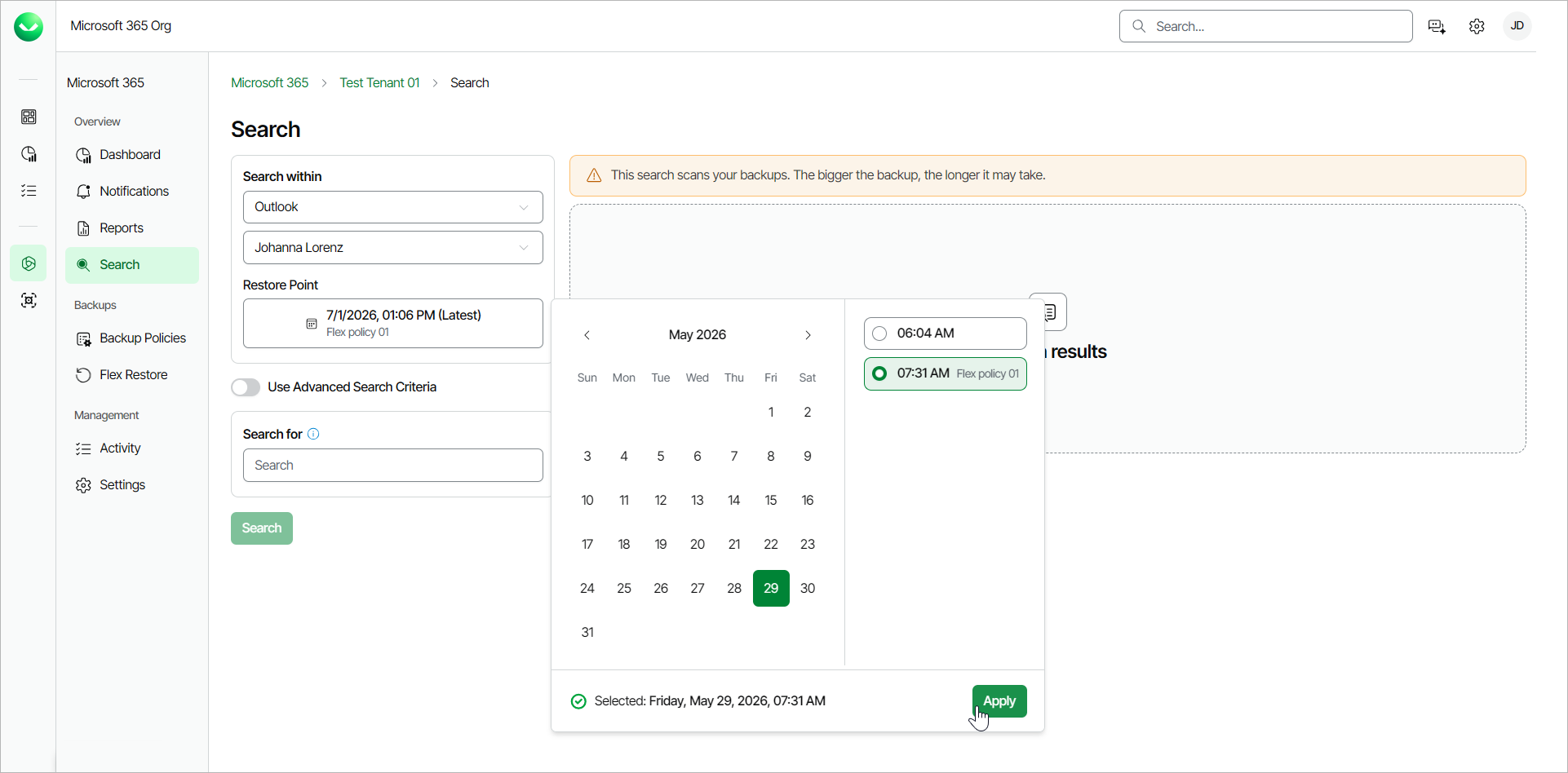
- In the Restore Point field, select a restore point where you want to search for backed-up items and click Apply. The restore point defines the date and time when the backup was created.
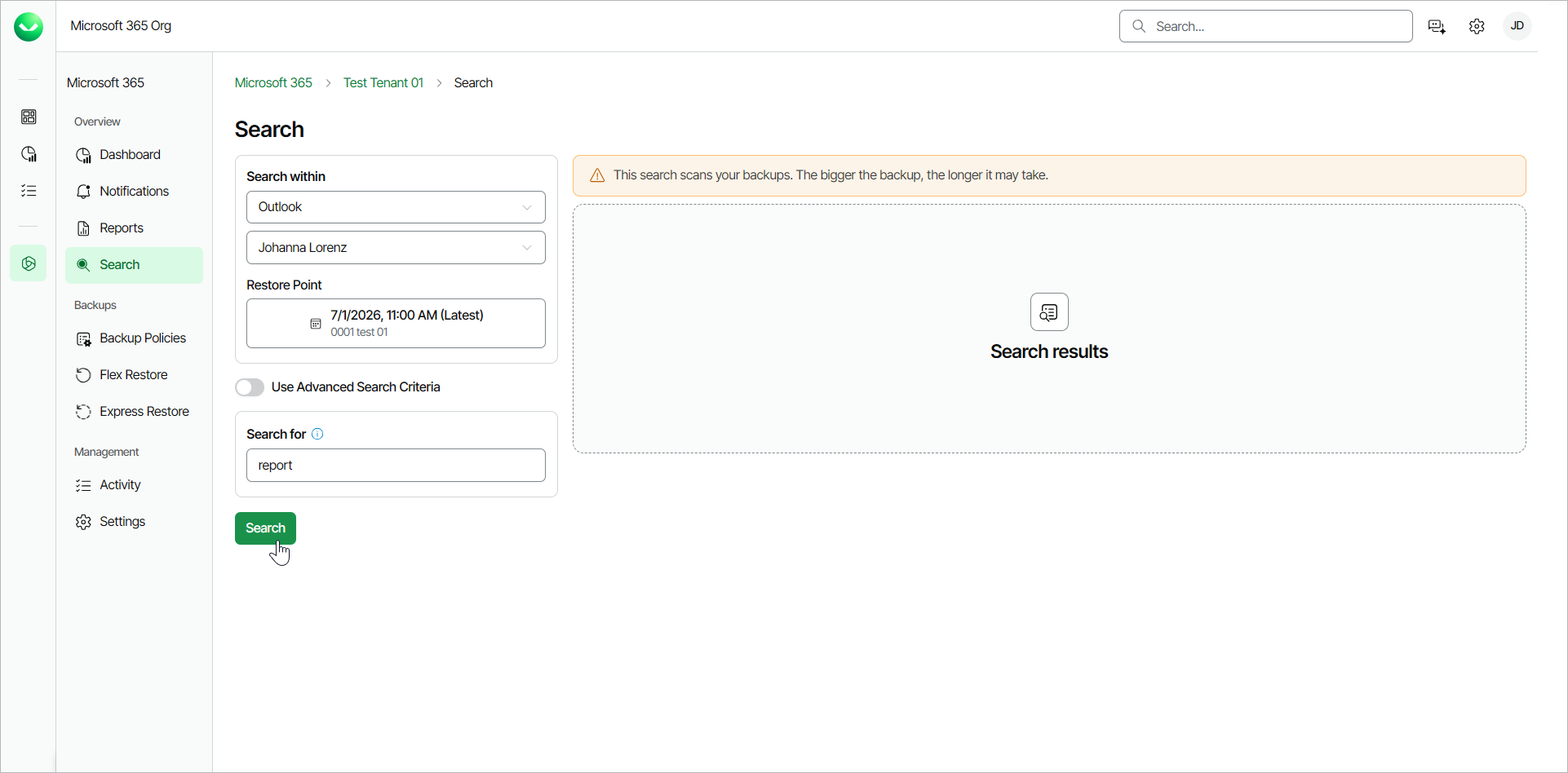
- In the Search for field, specify a keyword for the search.
- For Outlook, the keyword matches the email subject.
- For OneDrive, the keyword matches the file name.
- For SharePoint, the keyword matches the site name or the folders within the site.
- For Teams, the keyword matches the post subject.
- Click Search.
- During the search process, Veeam Data Cloud displays a loading spinner. Once Veeam Data Cloud finds the first 500 items that match the search keyword, the loading spinner disappears. You can view found items or click Load 500 more to find the next 500 items.
- If you want to restore any of the found items, in the search results, do the following actions:
- Select the check boxes next to the items you want to restore and click Restore.
- Select the check boxes next to the items you want to download and click Download.
|
Tip |
|
If you want to start a new search, click Reset. |