Viewing Session Logs
You can view all backup and restore sessions on the Session Logs page.
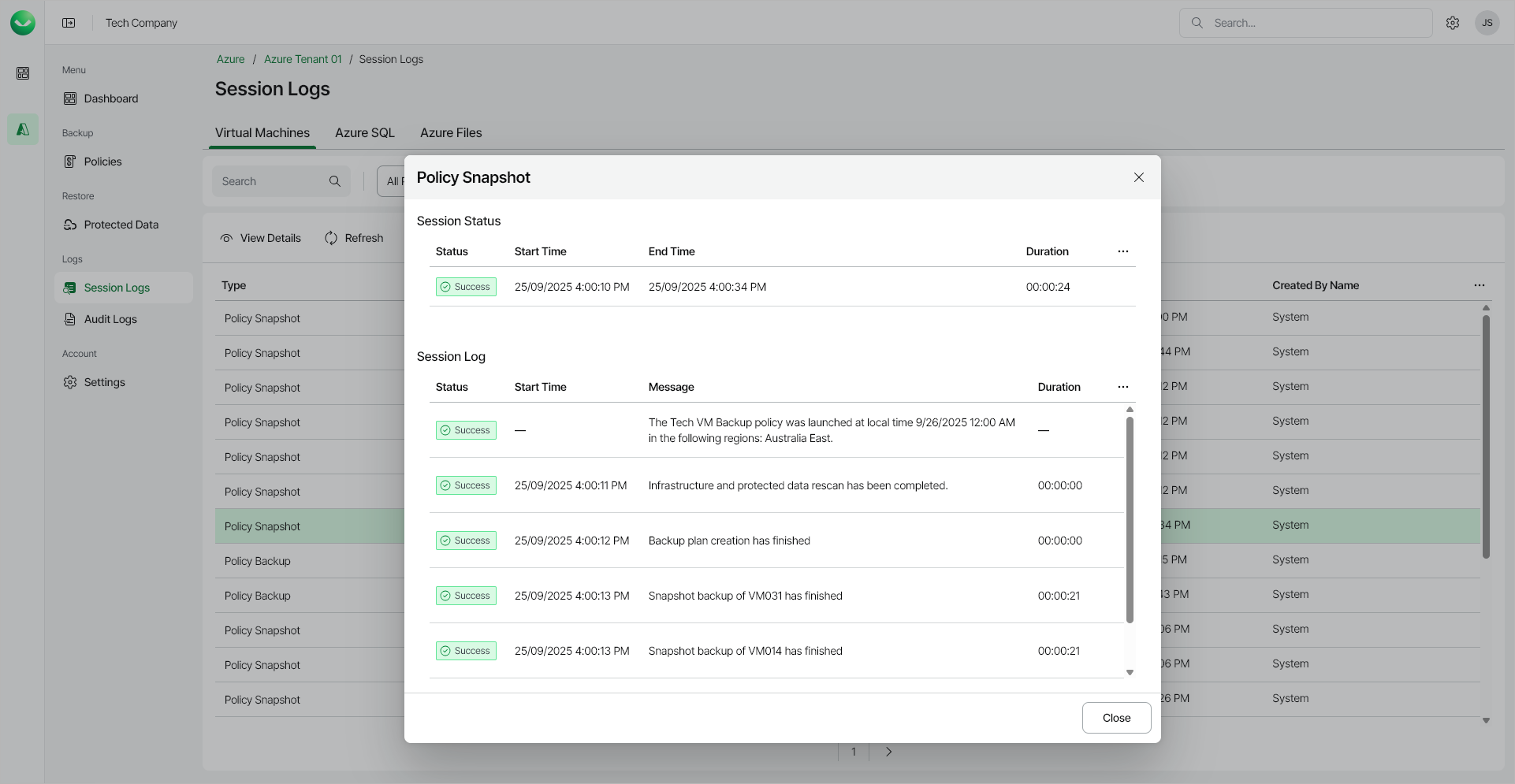
To view the details of a specific session, do the following:
- In the Management section of the main menu, select Session Logs.
- Locate the session whose details you want to view. You can search for a session by policy name, protected workload name or error message, and filter sessions by type, run time and status.
|
Tip |
|
During Azure Cosmos DB restore, Veeam Data Cloud for Microsoft Azure always writes data to a new target location, and the session log records only the target account name. To find a Cosmos DB restore session, search by the target account name. Searching by the source account name returns no results. |
- Select the session and click View Details. Alternatively, right-click the session and choose View Details from the context menu.
To export the list of sessions to a CSV file, click Export to CSV. In the Export to CSV window, specify the From and To date and time, click Export to CSV, and specify the location where you want to save the file.
|
Note |
|
The date range must not exceed 3 months. The exported file contains only the columns displayed in the list and reflects the current search, filter and sort settings. |