Adding Generic Webhook Integrations
A generic webhook integration sends events from Veeam Data Cloud to an HTTPS endpoint with a custom method and additional HTTP headers. With the generic webhook integration, you can connect Veeam Data Cloud to SOAR tools, automation platforms or any other system that exposes an HTTPS endpoint for incoming events. You can use static headers or OAuth 2.0 for authentication.
Before you add a generic webhook integration, ensure that the target system exposes a publicly reachable HTTPS endpoint and that you have all credentials and authentication headers required to post to it, for example, a Bearer token or a client ID and secret.
The procedure differs depending on the authentication type that your HTTPS endpoint uses:
- For more information on how to add an integration that uses authentication with static headers, see Adding Generic Webhook Integrations with Static Headers Authentication.
- For more information on how to add an integration that uses authentication with OAuth 2.0 client credentials, see Adding Generic Webhook Integrations with OAuth 2.0 Authentication.
Adding Generic Webhook Integrations with Static Headers Authentication
To add a generic webhook integration with static headers authentication, do the following:
- Click the settings icon in the top-right corner.
- Select Integrations.
- On the Integrations page, click Add Integration.
- In the Select Integration window, select Generic Webhook and click Continue.
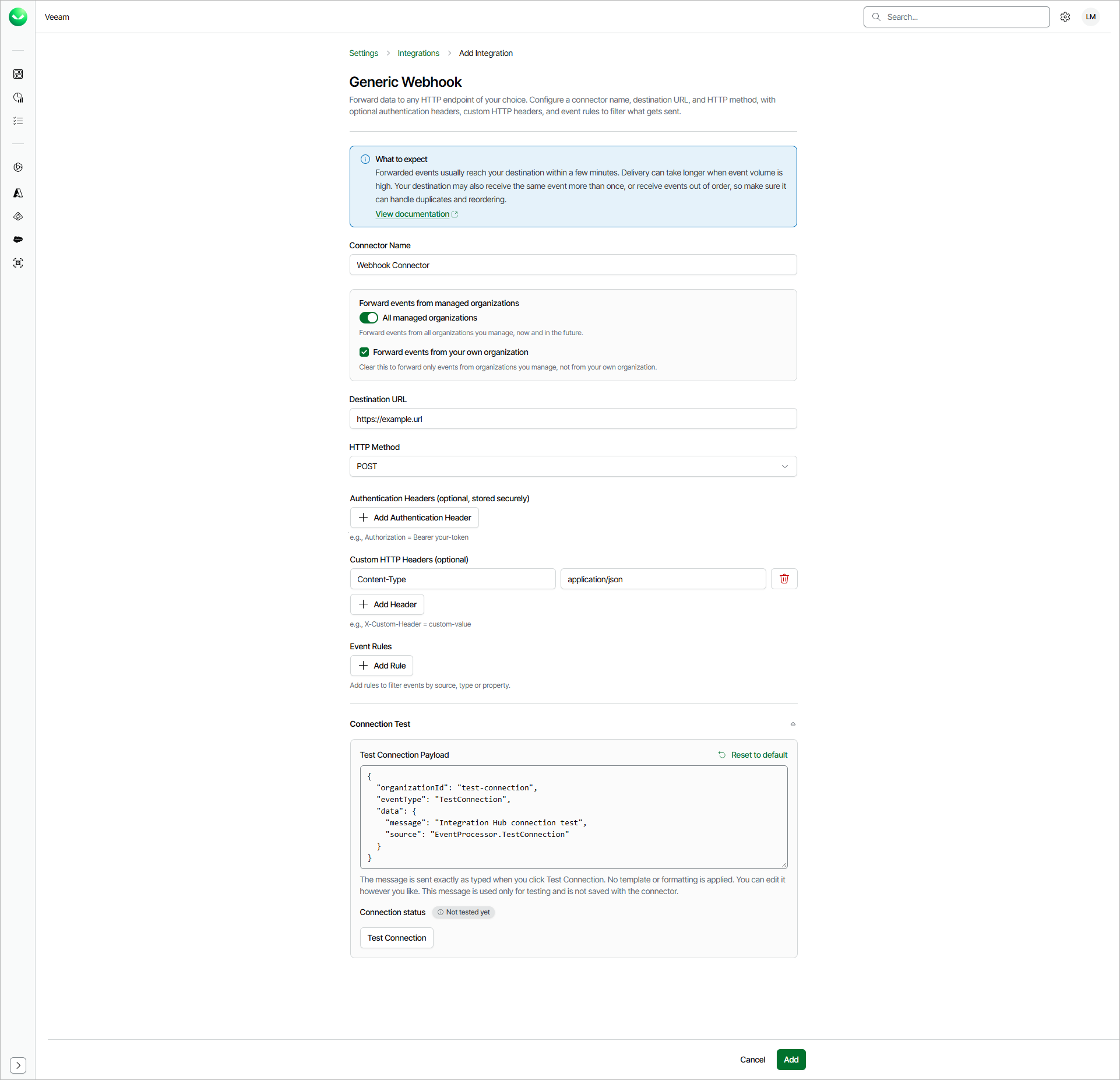
- In the Connector Name field, specify a name for the integration.
- In the Forward events from managed organizations section, specify the organizations from which Veeam Data Cloud will forward events:
- Leave the All managed organizations toggle on to forward events from all current and future managed customer organizations. Turn the toggle off to select the organizations from which you want to forward events.
- Clear Forward events from your own organization if you do not want to forward events from the partner organization into which you are currently logged.
- In the Destination URL field, specify the HTTPS endpoint URL of the target system.
- From the HTTP Method drop-down list, select the method that the target endpoint expects. The default method is POST.
- From the Authentication drop-down list, select Static headers.
- [Optional] In the Authentication Headers section, click Add Authentication Header and specify a header name and value, for example, Authorization for the name and Bearer your-token for the value. Authentication header values are stored securely and masked when you view the integration later. Repeat this step to add more headers.
- [Optional] In the Custom HTTP Headers section, click Add Header and specify any additional HTTP headers the target endpoint requires, for example, X-Custom-Header and custom-value. Repeat this step to add more headers.
- [Optional] In the Event Rules section, click Add Rules to define which event types and properties to forward and how to format the request body. If you do not add any rules, Veeam Data Cloud forwards raw events. For details on configuring event rules, see Configuring Event Rules.
- To verify your settings, click Test Connection. Veeam Data Cloud will send a test event to the specified destination.
In the Test Connection Payload field, you can enter your own test message so it is received correctly at the destination.
- Click Add to save the integration.
If Veeam Data Cloud determines that login credentials are present in the URL or a custom header, it will ask for your confirmation and prompt you to move them to the authentication section, where they will be stored securely.
Adding Generic Webhook Integrations with OAuth 2.0 Authentication
To add a generic webhook integration with OAuth 2.0 authentication, do the following:
- Click the settings icon in the top-right corner.
- Select Integrations.
- On the Integrations tab, click Add Integration.
- In the Select Integration window, select Generic Webhook and click Continue.
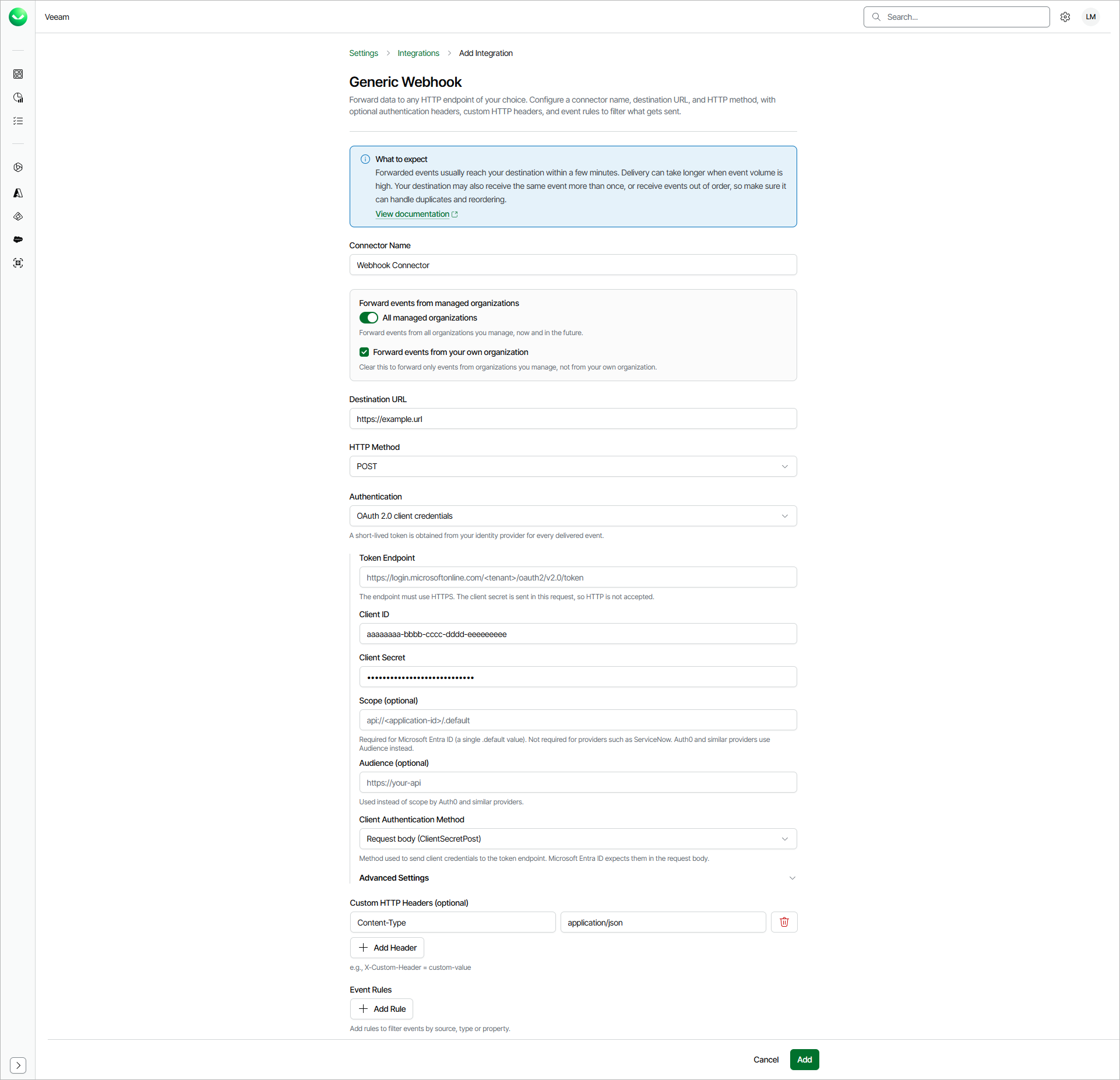
- In the Connector Name field, specify a name for the integration.
- In the Forward events from managed organizations section, specify the organizations from which Veeam Data Cloud will forward events:
- Leave the All managed organizations toggle on to forward events from all current and future managed customer organizations. Turn the toggle off to select the organizations from which you want to forward events.
- Clear Forward events from your own organization if you do not want to forward events from the partner organization into which you are currently logged.
- In the Destination URL field, specify the HTTPS endpoint URL of the target system.
- From the HTTP Method drop-down list, select the method that the target endpoint expects. The default method is POST.
- From the Authentication drop-down list, select OAuth 2.0 client credentials.
- In the Token Endpoint field, specify the URL where Veeam Data Cloud will send client credentials that will be exchanged for an access token. Consider the following examples:
- For the Microsoft Entra ID identity provider: https://login.microsoftonline.com/<tenant-id>/oauth2/v2.0/token.
- For the Auth0 identity provider: https://<your-tenant>.auth0.com/oauth/token.
The token endpoint must use HTTPS with a publicly trusted certificate.
- In the Client ID field, enter a public identifier of the app registered with the identity provider.
- In the Client Secret field, enter a secret created for the app. Enter the secret value. Do not use the secret ID.
- [Optional] In the Scope field, specify the scope to a request, if the identity provider requires it. For Microsoft Entra ID, use the target API application ID URI that is followed by /.default. For example, api://11111111-2222-3333-4444-555555555555/.default.
This value is required if you use Microsoft Entra ID for authentication.
- [Optional] In the Audience field, specify the identifier of the target API for which the access token is issued, if the identity provider requires it. For example, https://api.contoso.com.
This value is required if you use Auth0 for authentication.
- From the Client Authentication Method drop-down list, select how Veeam Data Cloud will send client credentials to the token endpoint.
- Select Request body (ClientSecretPost) if you want to send the credentials in the request body. Select this value if you use Microsoft Entra ID for authentication.
- Select HTTP Basic header (ClientSecretBasic) if you want to send the credentials in an HTTP Basic Authorization header.
- [Optional] In the Advanced Settings section, specify the following:
- In the Token Header Name field, specify a header in which Veeam Data Cloud will send the token. The default value is Authorization.
- In the Token Header Prefix field, specify a scheme that Veeam Data Cloud will place before the token. The default value is Bearer.
- In the Additional Token Request Parameters section, click Add Parameter and specify a parameter name and value, for example, resource for the name and https://your-api for the value. Repeat this step to add more parameters.
- [Optional] In the Custom HTTP Headers section, click Add Header and specify any additional HTTP headers the target endpoint requires, for example, X-Custom-Header and custom-value. Repeat this step to add more headers.
Do not add the Authorization header. Veeam Data Cloud uses the Authorization header to send tokens by default and drops custom Authorization headers.
- [Optional] In the Event Rules section, click Add Rules to define which event types and properties to forward and how to format the request body. If you do not add any rules, Veeam Data Cloud forwards raw events. For details on configuring event rules, see Configuring Event Rules.
- To verify your settings, click Test Connection. Veeam Data Cloud will send a test event to the specified destination.
In the Test Connection Payload field, you can enter your own test message so it is received correctly at the destination.
- Click Add to save the integration.
If Veeam Data Cloud determines that credentials are present in the URL or a custom header, it will ask for your confirmation and prompt you to move them to the authentication section, where they will be stored securely.