Connecting Veeam Data Cloud Vault with Veeam Backup & Replication Using Web UI
You can use Veeam Data Cloud Vault as a target location for backups created by Veeam Backup & Replication. To do this, you must add a storage vault as an object storage repository in Veeam Backup & Replication and configure a backup job targeted at this repository.
You do not need to obtain credentials for the storage vault and provide them when connecting to Veeam Data Cloud Vault in Veeam Backup & Replication. Instead, you follow the procedure of connecting the products. Once the procedure is completed, Veeam Backup & Replication uses a security certificate to connect to Veeam Data Cloud Vault and transfer backup data to the target location over a secure connection.
If your customer uses Veeam Backup & Replication earlier than build 13.0.1.2067, before you start connecting Veeam Data Cloud Vault with Veeam Backup & Replication, make sure the following requirements are met:
- Veeam Backup & Replication is using the support ID (rental contract number) of the service provider for Vault registration. For details, see this Veeam KB article.
- The user account you use to log in to Veeam Data Cloud to assign a storage vault must be the Primary License Administrator or the Secondary License Administrator.
To add a new secondary license administrator to your rental contract, contact Veeam Customer Support and submit a General Inquiry case for VCSP Pulse.
If your customer uses Veeam Backup & Replication build 13.0.1.2067 and later, you do not need to update the support ID in Veeam Backup & Replication and use the user account that is the Primary License Administrator or the Secondary License Administrator.
|
Note |
|
This section describes only the basic steps that you must take to connect Veeam Data Cloud Vault with Veeam Backup & Replication and start using Veeam Data Cloud Vault as an object storage repository in Veeam Backup & Replication. To get a detailed description of all Veeam Data Cloud Vault object storage repository settings, see the Adding Veeam Data Cloud Vault Using Web UI section in the Veeam Backup & Replication User Guide. |
To connect Veeam Data Cloud Vault with Veeam Backup & Replication using web UI, do the following:
- In the Veeam Backup & Replication web UI, launch the New Veeam Data Cloud Vault wizard:
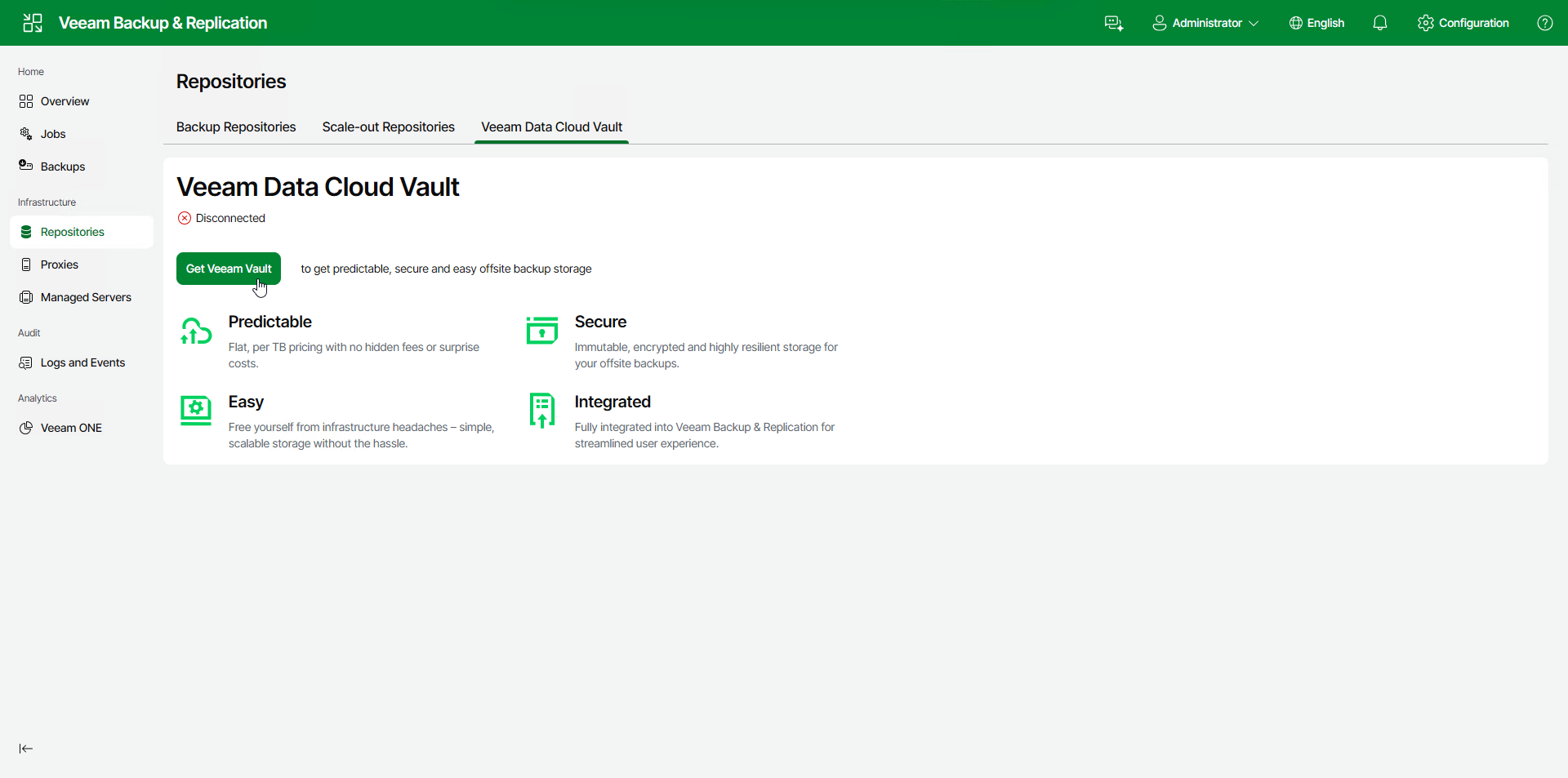
- In the management pane, click the Repositories node.
- Select the Veeam Data Cloud Vault tab and click Get Veeam Vault > Standard.
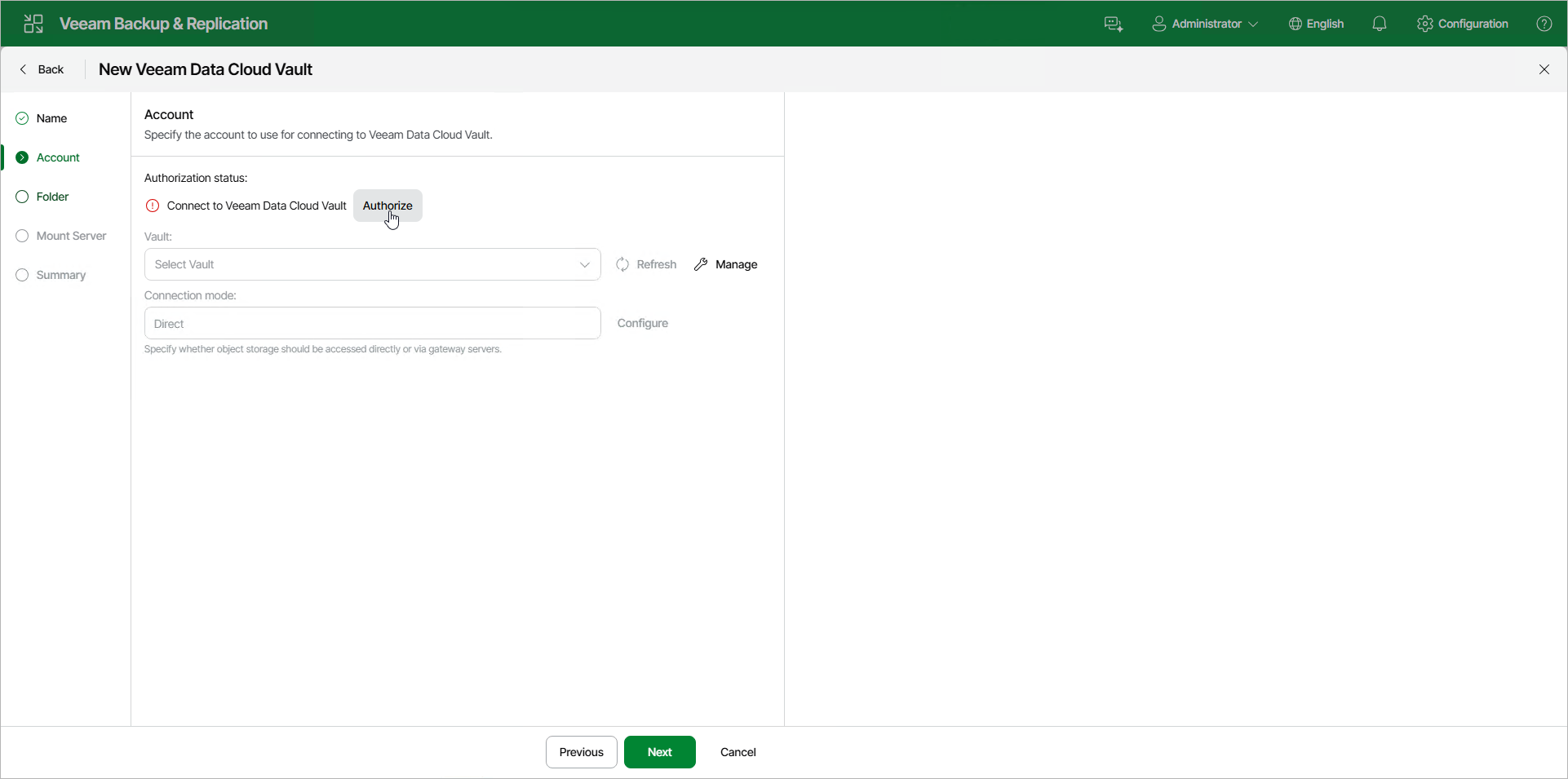
- At the Account step of the New Veeam Data Cloud Vault wizard, click Authorize.
- In the Backup Server Registration Code window, click Copy to copy the registration code. You will use this code to authorize the Veeam Backup & Replication server in Veeam Data Cloud at the step 6 of this procedure.
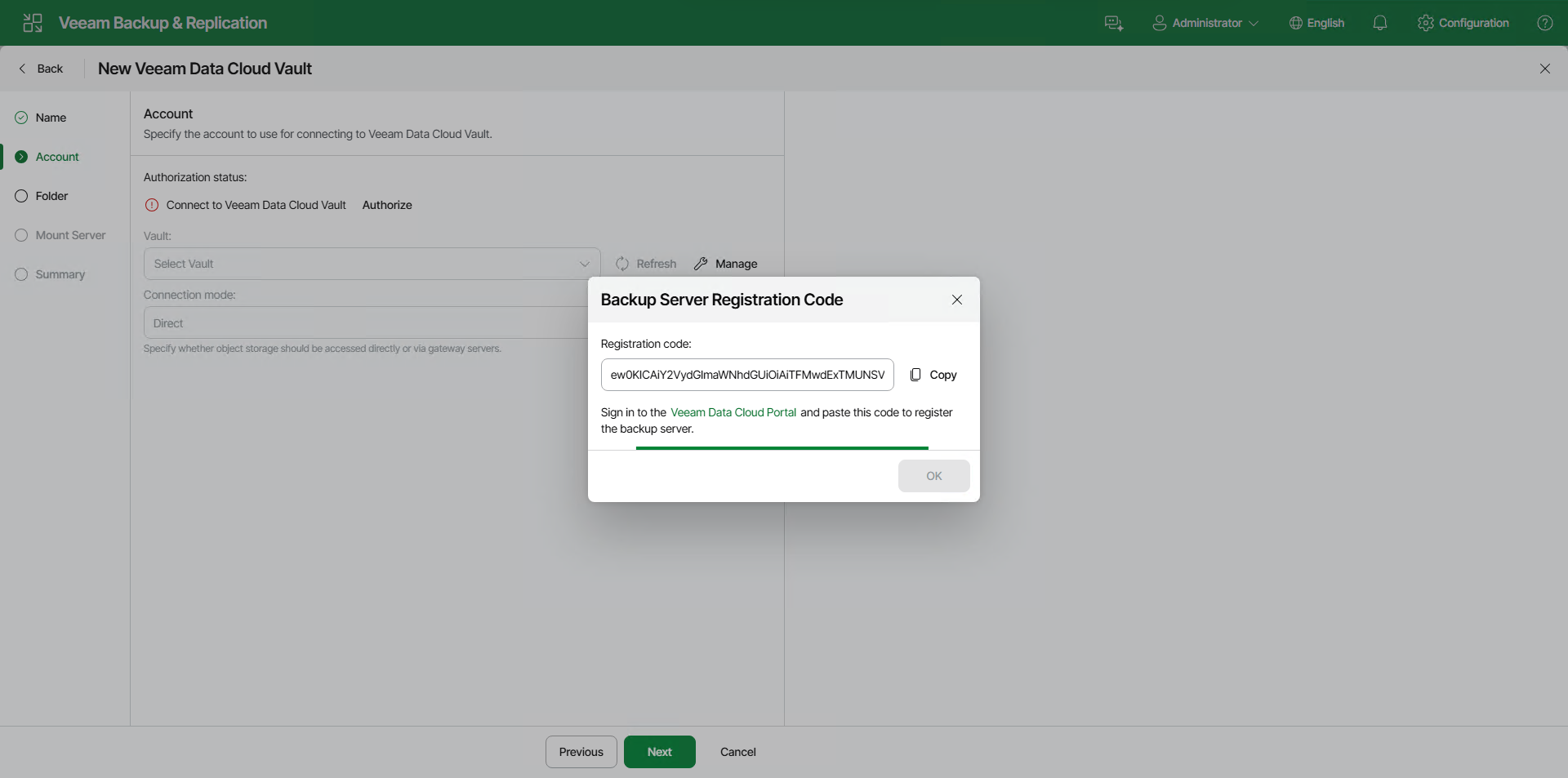
- In the Backup Server Registration Code window, click the Veeam Data Cloud Portal link.
-
On the displayed webpage, log in to Veeam Data Cloud using credentials of a user account that belongs to your Veeam Data Cloud organization. If you are already logged in to Veeam Data Cloud in your browser, the Veeam Data Cloud customer portal will open without a prompt to log in..
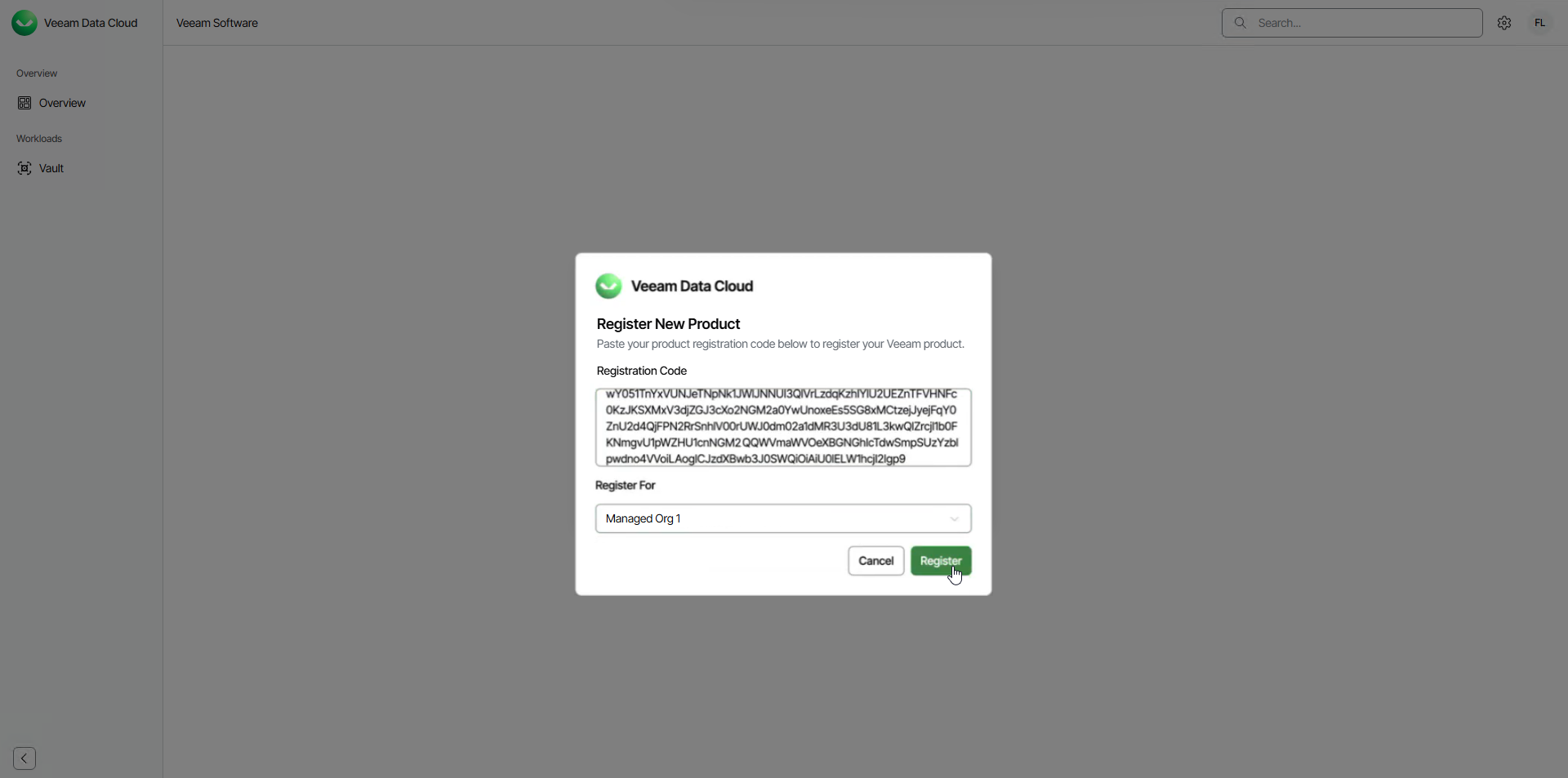
- In Veeam Data Cloud, in the Register New Product window, paste the registration code in the Registration Code field. Then, from the Register for drop-down list, select the customer organization for which you want to authorize the Veeam Backup & Replication server and click Register.
|
Note |
|
To connect Veeam Backup & Replication to Veeam Data Cloud Vault, you must obtain a Veeam Data Cloud Vault subscription and create at least one storage vault in this subscription. If you do not have a subscription, request and assign it to your customer or your organization. For more information, see Requesting Subscriptions. If you have not created a storage vault, create it in Veeam Data Cloud. For more information, see Adding Storage Vaults. |
- Veeam will register the backup server in Veeam Data Cloud. In the Veeam Backup & Replication Web UI, in the Backup Server Registration Code window, click Apply.
- If you have only one storage vault that has not been assigned to any Veeam Backup & Replication server, Veeam Data Cloud Vault will automatically assign this storage vault to your backup server. In Veeam Backup & Replication, at the Account step of the New Veeam Data Cloud Vault wizard, the storage vault will be automatically selected in the Vault drop-down list.
Otherwise, click Manage next to the Vault drop-down list to assign a storage vault to the backup server in Veeam Data Cloud Vault.
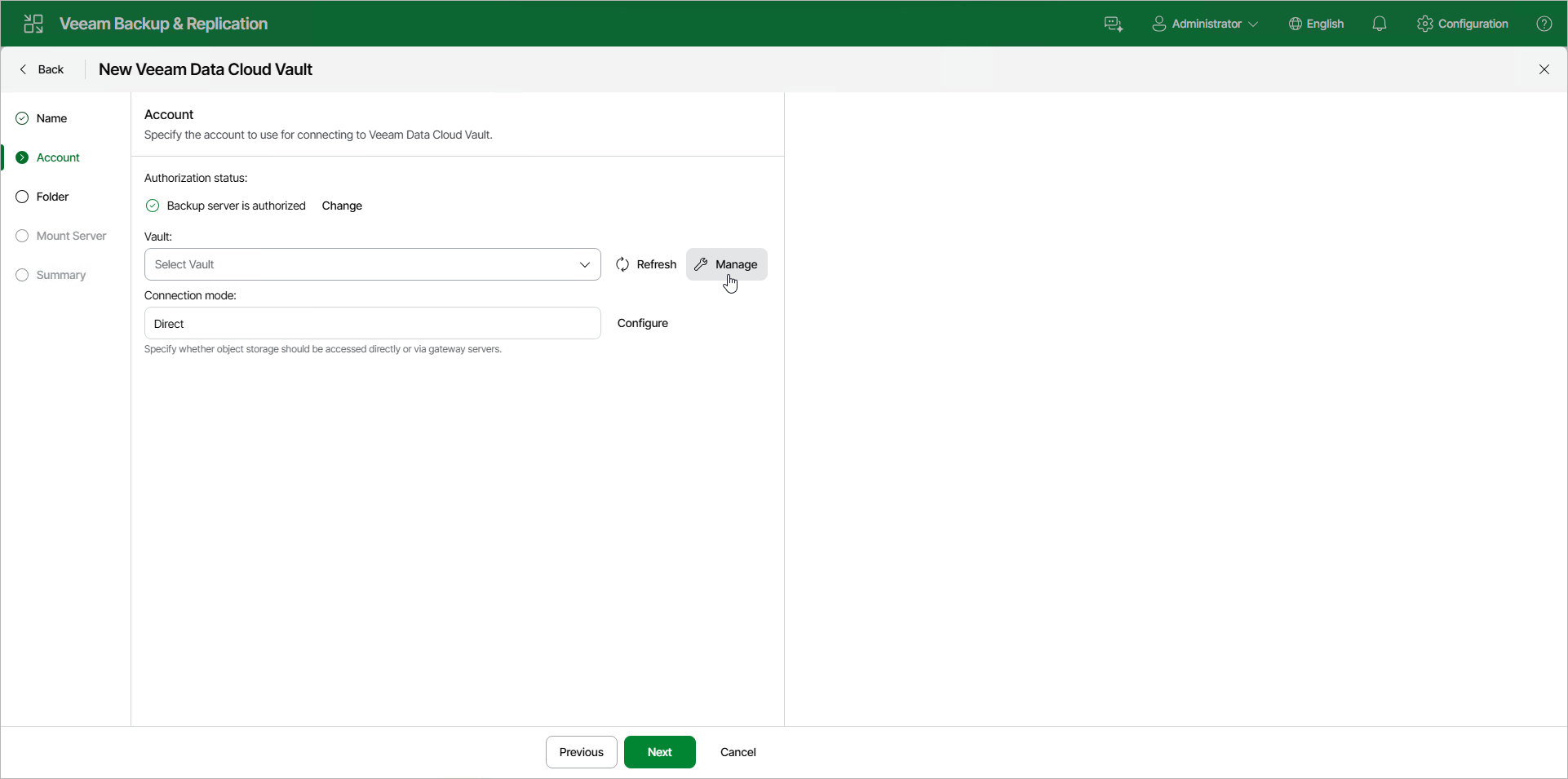
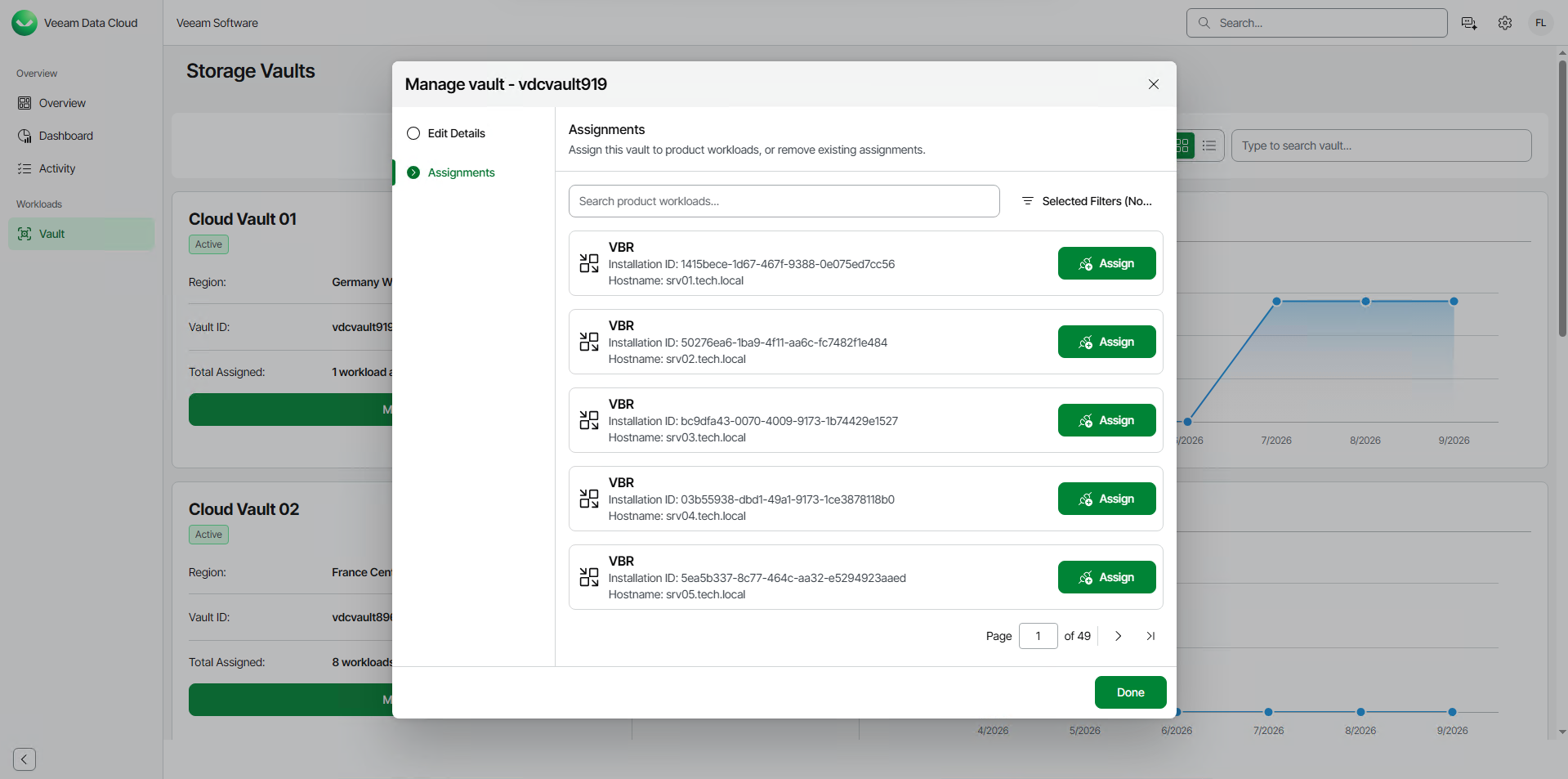
- In Veeam Data Cloud, assign the storage vault that you want to use as an object storage repository to Veeam Backup & Replication. To do this, do the following:
- In Veeam Data Cloud, on the Vault page, find the necessary tenant in the list of tenants. Click the menu icon, then click Manage.
- In the left menu, click Storage Vaults.
- On the Storage Vaults page, locate the storage vault that you want to assign to Veeam Backup & Replication and click Manage.
- In the Manage vault window, go to the Assignments tab and click Assign next to the necessary Veeam Backup & Replication server.
- In the confirmation window, click Continue.
If you have multiple storage vaults configured in Veeam Data Cloud Vault, repeat this step for all storage vaults you want to become available in Veeam Backup & Replication.
For more information, see Assigning Storage Vaults to Workloads.
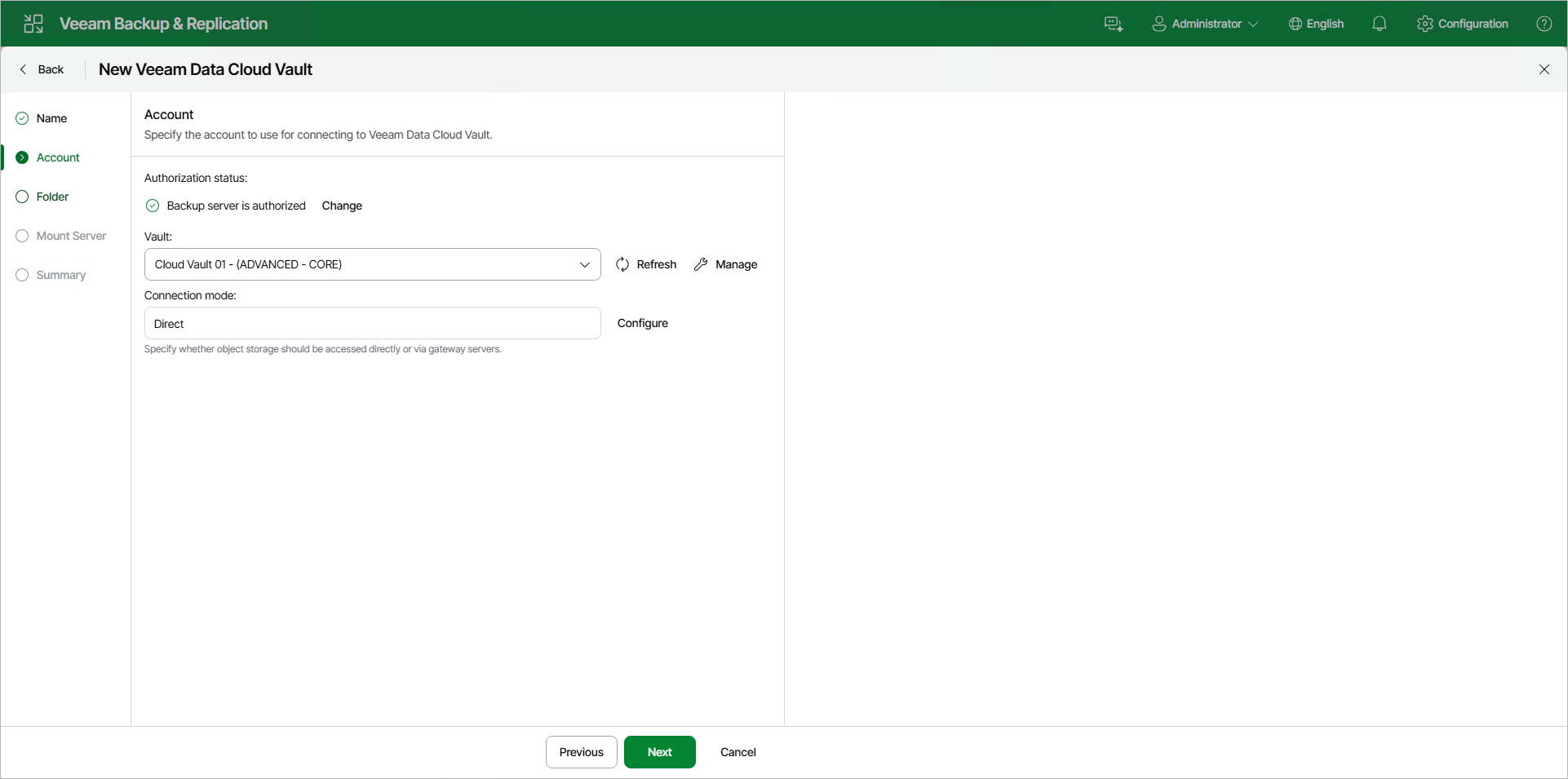
- In the Veeam Backup & Replication web UI, at the Account step of the New Veeam Data Cloud Vault wizard, click Refresh. The storage vault will become available in Veeam Backup & Replication. Select the storage vault from the Vault drop-down list.
- Complete the steps of the New Veeam Data Cloud Vault wizard to add the storage vault as an object storage repository in Veeam Backup & Replication.
For more information, see the Adding Veeam Data Cloud Vault Using Web UI section in the Veeam Backup & Replication User Guide.