Protected Objects History Report
Generating Protected Objects History Report
To generate the Protected Objects History report, do the following:
- On the Microsoft 365 page, click the name of the tenant you want to manage.
- Select Reports.
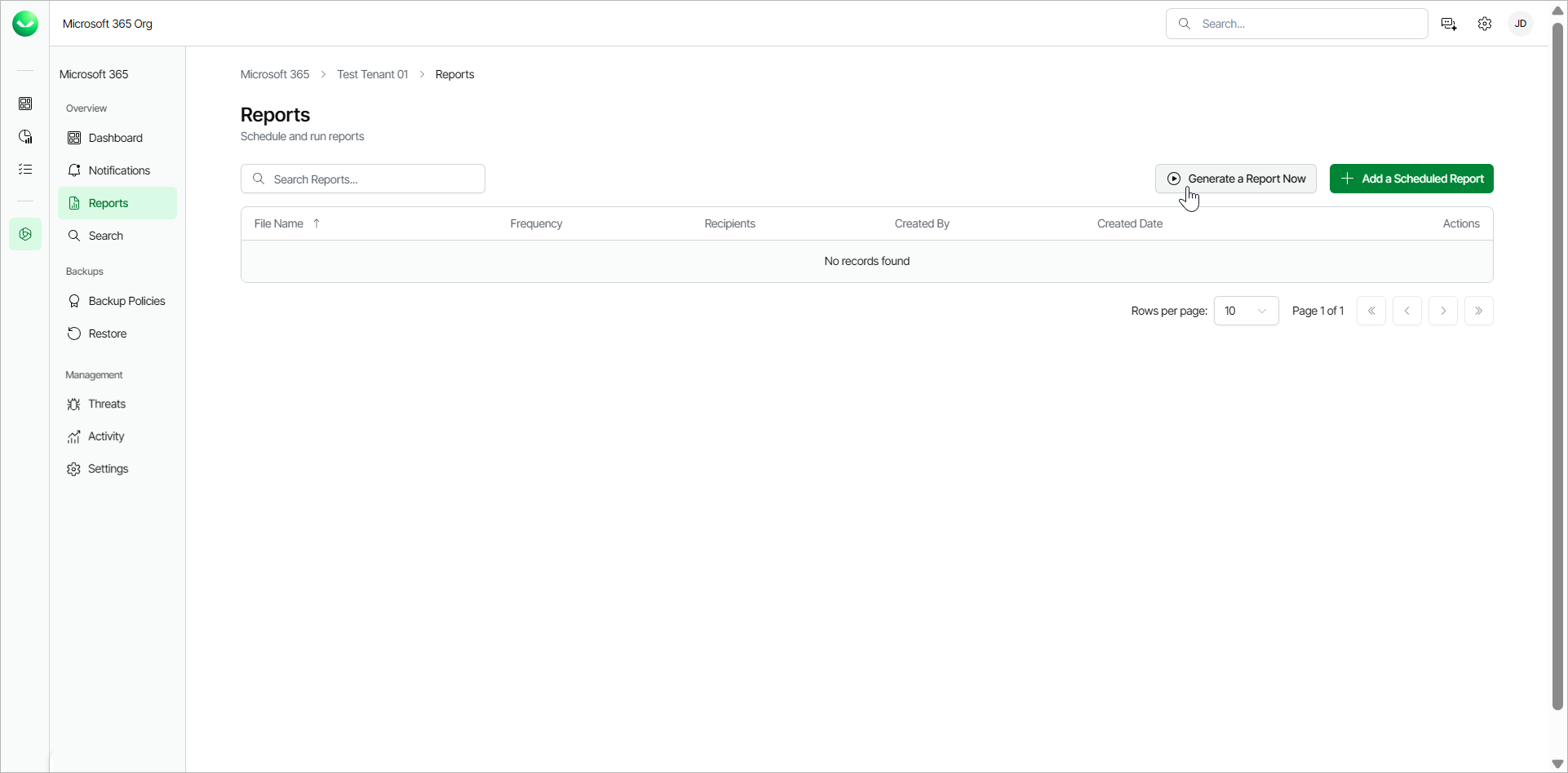
- Click Generate a Report Now.
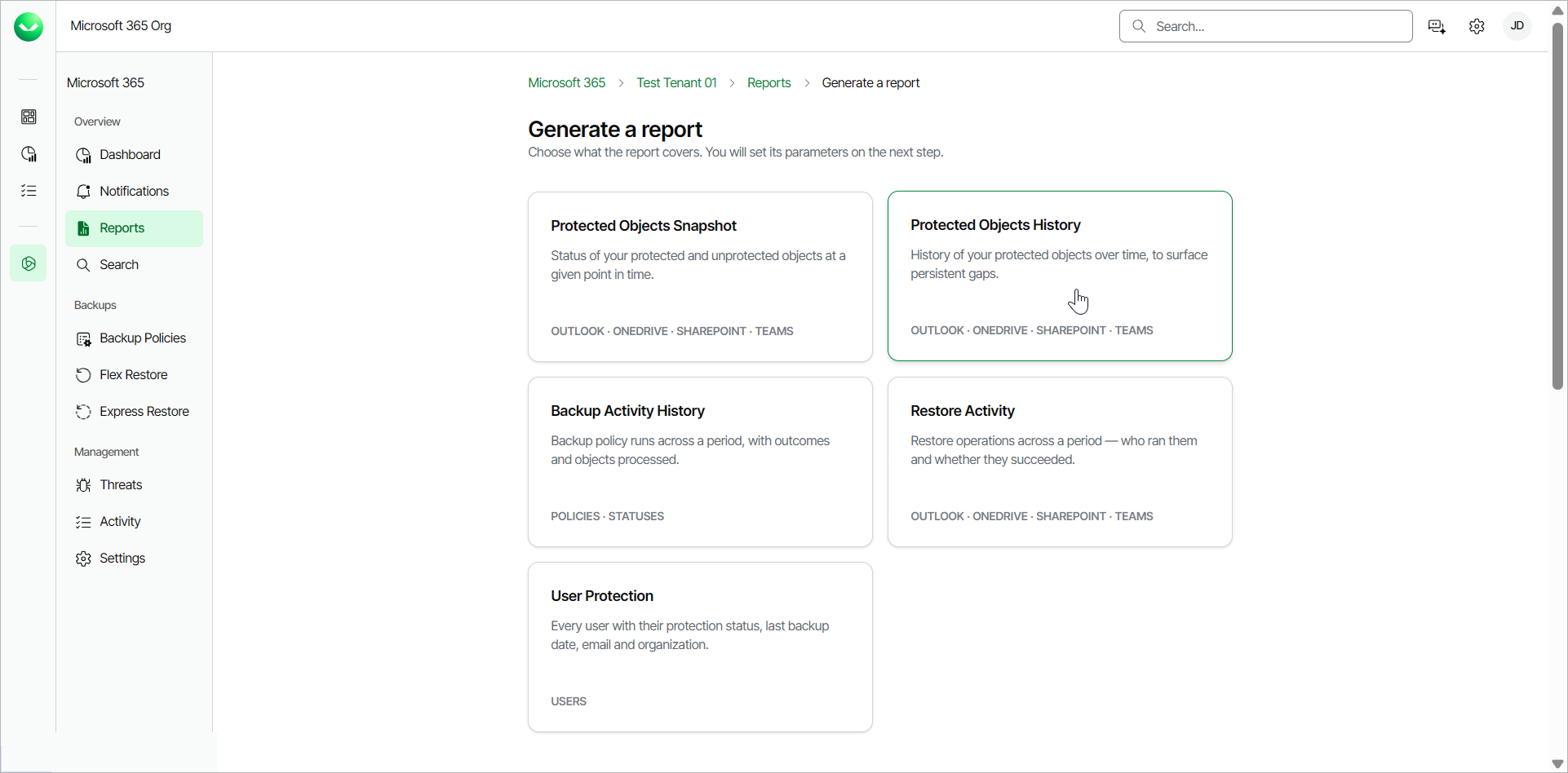
- Select the Protected Objects History report.
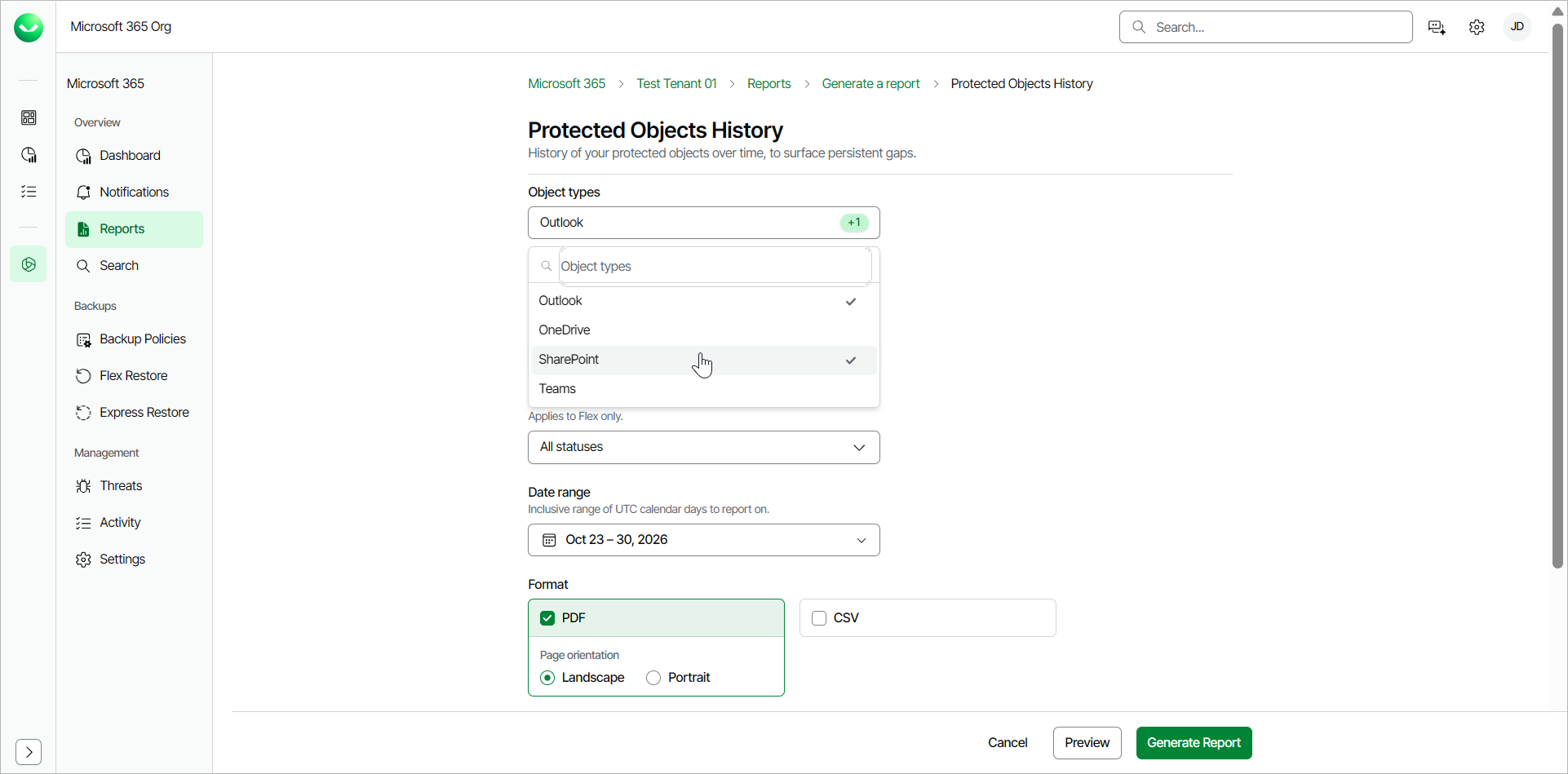
- In the Object types section, from the drop-down list, select one or more object types you want to include in the report. The available object types are the following: Outlook, OneDrive, SharePoint and Teams.
- In the Protection type section, select the check boxes next to Express and Flex or both, to include objects in the report protected within Express and Flex backup policies.
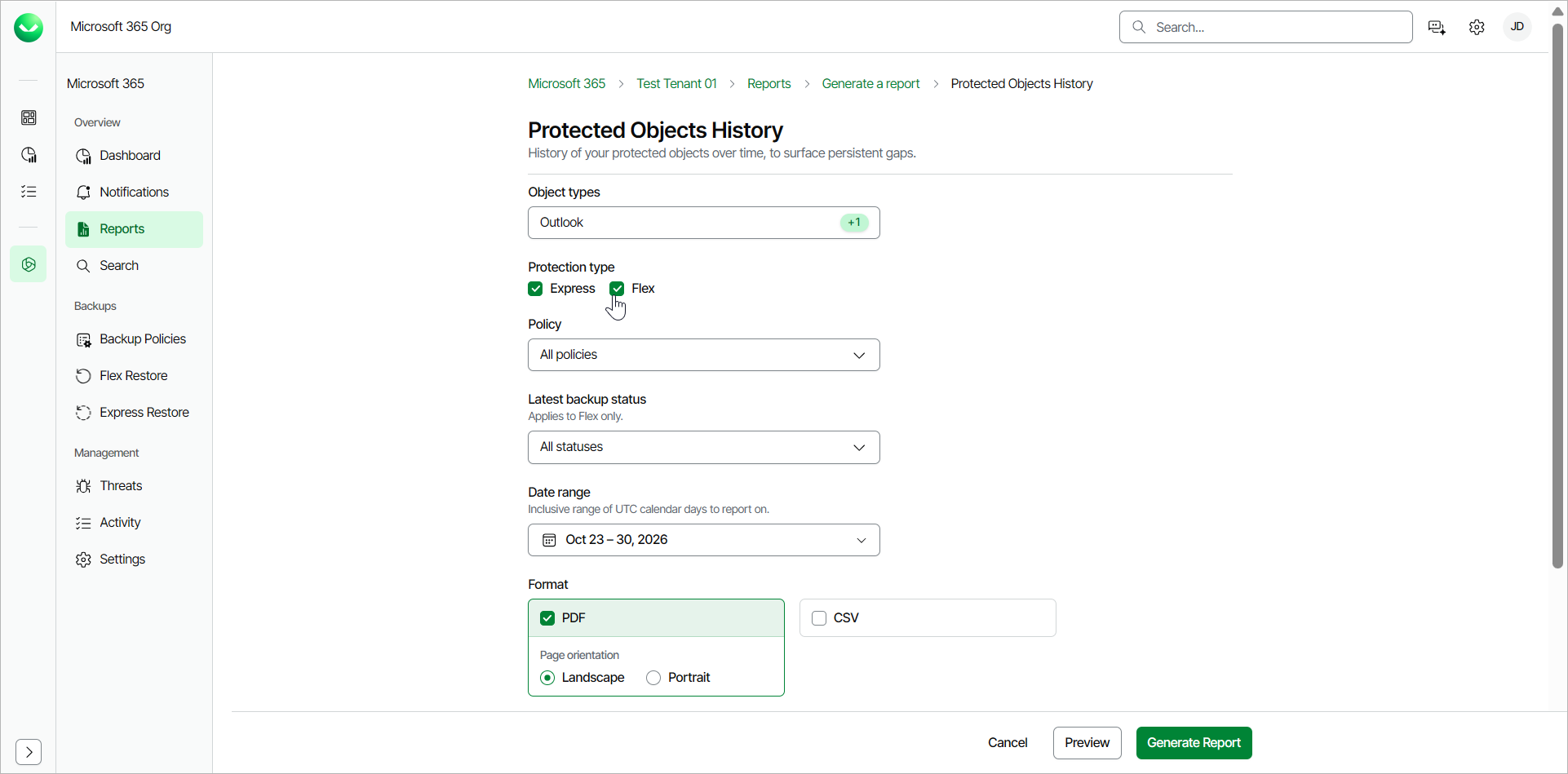
- In the Policy section, from the drop-down list, select one or more backup policies whose objects you want to include in the report.
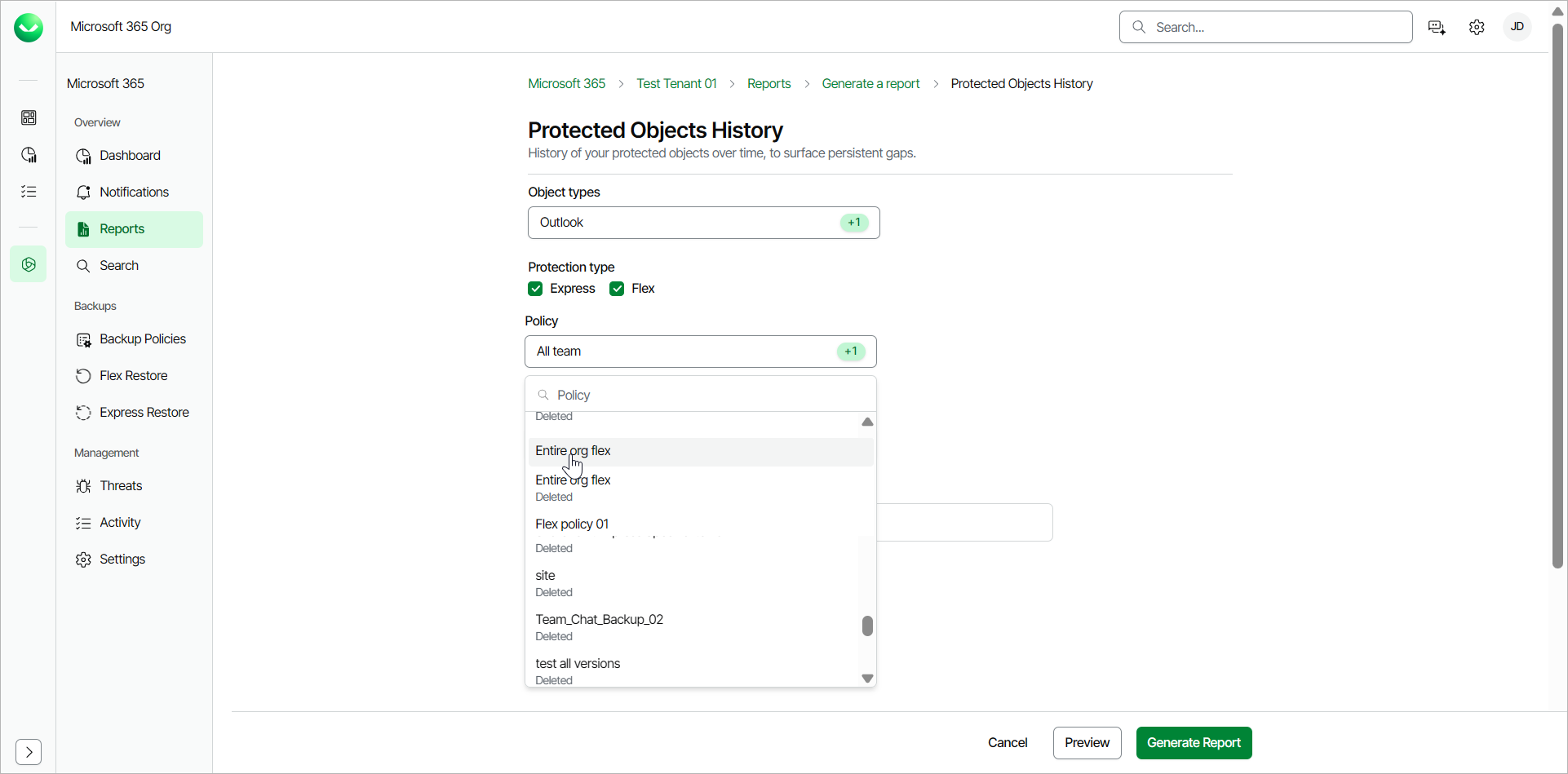
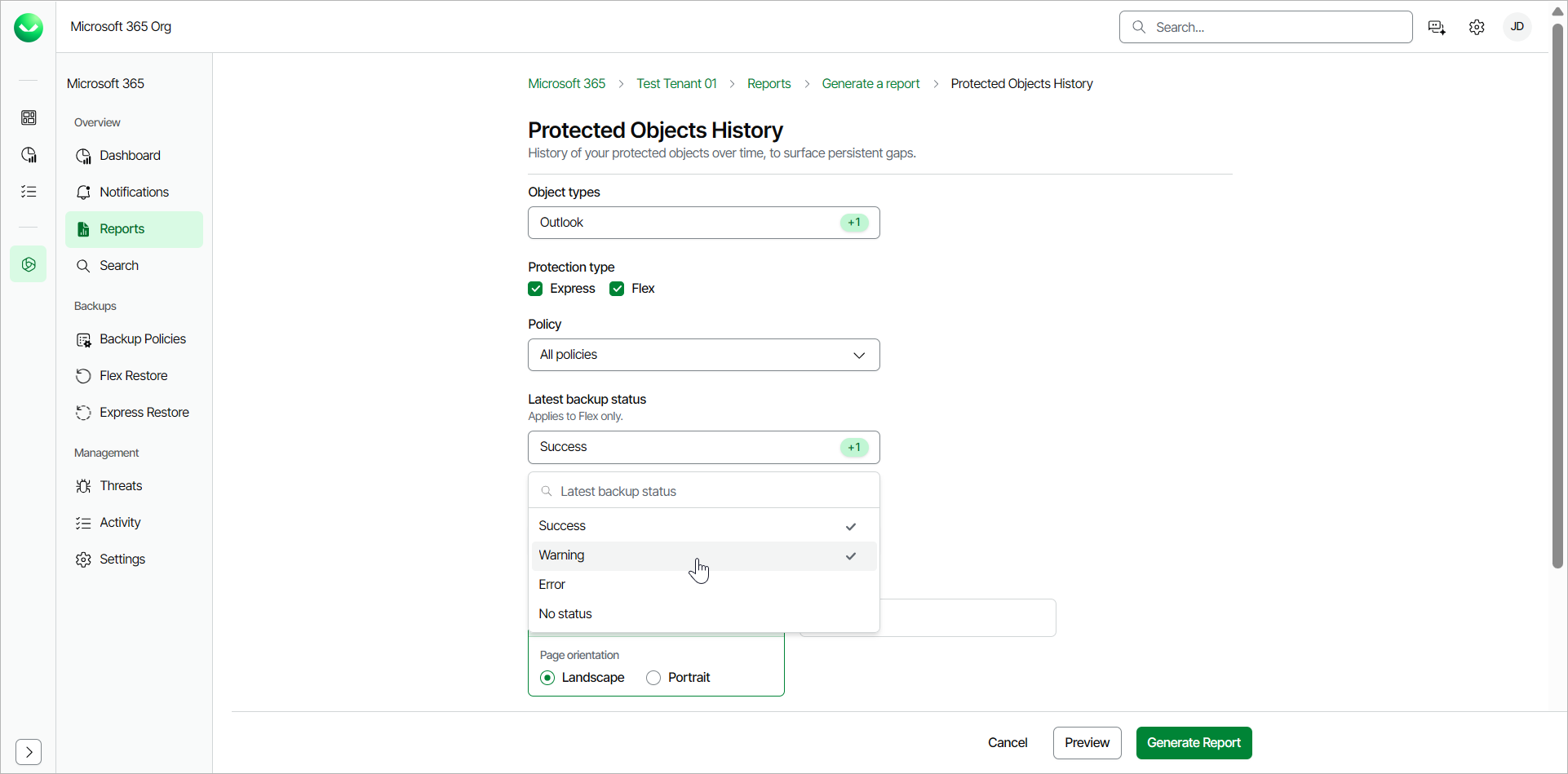
- [Only for Flex backup policies] In the Latest backup status section, from the drop-down list, select one or more statuses of the latest backup you want to include in the report. The available statuses are the following: Success, Warning, Error, No status.
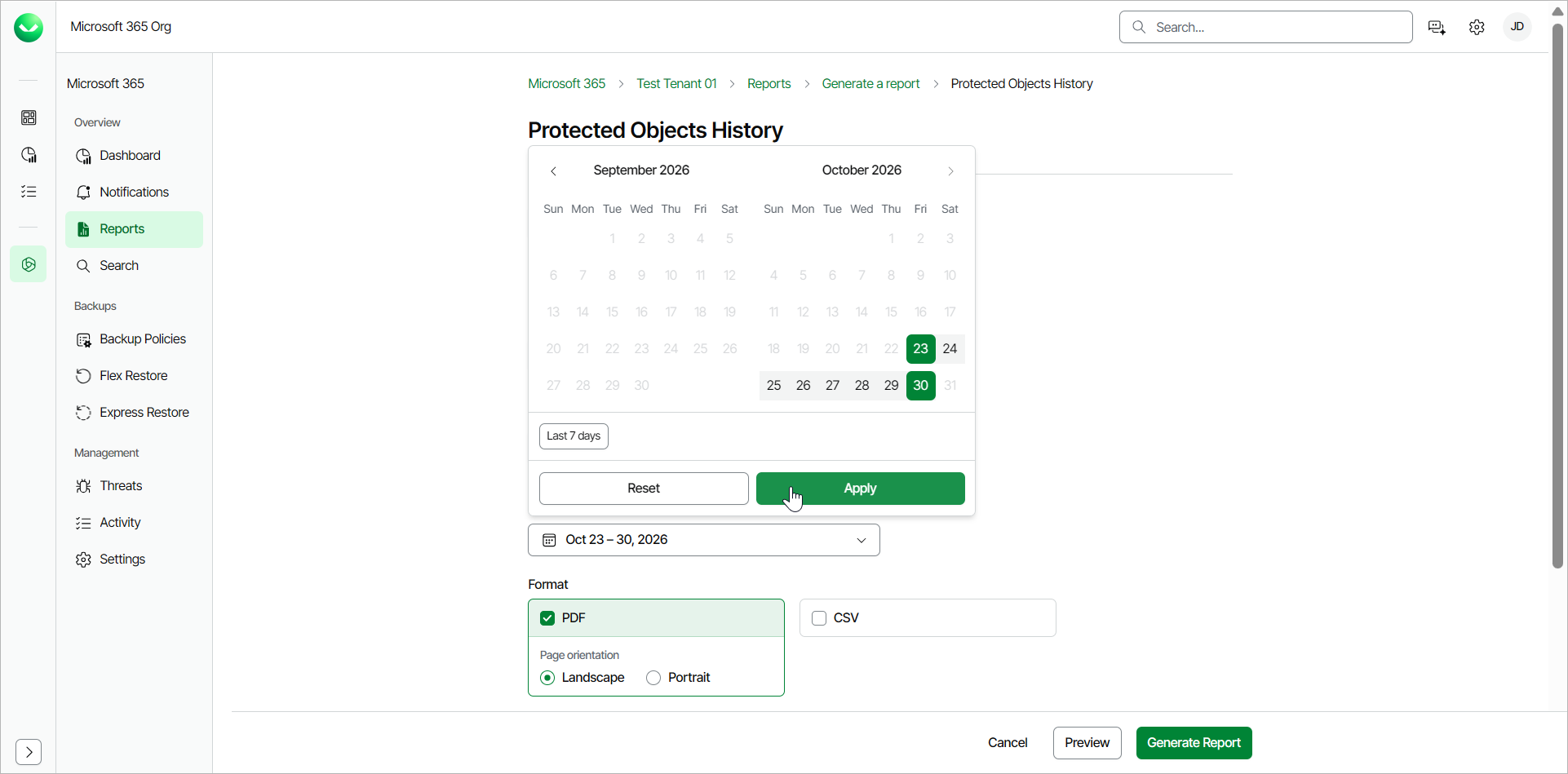
- In the Date range section, select a date range from the calendar. Veeam Data Cloud will generate the report for the selected date range.
-
In the Format section, select the check boxes next to PDF and CSV or both, to specify the format of the generated report.
For PDF, select whether the .PDF page orientation is Landscape or Portrait.
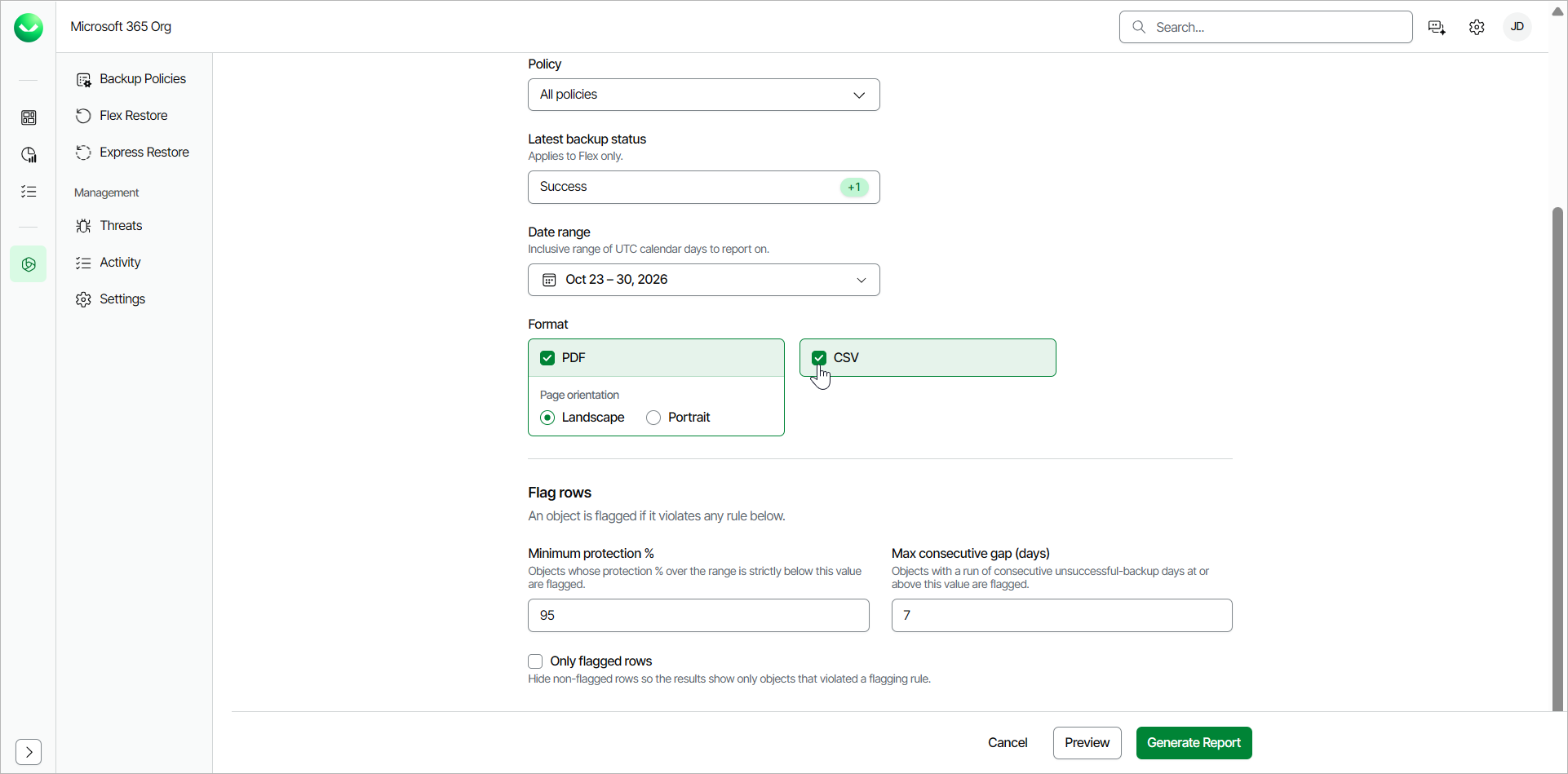
- In the Flag rows section, set up rules for the objects included in the report. Veeam Data Cloud flags each object that violates the rules in the report. The available rules are the following:
- Minimum protection %. Specify a number from 0 to 100. Objects whose protection percentage over the range is strictly below this value are flagged.
- Max consecutive gap (days). Specify a number. Objects with a run of consecutive unsuccessful backup days at or above this value are flagged.
Select the Only flagged rows check box if you want to hide non-flagged rows from the report. The report will only show objects that violated a flagging rule.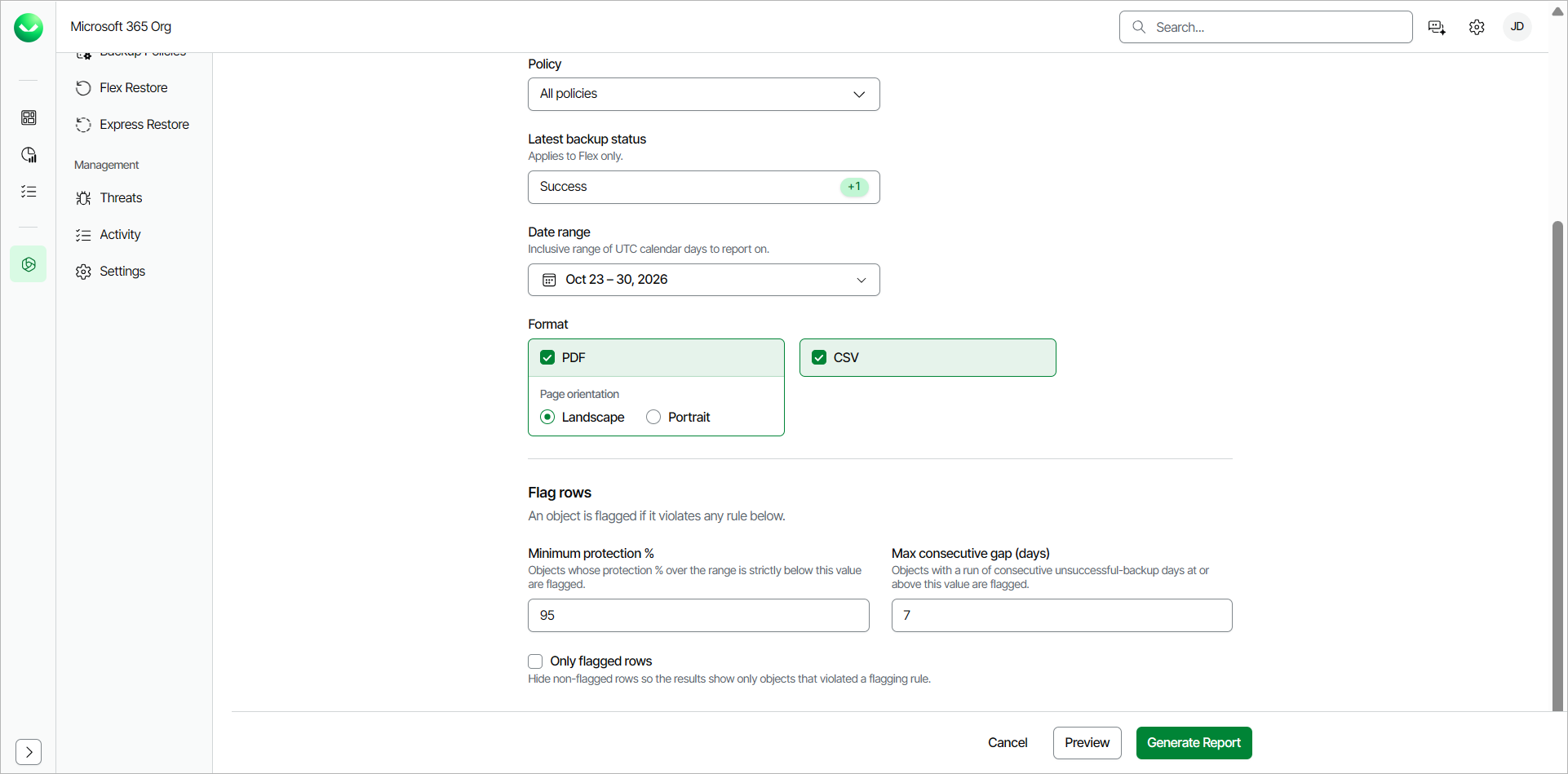
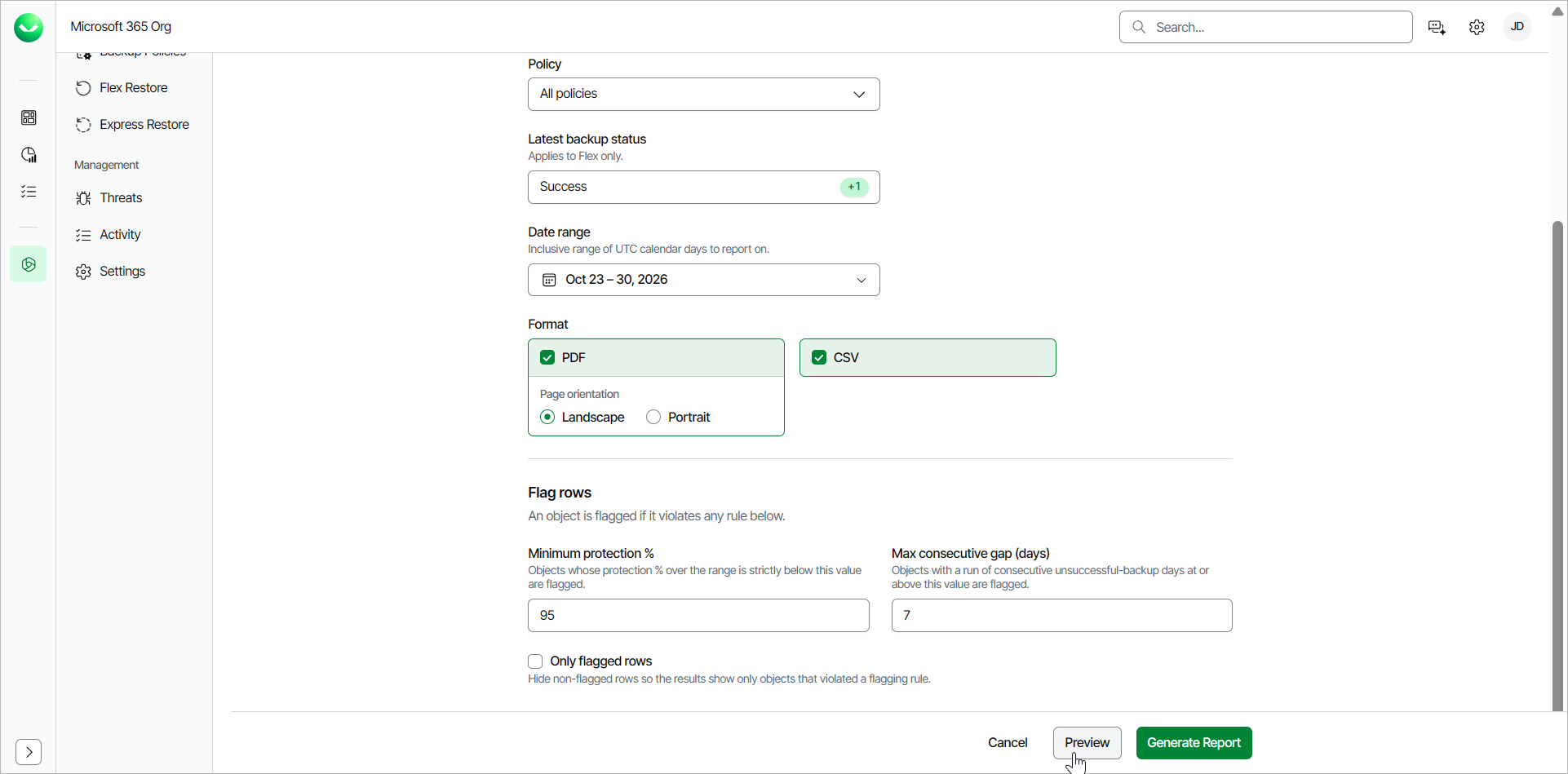
- Click Preview to view an interactive preview of the report. For more information, see Previewing Protected Objects History Report.
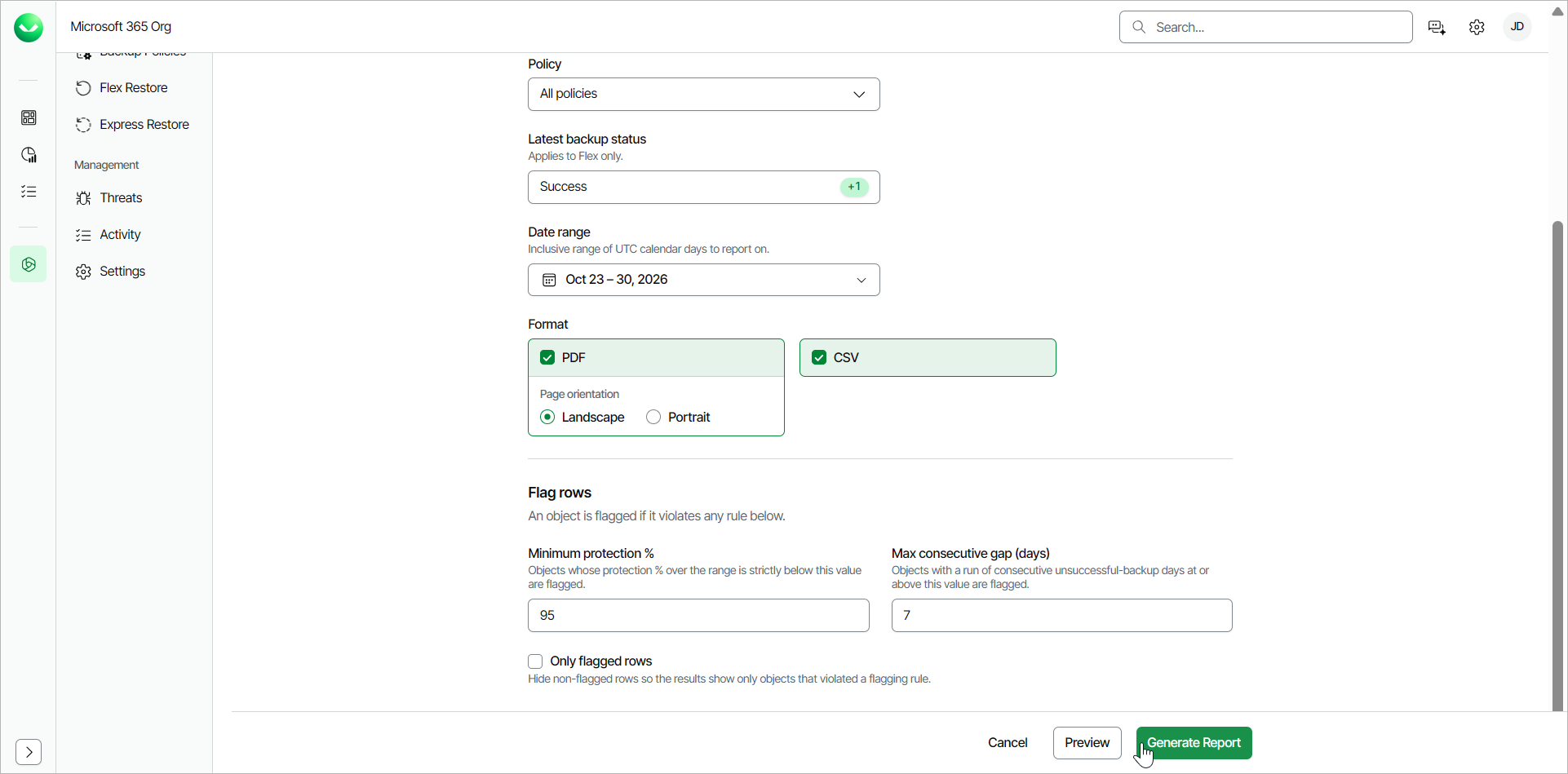
- Click Generate Report. Veeam Data Cloud for Microsoft 365 will generate the report in the format you specified.
Veeam Data Cloud for Microsoft 365 will display the The report is being generated and you will be notified once it is complete message.
Click Notifications to view the status of the report. In the list of notifications, click the link in the Name column of the notification about the report. Veeam Data Cloud will display a session log with detailed information.
In the window with the details of the operation, click Download File. The report is saved to your browser download location.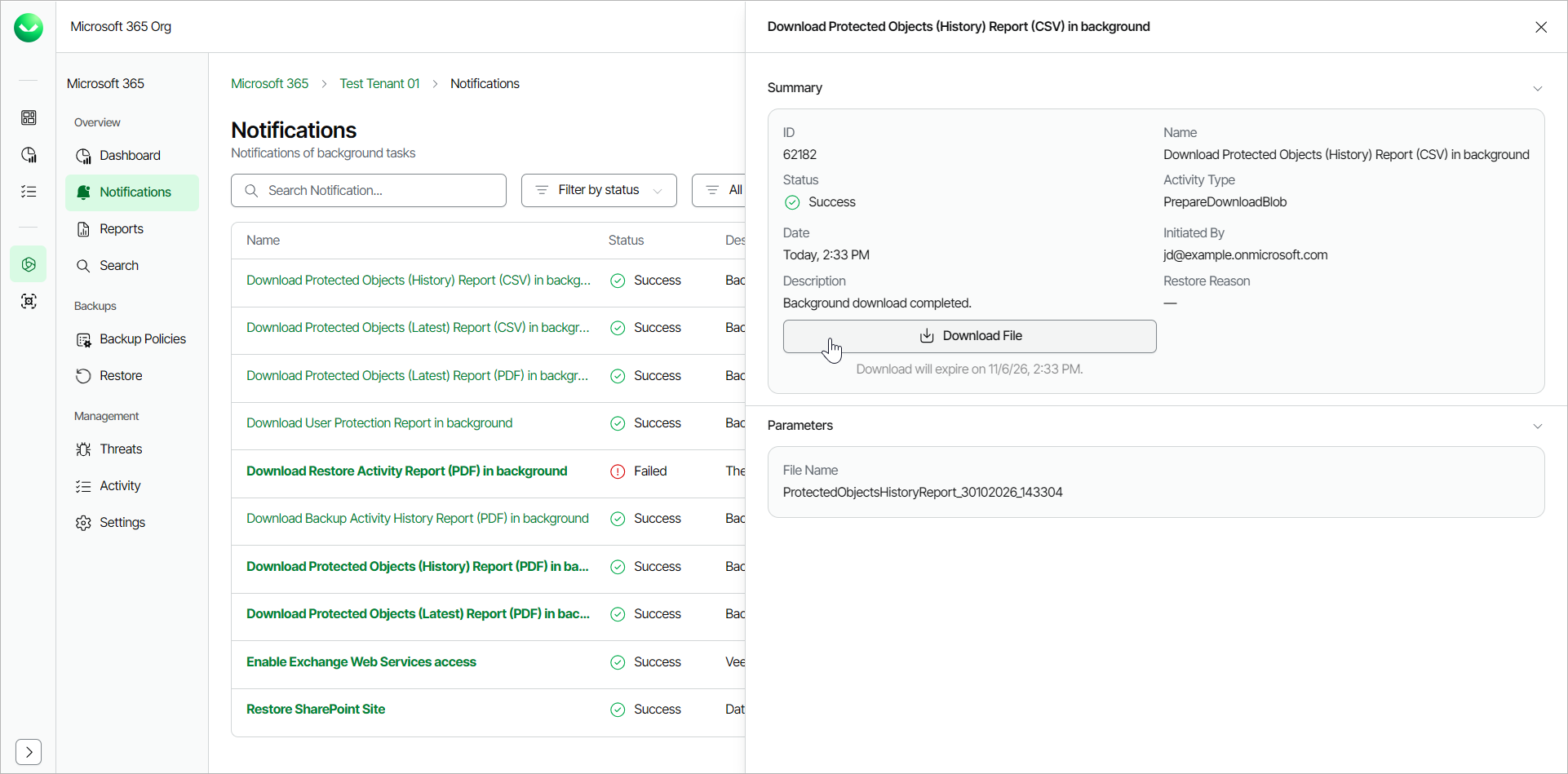
Previewing Protected Objects History Report
To preview a Protected Objects History report, specify the settings for the report and click Preview.
In the Protected Objects History Preview page, Veeam Data Cloud displays the following information:
- At the top, there is a summary of the report settings. Veeam Data Cloud displays the selected date, object types, policies, statuses and flagging rules. Click Edit to re-configure the report settings.
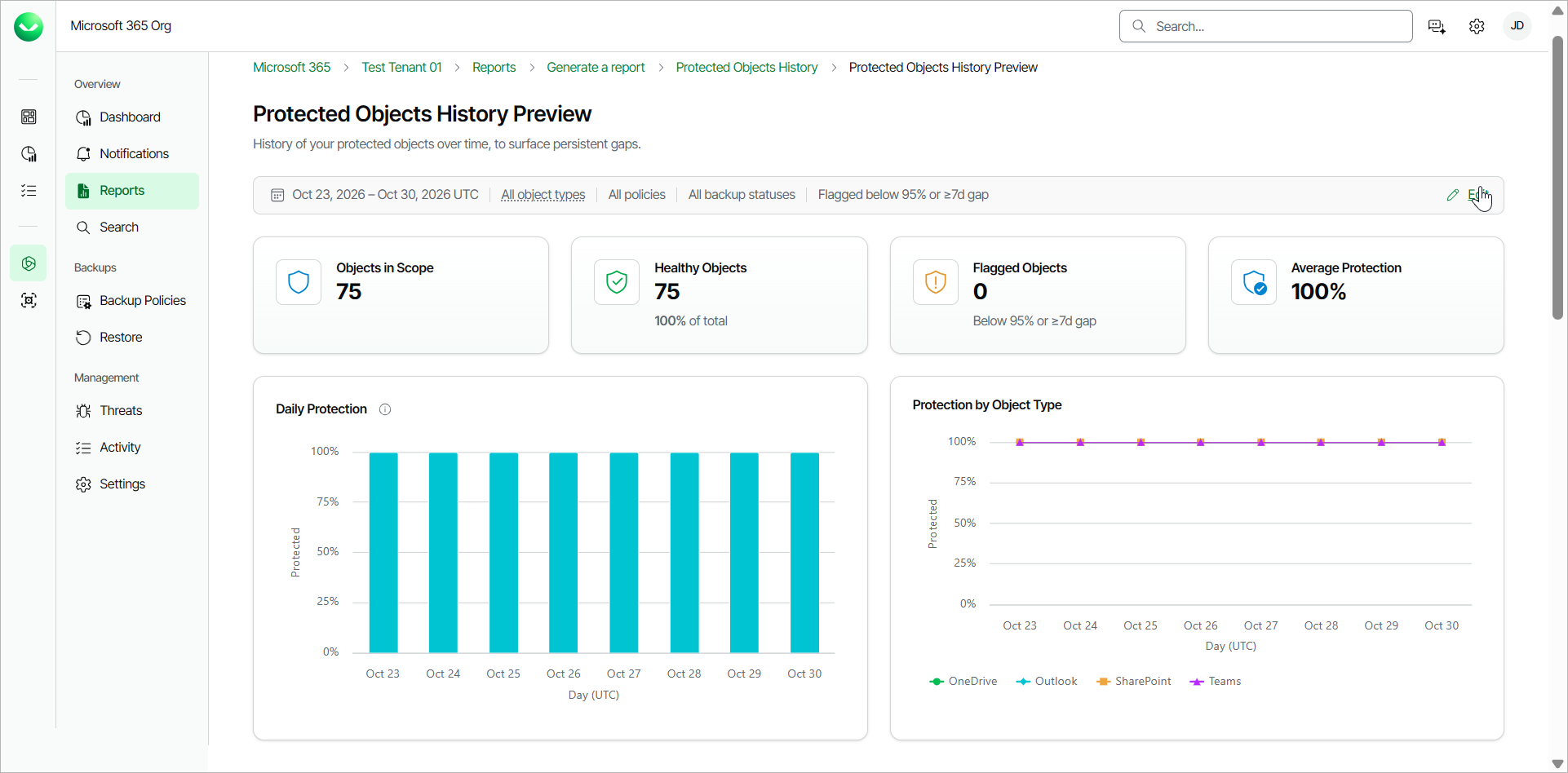
- The next section shows a summary of healthy and flagged objects. Veeam Data Cloud displays the following information:
- Objects in Scope. The total number of objects included in the report.
- Healthy Objects. The number and the percentage of healthy objects.
- Flagged Objects. The number of flagged objects.
- Average Protection. The percentage of average protection.
- The Daily Protection sections shows the percentage of protected and unprotected objects for each selected day.
- The Protected by Object Type section shows the percentage of protection of each service (Outlook, OneDrive, SharePoint and Teams) for each selected day.
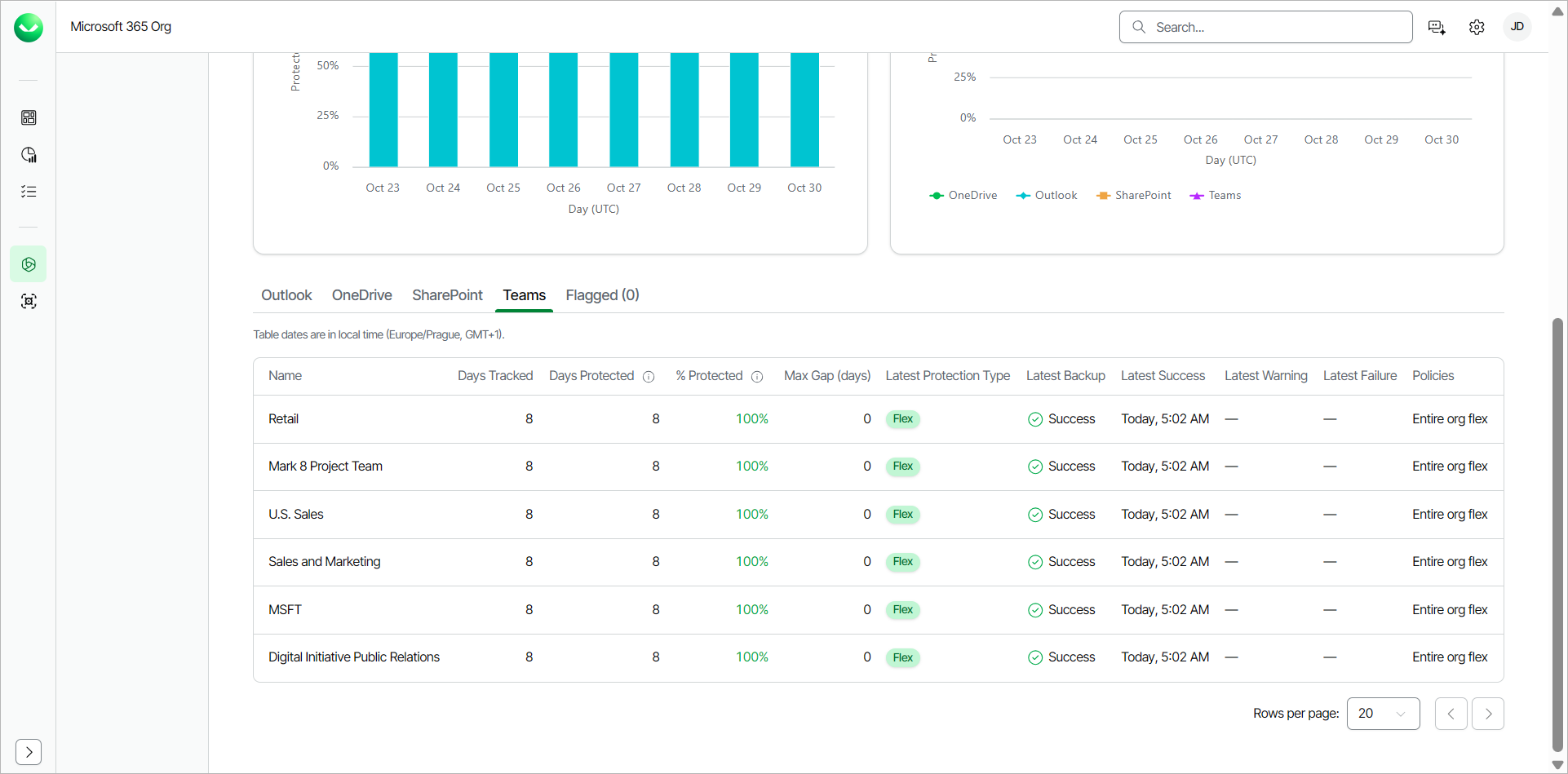
- In the Outlook, OneDrive, SharePoint, Teams and Flagged tabs, Veeam Data Cloud displays details for all the objects included in the report. The table for each tab contains the following information:
- [For Flagged] Type. The service type of the object. The available types are the following: Outlook, OneDrive, SharePoint and Teams.
- Name. The name of the user, SharePoint site or team.
- [For Outlook and OneDrive] Email. The email address of the user.
- [For OneDrive and SharePoint] URL. The url of the OneDrive or SharePoint site.
- Days Tracked. The number of tracked days in the report.
- Days Protected. The number of days the object is protected within the report date range.
- % Protected. The percentage of the protection within the report date range.
- Max Gap (days). The number of consecutive unsuccessful backup days.
- Latest Protection Type. Whether the object is protected within a Flex or Express backup policy.
- Latest Backup. The status of the latest backup policy session. The available statuses are Success, Warning, Error and No status.
- Latest Success. The time and date of the latest successful backup policy session.
- Latest Warning. The time and date of the latest backup policy session with the Warning status.
- Latest Failure. The time and date of the latest failed backup policy session.
- Policies. The name of the backup policy where the object is included.
|
Note |
|
An object is Protected when it has at least one successful backup (or backup with warnings) within its RPO at the report date. Objects with neither a successful backup nor a backup with warnings in that window, objects whose policy has not run yet and objects not covered by any backup policy are Unprotected. |
Protected Objects History Report CSV Fields
You can generate the Protected Objects History report in the .CSV format. The .CSV file contains the following fields:
- Object Type. The type of the object. The available types are the following: Mailbox, OneDrive, SharePoint and Teams.
- Name. The name of the user, SharePoint site or team.
- Email. The email address of the user.
- URL. The url of the OneDrive or SharePoint site.
- Tenant. The name of the tenant.
- Days Tracked. The number of tracked days in the report.
- Days Protected. The number of days the object is protected within the report date range.
- Protection Status (Period, %). The percentage of the protection within the report date range.
- Max Consecutive Days Without Backup. The number of consecutive unsuccessful backup days.
- Flagged. Yes or No. Whether the object was flagged or not.
- Flag Reasons. The reasons why the object was flagged.
- Protection Type. Whether the object is protected within a Flex or Express backup policy.
-
Backup Policies. The name of the backup policy where the object is included.
- Latest Backup Status. The status of the latest backup policy session. The available statuses are Success, Warning, Error and No status.
- Last Successful Backup. The time and date of the latest successful backup policy session.
- Last Warning Backup. The time and date of the latest backup policy session with the Warning status.
- Last Error Backup. The time and date of the latest backup policy session with the Error status.
- Total. The sum total of all objects.
For example:
|
Object Type,Name,Email,URL,Tenant,Days Tracked,Days Protected,Protection Status (Period, %),Max Consecutive Days Without Backup,Flagged,Flag Reasons,Protection Type,Backup Policies,Latest Backup Status,Last Successful Backup,Last Warning Backup,Last Error Backup,TOTAL SharePoint,Digital Initiative Public Relations, ,https://myorg.sharepoint.com/sites/DigitalInitiativePublicRelations,Test Tenant 01,8,8,100,0,No, ,Flex,Entire org flex,Success,2026-10-30T04:02:10, , , ... |