Viewing Data Seeding Jobs
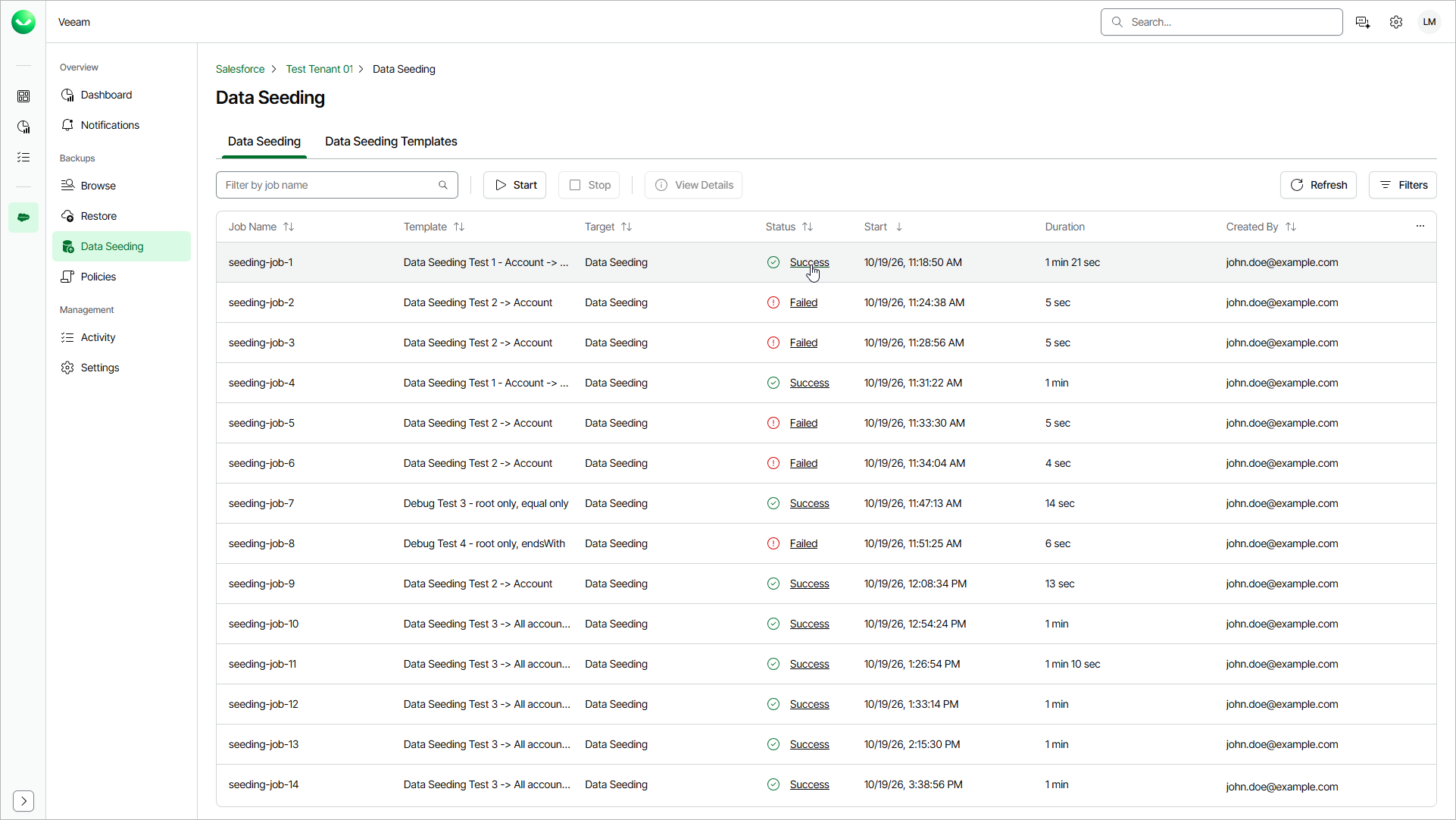
Veeam Data Cloud starts a separate data seeding job for each target organization that you select when you start data seeding. On the Data Seeding tab, you can view all running and completed data seeding jobs of the selected Salesforce tenant, check the job settings and review the seeding results for each object.
To view the list of data seeding jobs, do the following:
- On the Salesforce page, click the name of the tenant you want to manage.
- Select Data Seeding on the left.
- Select the Data Seeding tab.
In the job list, Veeam Data Cloud displays the following properties for each data seeding job:
|
Property |
Description |
|---|---|
|
Job Name |
Name of the data seeding job. |
|
Template |
Data seeding template used by the job. |
|
Target |
Organization to which the job seeds data. |
|
Status |
Current status of the job. |
|
Start |
Time when the job was started. |
|
Duration |
Time that the job took to complete. |
|
Created By |
User who started the job. |
Viewing Job Details
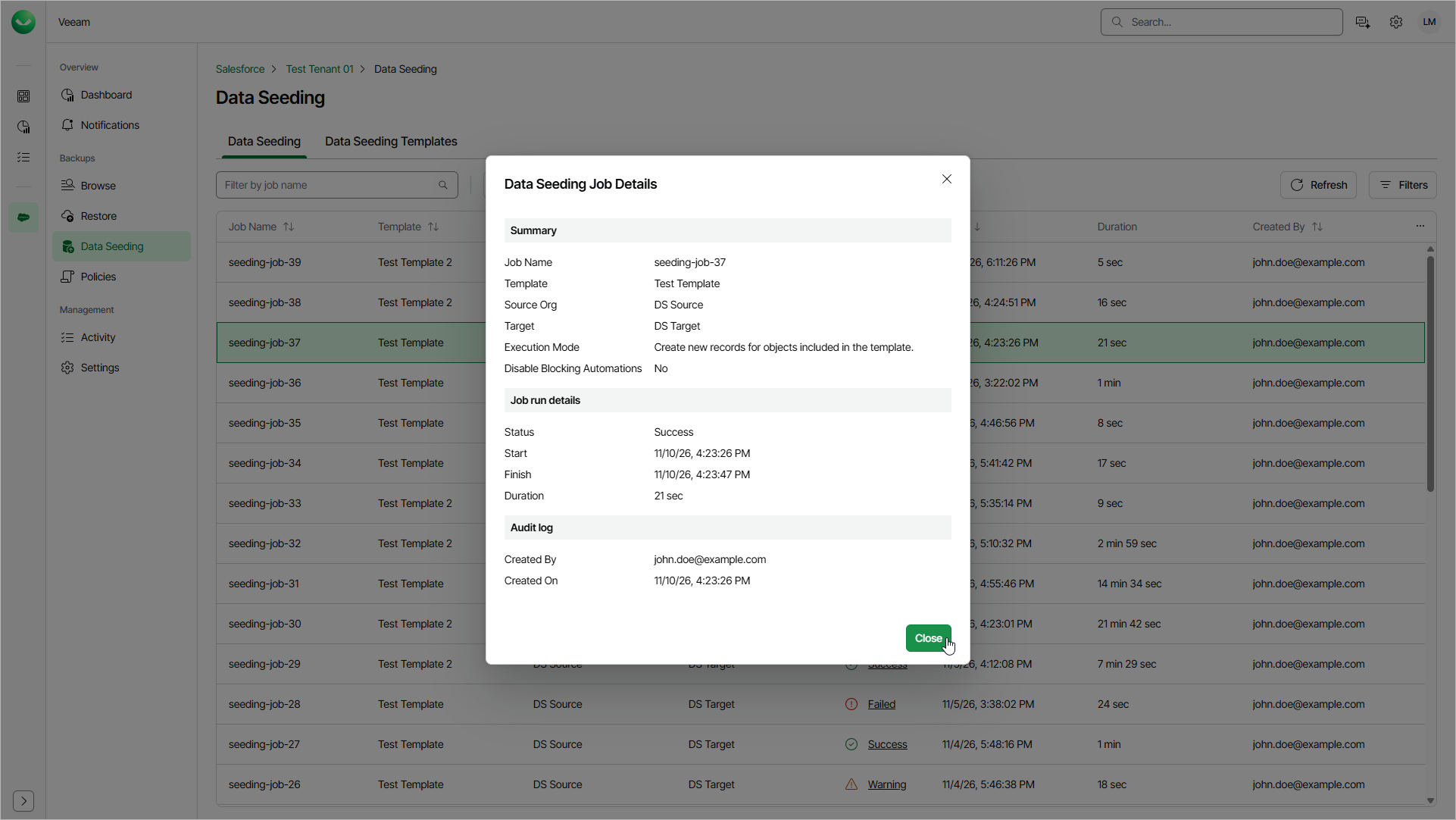
You can view the settings of a data seeding job and the details of its last run. To do that, select the job and click View Details. In the Data Seeding Job Details window, Veeam Data Cloud displays the following information:
- Job — the job name, the data seeding template, the source and target organizations, the execution mode and whether blocking automations were turned off for the job.
- Last Run — the status, start time, finish time and duration of the last job run.
- Created — the user who created the job and the creation time.
Viewing Job Results
To view the results of a data seeding job, click the link in the Status column next to the job.
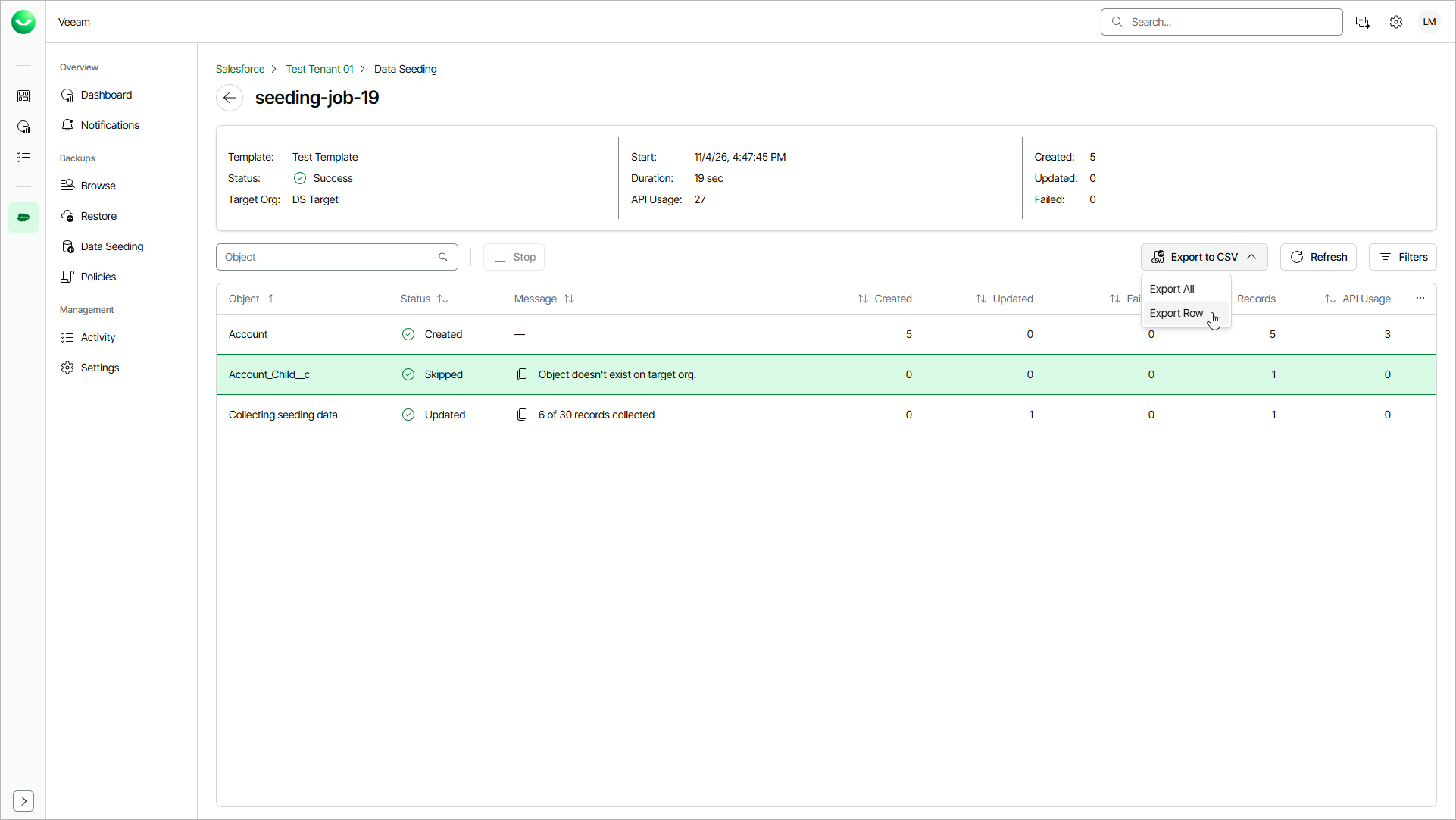
On the job page, Veeam Data Cloud displays the job summary and the processing statistics for each Salesforce object included in the data seeding template. The summary includes the job name, the template, the status, the target organization, the start date, the duration, the number of API requests used by the job and the number of created, updated and failed records.
Because Veeam Data Cloud always creates new records in the target organization and does not update existing records, the number of updated records is always 0.
On the job page, you can perform the following operations:
- To find a specific object, enter its name in the search field.
- To export the processing statistics as a CSV file, click Export to CSV and select Export All to export statistics for all objects, or select an object in the list and then select Export Row. The file will be downloaded to your local machine.
- To update the statistics of a running job, click Refresh.
- To stop a running job, click Stop.
Filtering Data
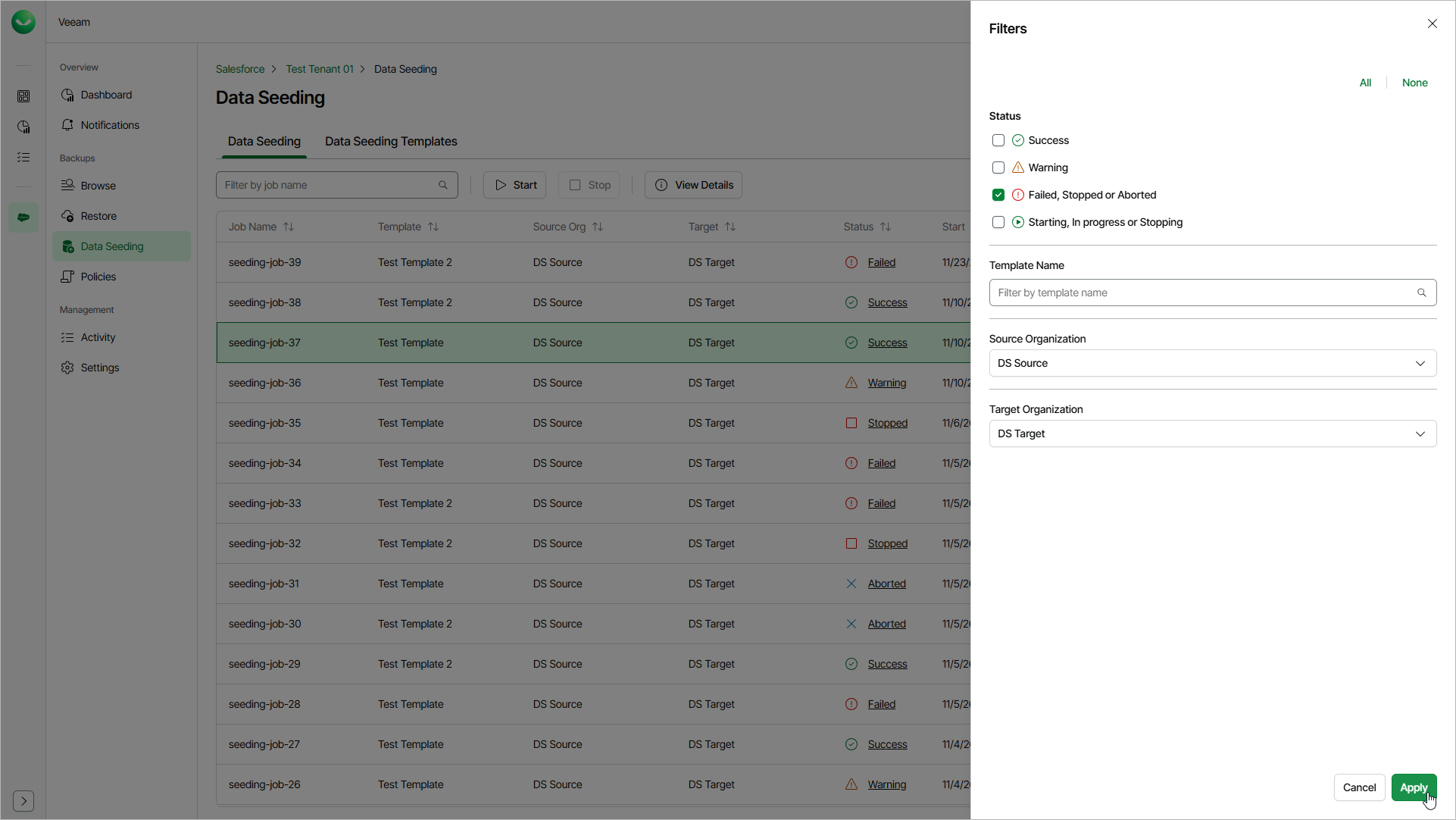
To quickly find a data seeding job, you can search for the job by name or combine filters by the Status, Template Name, Source Organization and Target Organization criteria.
- To search for a job by name, enter the job name in the search field.
- To apply filters, do the following:
- Click Filters.
- In the Filters window, select one or more values for the desired criteria. To select or clear all statuses at once, click All or None.
- Click Apply to view the list of data seeding jobs that match the specified filters.