Step 3. Choose Data to Restore
At the Data step of the wizard, do the following:
- In the Default records limit field, specify the maximum number of records that Veeam Data Cloud will seed for each object added to the template. By default, the limit is set to 10 records.
The limit for the root object is absolute — Veeam Data Cloud seeds no more than the specified number of root object records. Limits for child objects apply per parent record. For example, if Veeam Data Cloud seeds 2 Account records and the limit for the Contact child object is 10, the template can produce up to 20 Contact records.
- From the Root object drop-down list, select the Salesforce object that will be the root of the object hierarchy, and click Select.
- To add a child object, click the Add icon in the row of the parent object, select the necessary object from the Child object drop-down list and click Select. Repeat this step for every child object that you want to add to the template.
You can add child objects up to 10 levels deep. To remove a child object from the hierarchy, click the Delete icon in the row of the object.
|
Note |
|
Customers who have a Veeam Data Cloud for Salesforce subscription with more than 200 users can request an increase in the hierarchy depth. To increase the hierarchy depth, contact Veeam Customer Support. |
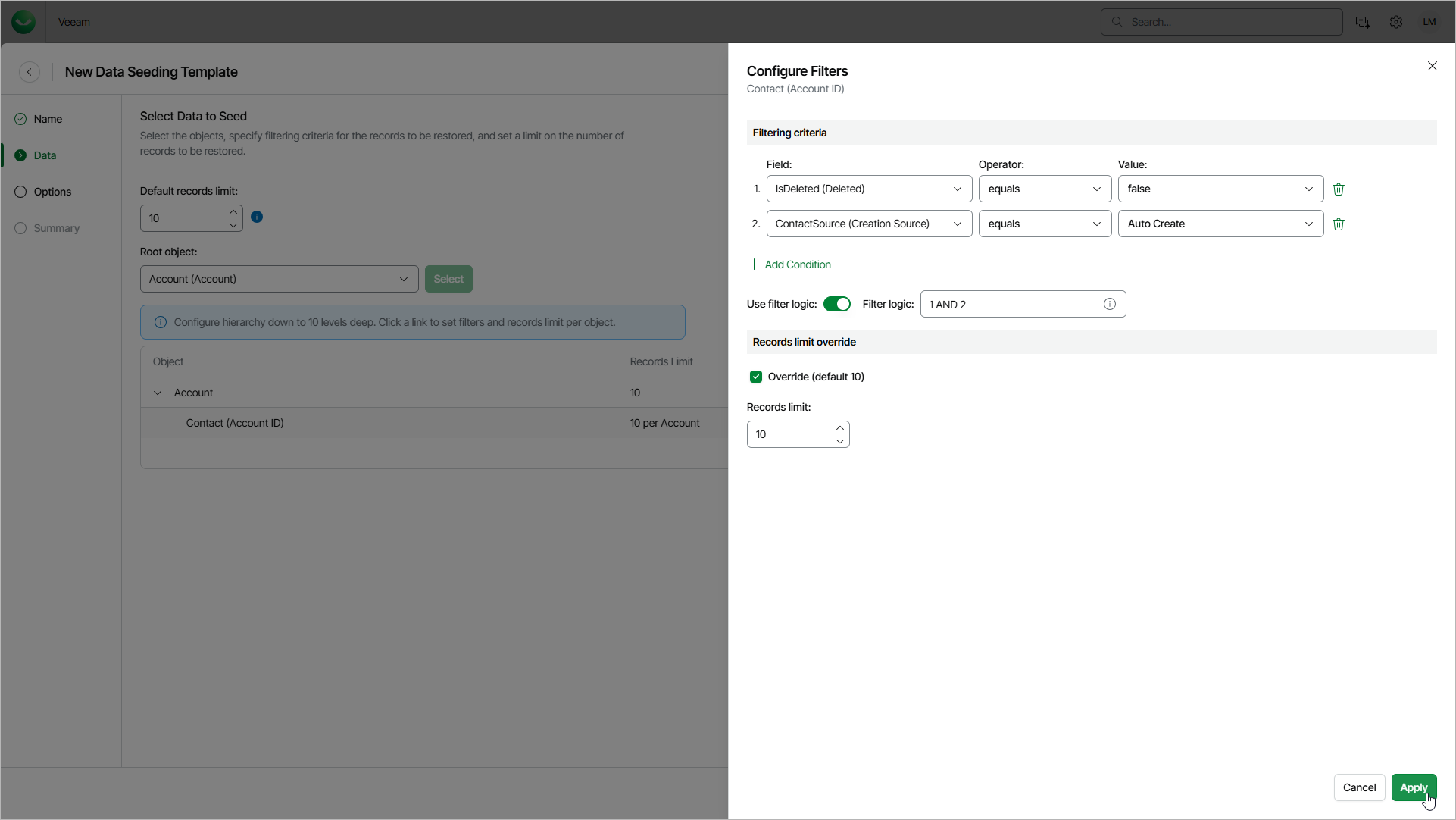
- [Optional] To configure filters and a records limit for a specific object, click the link in the row of the object. Then, in the Configure Filters window, do the following:
- In the Filter criteria section, specify conditions that records must meet to be seeded. To add a condition, click Add Condition and select a field, an operator and a value. To remove a condition, click the Delete icon next to the condition.
- By default, conditions are combined by the AND logical operator. To combine conditions using different operators, set the Use filter logic toggle to On, and specify the filter logic expression using condition ordinal numbers, brackets and logical operators — for example, 1 AND (2 OR 3) AND NOT 4.
- If you want to override the default records limit for the object, in the Records limit override section, select the Override check box and specify the necessary number of records.
- Click Apply.
By default, each object has the IsDeleted (Deleted) equals false condition that excludes deleted records from seeding. If you do not configure any other conditions, Veeam Data Cloud selects records according to the records limit specified for the object.
|
Note |
|
Storage capacity of Salesforce sandbox tenants is limited. Use filters and record limits to make sure that the seeded data fits the free space available in the target tenants. |