Starting and Stopping Data Seeding Jobs
Veeam Data Cloud allows you to seed data from the latest available backup of a source organization to one or more Salesforce sandbox organizations. A data seeding job copies the objects and records specified in the selected data seeding template, and applies the record limits, filters and data masking settings configured in this template.
Before you start a data seeding job, consider the following:
- At least one data seeding template must be created for the organization that is compatible with your target for the data seeding job. For more information, see Adding Data Seeding Templates.
- Target organizations must be added to Veeam Data Cloud. Target organizations do not need to have backups.
- Data seeding jobs copy only records. Veeam Data Cloud does not copy files and does not restore metadata. Make sure that the target organization has the same metadata as the source organization.
- Veeam Data Cloud starts a data seeding job immediately after you click Start. You cannot save a data seeding job as a draft.
- If you select multiple target organizations, Veeam Data Cloud creates a separate data seeding job for each target organization. This allows you to track the results for each target organization separately.
- Veeam Data Cloud always creates new records in the target organization and does not update or overwrite existing records. If you run the same data seeding template against the same target organization again, Veeam Data Cloud adds another set of records.
- Veeam Data Cloud always uses the latest available backup of the source organization. That is why data seeding jobs that use the same template can produce different data if you run them at different times.
Starting Data Seeding Jobs
To start a data seeding job, do the following:
- On the Salesforce page, click the name of the tenant you want to manage.
- Select Data Seeding on the left.
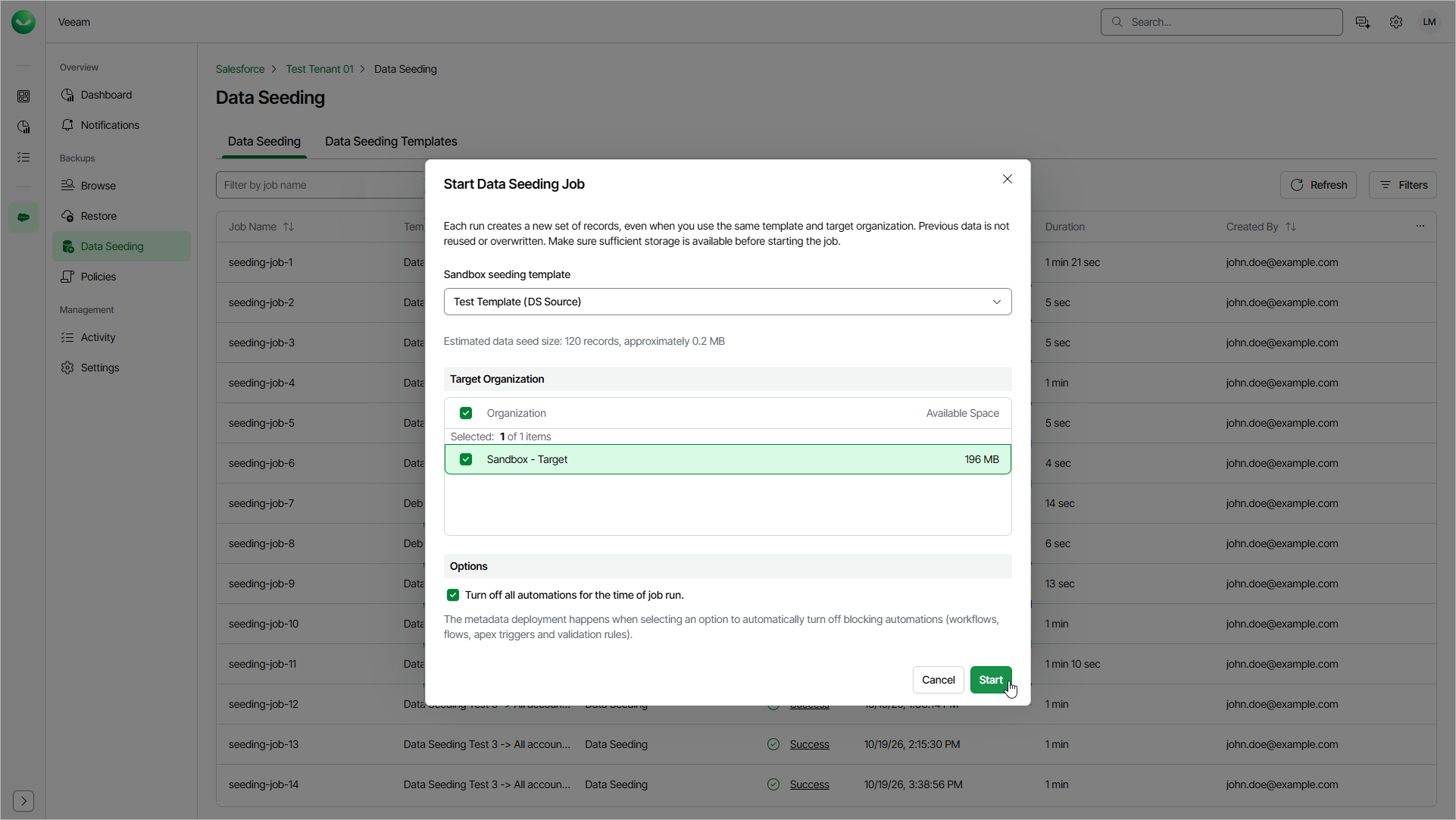
- On the Data Seeding tab, click Start.
- In the Start Data Seeding Job window, select the necessary template from the Sandbox seeding template drop-down list. Veeam Data Cloud displays the estimated number of records and the approximate size of the data set.
The actual number of created records can exceed the estimated number if child objects in the template have required parent objects that are not explicitly included in the template.
- In the Target Organization section, select check boxes next to the organizations to which you want to seed data. Make sure that each target organization has enough free space to store the data set. The available storage is displayed in the Free Space column.
- [Optional] In the Options section, select the Automatically turn off all automations check box if you want Veeam Data Cloud to bypass workflows, flows, Apex triggers and validation rules that can block the data seeding operation. Veeam Data Cloud turns off automations only while the data seeding job runs, and turns them back on after the job ends.
- Click Start.
To track the progress and results of a data seeding job, see Viewing Data Seeding Jobs.
Stopping Data Seeding Jobs
You can stop a data seeding job that is currently running.
To stop a data seeding job, do the following:
- On the Salesforce page, click the name of the tenant you want to manage.
- Select Data Seeding on the left.
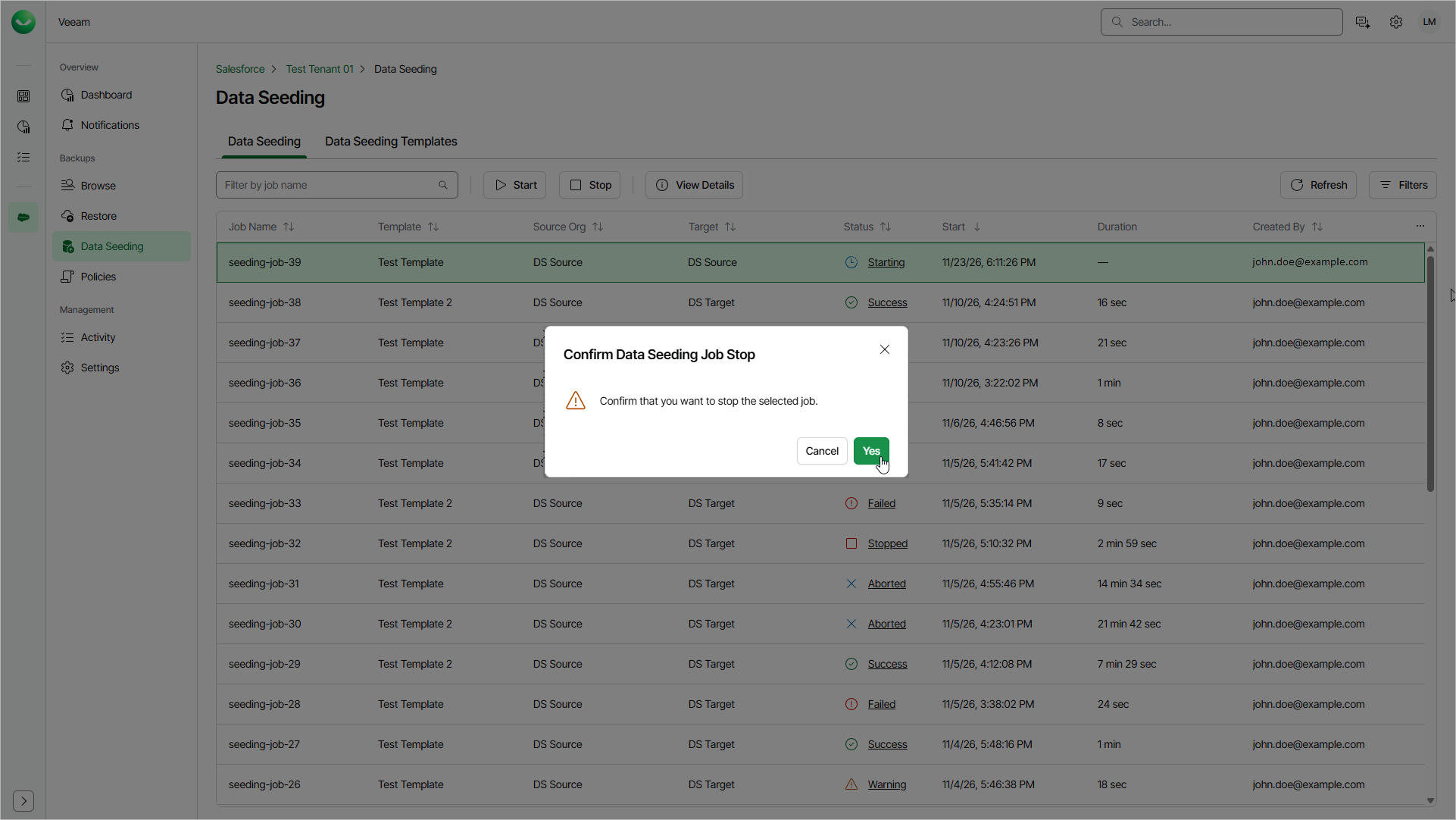
- On the Data Seeding tab, select the job you want to stop and click Stop.
- In the Confirm Data Seeding Job Stop widow, click Yes.