Overview
The Overview tab provides cumulative information about license usage for Veeam Service Provider Console, Veeam Cloud Connect, Veeam Backup & Replication, Veeam ONE and Veeam Backup for Microsoft 365.
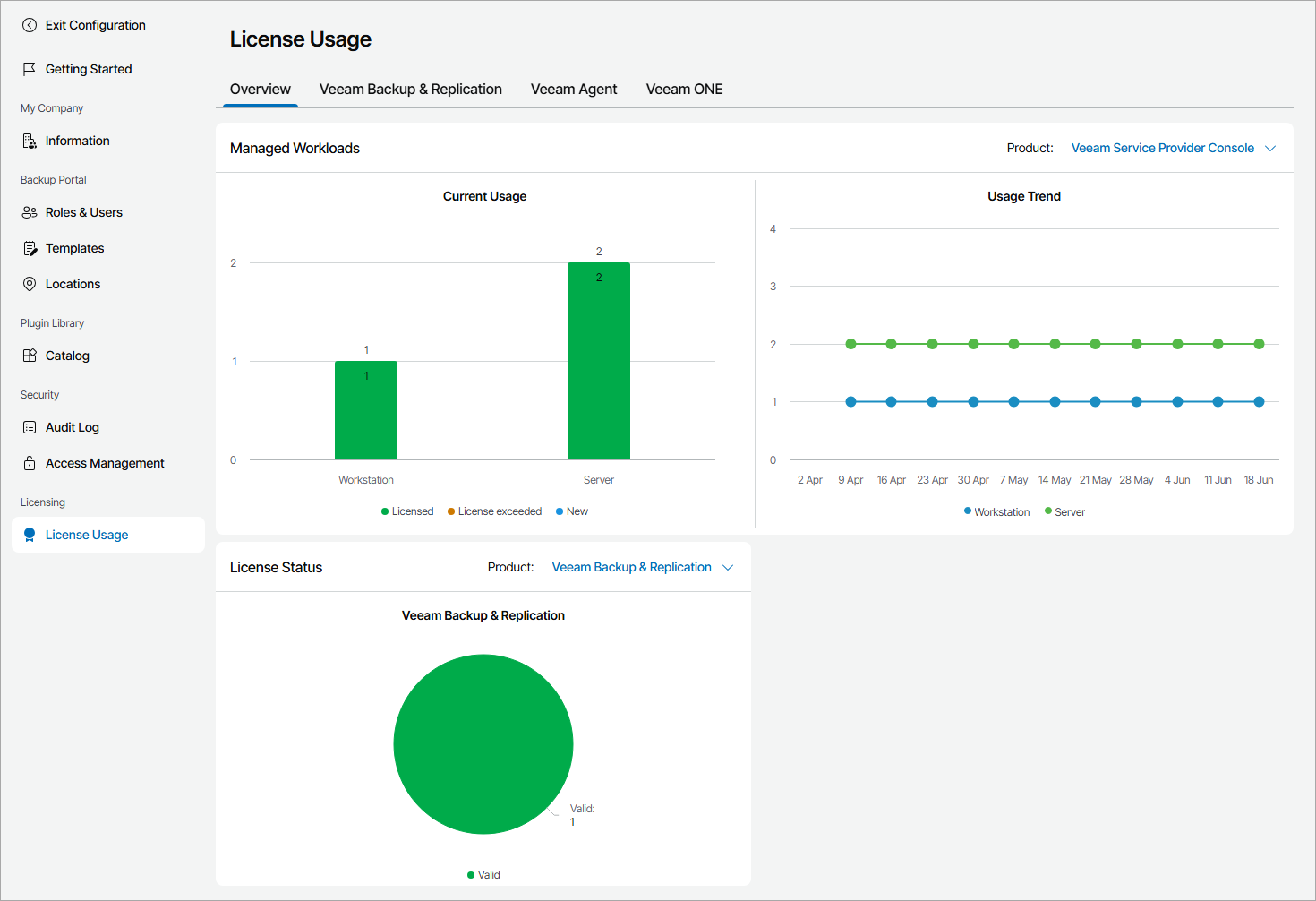
The Overview tab includes the following widgets:
- Managed Workloads widget shows the current number of managed workloads and workloads usage trend for the previous quarter.
To show the necessary product, use the list at the top of the widget:
- Veeam Service Provider Console — show the number of managed Veeam backup agents. The view shows the number of workstation agents (computers that run Veeam backup agents in the Workstation mode) and server agents (computers that run Veeam backup agents in the Server mode).
For each Veeam backup agent type, the view details the number of licensed agents, new agents agents with exceeded license. Click a chart bar to drill down to the list of Veeam backup agents with a specific license status.
|
Note: |
|
If your service provider uses Rental license, Veeam Service Provider Console will treat Veeam backup agents registered within the current calendar month as New. New Veeam backup agents consume the Workstation agents and Server agents quotas, but can be managed in Veeam Service Provider Console even if these quotas are exceeded. When the new month starts, you have 7 days of grace period. By the end of this period, you must decrease the number of managed Veeam backup agents or request for increase in agent quotas. Otherwise, the license status of Veeam backup agents that exceed the specified quotas will be set to Unlicensed. These agents will be excluded from management in a LIFO (last in, first out) queue: Veeam backup agents that are registered (activated) last are excluded first from the management scope. If you increase the Veeam backup agent quota after the grace period is over, Veeam Service Provider Console will not automatically activate Veeam backup agents that were excluded from management. To start managing Veeam backup agents with the Unlicensed status, you must activate them manually. For details on switching Veeam backup agents to managed mode, see Activating Veeam Backup Agents. |
- Veeam Cloud Connect — show the number of backups and replicas residing in Veeam Cloud Connect. The widget shows the number of workstation backups (backups of physical computers or VMs that run Veeam backup agents in the Workstation mode), server backups (backups of physical computers or VMs that run Veeam backup agents in the Server mode), backups of VMs created with Veeam Backup & Replication, and cloud VM replicas created with Veeam Backup & Replication.
- Veeam Backup & Replication — show the number of workloads protected by Veeam Backup & Replication. The view shows the number of workstation agents (computers that run Veeam backup agents in the Workstation mode), server agents (computers that run Veeam backup agents in the Server mode), VMs, file shares, cloud VMs and enterprise applications.
- Veeam ONE — show the number of workloads monitored by Veeam ONE servers. The view shows the number of workstation agents (computers that run Veeam backup agents in the Workstation mode), server agents (computers that run Veeam backup agents in the Server mode), VMs, file shares and cloud VMs.
- Veeam Backup for Microsoft 365 — show the number of protected Veeam Backup for Microsoft 365 users.
- License Status widget shows the number of Veeam Backup & Replication, Veeam ONE and Veeam Backup for Microsoft 365 servers managed in Veeam Service Provider Console.
Click a chart bar to drill down to the list of servers with a specific license status.