This is an archive version of the document. To get the most up-to-date information, see the current version.
Step 3. Specify Names and Tags
At the Name step of the wizard, you can specify new names for the restored workloads and assign tags to them. By default, Veeam Backup & Replication restores workloads with their original names.
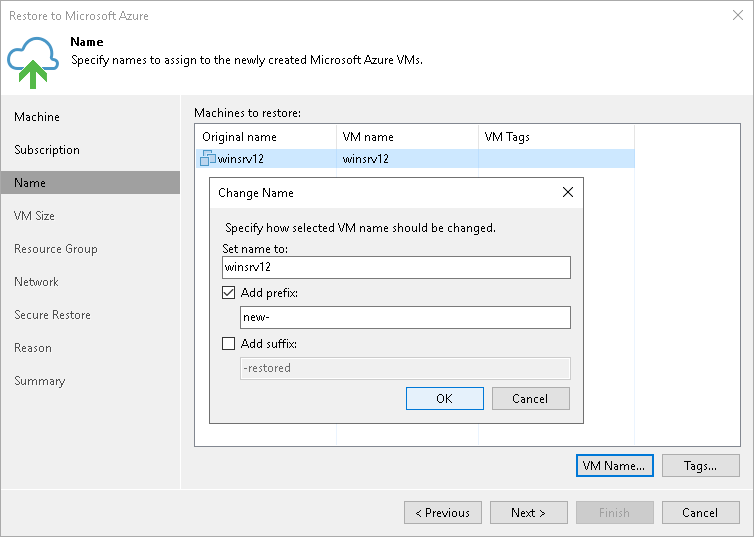
To define a new name for a workload:
- In the Machines to restore list, select a workload and click VM Name.
- In the Change Name window, enter a new name explicitly or specify a change name rule — add a prefix and suffix to the original workload name.
Adding Tags
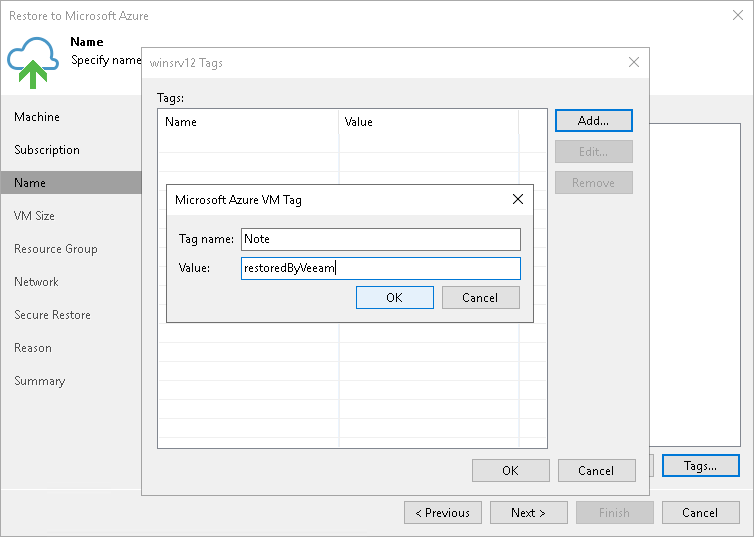
To add a tag for the restored workloads:
- In the Machines to restore list, select a workload and click Tags.
- In the Tags window, click Add.
- In the Microsoft Azure VM Tag window, specify the tag name and its value.