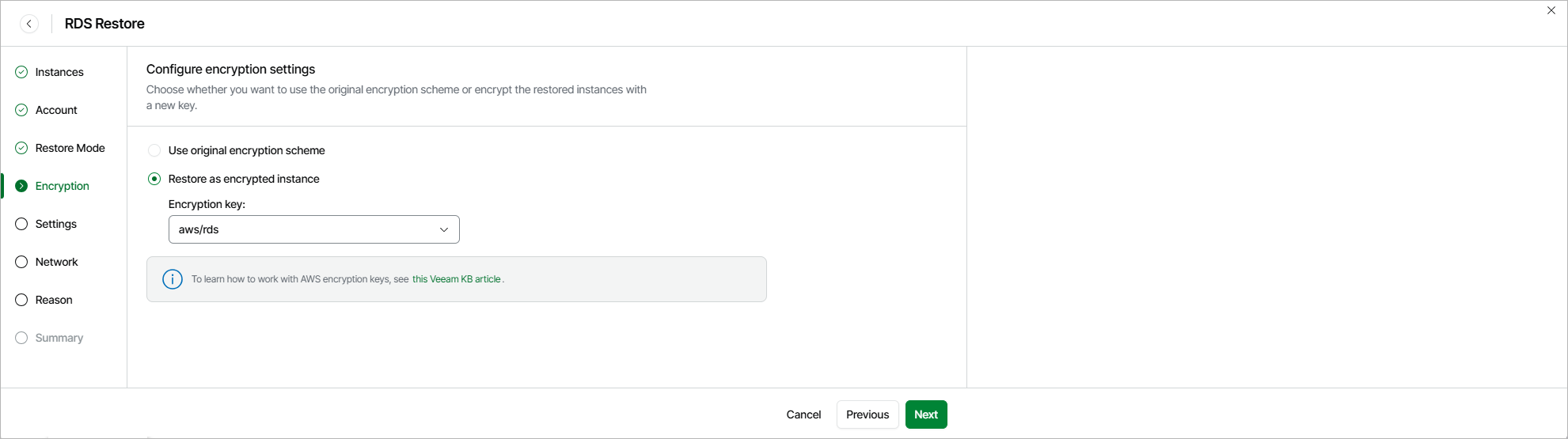
Step 5. Enable Encryption
[This step applies only if you have selected the Restore to new location, or with different settings option at the Restore Mode step of the wizard]
At the Encryption step of the wizard, choose whether the restored RDS resources will be encrypted with an AWS KMS key:
- If you do not want to encrypt the RDS resources or want to apply the existing encryption scheme, select the Use original encryption scheme option.
|
Important |
|
If you plan to restore an unencrypted Aurora provisioned DB cluster to an Aurora Serverless DB cluster, and you select the Use original encryption scheme option, note that Veeam Data Cloud for AWS will encrypt the newly created Aurora Serverless DB cluster with the default KMS key in the target AWS Region. For details on Aurora Serverless, see AWS Documentation. |
- If you want to encrypt the RDS resources, select the Restore as encrypted instance option and choose the necessary KMS key from the Encryption key list.
For a KMS key to be displayed in the list of available encryption keys, it must be stored in the AWS Region selected at step 4 of the wizard. For details on KMS keys, see AWS Documentation.
|
Tip |
|
If the necessary KMS key is not displayed in the list, or if you want to use a KMS key from an AWS account other than the AWS account to which the specified IAM role belongs, you can select Add custom key ARN from the Encryption key drop-down list, and specify the amazon resource name (ARN) of the key in the Add Custom Key ARN window. For Veeam Data Cloud for AWS to be able to encrypt the restored RDS resource using the provided KMS key, the AWS account selected for the restore operation at step 3 of the wizard must contain an IAM role with permissions to access the key. |