Adding Storage Vaults for Azure Edition
To add a storage vault for an Azure Veeam Data Cloud Vault edition, do the following:
- On the Vault page, find the necessary tenant in the list of tenants. Click the menu icon, then click Manage.
- In the left menu, click Storage Vaults.
- On the Storage Vaults page, click Add Vault.
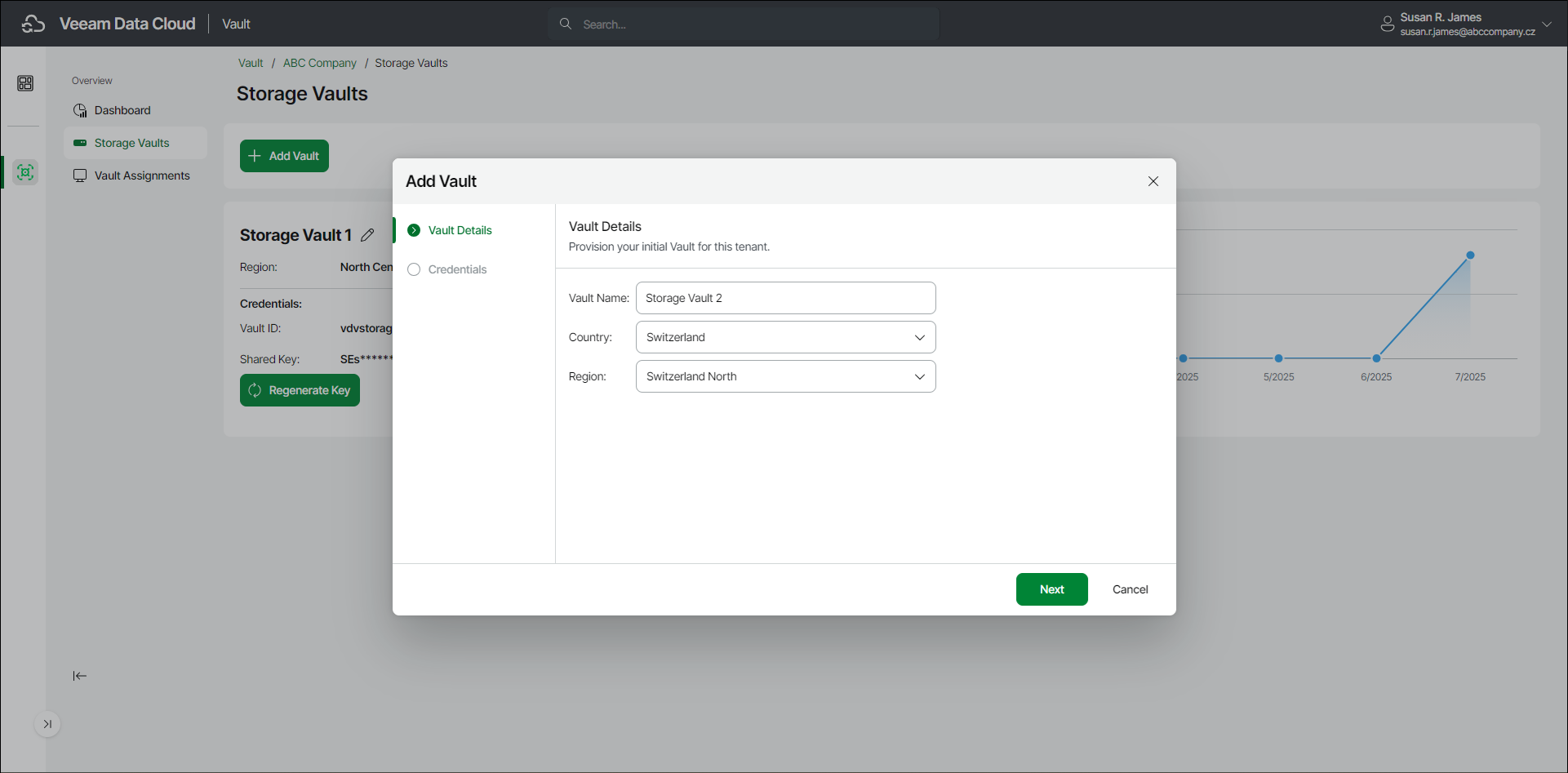
- In the Add Vault wizard, at the Vault Details step, do the following:
- In the Vault Name field, specify the name for the new storage vault. The name must be between 3 and 50 characters in length.
- From the Country drop-down list, select the country where you want to create the new storage vault.
- [For the Advanced Core and Advanced Non-Core editions] From the Region drop-down list, select your preferred storage region. This helps you specify a location for your data more precisely in case multiple data centers in different regions are available within the country you selected.
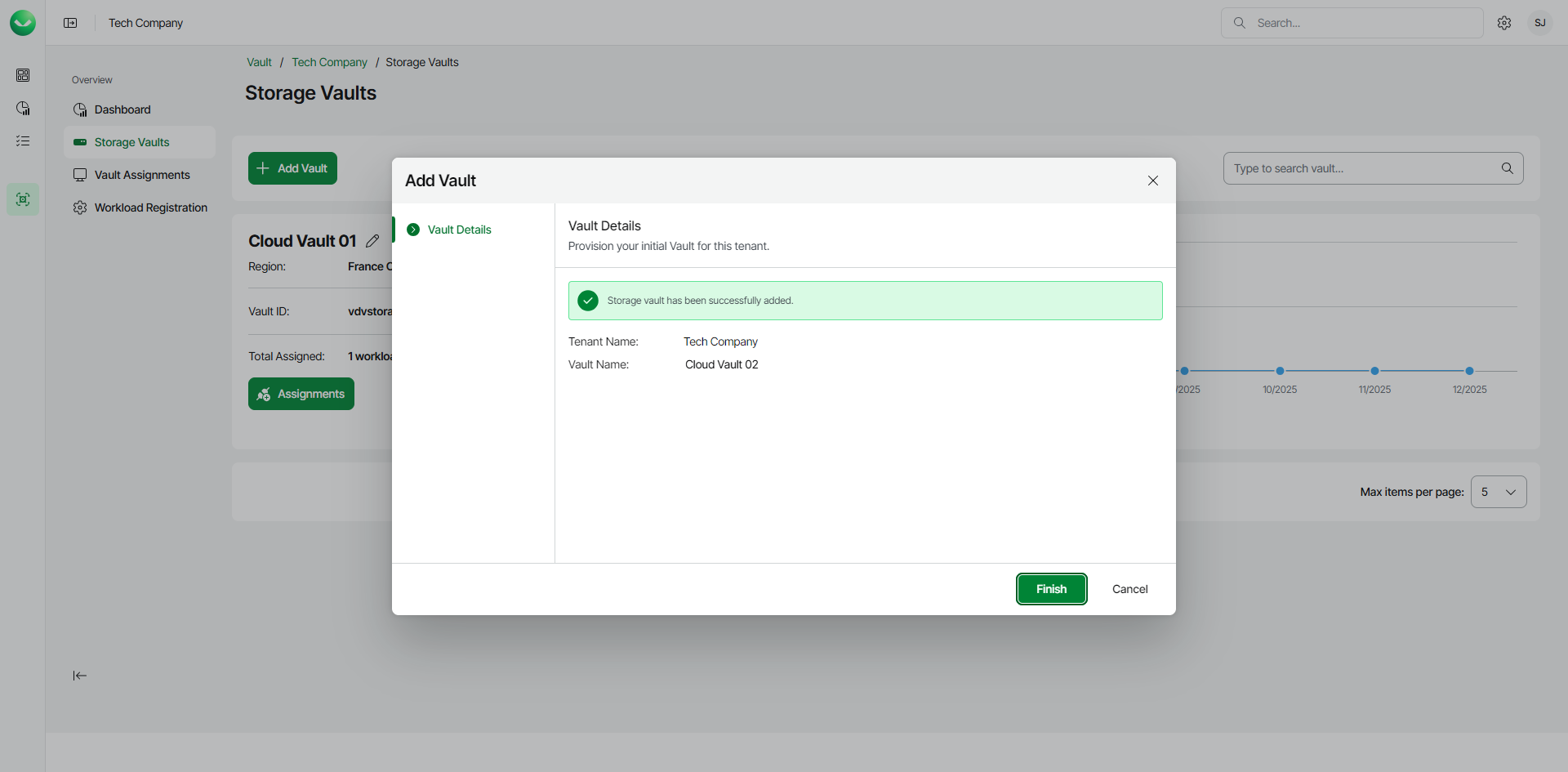
- Click Finish. Veeam Data Cloud Vault will create the storage vault.
- Click Finish again to return to the Vault page.