Importing Backups
You can import backup data created by 3rd party products or by Veeam Backup for Salesforce into a Veeam Data Cloud backup. For more information on supported 3rd party products, see this Veeam KB article.
The data import allows you to migrate to Veeam Data Cloud from another backup solution while keeping the imported data available for restore. Veeam Data Cloud imports data from CSV files that stored in external object storage: Amazon S3 or Microsoft Azure Blob Storage.
|
Note |
|
This feature is available on request. To enable backup data import, contact Veeam Customer Support. |
Before You Begin
Before you start backup data import, consider the following:
- You have the Salesforce:BackupOperator, Salesforce:Administrator or OrganizationAdmin role assigned.
- The cloud provider that stores the backup files is added to Veeam Data Cloud. For details, see Configuring Object Storage Connections.
- Veeam Data Cloud does not support import of metadata, files or encrypted data.
- You cannot run backup policies while a data import session is in progress. You can start them only after the session completes successfully.
- Depending on the amount of data, import can take several days to complete.
- If a file fails to import or you stop the data import session manually, you can start another data import session. Veeam Data Cloud automatically skips the records that were already imported.
Make sure that the CSV files you want to import meet the following requirements:
- Each file name must include the Salesforce object API name so that Veeam Data Cloud can match the imported records to the correct objects.
- To import a large object, you can split its data into several files and add an index to each file name, for example, Account-001.csv and Account-002.csv.
- You can compress the CSV files into ZIP or GZ archives. Veeam Data Cloud also supports password-protected archives.
- The structure of the CSV files can differ from the structure of the Salesforce objects. Veeam Data Cloud imports only the fields that exist in the corresponding Salesforce object.
- For 3rd party data, the CSV files must be grouped into folders per day or per export session. The folder names must have the following format: day_YYYYMMDD_HHMMSS[-<suffix>].
Starting Data Import
To start a data import session, do the following:
- On the Salesforce page, click the name of the tenant you want to manage.
- Select Policies on the left.
- Make sure the Backup Policy tab is selected.
- Click Actions and select Data Import.
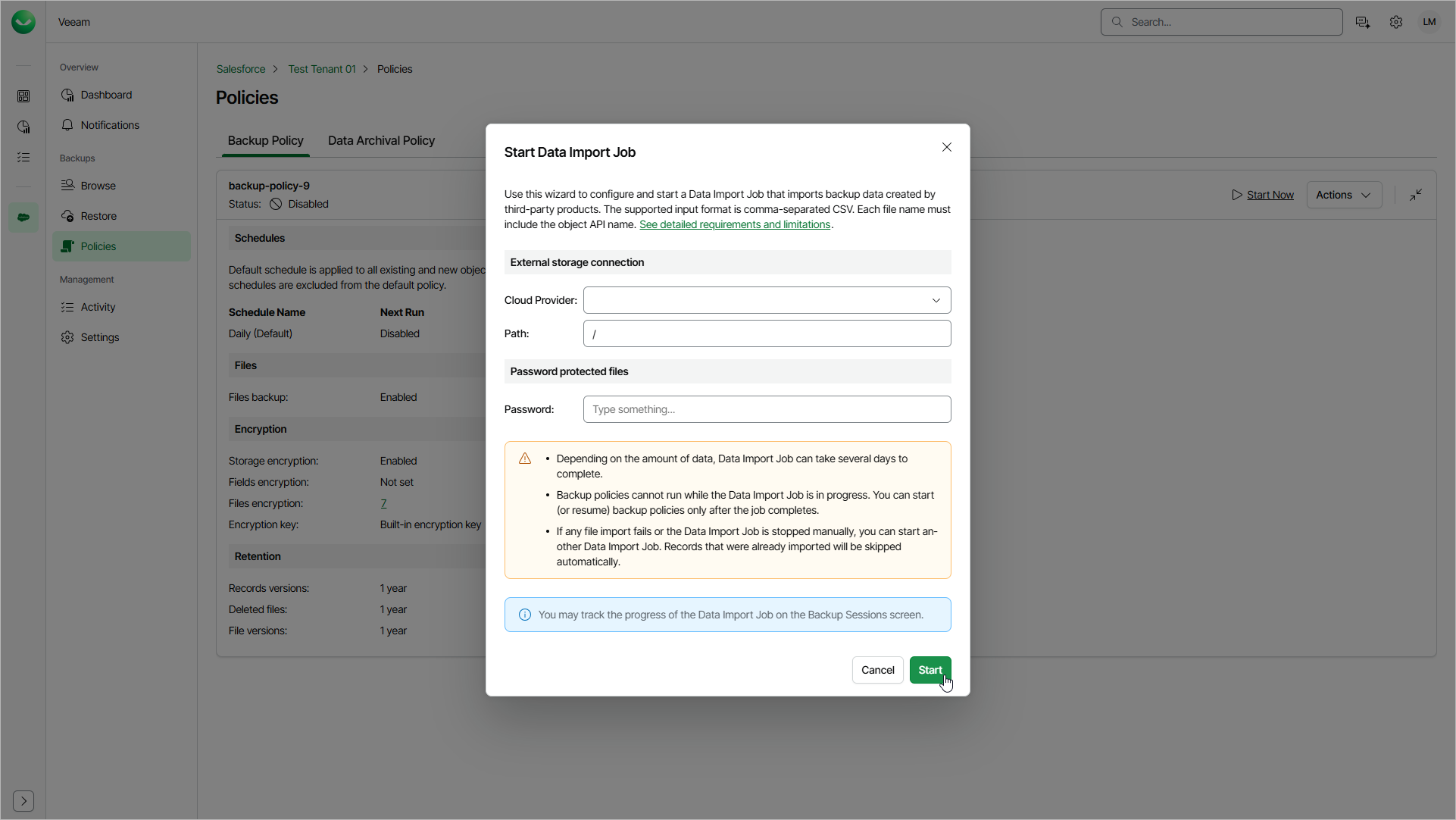
- In the Start Data Import Job window, from the Cloud Provider drop-down list, select the cloud provider where the backup files are stored.
- In the Path field, specify the path to the folder that contains the backup files.
- [Optional] In the File Name Pattern field, enter a regular expression to filter the folders or files from which you want to import data. Veeam Data Cloud imports data from all files whose names (including path) contain a string matching this expression. For example, day_2026031[9]|day_2026032 will include all folders that contain data from March 19, 2026, to March 29, 2026.
You can use this field if you want to exclude folders and files that you do not want to import or have already been imported.
- If the backup files are password-protected, enter the password in the Password field.
- Click Start.
You can track the progress of the data import session on the Backup Sessions page. For details, see Viewing Backup Sessions.