Regenerating Shared Keys
This section applies to customers who use the legacy approach with shared keys enabled for a storage vault.
You may want to regenerate the secret key for your storage vault. This may be helpful, for example, if you use shared keys to add a storage vault as an object storage repository in Veeam Backup & Replication, but have lost access to the storage vault credentials you saved for the future use when creating the storage vault.
To regenerate the key, complete the following steps:
- On the Vault page, find the necessary tenant in the list of tenants and click the tenant name.
Alternatively, in the Actions column of the list of tenants, click Manage next to the necessary tenant.
- In the left menu, click Storage Vaults.
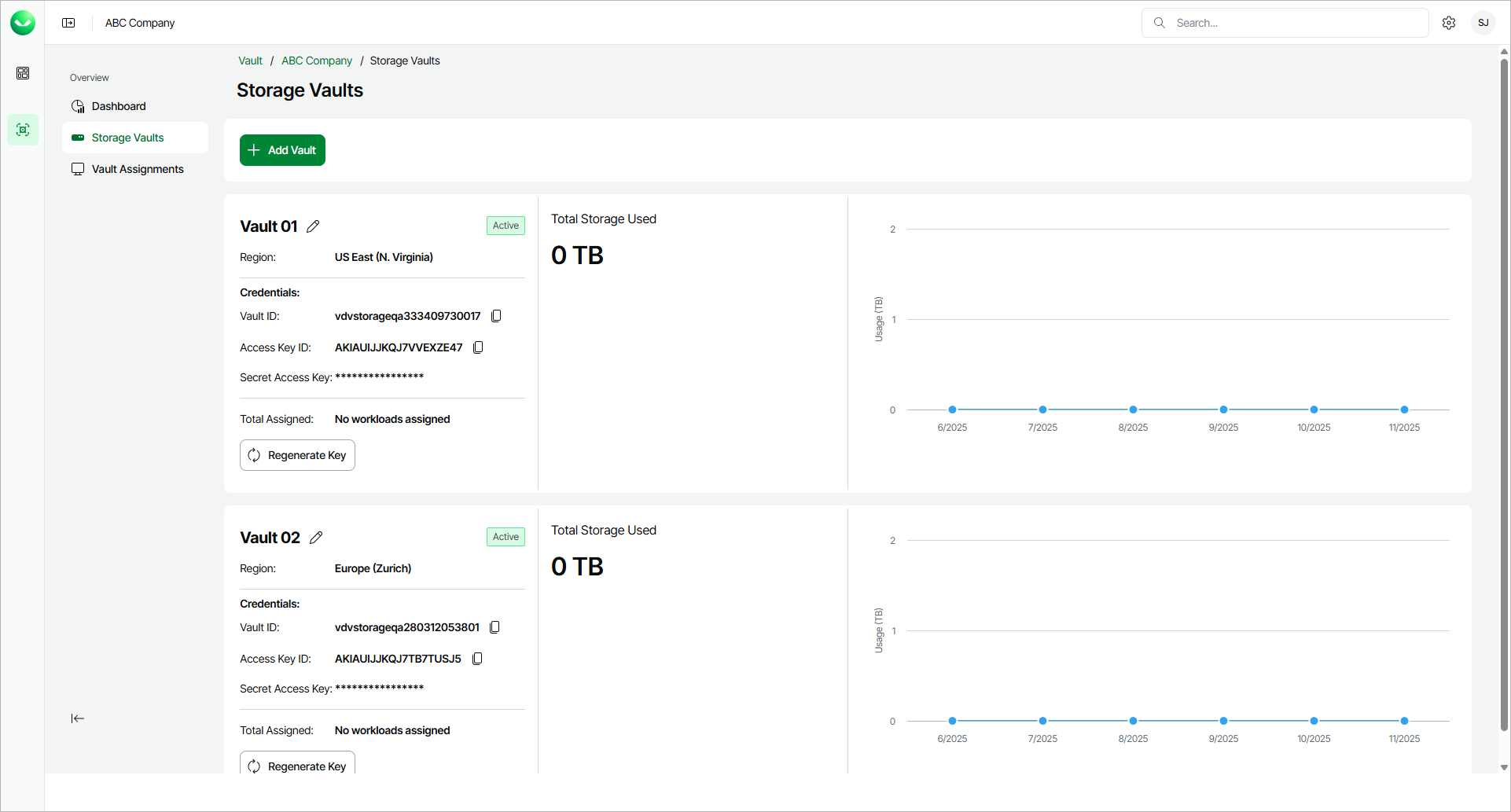
- On the Storage Vaults page, locate the storage vault whose secret key you want to regenerate and click Regenerate Key.
Alternatively, if you have switched to the list view, click the menu icon in the Actions column and select Regenerate Key.
- In the Regenerate Key window, click Proceed to confirm that you want to regenerate the key.
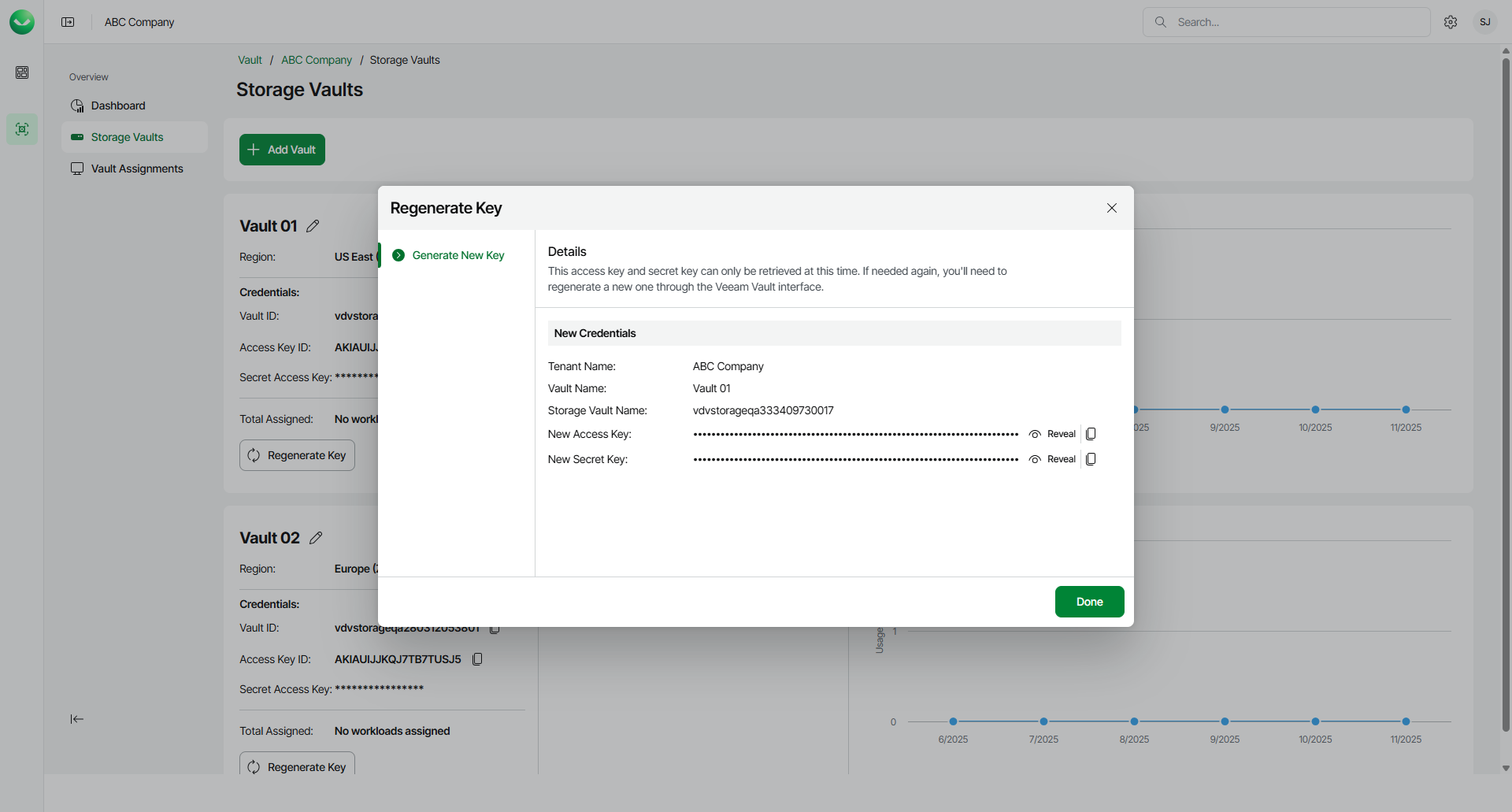
- Veeam Data Cloud Vault will regenerate the secret key and display the new access key and secret key at the Generate New Key step of the Regenerate Key wizard. You can use these keys to add the storage vault as an object storage repository in Veeam Backup & Replication.
- To view the keys, click Reveal next to the values in the New Access Key and New Secret Key fields.
- To copy the keys, click the copy icon next to the values in the New Access Key and New Secret Key fields.
- Click Done to complete the operation.