Step 4. Configure Additional Settings
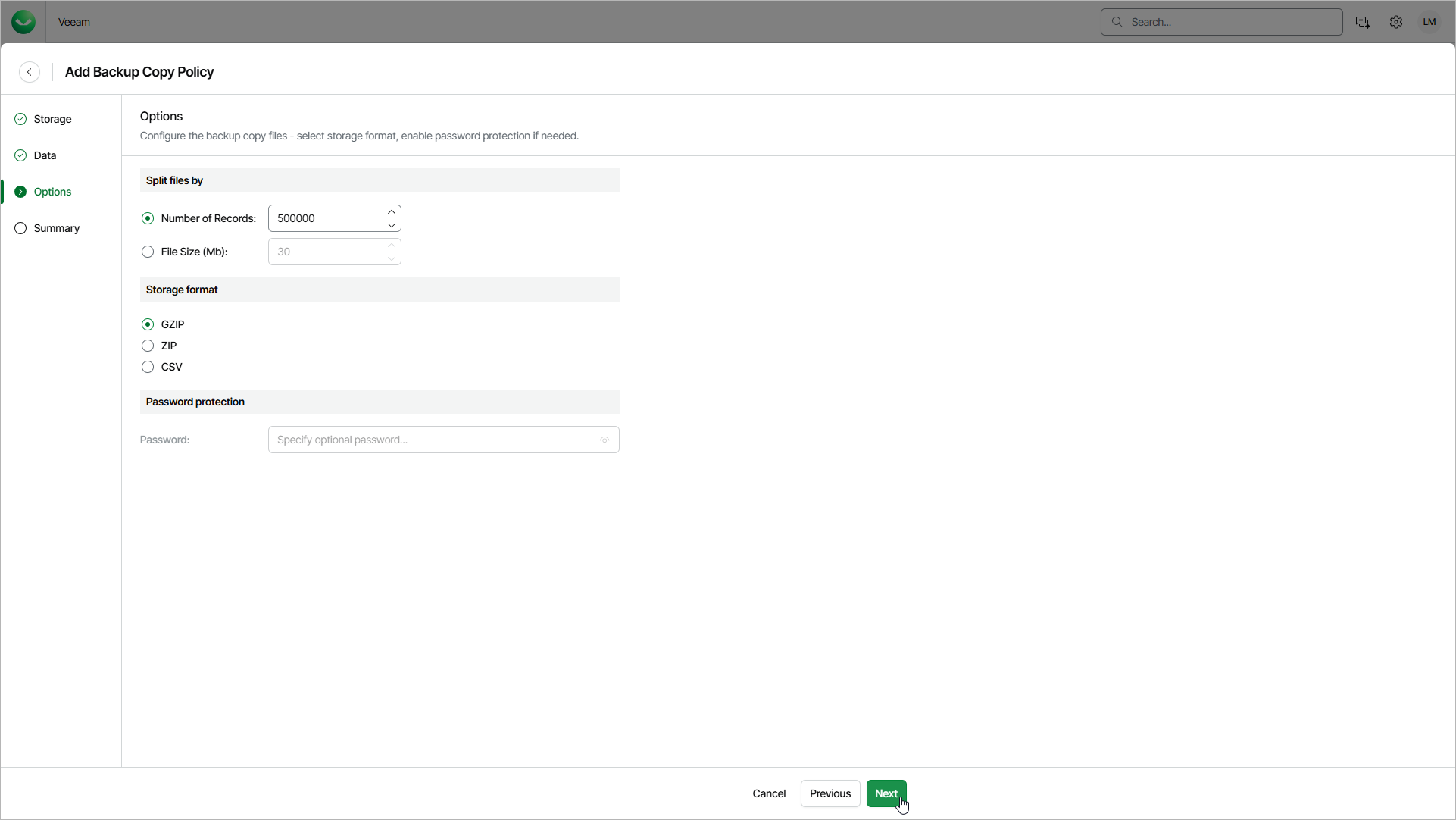
At the Options step of the wizard, configure settings for the copied files:
- In the Split files by section, choose how Veeam Data Cloud will split the copied data into multiple files:
- Select Number of Records and specify the maximum number of records that one file can contain.
- Select File Size (MB) and specify the maximum size of one file in megabytes (MB).
- In the Storage format section, choose the format of the copied files:
- Select GZIP if you want Veeam Data Cloud to compress the copied CSV files into GZIP archives.
- Select ZIP if you want Veeam Data Cloud to compress the copied CSV files into ZIP archives.
- Select CSV if you want Veeam Data Cloud to copy data to CSV files without compression.
- [Optional] To protect the copied files with a password, in the Password protection section, enter the password in the Password field. Veeam Data Cloud supports password protection only if you choose to compress files into ZIP archives.