Adding Microsoft Azure Blob Storage Connections
To import backups that are stored in Microsoft Azure Blob Storage, you must first add a connection to it. The connection allows Veeam Data Cloud to access the container where the backup files reside. After you add the connection, it appears in the Cloud Provider list when you start a data import job. For details, see Importing Backups.
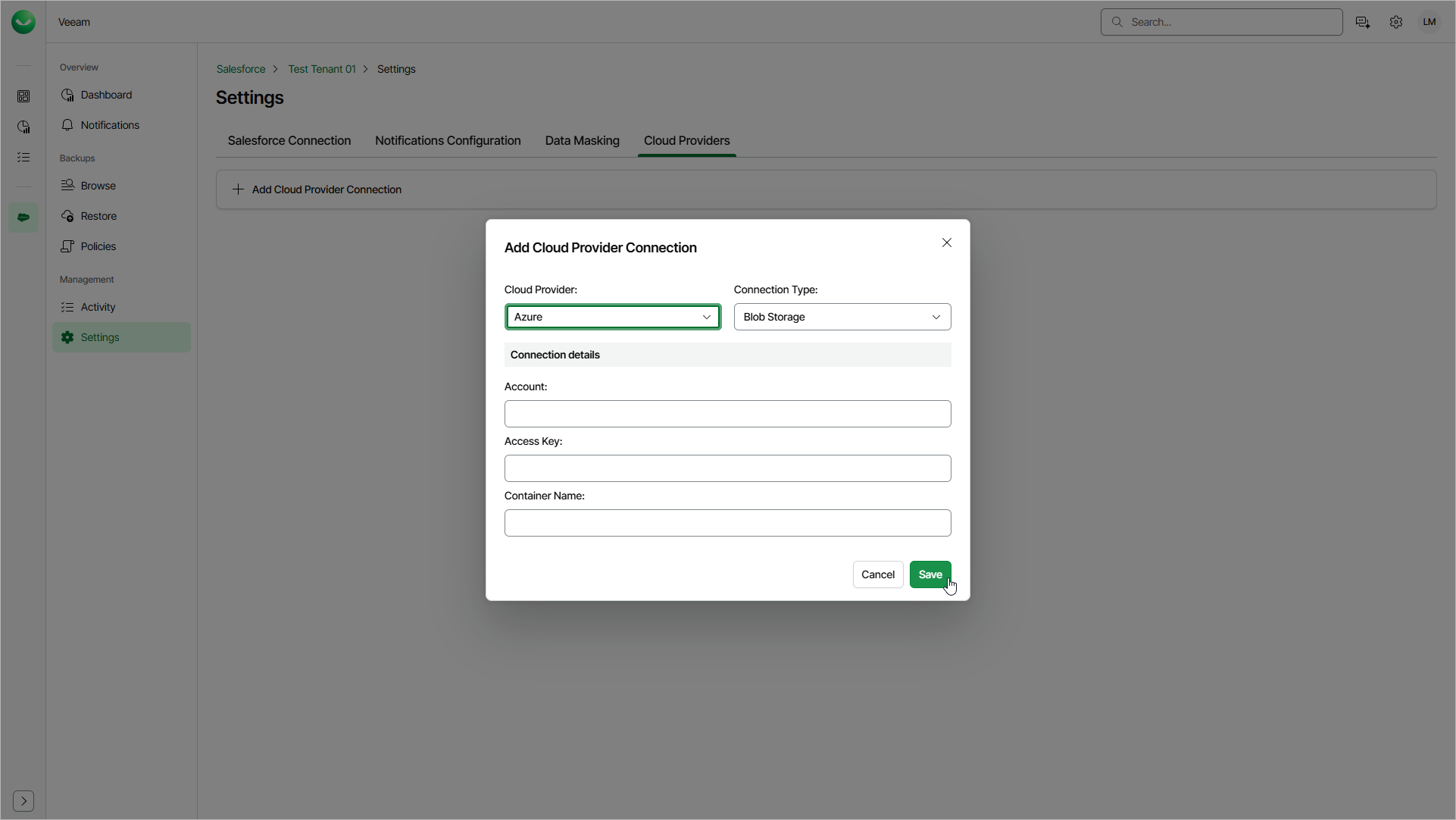
To add a Microsoft Azure Blob Storage connection, do the following:
- On the Salesforce page, click the name of the tenant you want to manage.
- Select Settings.
- Select the Cloud Providers tab.
- Click Add Cloud Provider Connection.
- In the Add Cloud Provider Connection window, from the Cloud Provider drop-down list, select Azure.
- From the Connection Type drop-down list, select Blob Storage.
- In the Account field, enter the name of the Azure storage account.
- In the Access Key field, enter the access key of the storage account.
- In the Container Name field, enter the name of the container where the backup files are stored.
- Click Save.
Veeam Data Cloud verifies the connection details and saves the connection only if the details are valid.