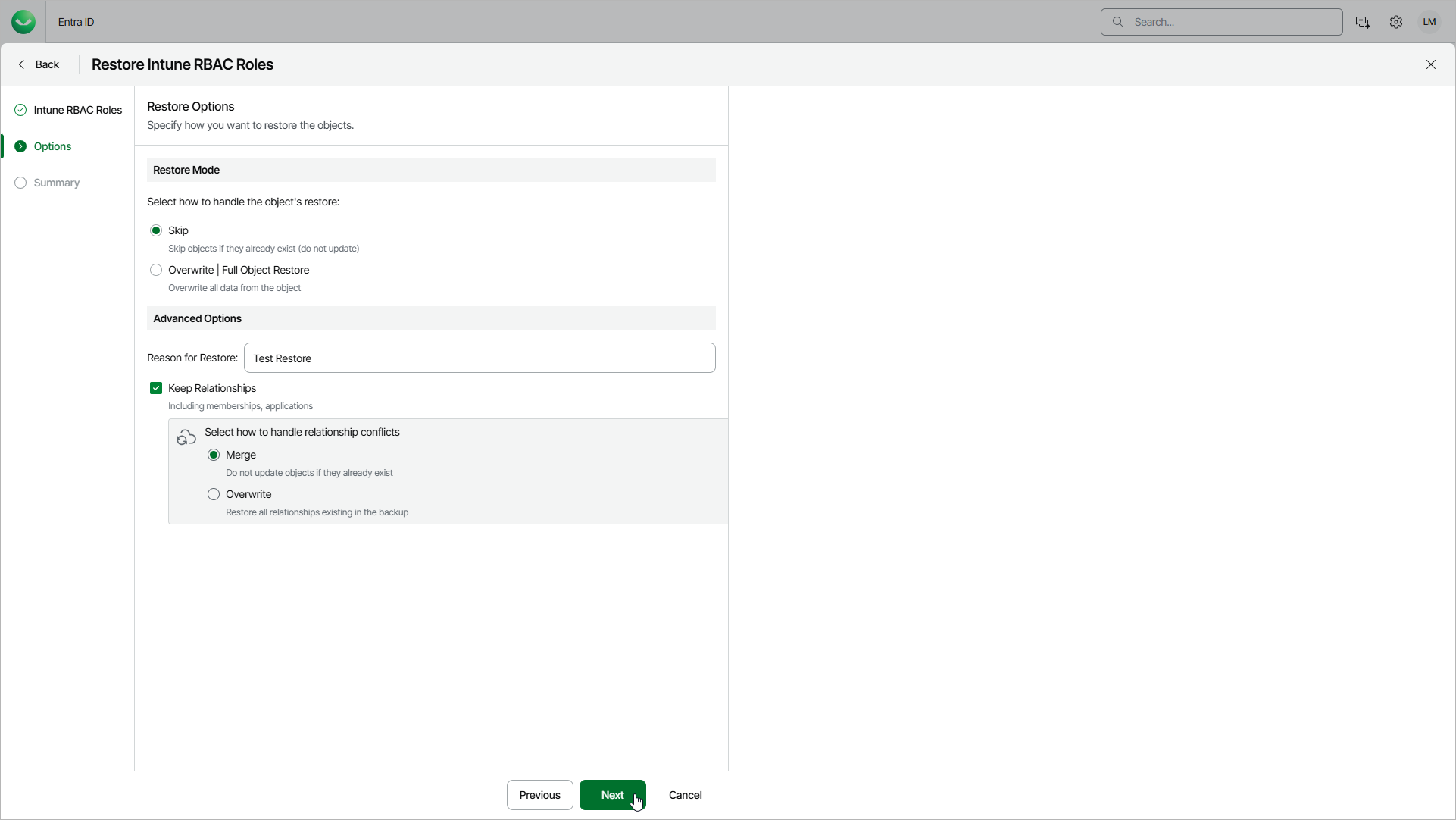
Step 3. Specify Restore Options
At the Options step of the wizard, configure the restore options, such as how to restore Intune RBAC roles, their relationships and other:
- In the Restore mode section, specify whether to overwrite Intune RBAC roles or skip restore of the already existing items.
- When you select the Skip option, Veeam Data Cloud will not overwrite or update objects that already exists.
- When you select the Overwrite option, Veeam Data Cloud updates fields present in the backup. If a field in the backup is empty, it will be restored as empty. However, Veeam Data Cloud does not update read-only fields (the ID, creation date and so on) and fields that are not present in the backup. For details, see Supported Entra ID Item Properties.
- In the Advanced Options section, configure the following:
-
In the Reason for Restore field, enter a reason for restoring units. This information will be saved to the session history, and you will be able to reference it later.
- To restore relationships of units within the current tenant, click Keep Relationships. Veeam Data Cloud will restore the following relationships: assigned roles, group members of the unit and user members of the unit. Note that Veeam Data Cloud restores only relationships — if a role, group or user does not exist, they will not be restored.
In the Select how to handle relationship conflicts section, choose how Veeam Data Cloud resolves conflicts that occur when a relationship already exists in the destination:
- Select Merge to keep the relationships that already exist in the destination and add the relationships from the backup that are missing.
- Select Overwrite to restore all relationships existing in the backup and remove the relationships that are not present in the backup.