Viewing Storage Vault Details
Veeam Data Cloud Vault provides detailed information about your storage vaults. To view the storage vault details, do the following:
- On the Vault page, find the necessary tenant in the list of tenants and click the tenant name.
Alternatively, click the menu icon at the end of the row and select Manage.
- In the left menu, click Storage Vaults.
- On the Storage Vaults page, view the storage vault details.
Veeam Data Cloud displays the following information applicable to all storage vaults in the subscribtion of the selected tenant:
- Edition — Veeam Data Cloud Vault edition.
- Cloud — cloud storage provider for storage vaults of the tenant: Azure or AWS.
- Capacity — total storage capacity for storage vaults of the tenant.
Veeam Data Cloud Vault offers two views that display storage vaults of the tenant: card view and list view. By default, when you open the Storage Vaults page, storage vaults are displayed in the card view; this view provides more detailed information about storage vaults. The list view is intended for tenants with a greater number of storage vaults and helps you navigate storage vaults more easily.
To switch to the list view, click the the List view icon.
To switch back to the card view, click the Card view icon.
|
Tip |
|
To quickly find the necessary storage vault, use the search field on the Storage Vaults page. |
Card View
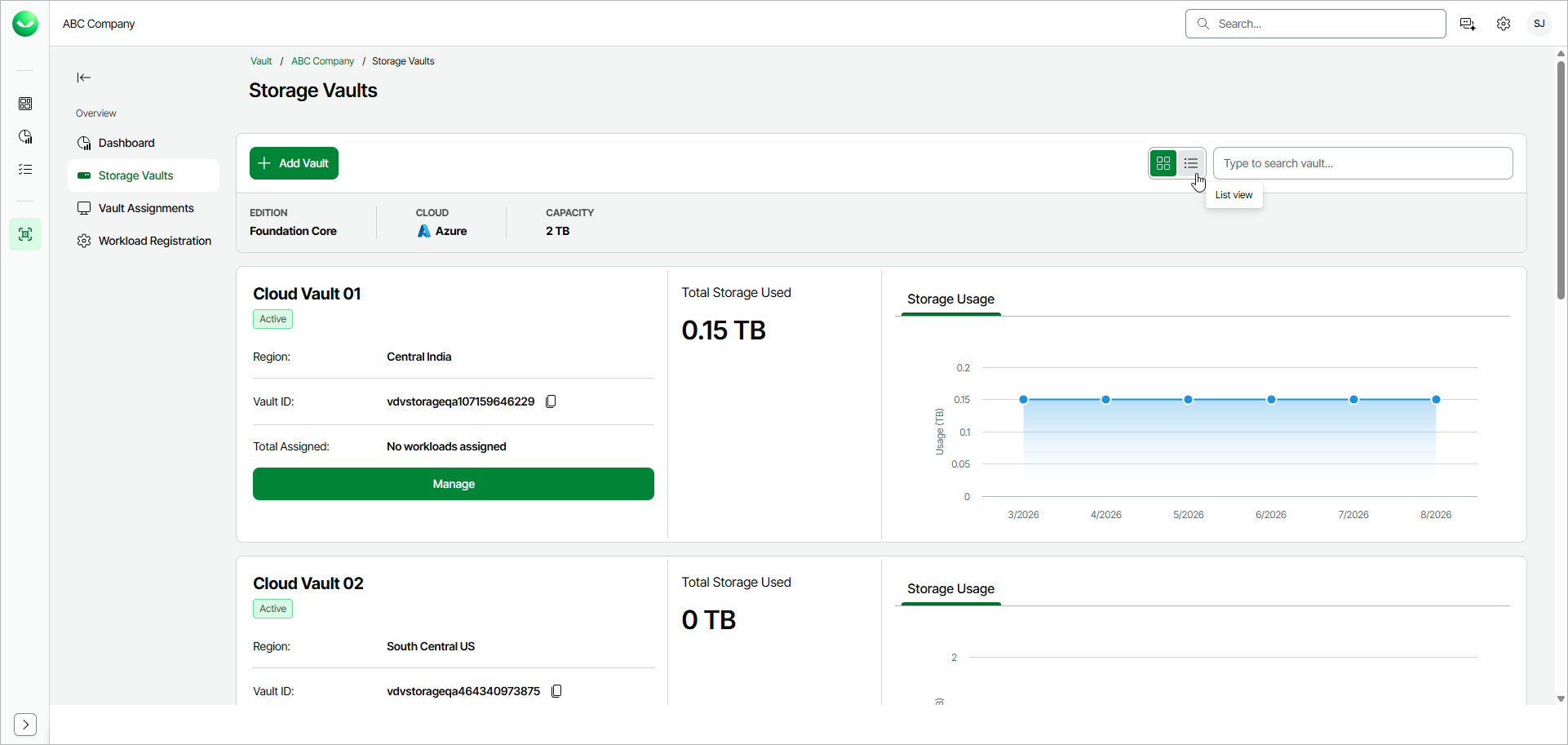
In the card view, for each individual storage vault, Veeam Data Cloud displays the following information:
- The name of the storage vault.
You can change the storage vault name. For more information, see Editing Storage Vault Name.
- The status of the storage vault. To learn more about storage vault statuses, see Deleting Storage Vaults.
- The storage region that you selected when you added the storage vault.
- The ID of the storage vault.
To copy the storage vault ID, click the copy icon next to the value in the Vault ID field.
- The number of workloads assigned to the storage vault.
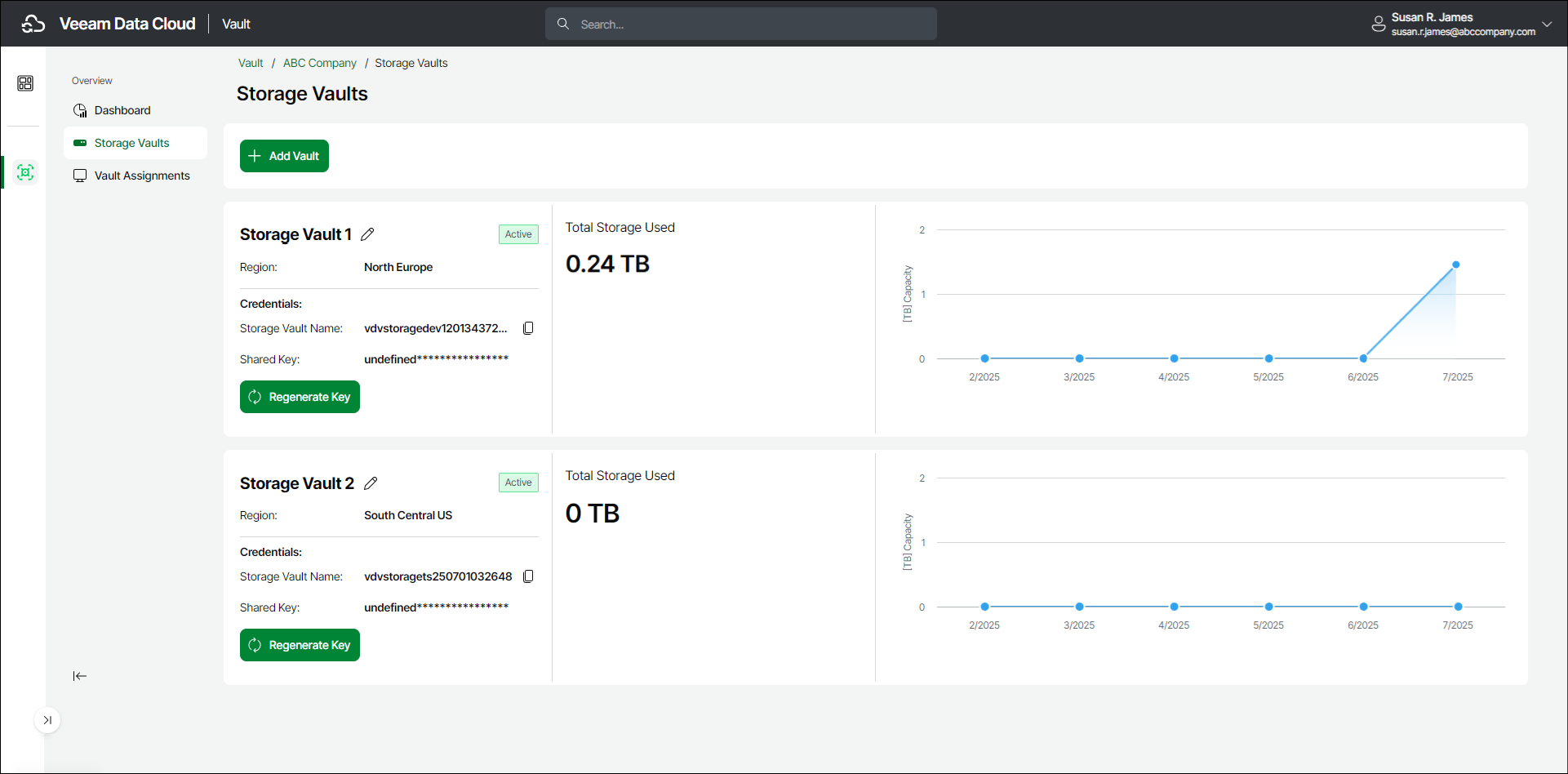
- [For Azure editions with legacy authentication methods enabled] Shared key used to access the storage vault.
- [For AWS editions with legacy authentication methods enabled] Access key and secret key used to access the storage vault.
To copy the access key, click the copy icon next to the value in the Access Key ID field.
For more information on regenerating the key, see Regenerating Shared Keys.
- The Total Assigned counter that provides information about the number of workloads to which the storage vault is assigned.
- The Total Storage Used counter that provides information about the amount of storage used in the storage vault. Storage amount is specified in TB (TB is considered as 2^40 bytes).
- The Storage Usage graph that provides information about the total storage capacity used by the storage vault over the past 6 months. To view details for a specific month, move the cursor to a specific location on the graph.
List View
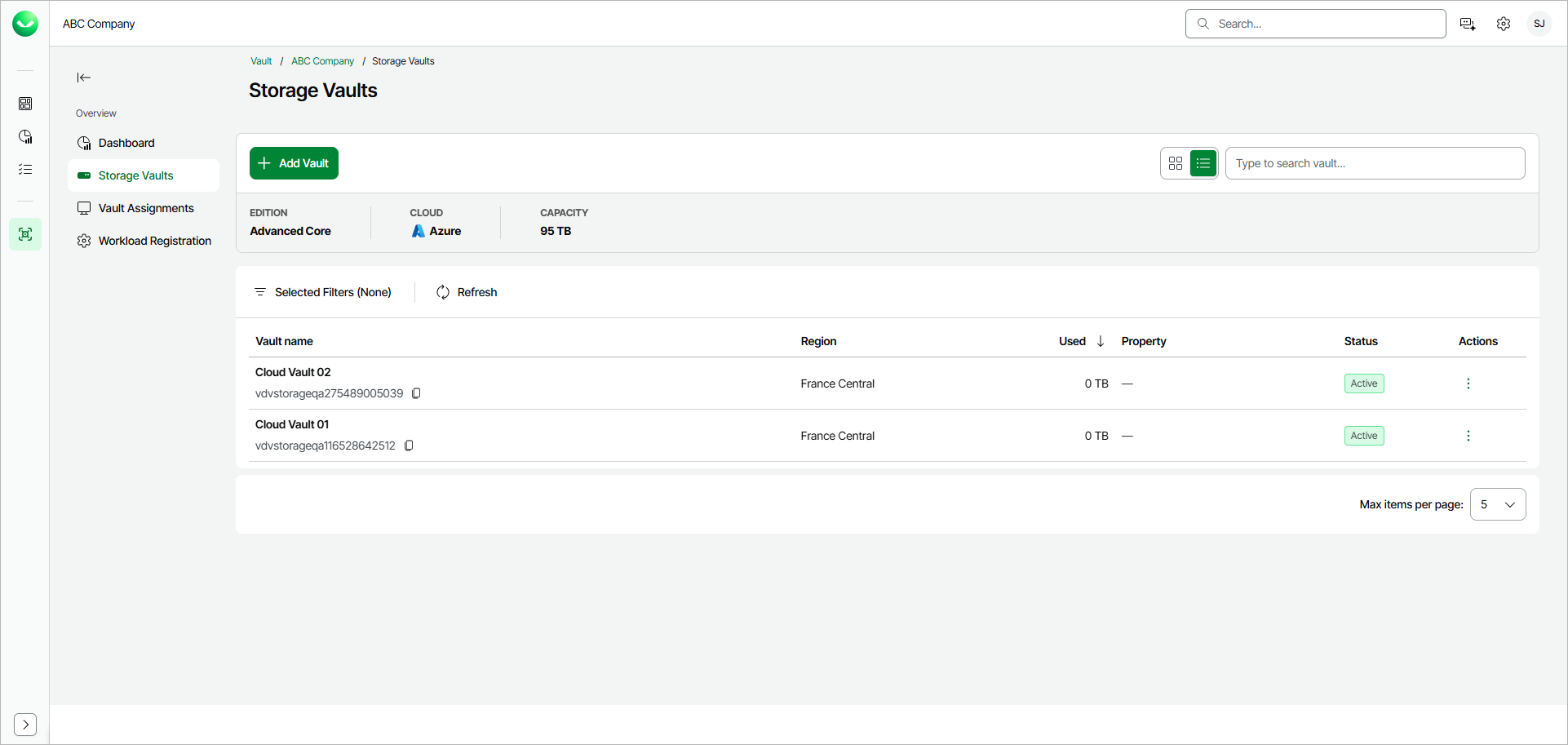
In the list view, for each individual storage vault, Veeam Data Cloud displays the following information:
- The Vault name column displays the name the ID of the storage vault.
To copy the storage vault ID, click the copy icon next to the ID.
- The Region column displays the storage region that you selected when you added the storage vault.
- The Used column displays information about the amount of storage used in the storage vault. Storage amount is specified in TB (TB is considered as 2^40 bytes).
- The Status column displays the status of the storage vault. To learn more about storage vault statuses, see Deleting Storage Vaults.
- The Actions column lets you perform operations with the storage vault. Click the menu icon and select the necessary operation.