Managing Disaster Recovery
Veeam Data Cloud allows you to manage the Disaster Recovery plan and sessions. Administrators can edit the plan, view the progress of a running Disaster Recovery session, stop a running Disaster Recovery session and view Disaster Recovery notifications and logs.
Editing Disaster Recovery Plan
For information on how to edit the Disaster Recovery plan, see Editing Disaster Recovery Plan.
Viewing Disaster Recovery Progress
To view the progress of a running Disaster Recovery session, do the following:
- On the Microsoft 365 page, click the name of the tenant you want to manage.
- Select Express Restore.
- On the Express Restore page, in the Disaster Recovery banner, click View Progress.
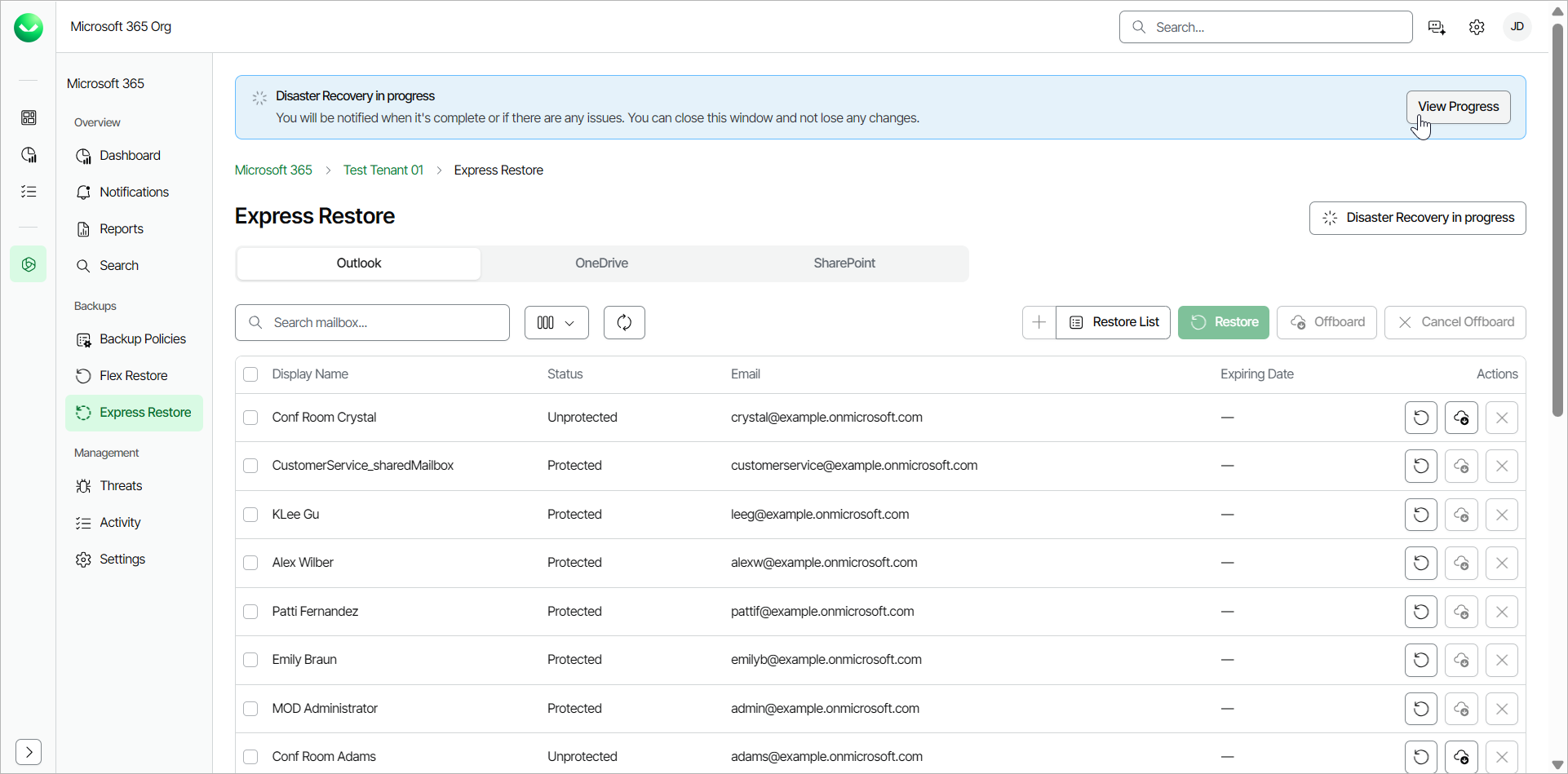
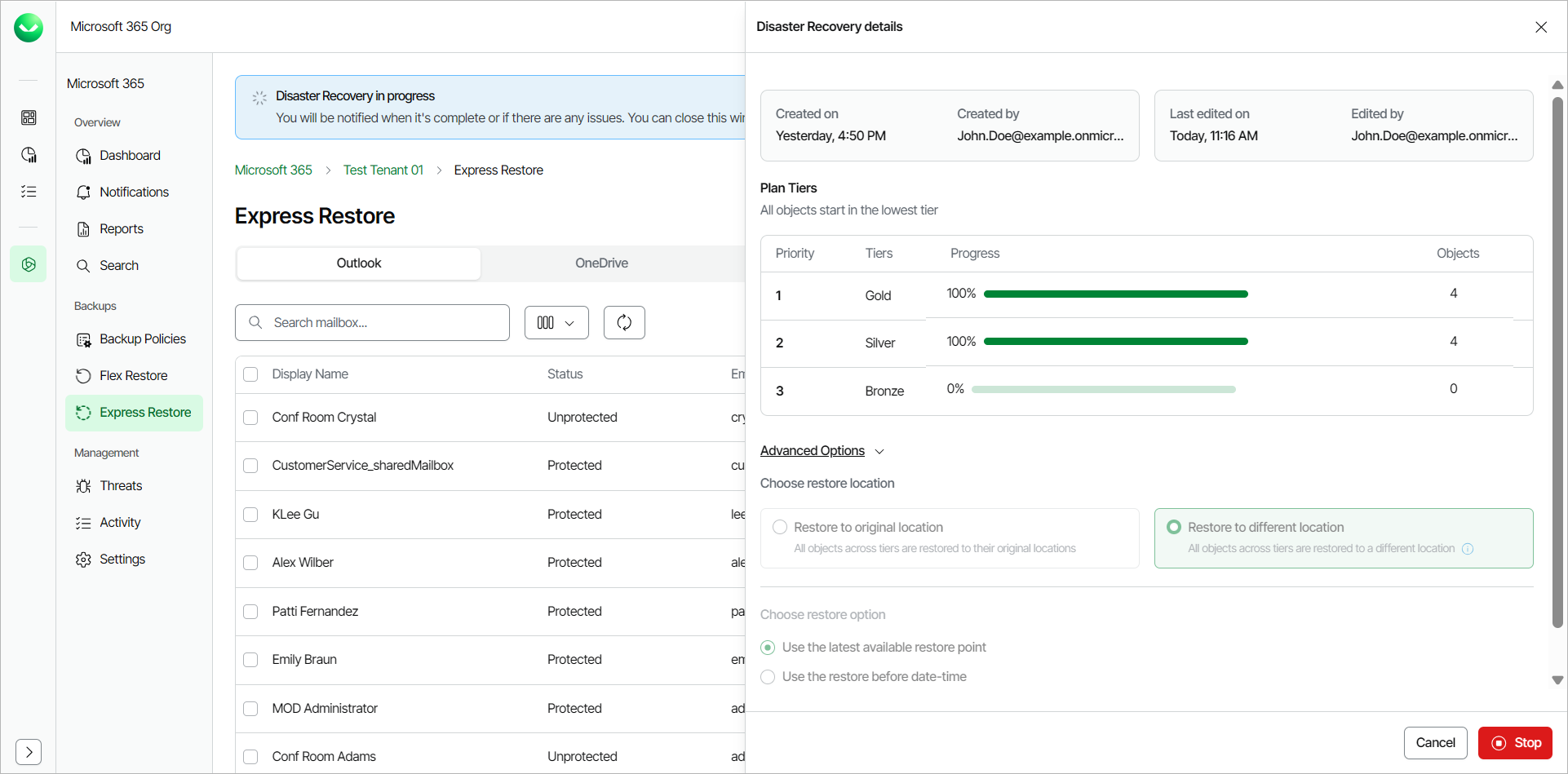
- In the Disaster Recovery details window, in the Plan Tiers section, Veeam Data Cloud displays the restore progress for each priority tier. Click Cancel to close the window or click Stop to stop the Disaster Recovery session.
Stopping Disaster Recovery
To stop a running Disaster Recovery session, do the following:
- On the Microsoft 365 page, click the name of the tenant you want to manage.
- Select Express Restore.
- Veeam Data Cloud offers the 2 following ways to stop a running Disaster Recovery session:
- On the Express Restore page, in the Disaster Recovery banner, click View Progress.
- In the Disaster Recovery details window, click Stop.
- In the confirmation pop-up window, click Stop Disaster Recovery.
- On the Express Restore page, hover over the Disaster Recovery in progress button. The button changes to Stop Disaster Recovery.
- Click Stop Disaster Recovery.
- In the confirmation window, click Stop Disaster Recovery.
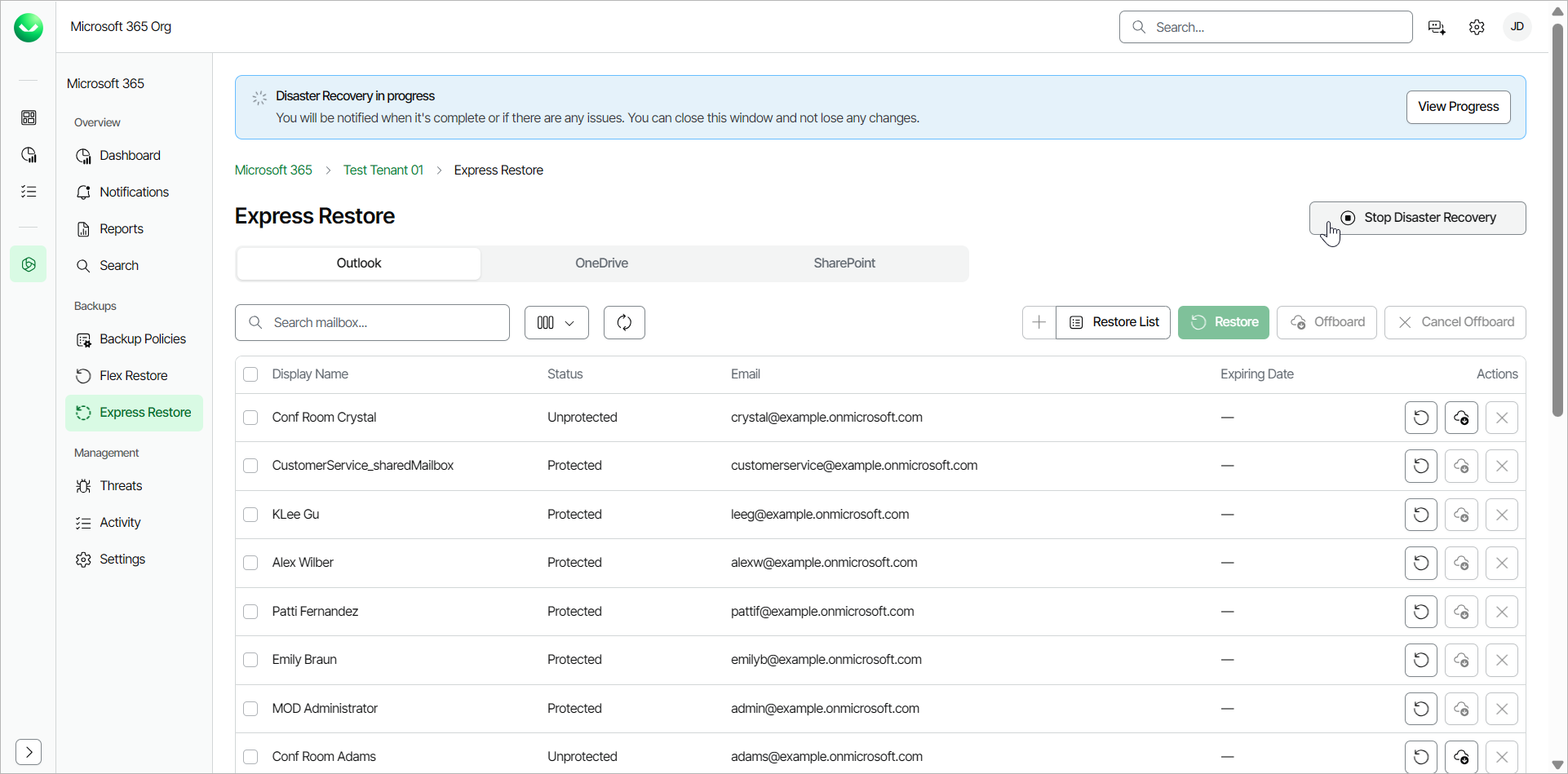
On the Disaster Recovery banner, Veeam Data Cloud displays the information that the Disaster Recovery session is stopping and that the process may take a few minutes.
Viewing Disaster Recovery Notifications
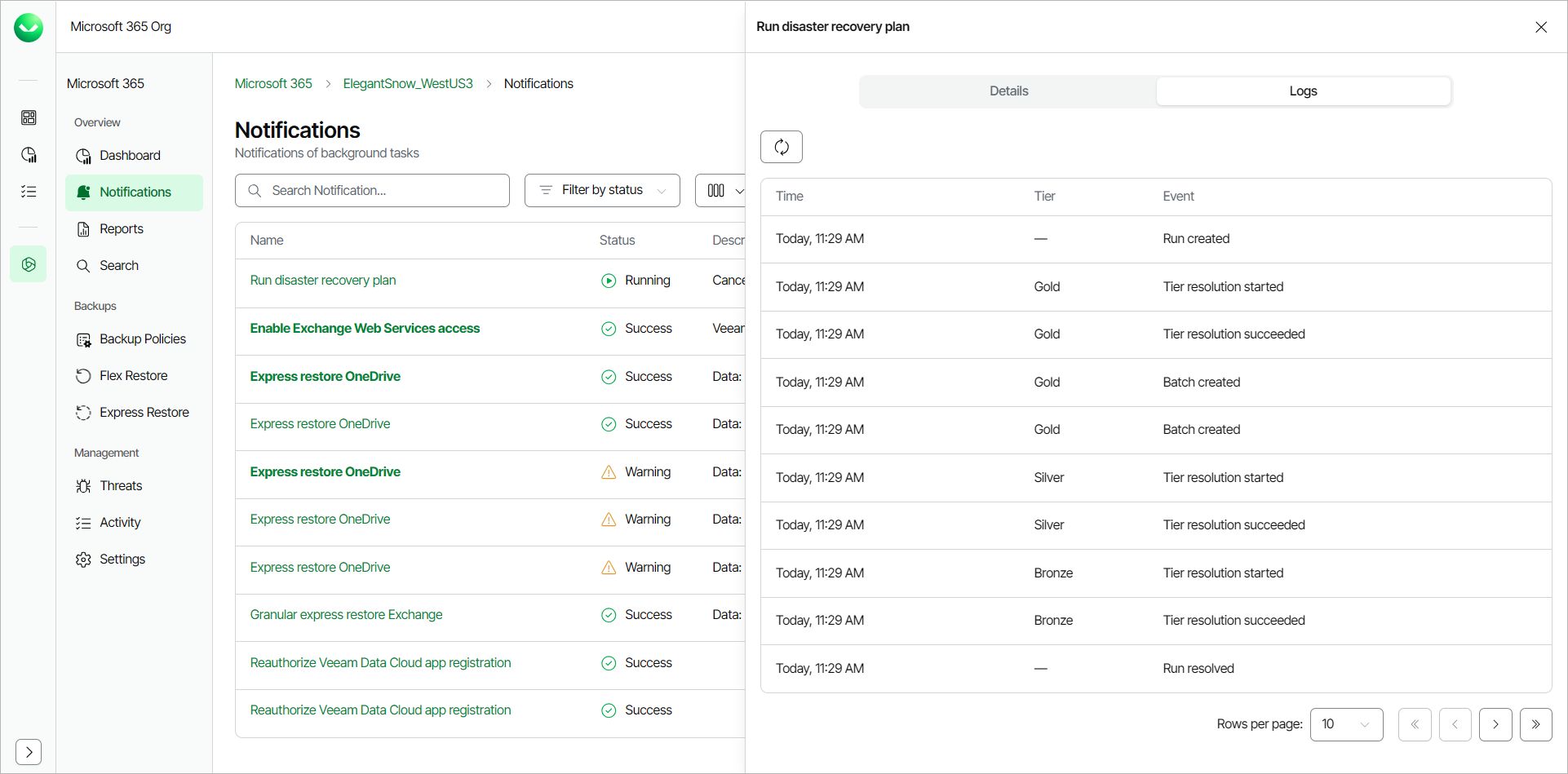
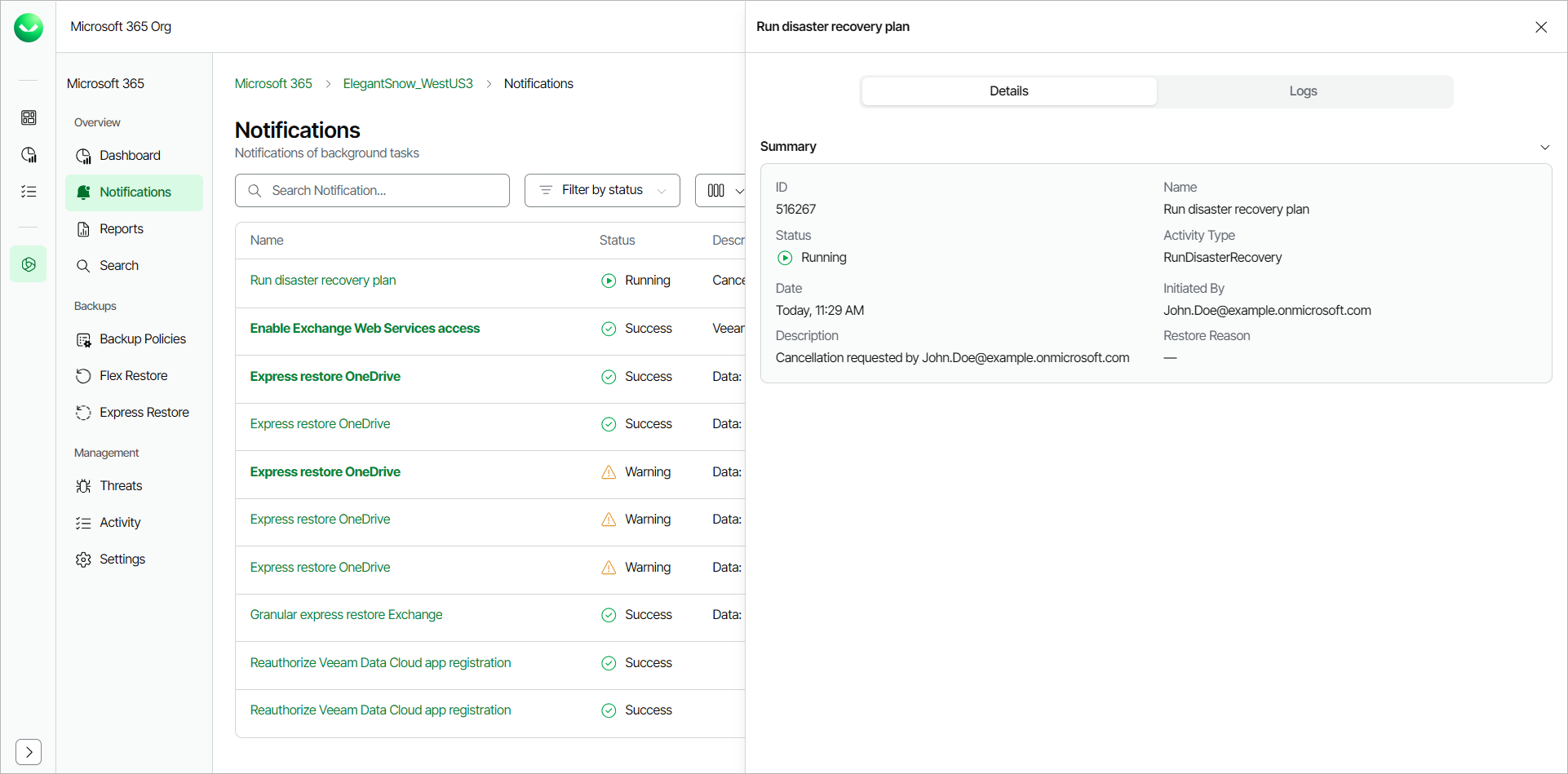
During a Disaster Recovery session run, Veeam Data Cloud adds a notification in the Notifications page.
To view details and logs of the Disaster Recovery session, do the following:
- On the Microsoft 365 page, click the name of the tenant you want to manage.
- Select Notifications.
- In the list of notifications, in the Name column, click the Run disaster recovery plan notification. Veeam Data Cloud will display a session log with detailed information.
- In the Run disaster recovery plan window, on the Details tab, Veeam Data Cloud displays a summary of the Disaster Recovery plan.
-
In the Run disaster recovery plan window, on the Logs tab, Veeam Data Cloud displays detailed logs about the Disaster Recovery session.