Performing Advanced Search
|
note |
|
Advanced search will need to mount your restore points and may search a very large amount of data. The broader your search criteria and the larger your backup, the longer this will take. Keep searches as specific as you can to ensure the fastest results. |
To search for required items with advanced search, do the following:
- On the Microsoft 365 page, click the name of the tenant whose backed-up items you want to search.
- Select Search.
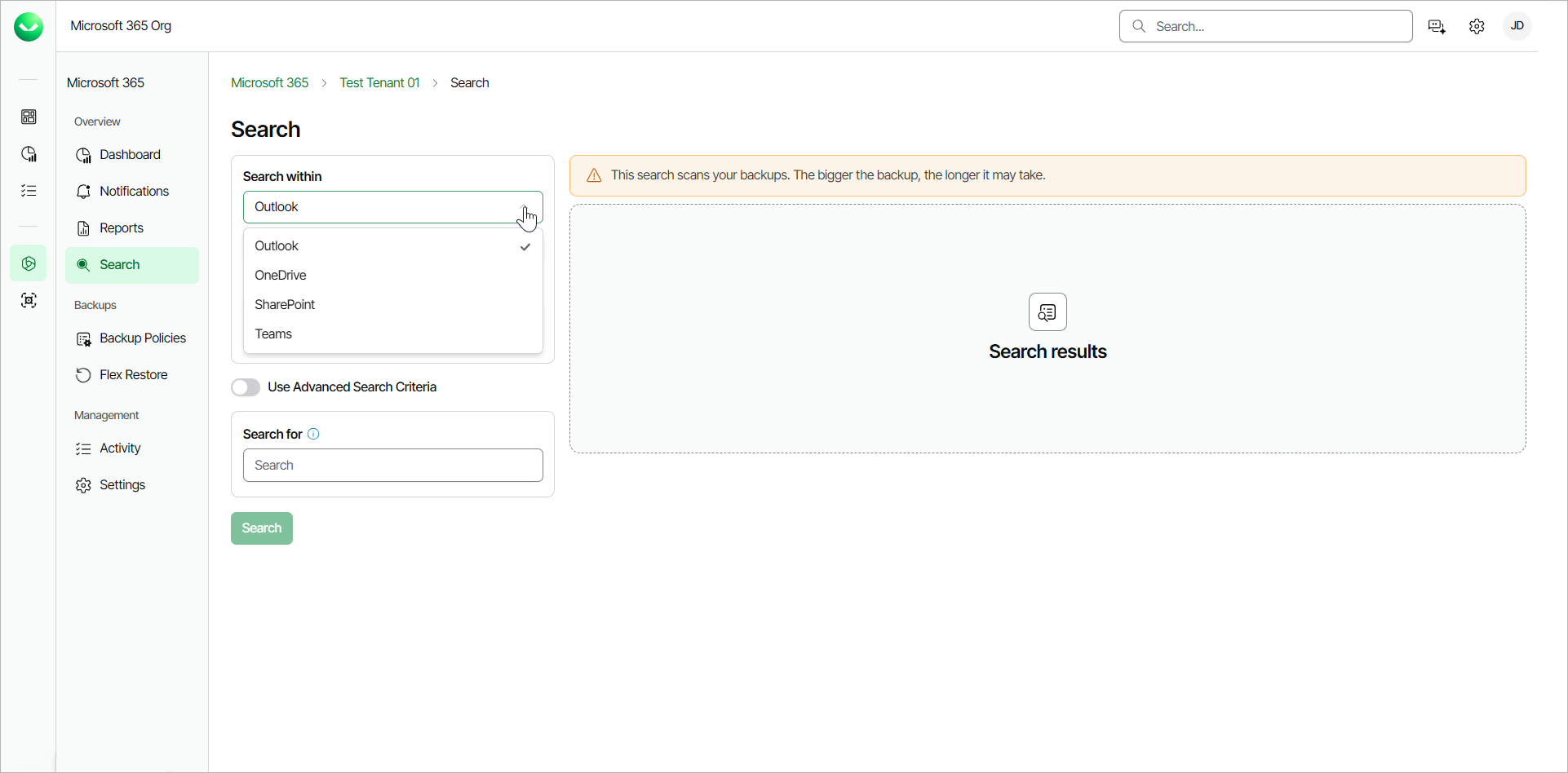
- In the Search page, from the Search within drop-down list, select the application whose items you want to find: Outlook, OneDrive, SharePoint, or Teams.
If the option to search within a specific application is enabled for your account, you can see the application in the Search within drop-down list. If you cannot see the application whose items you want to find, contact Veeam Customer Support.
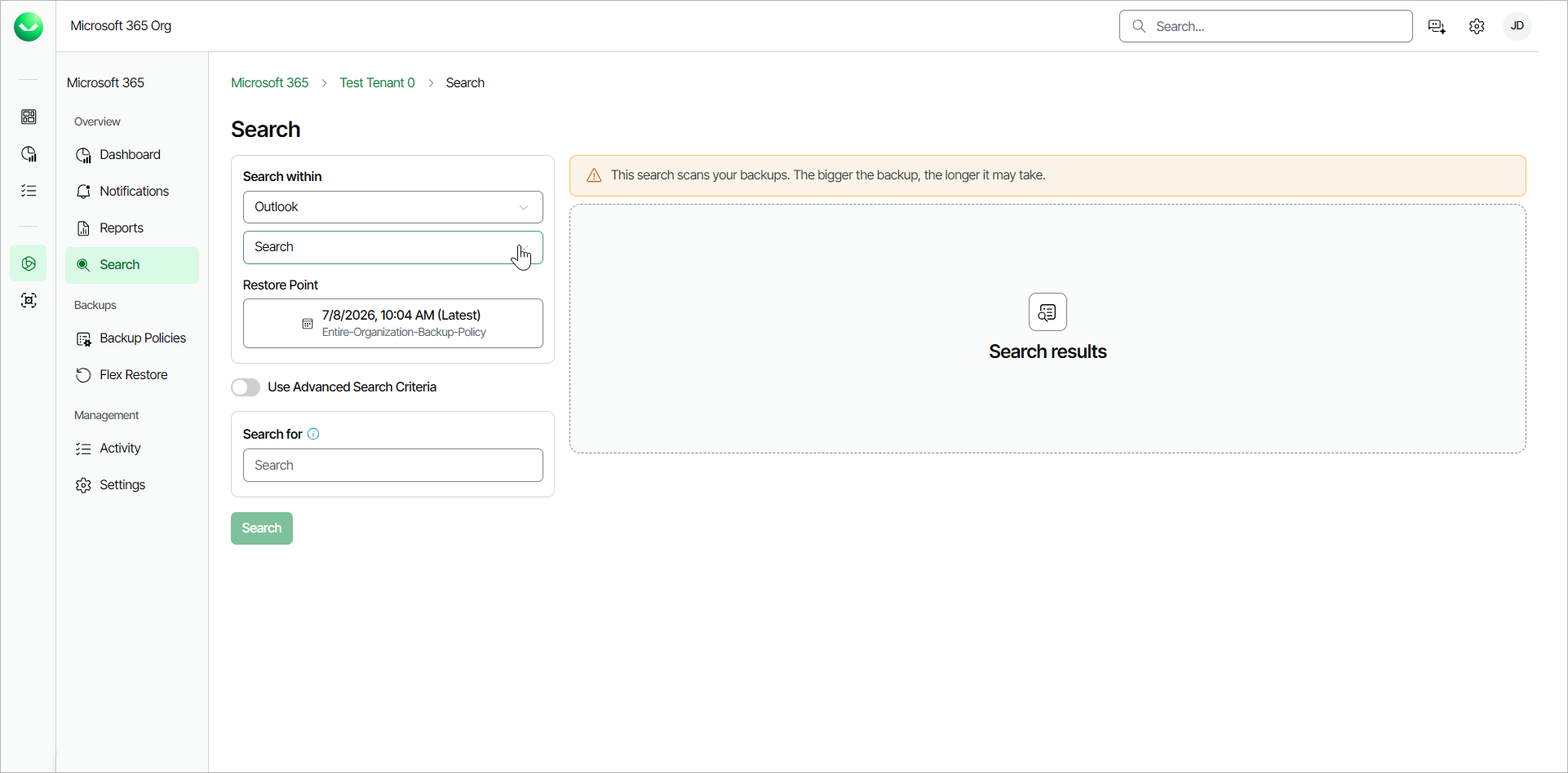
- From the Search drop-down list, select the Outlook mailbox, OneDrive, SharePoint site or Team where you want to search for application items.
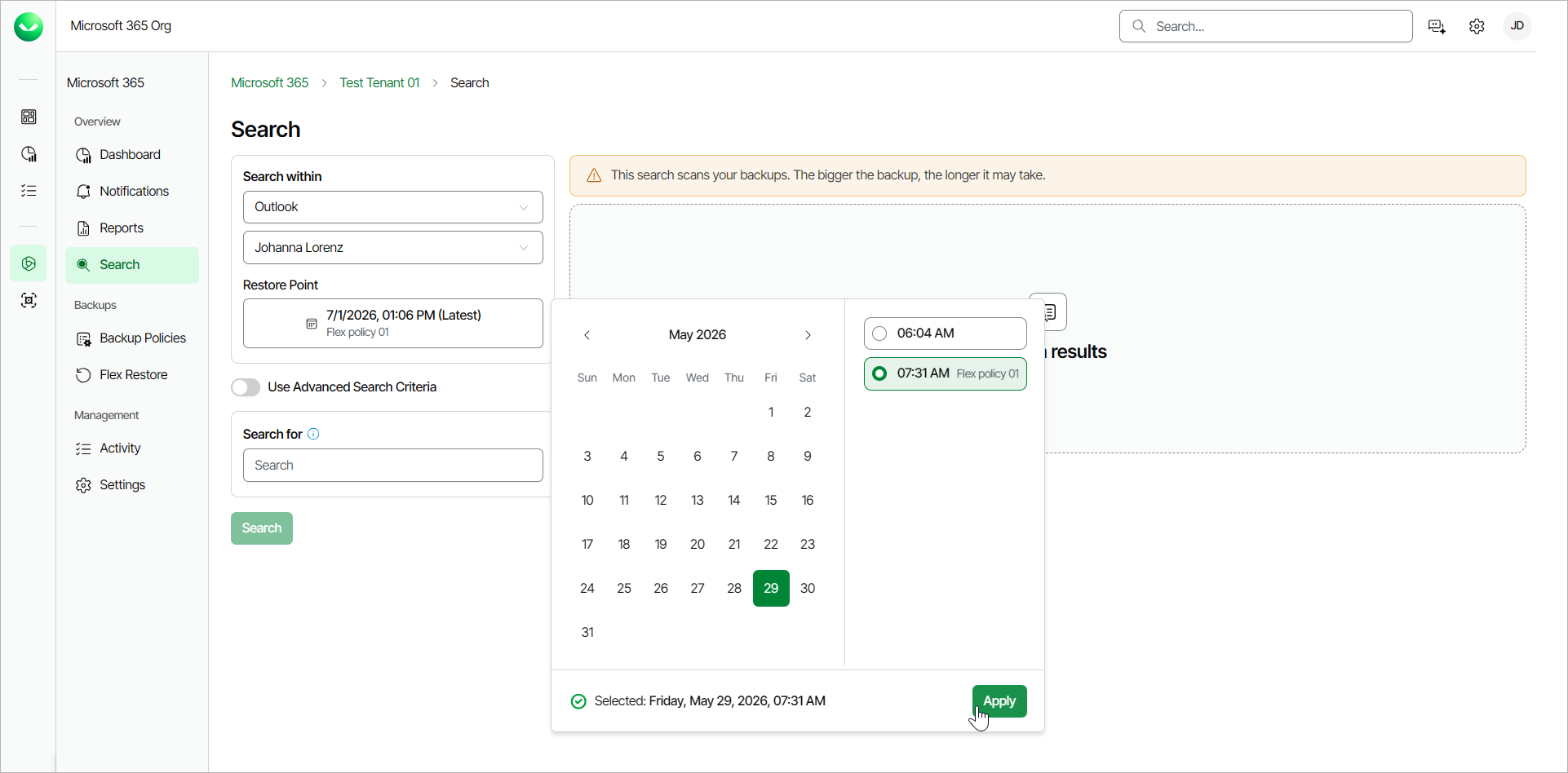
- In the Restore Point field, select a restore point where you want to search for application items and click Apply. The restore point defines the date and time when the backup was created.
- Click the Use Advanced Search Criteria toggle switch.
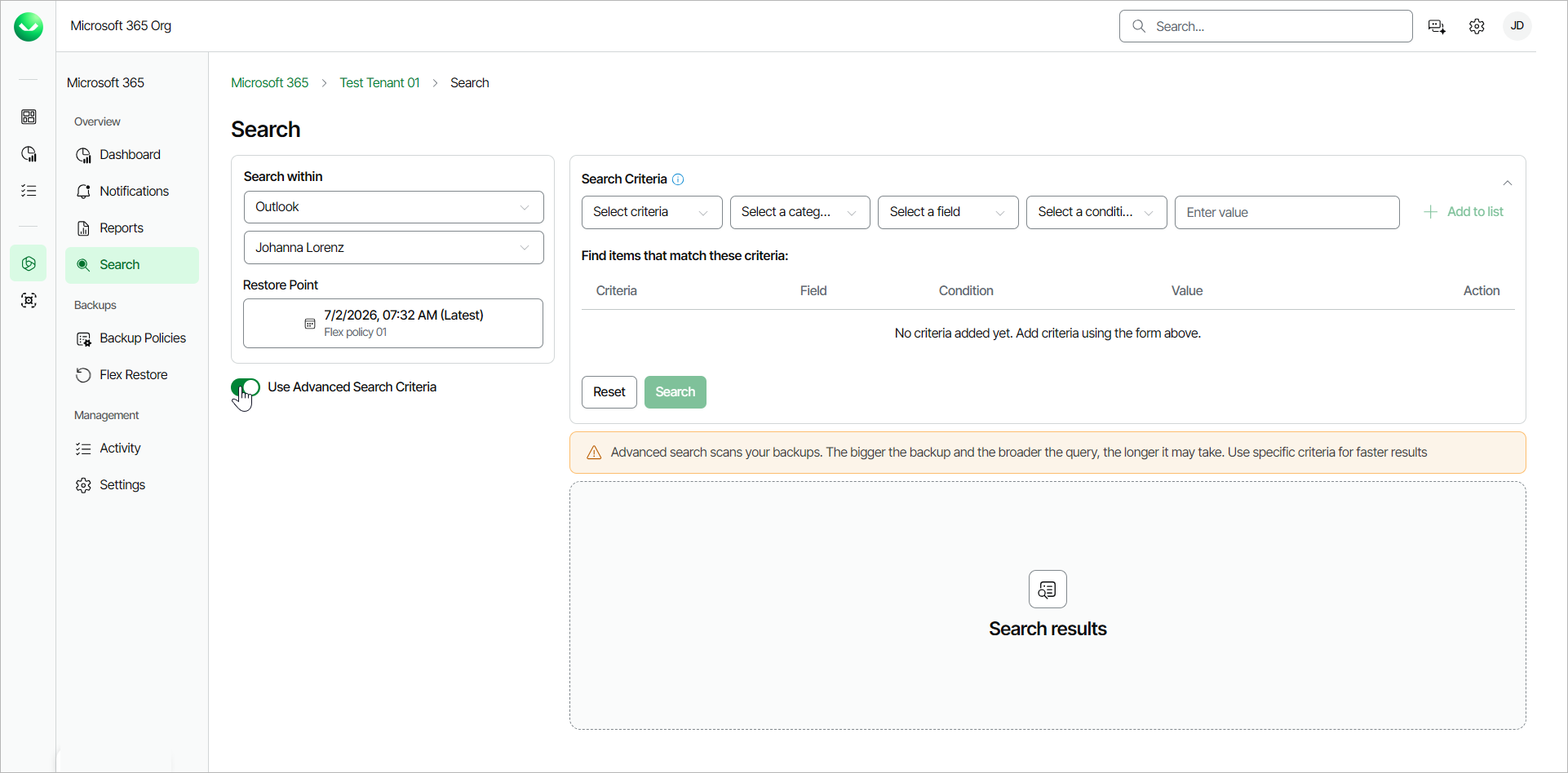
- In the Search Criteria section, specify search criteria:
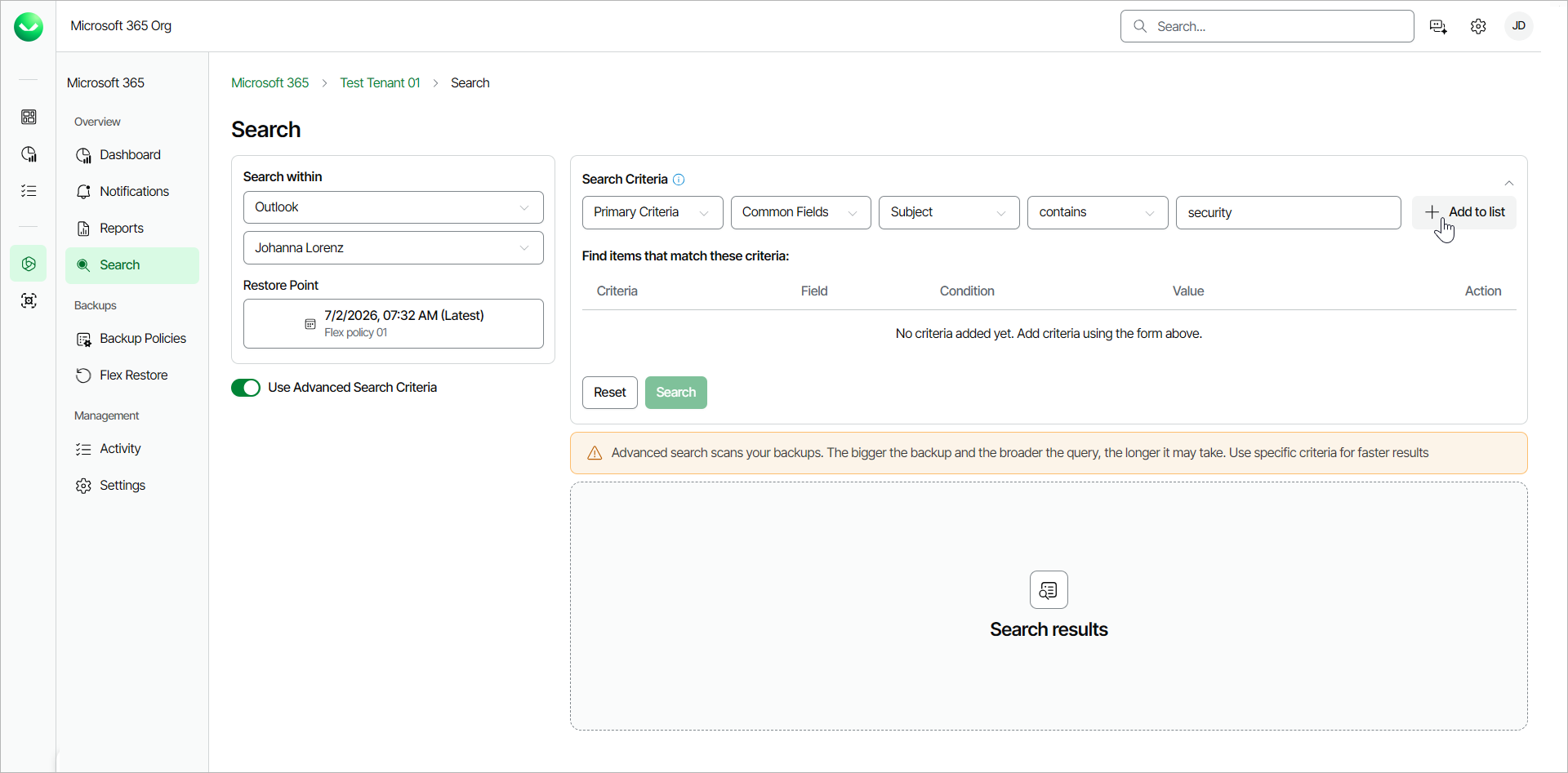
- From the Select criteria, Select a category, Select a field and Select a condition drop-down lists, select values to form your search criteria.
- In the Enter value field, specify your search criteria or select a value from a drop-down list.
- Click Add to list. The selected criteria will be listed in the Find items that match these criteria section.
|
Note |
|
Primary search criteria are common fields for the specified object type. Secondary search criteria are less commonly used fields for the specified object type. You can specify multiple primary and multiple secondary criteria for each search. Veeam Data Cloud for Microsoft 365 links them as with the OR logical operator. For more information, see Advanced Search Criteria. |
|
Tip |
|
You can adjust your search criteria at any time.
|
- Click Search.
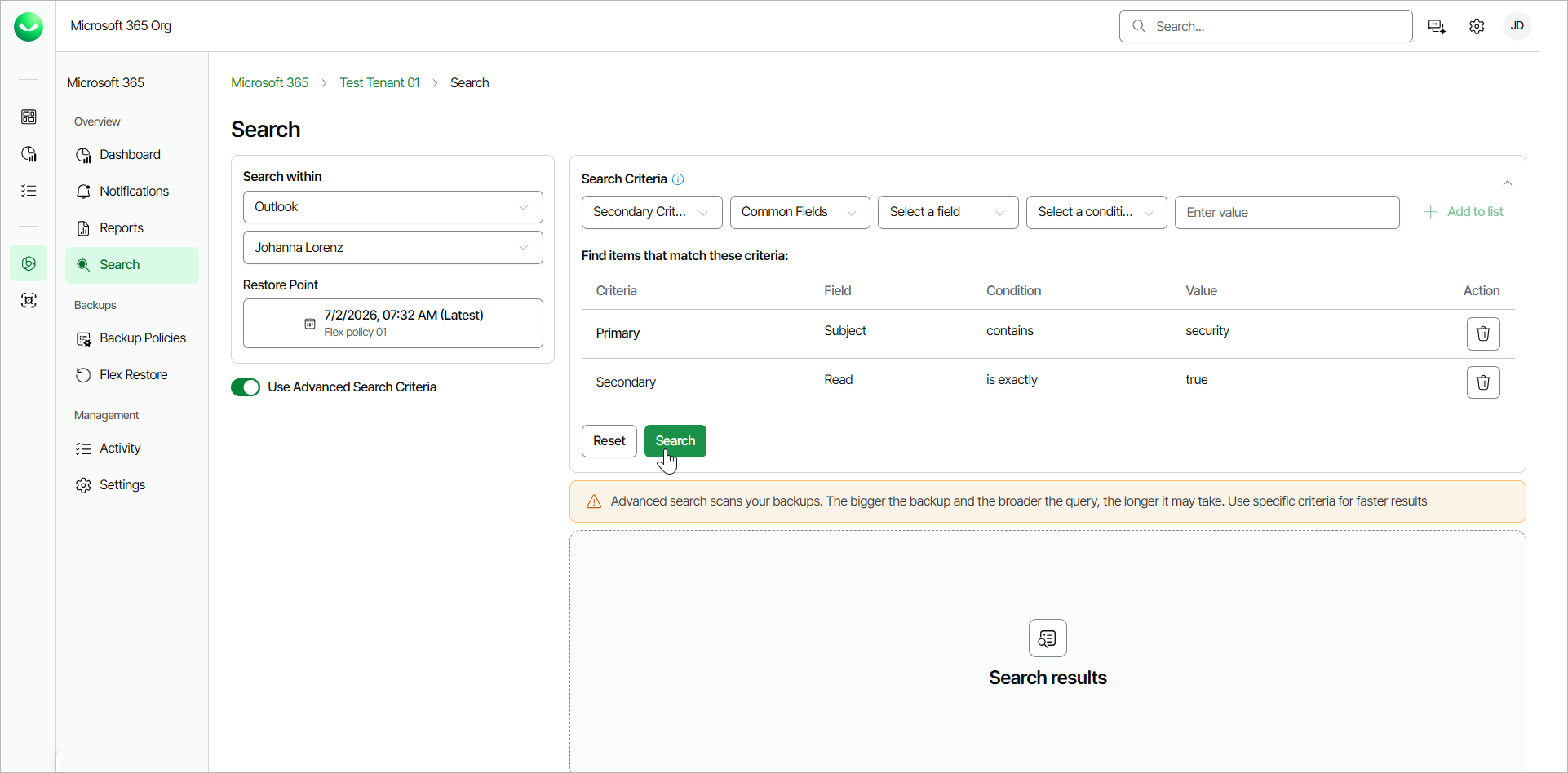
- Veeam Data Cloud will display the In queue status, then the Processing status, and then the Completed status for the search. When the Status changes to Completed, in the Actions column, click Detail to view found items.
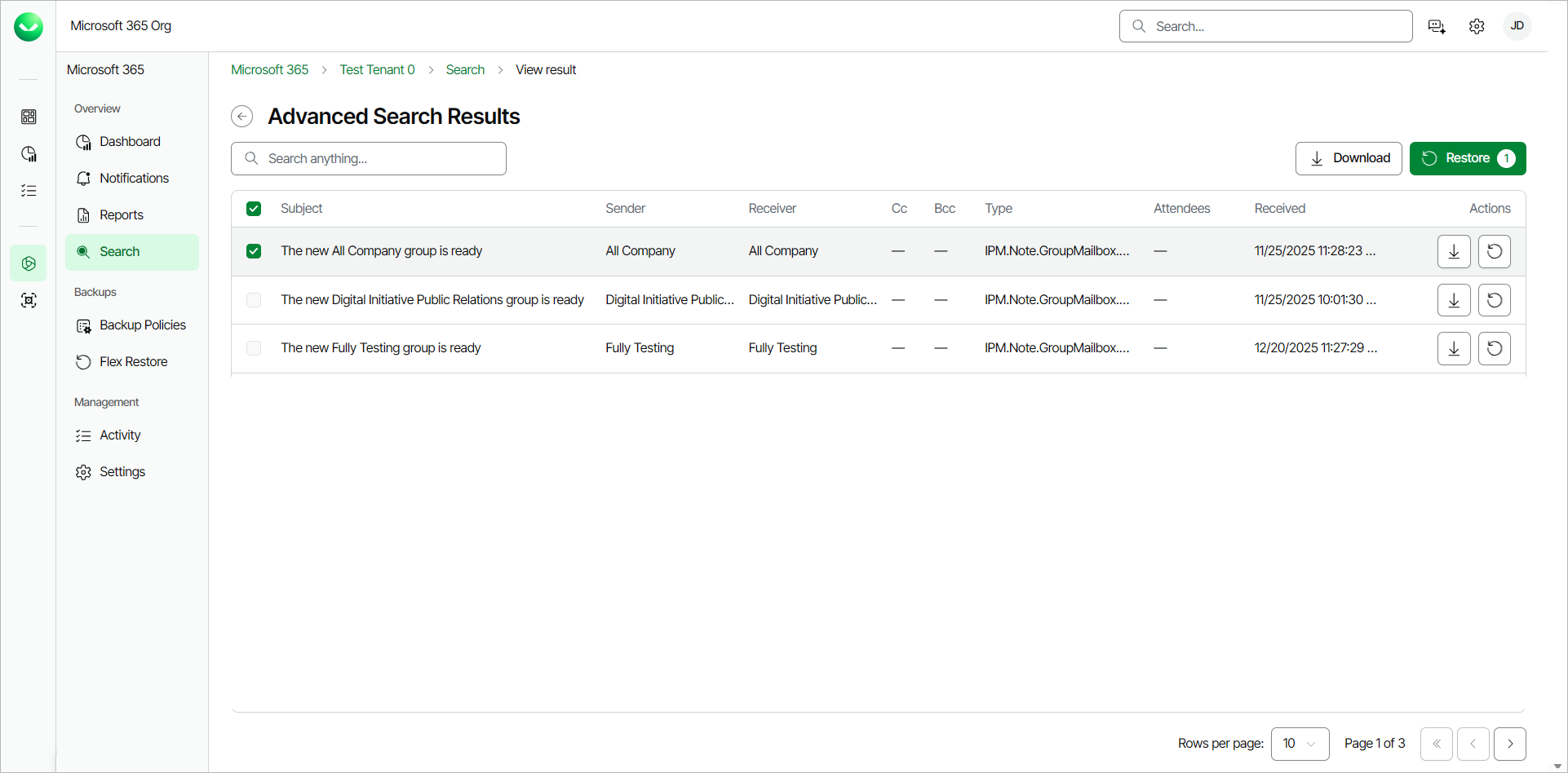
- In the Advance Search Results page, Veeam Data Cloud displays the search filters and criteria you used for the search and a list with the search results.
- If you want to restore any of the found items, in the Advanced Search Results page, do the following actions:
- Select the check box next to the item you want to restore and click Restore.
- Select the check box next to the item you want to download and click Download.