Assigning Storage Vaults to Workloads
You can assign a storage vault to a workload. In terms of Veeam Data Cloud Vault, a workload is an installation of a Veeam product that can use a storage vault as a backup target. By assigning a storage vault to a workload, you specify that the workload can create backups in this storage vault. This operation is required, for example, if you want to use a storage vault as an object storage repository in Veeam Backup & Replication or use a storage vault as a backup target for other supported Veeam products.
|
Note |
|
If you use Veeam Data Cloud Vault with Veeam Backup & Replication, keep in mind that this operation is available for storage vaults in Azure editions of Veeam Data Cloud Vault and is not available in AWS editions. |
To assign a storage vault to a workload, do the following:
- On the Vault page, in the list of tenants, click the name of the tenant whose storage vault you want to assign to a workload.
Alternatively, in the Actions column of the list of tenants, click Manage next to the necessary tenant.
- In the left menu, click Storage Vaults.
- On the Storage Vaults page, locate the storage vault that you want to assign to a workload and click Manage.
Alternatively, if you have switched to the list view, click the menu icon in the Actions column and select Manage.
- In the Manage vault window, go to the Assignments tab.
-
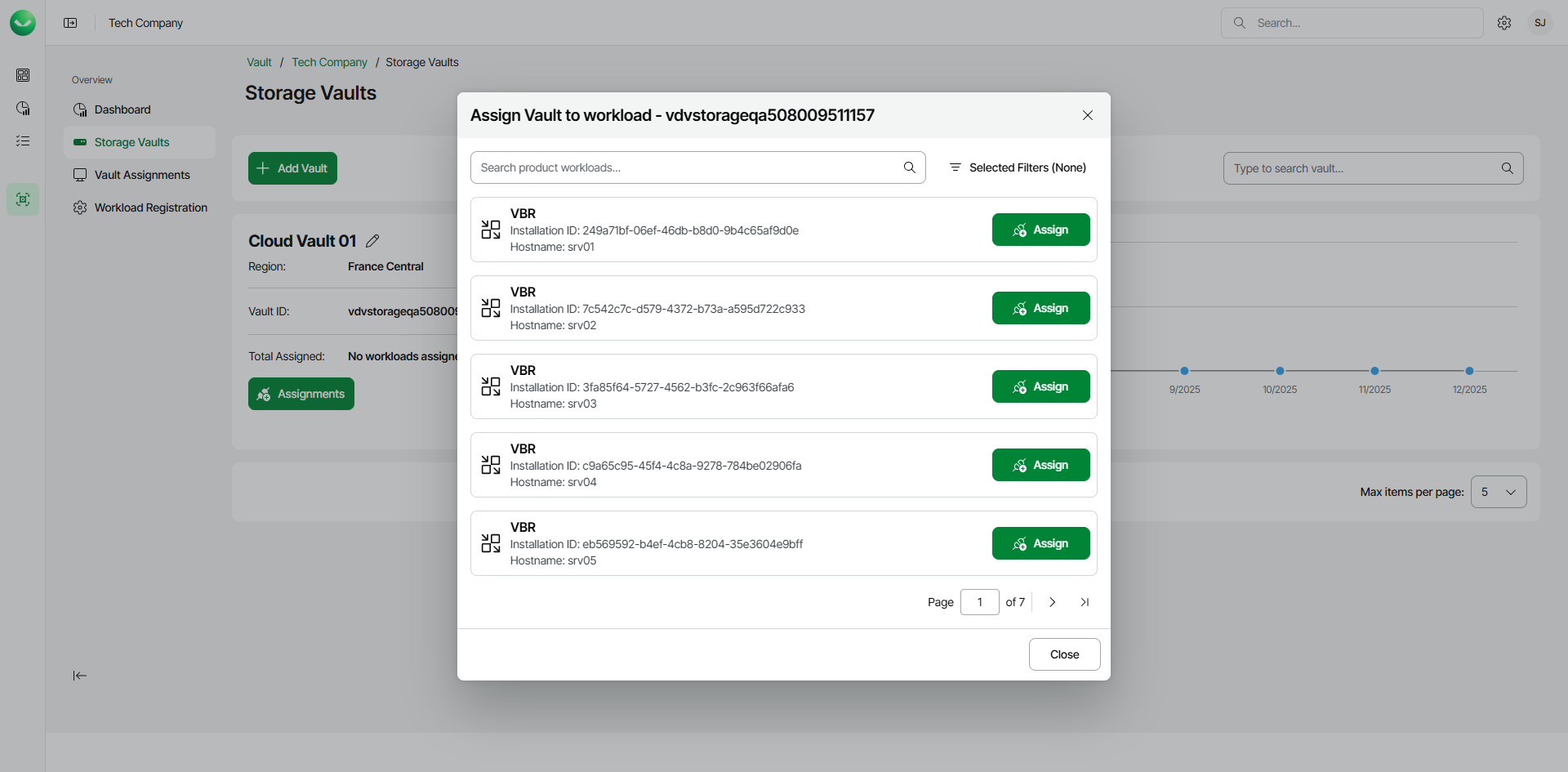
Click Assign next to the necessary workload.
To quickly find the necessary workload, you can use the search field of filter workloads by the workload type.
If you want to assign the storage vault to Veeam Backup & Replication, consider that the list of workloads contains Veeam Backup & Replication servers registered in Veeam Data Cloud as described in Connecting Veeam Data Cloud Vault with Veeam Backup & Replication, steps 1–3.
- In the confirmation window, click Continue.
|
Tip |
|
You can check the list of registered workloads at any time you need. For more information, see Viewing Registered Workloads. |
You can unassign the storage vault from the workload later, if needed. To do this, do the following:
- On the Storage Vaults page, locate the storage vault that you want to unassign and click Manage.
- In the Manage vault window, go to the Assignments tab.
- Click Assigned next to the necessary workload.
- In the confirmation window, click Continue. The storage vault will become unavailable for use by the workload.
|
Note |
|
After you disconnect a Veeam Backup & Replication server from a storage vault, the following applies:
|
