Step 3. Configure Backup Source Settings
At the Sources step of the wizard, select an AWS account that contains Redshift Serverless namespaces you plan to protect, specify AWS Regions where namespaces reside and choose namespaces to back up.
Step 3a. Specify AWS Account
In the Accounts section of the Sources step of the wizard, select the AWS account to which the Redshift Serverless namespaces you plan to protect belong. For an AWS account to be displayed in the list of available accounts, it must be included into the tenant as described in section Adding Tenants.
|
Note |
|
To perform the backup operation, Veeam Data Cloud for AWS uses the permissions of the IAM role that was created in the AWS account during CloudFormation template deployment. |
In the Regions section of the Sources step of the wizard, select AWS Regions where Redshift Serverless namespaces that you plan to back up reside:
- Click Choose regions.
- In the Choose regions window, select the necessary AWS Regions from the Available Regions list, and click Add.
- To save changes made to the backup policy settings, click Apply.
Step 3c. Select Redshift Clusters
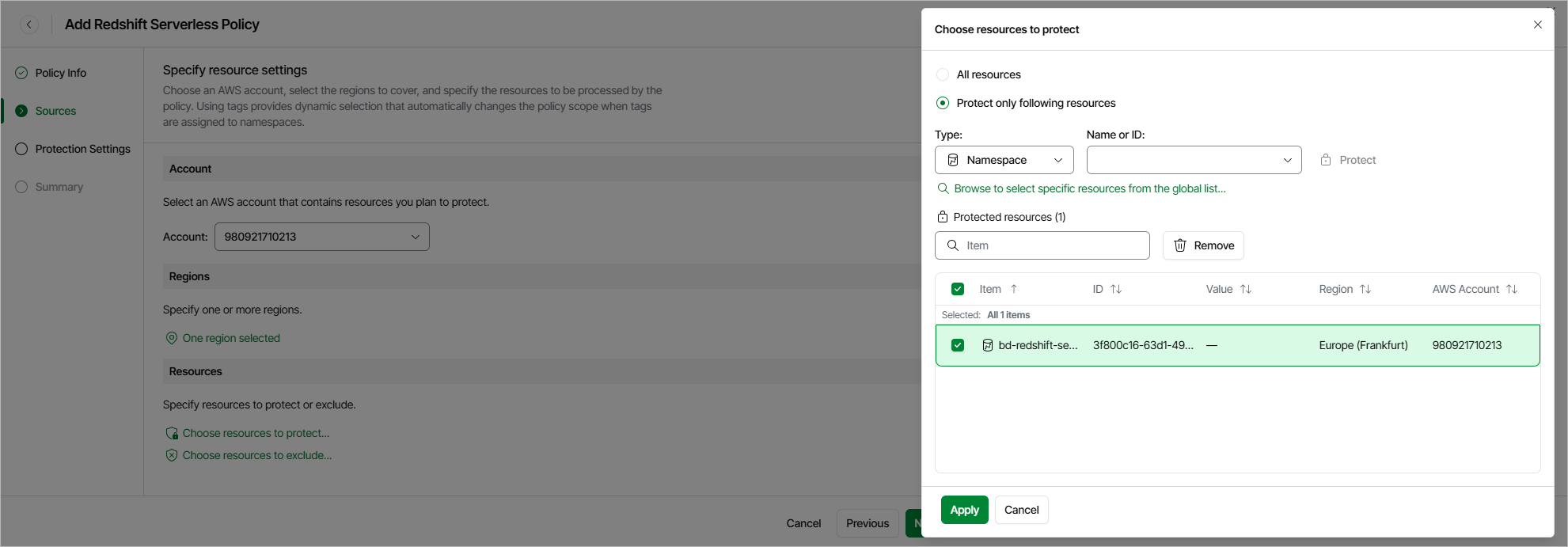
In the Resources section of the Sources step of the wizard, specify the backup scope — select Redshift Serverless namespaces that Veeam Data Cloud for AWS will back up:
- Click Choose resources to protect.
- In the Choose resource to protect window, choose whether you want to back up all Redshift Serverless namespaces from AWS Regions selected at step 3b of the wizard or only specific namespaces.
If you select the All resources option, Veeam Data Cloud for AWS will regularly check for new Redshift Serverless namespaces launched in the selected regions and automatically update the backup policy settings to include these namespaces into the backup scope.
If you select the Protect only following resources option, you must also specify the namespaces explicitly:
- Use the Type drop-down list to choose whether you want to add individual Redshift clusters or AWS tags to the backup scope.
If you select the Tag option, Veeam Data Cloud for AWS will back up only those Redshift Serverless namespaces that have specific tags and reside in the selected regions.
- Use the Name or ID drop-down list to find the necessary resource, and then click Protect to add the resource to the backup scope.
For a resource to be displayed in the list of available resources, it must reside in an AWS Region that has ever been specified in any backup policy. Otherwise, the only option to discover the available resources is to click Browse to select specific resources from the global list and to wait for Veeam Data Cloud for AWS to populate the resource list.
|
Tip |
|
You can simultaneously add multiple resources to the backup scope. To do that, click Browse to select specific resources from the global list, select check boxes next to the necessary Redshift Serverless namespaces or AWS tags in the list of available resources, and then click Protect. If the list does not show the resources that you want to back up, click Rescan to launch the data collection process. As soon as the process is over, Veeam Data Cloud for AWS will update the resource list. |
If you add an AWS tag to the backup scope, Veeam Data Cloud for AWS will regularly check for new Redshift Serverless namespaces assigned the added AWS tag and automatically update the backup policy settings to include these namespaces in the scope. However, this applies only to namespaces from the AWS Regions selected at step 3b of the wizard. If you select a tag assigned to Redshift Serverless namespaces from other regions, these namespaces will not be protected by the backup policy. To work around the issue, either go back to step 3b and add the missing regions, or create a new backup policy.
- To save changes made to the backup policy settings, click Apply.