Entra ID Restore Activity Report
The Restore Activity report shows Entra ID restore operations over a time period, including the users who performed the operations and the operation results. You can use this report to review who restored which objects and whether the restore operations succeeded.
Generating Restore Activity Report
To generate the Restore Activity report, do the following:
-
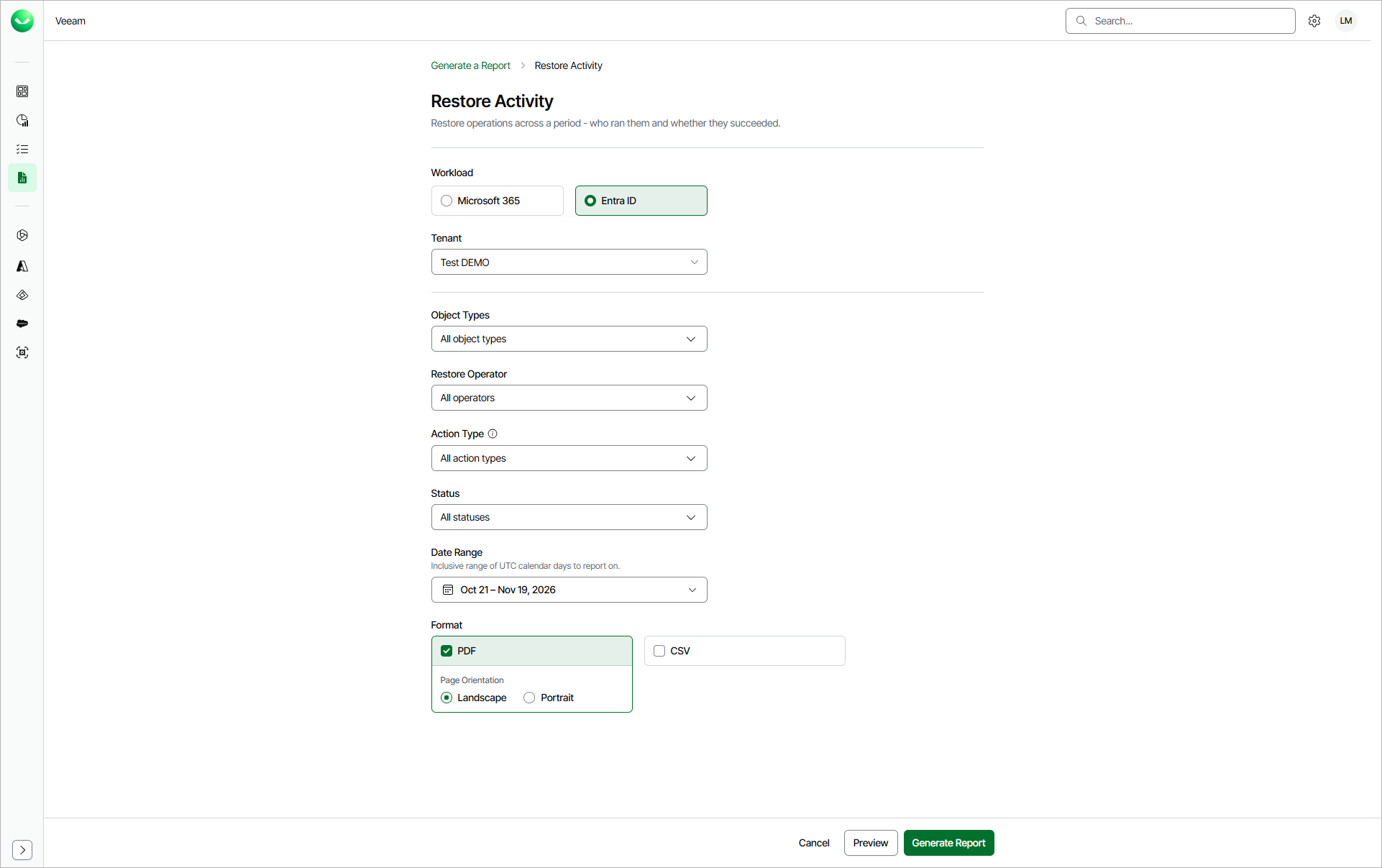
Click the reports icon on the left and click Generate Now.
- On the Generate a Report page, click Restore Activity.
- If the Workload section is displayed, select Entra ID.
- If the organization has more than one tenant, from Tenant drop-down list, select the tenant for which you want to generate the report.
- From the Object Types drop-down list, select one or more types of Entra ID objects whose restore operations you want to include in the report. By default, the report includes all object types.
- From the Restore Operator drop-down list, select the users who performed the restore operations. By default, the report includes restore operations of all operators.
- From the Action Type drop-down list, select the type of restore operations. For Entra ID, only the Restore action type is available. Compare-and-restore operations are reported as Restore.
- From the Status drop-down list, select one or more statuses of restore operations that you want to include in the report. By default, the report includes restore operations with all statuses.
- In the Date Range field, select the period for which you want to generate the report. The date range includes the first and the last day of the period. Days are counted in UTC.
- In the Format section, select the PDF check box, the CSV check box or both. For PDF, select the page orientation: Landscape or Portrait.
- [Optional] To view an interactive preview of the report, click Preview. For details, see Previewing Restore Activity Report.
- Click Generate Report. Veeam Data Cloud will generate the report in the selected formats.
Downloading Restore Activity Report
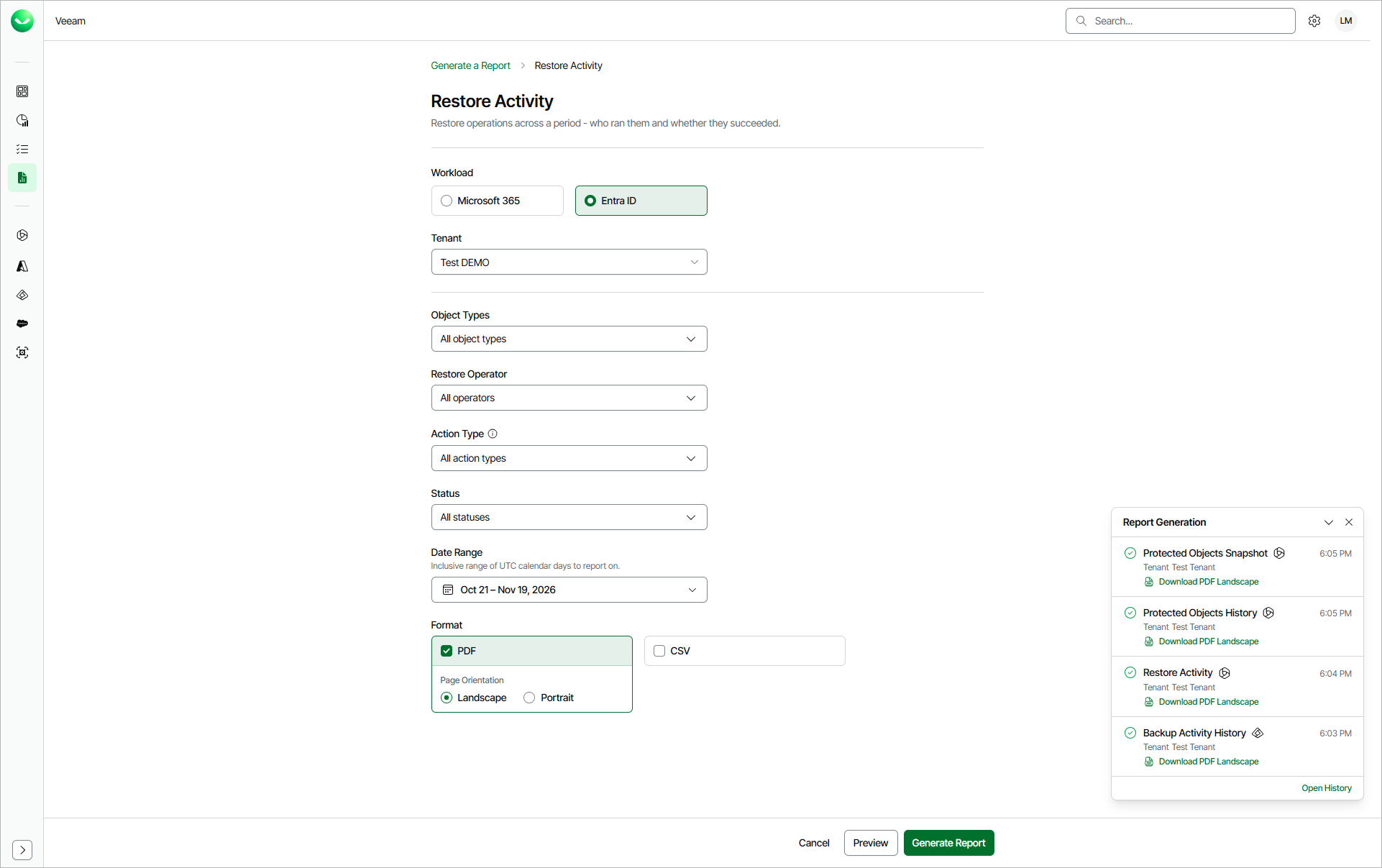
After you click Generate Report, Veeam Data Cloud opens the Report Generation panel in the lower-right corner of the page. The panel displays the status of the report: Queued, Generating or Ready.
To download the report, do the following:
- Wait until the status of the report in the Report Generation panel changes to Ready.
- Click Download PDF or Download CSV. The report is saved to your browser download location.
The Report Generation panel displays the five latest reports generated during the last day. To download an earlier report, use the History page. For details, see Viewing Report History.
Previewing Restore Activity Report
To preview the Restore Activity report, specify the report settings and click Preview.
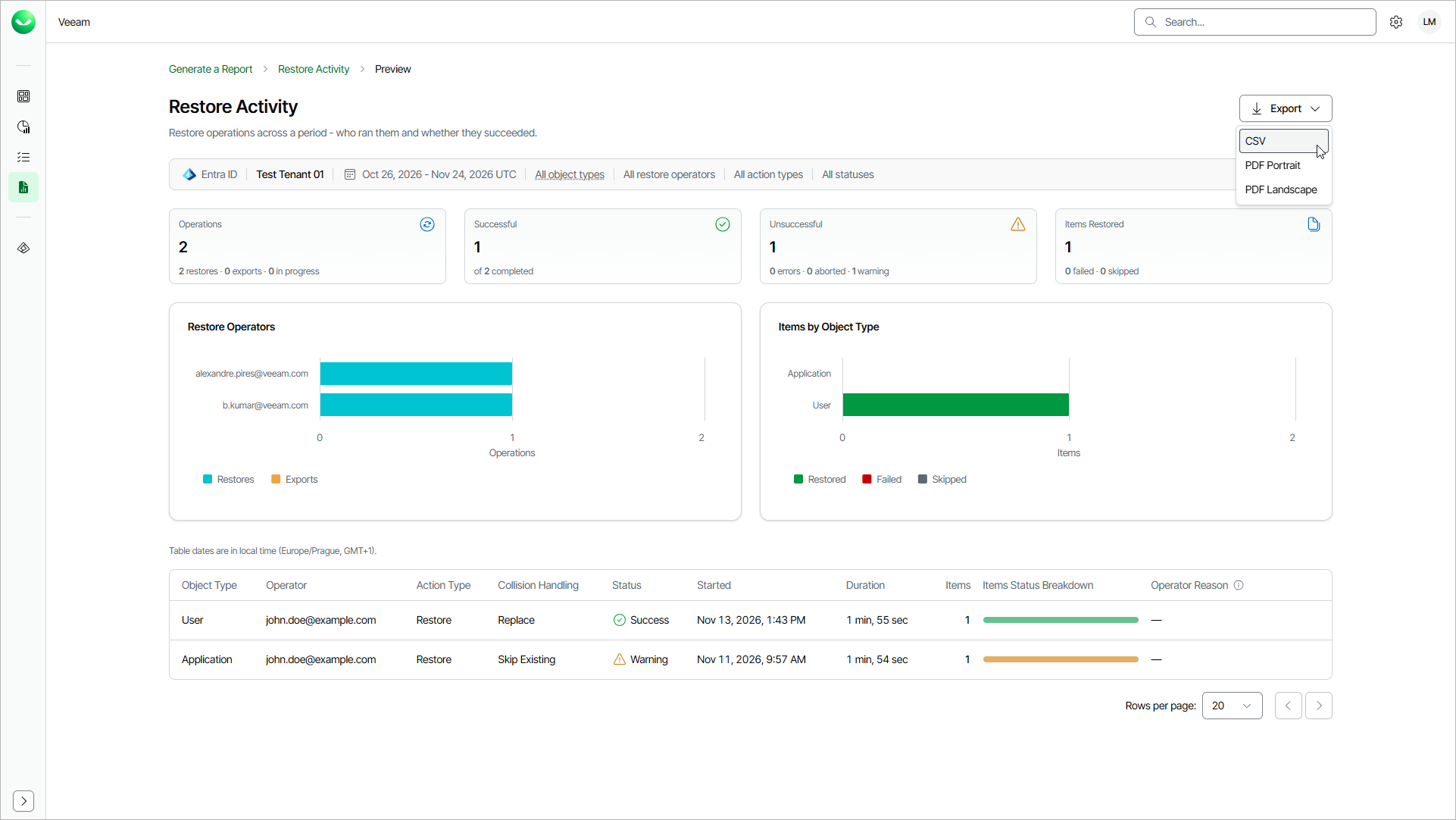
At the top of the preview page, Veeam Data Cloud displays a summary of the report settings: the workload, tenant, date range, object types, restore operators, action types and statuses. To change the report settings, click Edit Settings.
In the summary section, Veeam Data Cloud displays the following information.
|
Property |
Description |
|---|---|
|
Operations |
Total number of restore operations |
|
Successful |
Number of successful restore operations |
|
Unsuccessful |
Number of unsuccessful restore operations |
|
Items Restored |
Number of restored items |
In the Restore Operators section, Veeam Data Cloud displays the number of restore operations performed by each restore operator.
In the Items by Object Type section, Veeam Data Cloud displays the number of restored items of each object type.
In the table, Veeam Data Cloud displays details on each restore operation. Dates in the table are displayed in your local time. The table contains the following columns.
|
Property |
Description |
|---|---|
|
Object Type |
Type of the restored object |
|
Operator |
User who performed the restore operation |
|
Action Type |
Type of the restore operation |
|
Collision Handling |
Restore behavior applied when the restored item already exists in the tenant |
|
Status |
Status of the restore operation |
|
Started |
Date and time when the restore operation started |
|
Duration |
Duration of the restore operation |
|
Items |
Number of processed items |
|
Items Status Breakdown |
Number of items that were restored successfully, failed or skipped |
|
Operator Reason |
Reason for the restore operation specified by the restore operator |
To export the report from the preview page, click Export and select CSV, PDF Portrait or PDF Landscape.
Restore Activity Report CSV Fields
If you generate the Restore Activity report in the CSV format, the .CSV file contains the following fields.
|
Property |
Description |
|---|---|
|
Tenant |
Name of the tenant |
|
Start Time (UTC) |
Date and time (in UTC) when the restore operation started |
|
End Time (UTC) |
Date and time (in UTC) when the restore operation ended |
|
Duration |
Duration of the restore operation |
|
Object Type |
Type of the restored object |
|
Operator Account |
Account of the user who performed the restore operation |
|
Operator |
Name of the user who performed the restore operation |
|
Action Type |
Type of the restore operation |
|
Collision Handling |
Restore behavior applied when the restored item already exists in the tenant |
|
Status |
Status of the restore operation |
|
Items Processed |
Number of processed items |
|
Items Successful |
Number of successfully restored items |
|
Items Failed |
Number of items that were not restored |
|
Items Skipped |
Number of skipped items |
|
Operator Reason |
Reason for the restore operation specified by the restore operator |
|
Execution ID |
ID of the restore operation |
The last row of the file, TOTAL, contains the total number of restore operations and the number of failed restore operations.
For example:
|
Tenant,Start Time (UTC),End Time (UTC),Duration,Object Type,Operator Account,Operator,Action Type,Collision Handling,Status,Items Processed,Items Successful,Items Failed,Items Skipped,Operator Reason,Execution ID |